
How To Change Wifi Password Vianet

Your Wi-Fi, Your Rules: The Vianet Password Shuffle
Let’s be honest—your Wi-Fi password is the digital key to your entire kingdom. It’s the gatekeeper between your streaming marathons and your neighbor’s kid downloading 4K movies at 2 AM. Changing it isn’t just about security; it’s a power move that puts you back in the driver’s seat.
Think of it as a fresh start for your home network. You get to kick off the freeloaders, secure your personal data, and finally make that password something you can actually remember. Plus, it’s a five-minute task that makes you feel like a tech wizard, even if you’ve never touched a router before.
Why Bother? The Real Payoff
First, security is the big one. An old, shared password is like leaving your front door unlocked—anyone who once had it can hop back on and snoop through your devices. A new, unique password creates a clean wall between your personal files and the outside world.
Must Read
Second, performance gets a boost. When too many devices piggyback on your network, everything slows down to a crawl. Changing the password forces those unwanted guests off, freeing up bandwidth for your gaming, Zoom calls, and that all-important Netflix queue.
Finally, it’s peace of mind. You control who connects, when they connect, and how long they stay. It’s a simple way to reclaim your digital territory without calling customer support.

Step 1: Find Your Router’s Secret Lair
Your Vianet router has a small sticker on the back or bottom. Look for the default IP address—usually something like 192.168.1.1 or 192.168.0.1. Write that down, along with the default admin username and password (often “admin” for both).
Open your web browser on any connected device, type that IP address into the address bar, and hit Enter. You’ll see a login page—this is the admin panel, the control room for your entire network. Don’t worry, it looks scarier than it is.
Step 2: Log In Like a Boss
Enter the admin username and password from the sticker. If you’ve changed these before and forgot them, no sweat—you can do a factory reset by holding a tiny pinhole button on the router for 10 seconds. That will restore everything to default, but it also wipes your custom settings, so use it as a last resort.
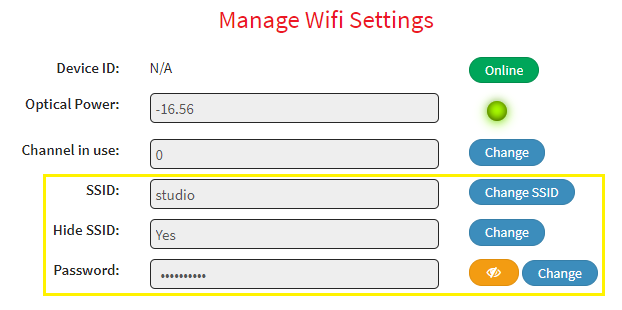
Pro tip: Write your new admin password on a sticky note and tape it under the router. You’ll thank yourself later.
Once you’re in, look for a menu tab labeled Wireless, Wi-Fi Settings, or Security. The exact wording varies, but it’s always near the top or side of the screen.
Step 3: Change the Wi-Fi Password (The Main Event)
In the wireless settings, you’ll find a field called Pre-Shared Key, Passphrase, or simply Password. Delete the old one and type in your new secret code. Make it a good one—mix uppercase, lowercase, numbers, and symbols, like Mango&2024!Sunset.

Avoid using names, birthdays, or “password123.” The goal is to be unpredictable but memorable. Try a phrase like “BlueBanana#7Rocket” — it’s silly, but it’s practically uncrackable.
Hit Save or Apply. Your router will restart, and every device currently connected will be kicked off—that’s normal. Give it 30 seconds to reboot.
Step 4: Reconnect Your Devices
Now you’ll need to reconnect your phone, laptop, TV, and smart fridge. Go to each device’s Wi-Fi settings, select your network name (SSID), and type in the shiny new password. It’s a bit of a chore, but think of it as a digital spring cleaning.

If your TV or gaming console asks for the password again, that’s a good sign—it means the change worked. For robots like smart speakers, you might need to re-enter the details in their apps. Still, it’s a small price for a fortress of solitude.
You’re Done! Now Breathe
Congratulations, you’ve just upgraded your network’s security and speed. You can now confidently tell your neighbor, “Sorry, new password, ask me nicely,” and watch your streaming buffer vanish.
Remember, you can repeat this anytime you feel weird vibes or just want a refresh. Keeping your Wi-Fi secure is a habit, not a one-time event. So go ahead—take that power back, one password at a time.


