Hp Printer Wont Print From Computer
Last Tuesday, I had a full-blown, adult-sized meltdown over a piece of plastic. I had just finished a frantic 45-minute edit session on my novel, hit “Print,” and then watched the little blue light on my HP printer blink at me with what I can only describe as smug indifference. Nothing. Not a whir, not a click, not even a sad little paper jam error. Just silence, and the growing realization that I was about to miss a deadline because my printer had decided to become a very expensive paperweight.
I’m pretty sure my printer has a personal vendetta against me. It knows when I’m in a hurry, and it chooses that exact moment to forget it has a driver, a USB cable, or a Wi-Fi connection. If you’re reading this, you’ve probably been there. You’re staring at your screen, clicking “Print” for the fourth time, and whispering sweet nothings like “Come on, baby, work with me,” while your computer shows a cheerful “Error” dialog box. Sound familiar?
So, let’s talk about the most common reason your HP printer won’t take orders from your computer. It’s almost never the printer itself—it’s the invisible handshake between the two devices. Before you throw the whole thing out the window, remember that this is usually a software or connection hiccup, not a hardware funeral. Your printer is probably fine; it’s just being a dramatic diva.
The Classic “Check the Spooler” Dance
First, let’s tackle the silent killer: the print spooler. This is the little background service on your Windows PC that manages all your print jobs. If it gets stuck, every document you send will just queue up in a digital limbo. You can check this by pressing Windows Key + R, typing services.msc, and scrolling down to “Print Spooler.”
Right-click it and hit “Restart.” If it’s stopped, start it. This is the tech equivalent of turning it off and on again, but it fixes a shocking 50% of my client’s issues. And hey, while you’re there, try restarting your computer before you restart the printer. It’s a low-effort, high-reward move that makes you look like a wizard to anyone watching.
The USB vs. Wi-Fi Conundrum
If you’re using a USB cable, make sure it’s not plugged into a fancy front-panel port. Those are for your phone charger, not for data. Use a port on the back of your PC, directly on the motherboard. I once spent an hour troubleshooting a printer that wouldn’t print, only to realize my cat had chewed through the USB cable. I’m not saying it’s your cat, but I’m also not saying it isn’t.
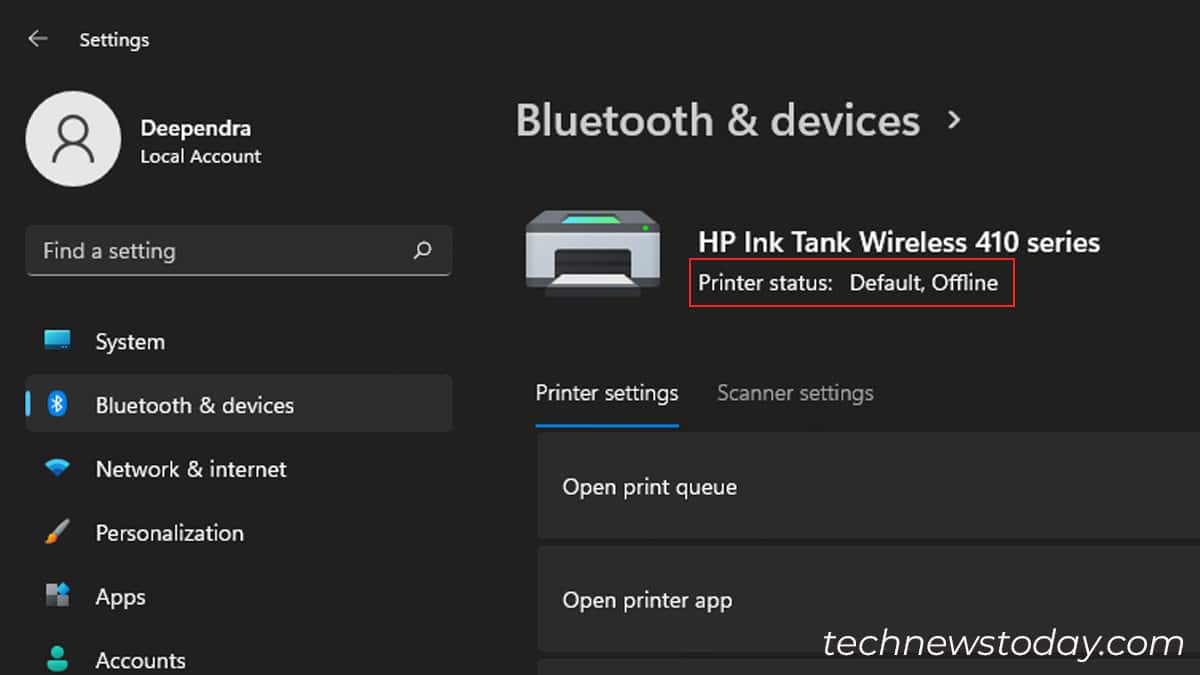
For Wi-Fi, the issue is usually that your printer has secretly hopped onto a different network. Printers have a nasty habit of connecting to your neighbor’s open “HomeNet” instead of your secure one. Check the printer’s control panel, go to Network Settings, and confirm it’s on the exact same network as your computer. If they’re not on the same network, they might as well be on different planets.
Drivers: The Unloved Middlemen
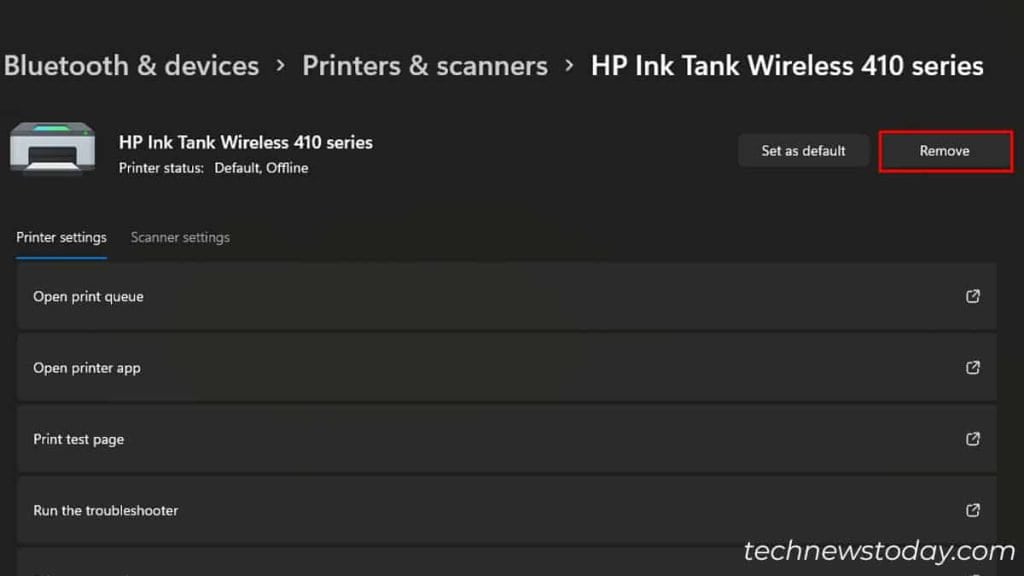
Now, let’s talk about drivers. These are the translators that let your computer speak printer-ese. If your driver is outdated or corrupted, you’re basically speaking English to a Frenchman who only understands French. Go to HP’s official website, download the latest full-featured driver, and do a clean install. Don’t just uninstall the printer in Settings—use the “Print Management” tool or a dedicated uninstaller to really get rid of it.
I know, I know. Updating drivers feels like dental work, but it’s the key to fixing this mess. And here’s a pro tip: after you update, reboot your computer. Don’t try to be clever and skip it. Your system needs to shake hands with the new translator.

The “Set as Default” Trick
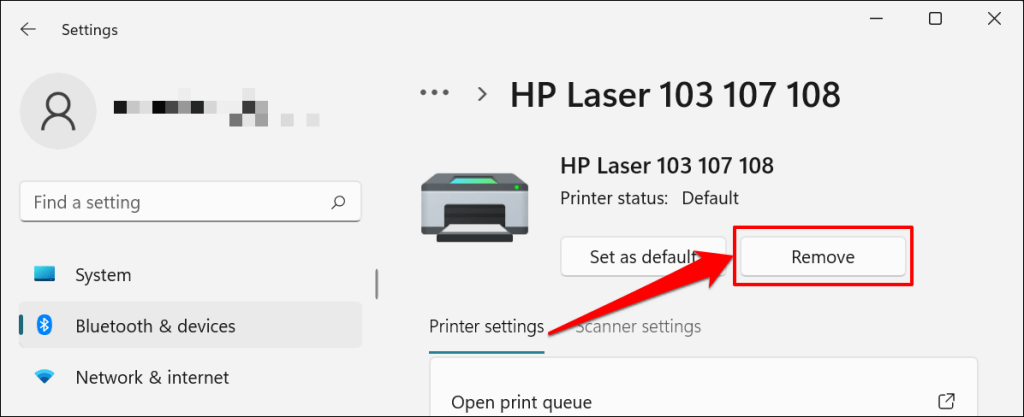
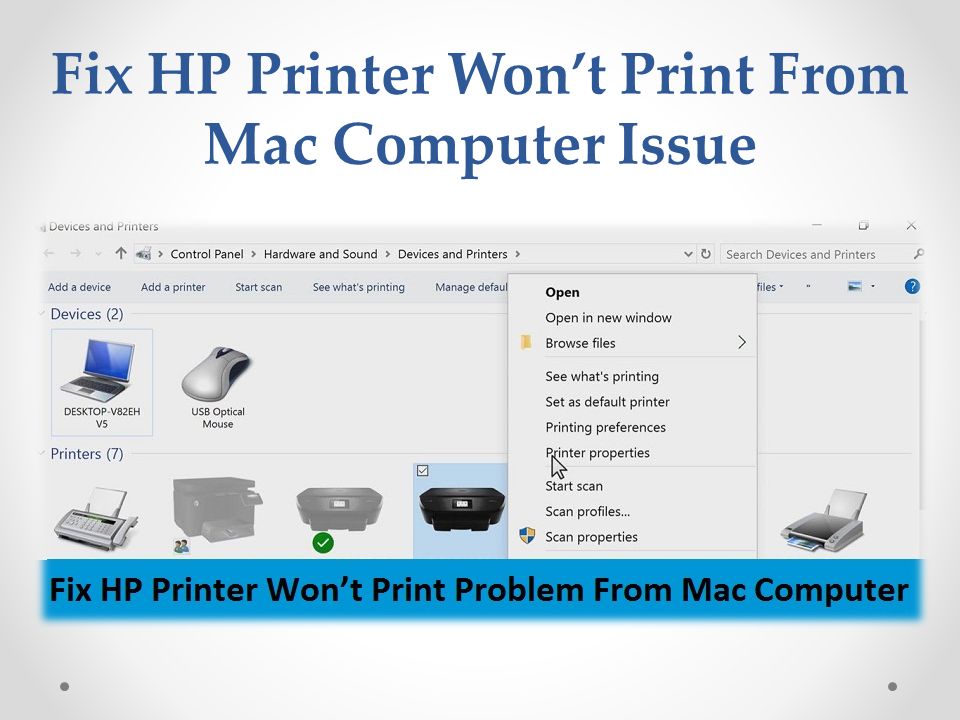
Here’s a sneaky one. Sometimes, your computer has multiple printers listed, and it’s sending the document to a ghost printer or a “Microsoft Print to PDF” virtual device. Check your Devices and Printers folder. Right-click your HP printer and select “Set as default printer.” Also, uncheck the box that says “Let Windows manage my default printer.” That feature is well-intentioned but often causes this exact headache.
If all else fails, check if there’s a paper jam or a blinking orange light. I once panicked for two hours, only to find a single, stubborn paperclip jammed in the roller. Printers have a sixth sense for finding office supplies to eat.
So, before you start sacrificing a USB cable to the tech gods, run through this checklist. Restart the spooler, check your connection, update the driver, and make sure you’re printing to the right machine. Nine times out of ten, this gets you back to business. And if it doesn’t? Well, maybe take that as a sign to go get some fresh air. The printer will still be waiting for you when you get back—smugly, of course.