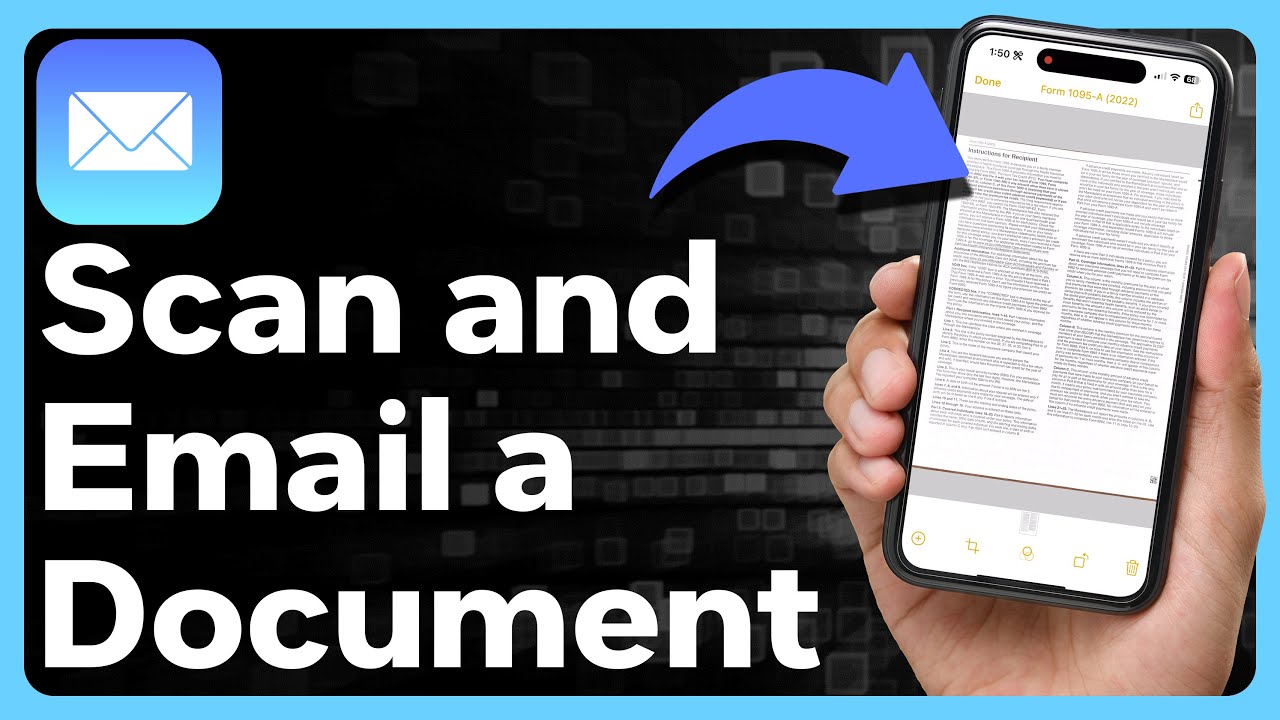
How To Scan A Document And Send It
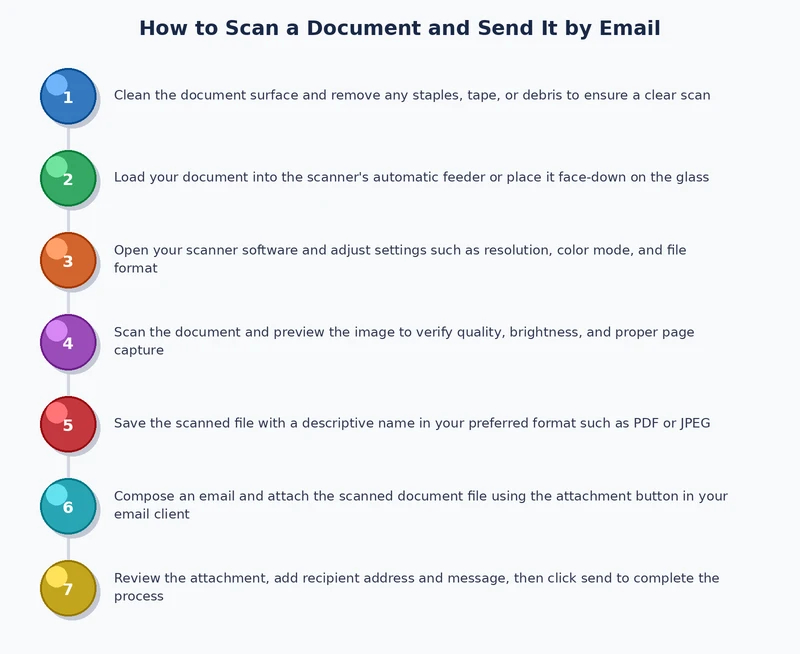
Scan Like a Boss (Without Losing Your Mind)
Let’s be honest—scanning a document used to feel like defusing a bomb. You’d press a button, a creepy green light would sweep across the glass, and somehow you’d end up with a crooked, sideways PDF that looks like abstract art. But guess what? It’s 2024, and you have a supercomputer in your pocket that can do this in ten seconds flat.
Forget the ancient office copier that eats paper like a hungry dinosaur. Your phone is now the ultimate scanning wizard. All you need is a piece of paper, a flat surface, and a tiny bit of patience (like, the amount you have before your coffee kicks in).
Step One: The Magic App—Your New Best Friend
You don’t need a fancy, expensive scanner. You need an app. If you have an iPhone, open your Notes app—yes, the one you use for grocery lists—and tap the little camera icon. For Android, try Google Drive or CamScanner; they’re free and practically do the thinking for you.
Must Read
Think of these apps as your digital paper whisperer. They see a piece of paper and instantly turn it into a crisp, clean file. It’s like magic, but with fewer top hats and more pixels.
Step Two: The “Flat Cat” Technique
Place your document on a table with good lighting. No, not under a lamp that casts weird shadows—just normal, boring daylight is perfect. Now, hold your phone directly above the paper, like you’re taking a photo of your lunch for Instagram.
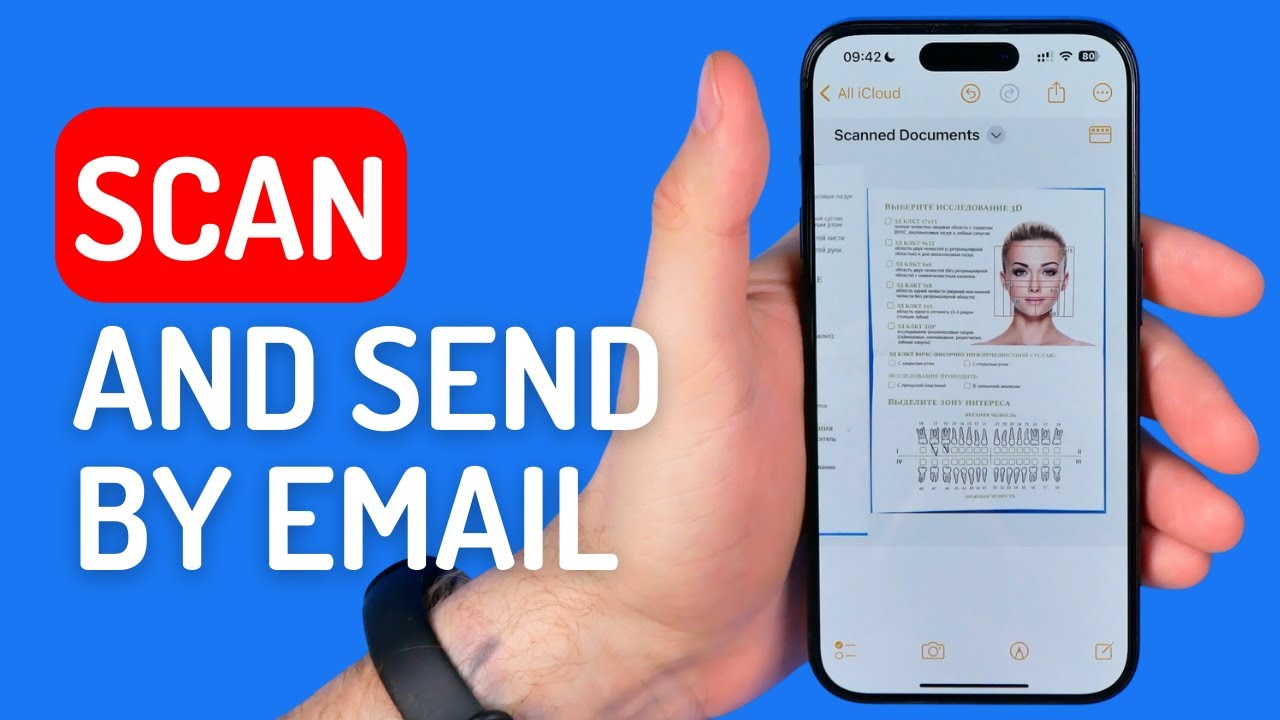
Here’s the pro trick: Don’t be shy. Get close, let the app see the whole page, and watch it automatically detect the edges. If it’s a receipt that’s crumpled like a ball, just flatten it with your hand. Pretend you’re smoothing out a wrinkle in your bedsheets—same energy, less frustration.
Step Three: Press the Big, Shiny Button
Most apps have a giant white or blue button at the bottom. Tap it. That’s it. The app will snap the photo and then magically straighten it, crop it, and make it look like it was printed yesterday. You’ll hear a satisfying “click” or “ding”—that’s the sound of your stress dissolving.
If the app gives you options like “Color,” “Black & White,” or “Gray,” just pick Color for receipts and Black & White for text. Honestly, you can’t mess this up. Even if you choose wrong, it’ll still be readable—no one’s grading your scan.

Step Four: Save It Like a Hoarder (But Organized)
Once you’ve taken the scan, the app will ask you to “Save” or “Add.” Do that immediately. Give it a silly name like “Receipt for tacos” or “That contract I never read.” You’ll thank yourself later when you’re not scrolling through 400 files named “Image_001”.
Now, here’s the golden rule: Save it as a PDF if you’re sending it to someone for official stuff. If it’s just a quick picture, a JPG works fine. Most apps have a “Share” or “Export” button—tap that and you’re halfway to victory.
Step Five: Send It Like a Confident Pro
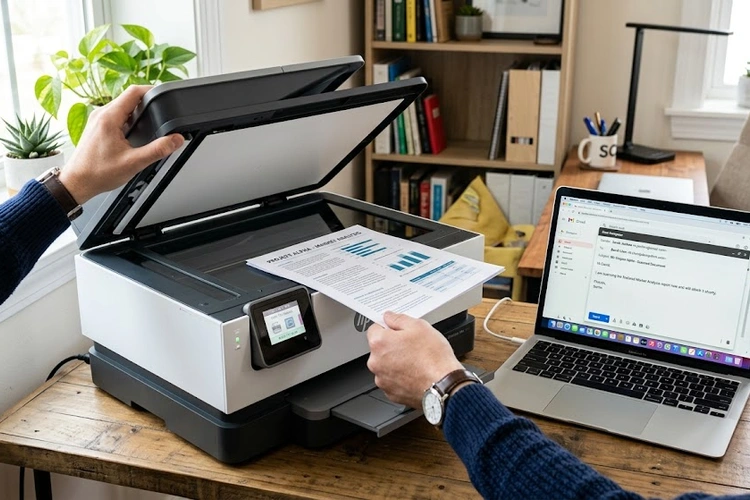
Now for the easiest part—sending. Tap “Share” and choose Email, WhatsApp, or Text Message. Type the recipient’s address, add a cheerful note like “Here you go!” and hit send. Boom. Done.
If you’re emailing it to a grumpy boss or a landlord, attach the PDF and write “Please find attached.” That sounds official. If you’re sending it to your mom, just text the photo and say “Look, I did the thing!”—she’ll be proud either way.
The “Oops, I Sent a Bad Scan” Fix
Did your scan come out blurry or slanted? Don’t panic. Every app has a “Retake” button. Just tap it, adjust your position, and try again. It takes three seconds. You’ve spent longer deciding what to watch on Netflix.
And if you’re in a rush and the scan is a little crooked, just send it anyway. The universe will not collapse. The recipient will likely squint, shrug, and move on. Perfection is overrated; sending is what matters.
“The best scan is the one that actually gets sent. Everything else is just paperwork drama.”
You Did It! Now Go Scan Something Wild
Congratulations, you’ve just joined the digital elite. You can now scan a doctor’s note, a boarding pass, or a love letter from 1987—all without touching a dusty machine. That feeling of empowerment? That’s the scanner energy flowing through you.
So go ahead, scan that weird napkin with a phone number on it. Scan your cat’s paw print. Scan literally anything. You now hold the power to turn paper into pixels, and honestly, that’s the closest thing to wizardry we civilians have. Now go forth and send those files like the absolute legend you are.