Troubleshooting Hp Photosmart 6520

Let’s be honest: your HP Photosmart 6520 is basically the office pet. It hums, it blinks, and sometimes it just stares at you like you owe it money. We’ve all been there—mid-print of a boarding pass or a school project, and suddenly it decides to throw a tantrum like a toddler who missed snack time.
Before you start negotiating with it (I’ve tried, it doesn’t work), take a deep breath. Most of the time, the fix is so simple you’ll feel a little silly. Think of this as a friendly chat with a know-it-all neighbor, but for your printer.
The “Paper Jam” That Isn’t a Jam
You see the dreaded blinking light, and your heart sinks. You yank open the tray, expecting a crumpled mess, but find nothing. It’s like opening the fridge when you’re hungry—no visible food, yet the problem is definitely there.
Must Read
First, check the rear access panel. This is where tiny scraps of paper love to hide, like socks in a dryer. Run your fingers along the rollers; a tiny piece of receipt paper can cause a mutiny that would make a pirate proud.
If you find nothing, power cycle the beast. Unplug it for 30 seconds. It’s not a magic trick, but it’s really close. This resets the tiny brain that’s currently convinced it’s a boat anchor.

The “Cartridge Not Detected” Drama
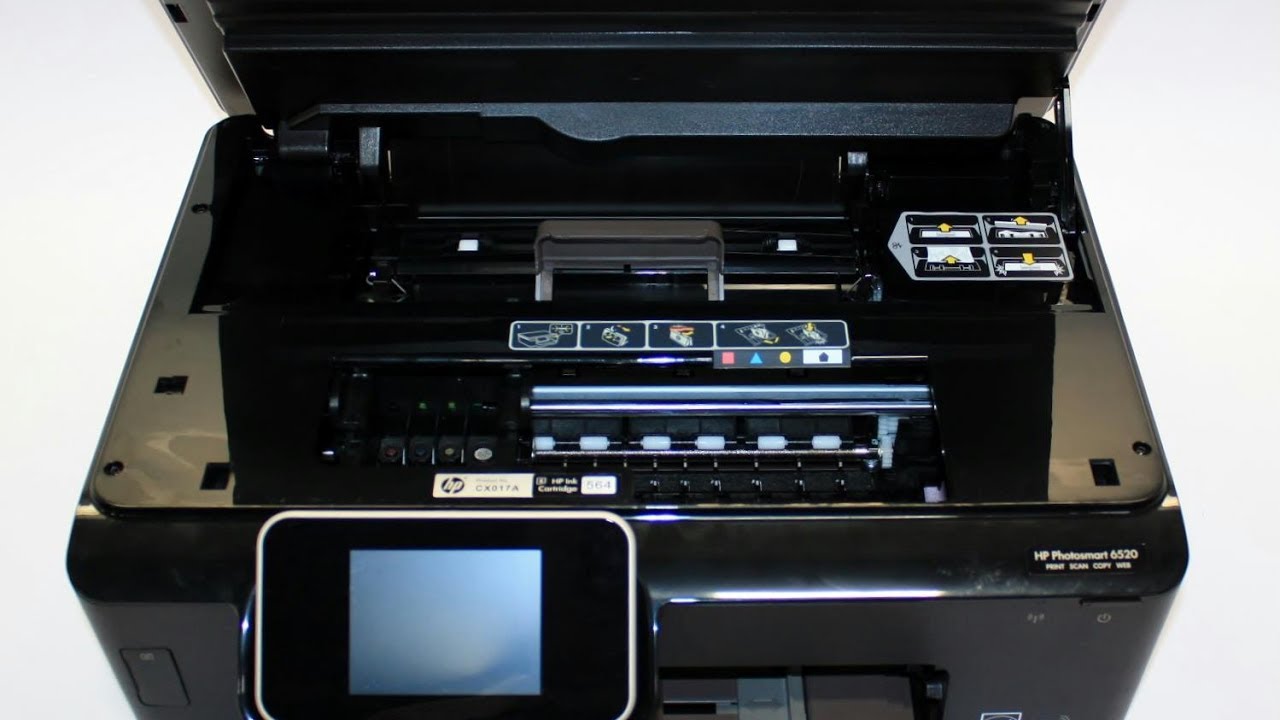
Ah, the classic “I’ve been using you for months, and now you don’t know who I am” routine. It’s like your phone forgetting your best friend’s name. You open the front door (the cartridge access hatch) and the carriage slides over, looking at you with silent judgment.
Here’s the kicker: don’t just press them down. Take each cartridge out, and I mean gently. Look at the copper contacts—they should be shiny, not dusty like your forgotten gym bag. Wipe them with a dry, lint-free cloth (a coffee filter works wonders).
Then, reinstall them with a firm click. If they’re aftermarket cartridges, the printer might be giving you side-eye. In that case, you’re not just dealing with tech problems, but a philosophical disagreement about brand loyalty. Just reseat them twice and whisper sweet nothings.

The “Connected But Not Really” Syndrome
You hit print, and the computer says it’s printing. The printer is silent. It’s laughing at you from across the room. This is the digital equivalent of someone nodding at you in a conversation but not hearing a single word you said.
Your first move is to check if it’s on the Wi-Fi. But not the “guest” Wi-Fi. HP printers are snobs; they only mingle with the main network. Go to the printer’s touchscreen, tap the little wireless icon, and check if it shows a connection. If it’s blank, press the Wireless button on the back until the light turns a steady blue. It’s like giving it a shot of espresso.
If the network is fine, reboot your router. I know, I know—the universal tech move. But it works because the printer holds a grudge against your router’s IP address. Let them have a fresh start. It’s cheaper than couples therapy.
Streaks, Lines, and Ghostly Text
Prints come out looking like the printer is drunk. Blurry lines, missing colors, or text that looks like it was written in invisible ink. This is called a “printhead issue,” but it’s really just dry ink. Think of it like a marker that’s been left uncapped for three weeks.
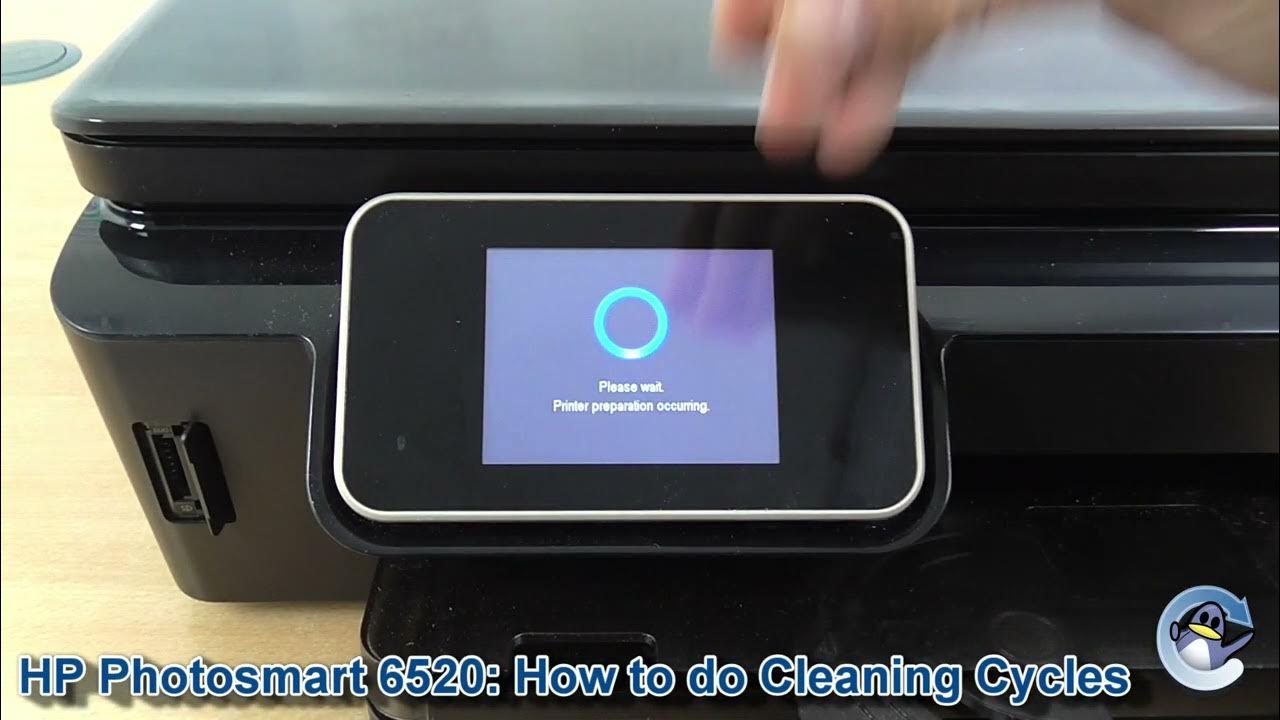
Run the “Clean Printhead” from the HP Toolbox or the printer’s own menu. It’s a slow, grinding process that sounds like a blender with a fork inside. Wait it out. Then print a test page. If it’s better, great. If it’s still streaky, run the “Deep Clean” option.
Warning: Deep Clean uses up ink like a teenager uses your car’s gas. Do it once. If that fails, sometimes the ink is just old. Check the expiration date. Yes, ink has an expiration date. It’s not wine; it doesn’t age well.

The “Offline” Lie
The printer is literally sitting right next to you, plugged in, humming, but Windows or Mac says it’s offline. It’s like your printer is gaslighting you. You can see it with your own eyes, but the software refuses to accept reality.
Go to your computer’s “Devices and Printers.” Right-click on the Photosmart 6520 and select “Use Printer Online.” Yes, it’s that stupidly simple. Nine times out of ten, that’s the only fix. The other time, you need to check if the USB cable fell out (if you’re using one). If you’re wireless, just make sure your computer isn’t connected to a VPN—that confuses the printer’s tiny brain further.
At the end of the day, this printer is like a loyal but grumpy goldfish. It only needs food (ink), clean water (a good dusting), and a stable bowl (your Wi-Fi). Treat it with a little patience, and it’ll print for another decade. And if all else fails, just turn it off, unplug it, and go make a coffee. When you come back, it’ll have missed you enough to behave. Probably.