Microsoft Word Gantt Chart Template
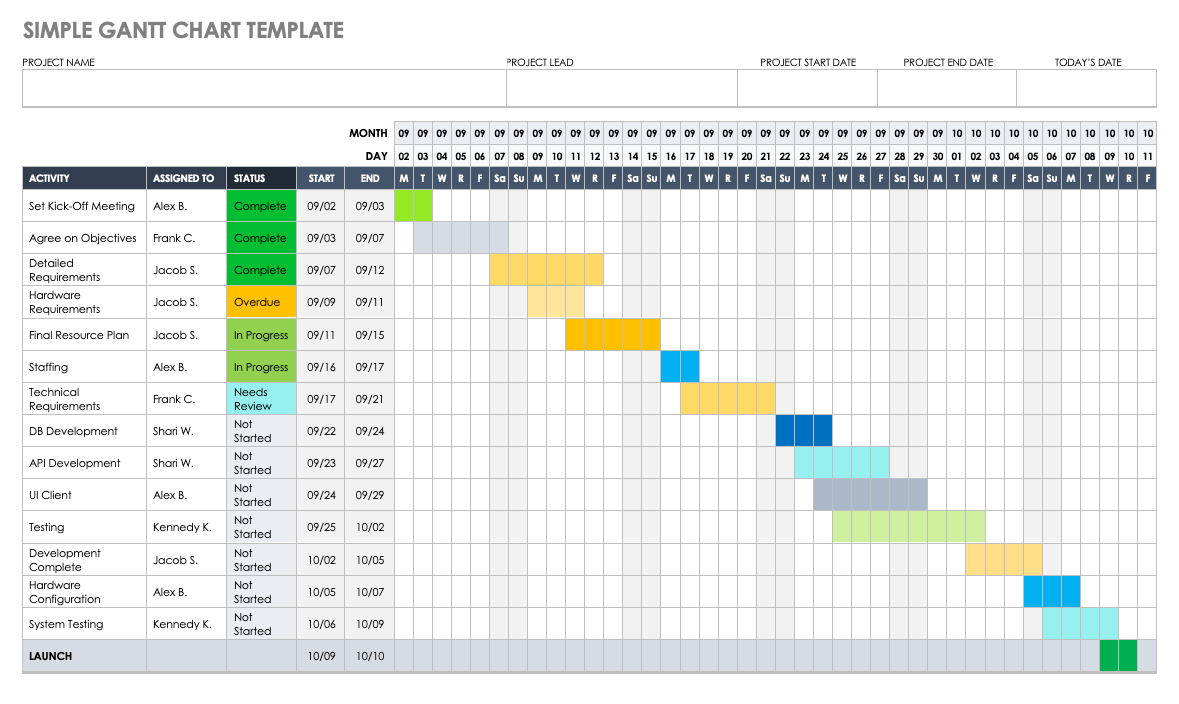
Last Tuesday, I found myself staring at a whiteboard covered in a chaotic spiderweb of sticky notes, arrows, and a frankly alarming amount of coffee ring stains. My project was due in three weeks, and I had absolutely no idea which task depended on which. I felt like a less attractive Indiana Jones, lost in a temple of my own making, except the traps were just passive-aggressive emails from my team lead.
Then, a very sane coworker leaned over and whispered, “Just use the Gantt chart template in Word.” I laughed, mostly out of panic, because Word? For project management? That’s like using a butter knife to perform surgery—technically possible, but why would you do that to yourself? But I was desperate, and desperation makes you do crazy things, like trusting the “Insert” tab with your entire career.
Surprise, surprise: the old dog had some new tricks. I’m here to tell you that the Microsoft Word Gantt Chart Template is not the joke I thought it was. It’s the scrappy underdog of the project management world, waiting in the shadows of the fancy, expensive software you totally don’t need to buy just yet.
Must Read
What Exactly Are We Dealing With?
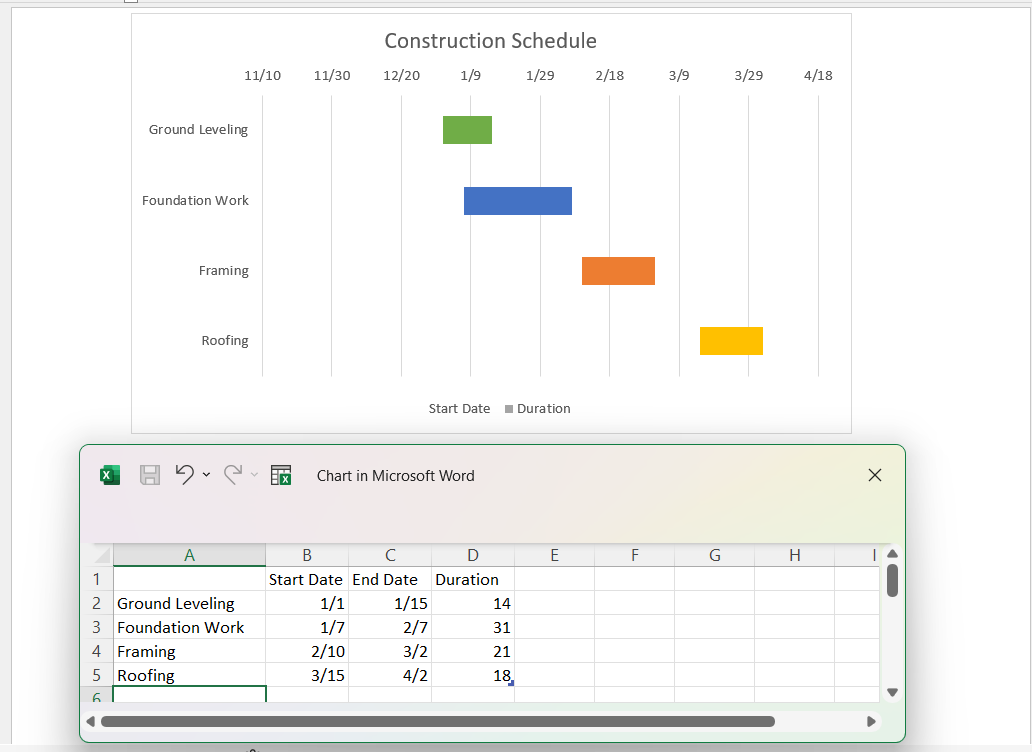
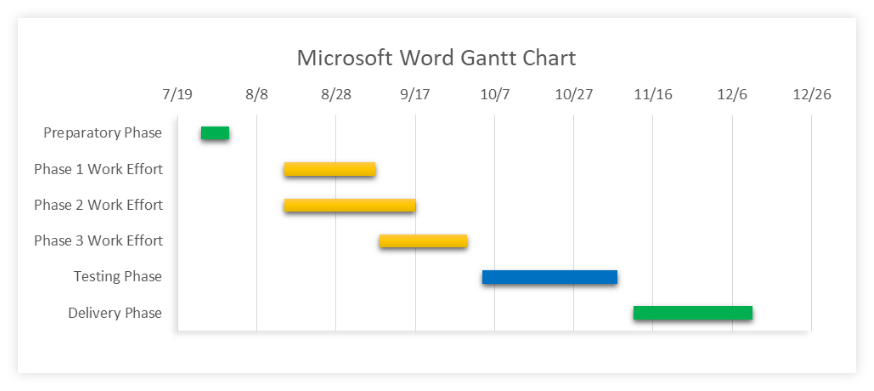
First, let’s get one thing straight: Word doesn’t have a native button that says “Make me a magical chart.” That would be too easy. Instead, you have two main paths to glory: the built-in templates you can find when you open Word and search “Gantt,” or you can build one manually using a stacked bar chart. The first option is a sanity-saver; the second is for people who enjoy solving Rubik’s cubes blindfolded.
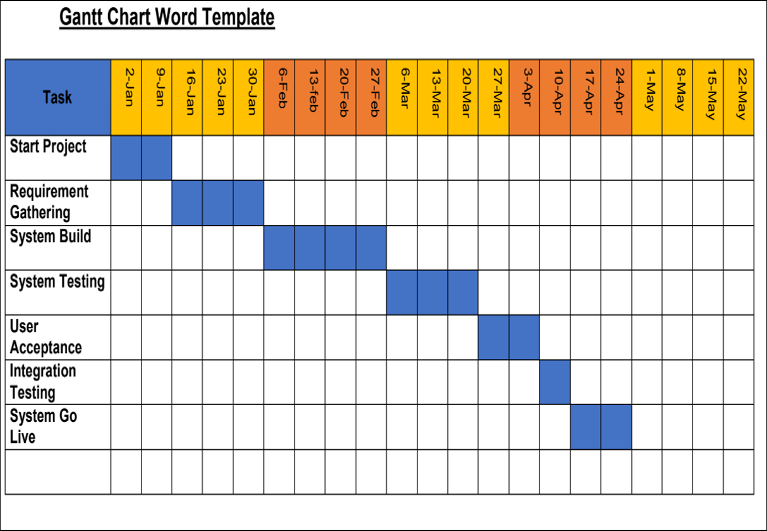
For the love of all that is holy, start with the template. When you hit that search bar in the backstage view, you’ll find a few clean, pre-formatted grids that look like they were designed by an actual human. These aren’t just grey boxes; they come with color-coded bars and even little placeholders for dates, which is more organization than I have in my entire apartment.
The “I’m Not Paying for Smartsheet” Vibe
Here’s the deal: this template is perfect for solo projects or small teams who just need to see the big picture without the steep learning curve. You are not launching a Mars rover, Karen. You are launching a quarterly marketing campaign, and you need to know if the design phase overlaps with the copywriting phase. This chart does that, and it does it without a 45-minute onboarding tutorial.
I love that it lives inside a document. Your proposal, your budget, and your timeline are all in one file. You can’t lose it, you can’t forget to share it, and you can just email the whole messy package to your boss at 5 PM on a Friday, feeling weirdly accomplished. It’s the productivity equivalent of a warm, slightly boring hug.
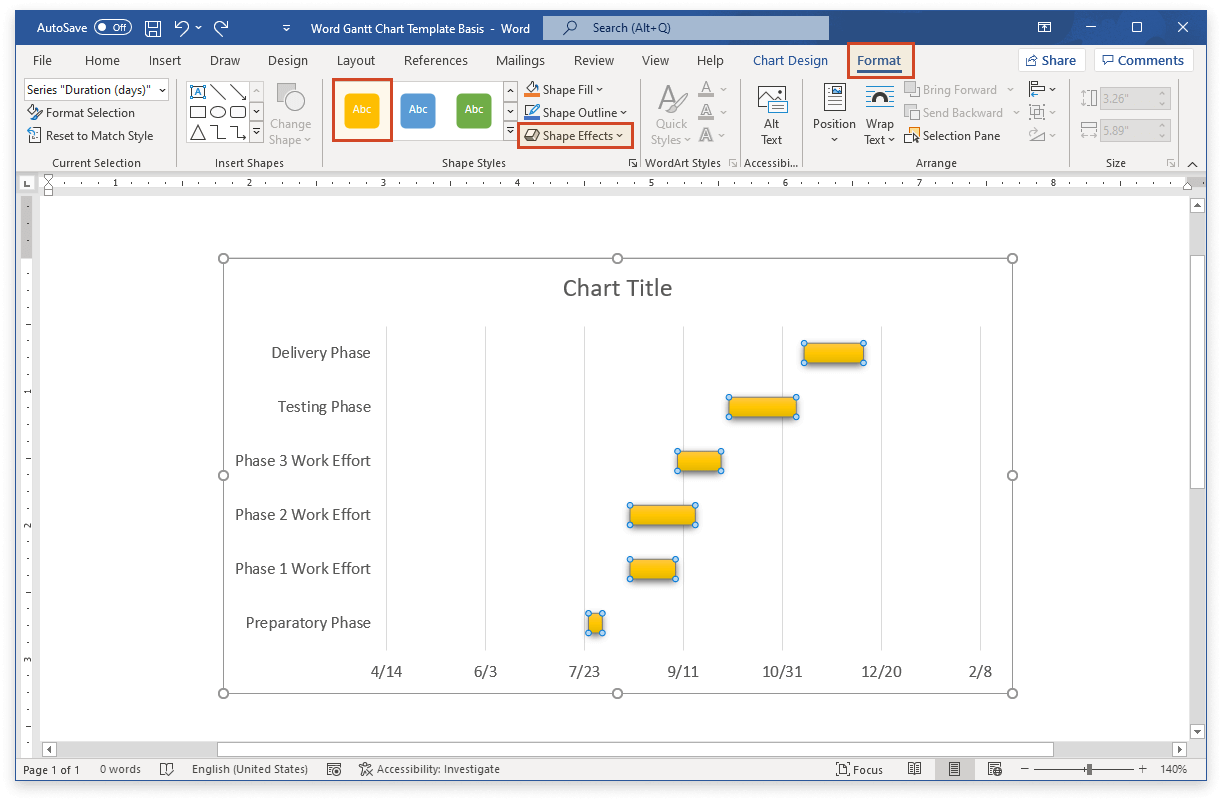
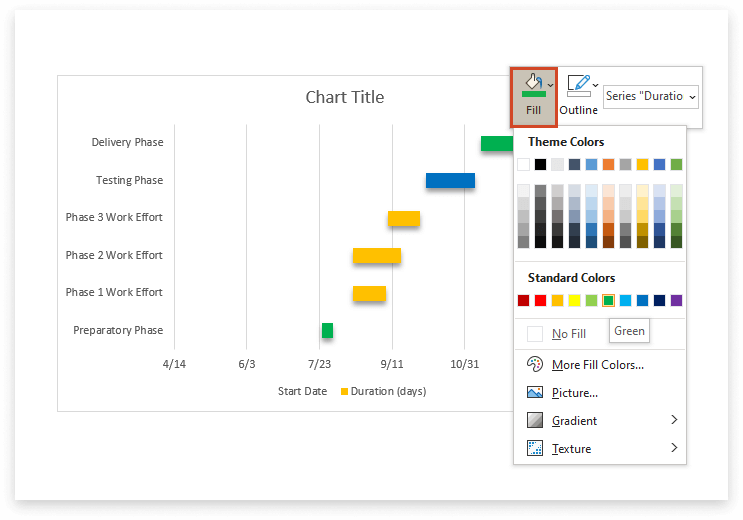
And the customization? It’s actually decent. You can drag the bars to change the duration, change the fill color to match your company’s brand (yawn, but okay), and type directly into the cells. You feel like a boss, but you’re just using a glorified table. It’s a beautiful, ironic lie that I fully support.
The Catch (There’s Always a Catch)
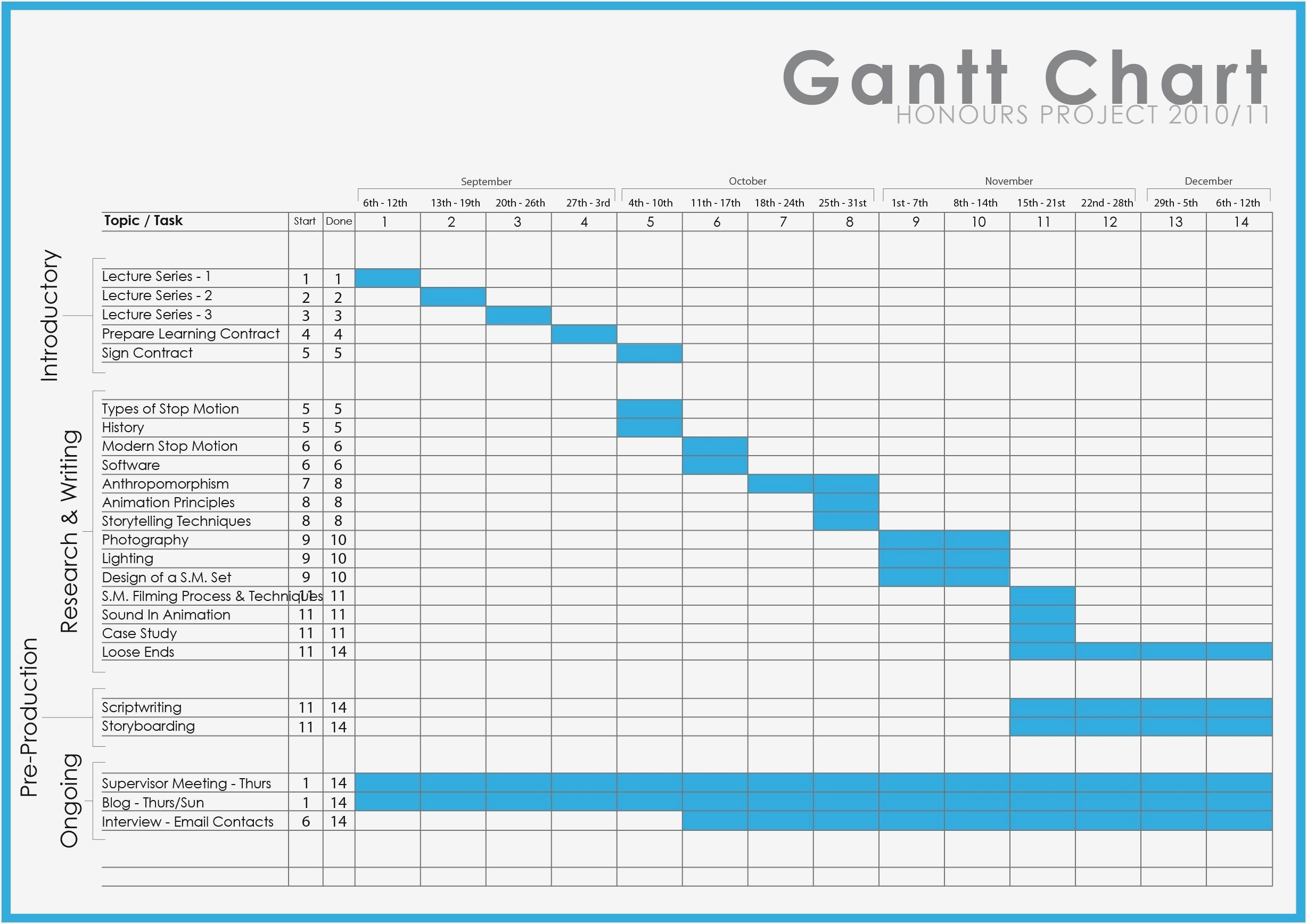
Let’s not sugarcoat this: the flexibility is limited. You won’t get nifty dependency arrows that magically re-align when a task slips. If your design team is late (they always are), you have to manually move the colored box down. That’s a bit like resetting a physical chess board every time someone sneezes.
Also, it can get ugly if you have more than, say, twenty tasks. The font shrinks to a size that only a hawk can read, and the chart stretches across pages, leaving you with a printout that looks like a Michelin map. But for a quick, dirty, and surprisingly effective visual, it wins the gold medal.
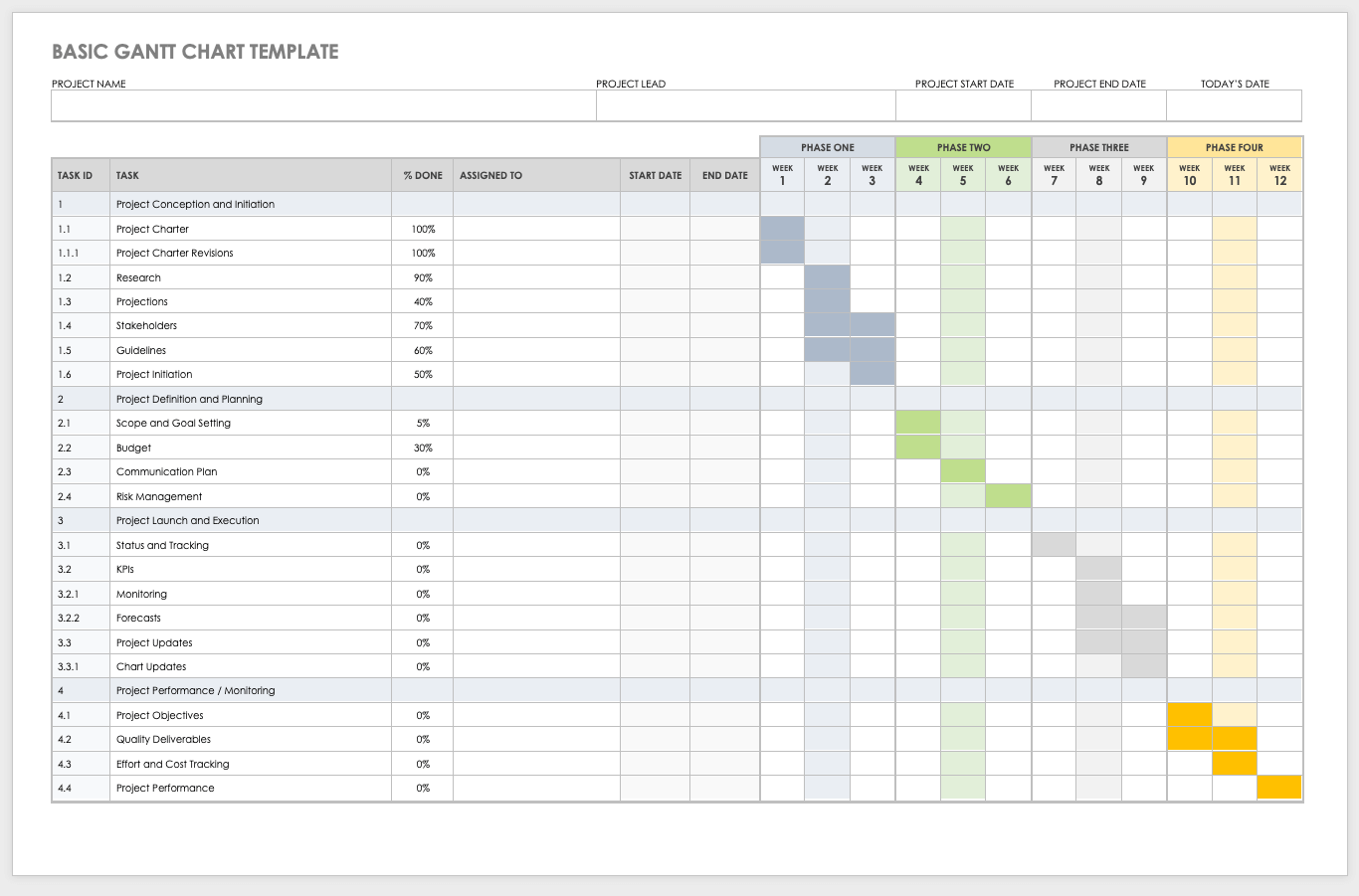
Honestly, the biggest benefit is the psychological one. Seeing your project laid out in those neat little horizontal blocks instantly reduces my anxiety by about 40%. It turns the chaos inside my skull into a concrete, shareable artifact. It’s like putting on clean socks; everything just feels more manageable.
My Final Verdict?
Give it a shot. Pretend you’re an Excel wizard, but with a Word doc open. The next time you are drowning in sticky notes, do what I did and open a fresh document. Sure, it won’t replace Jira, but for a quick fix, a small team, or anyone who just needs to see the timeline before their head explodes, it’s your low-effort, high-reward hack.
So, go ahead—make that super professional chart, slap a title on it, and send it out with confidence. Nobody has to know it took you ten minutes. Your secret is safe with me, and honestly, with Microsoft. Just don’t tell my old boss I said that.