
Latitude E6400 Hard Drive Replacement

Let’s be honest: your Latitude E6400 is not a young machine. It’s the automotive equivalent of a reliable 2008 sedan with a cracked cup holder. And right now, its hard drive is making a sound like a tiny washing machine full of gravel. You have three options: cry, buy a new laptop, or roll up your sleeves.
I know what you’re thinking. “I’m not a tech person.” That’s fine. Neither is your E6400. This is a laptop built for office drones and stubborn librarians, not for rocket scientists. Replacing its drive is more like changing a lightbulb than performing surgery. You’ve got this.
Why Bother? The Unpopular Opinion
Here’s my hot take: don’t buy a new computer. Not yet. The E6400 is a tank, and its only real sin is that spinning rust inside it. Swapping the drive to a cheap SSD makes it feel like a brand-new machine. I’d rather do that than spend $1,000 on a laptop with a keyboard that feels like mashed bananas.
Must Read
Your old laptop isn’t slow. It’s just hungry for a better brain. Feed it a solid-state drive, and it will purr like a kitten.
Plus, keeping this old workhorse alive is a tiny rebellion against planned obsolescence. You’re not cheap. You’re economically brave. And your wallet will high-five you.
What You Actually Need
First, get a 2.5-inch SATA SSD. Any brand from a reputable store works. Don’t buy the weird one from the bargain bin. You’ll also need a tiny Phillips-head screwdriver—the one that looks like a toy, not a tool.
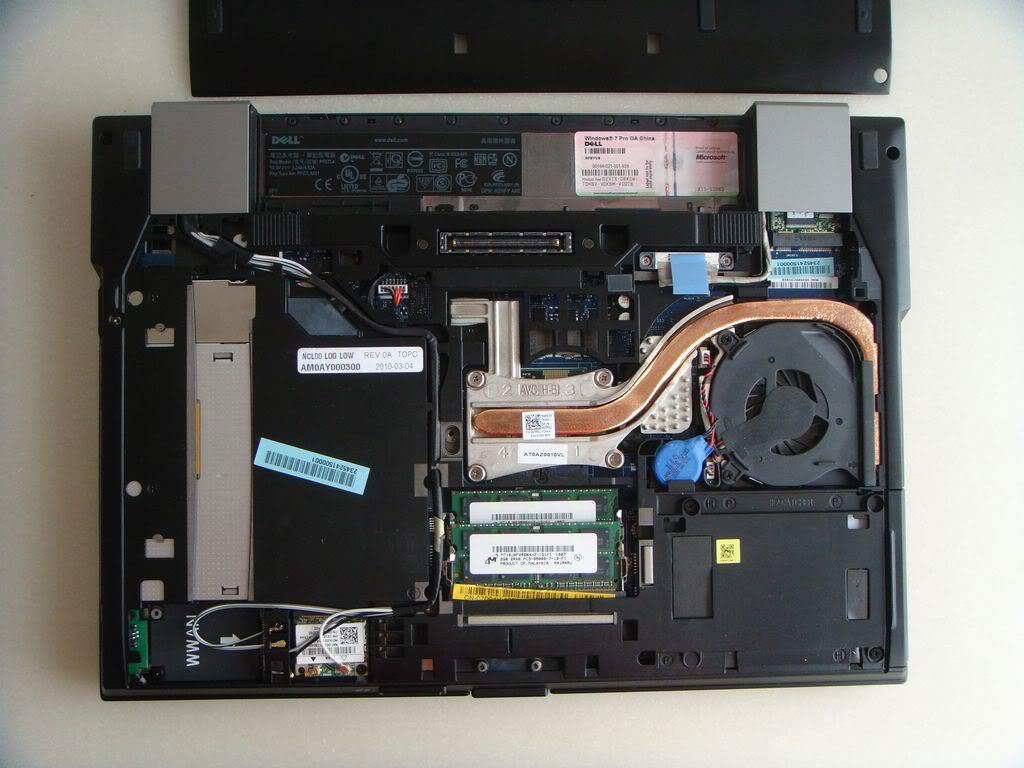
Now, turn the laptop upside down. Yes, right on your kitchen table. Put a towel down if you’re fancy. You’ll see a small rectangular panel held by two screws. That’s the prison door for your drive.
The Great Unscrew
Unscrew those two screws. Put them in a cup, not in your pocket. Losing them is a rite of passage, but it’s also annoying. Slide the panel off and look for the metal caddy holding the drive. It’s usually a silver frame with tiny rails.
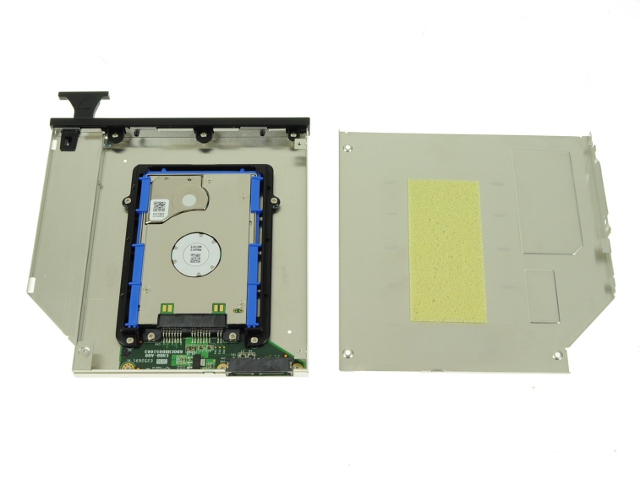
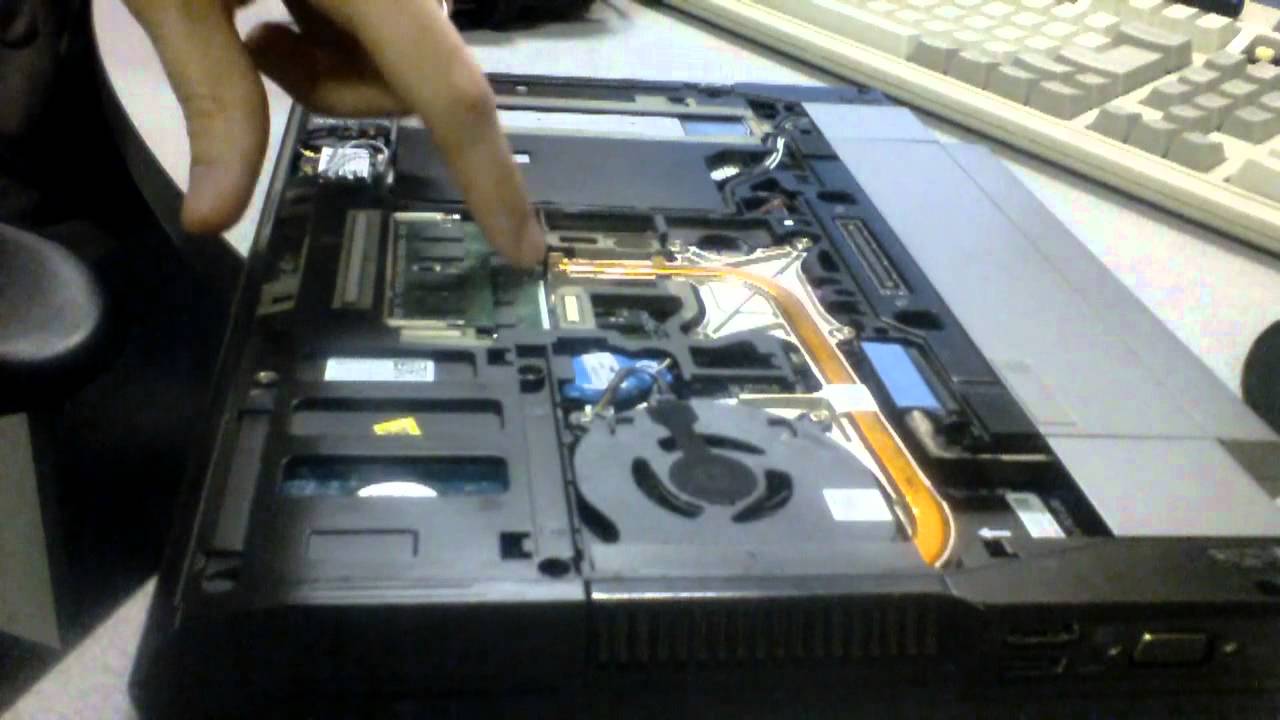
Pull the whole caddy out. It slides toward you, not sideways. There’s a tab. Use your fingernail or the flat edge of a butter knife. The drive will pop out like a stubborn toast slice from an old toaster.
Swap and Snap
Now, look at the new SSD. Notice the little connector on one end. That’s the mouth. The old drive has the same mouth. Gently slide the new drive into the caddy, matching the screw holes. Yes, you need to screw the drive onto the caddy’s side rails.
Don’t force anything. If it doesn’t fit, you’re holding it wrong. Trust me, it will fit.
Slide the caddy back into the laptop. Push firmly but lovingly. You’ll feel a small click. That’s the sound of victory. Replace the bottom panel and the screws. Put the cup of screws back on the table, feeling proud.
The “Oh No” Moment
Turn the laptop on. It will show a scary black screen saying “No boot device.” That’s normal. Don’t panic. You haven’t broken anything. Your old drive is gone, and the new one is empty. You need to install an operating system.
Grab a USB stick. Use another computer to make a Windows installation flash drive. Or, if you’re feeling free and spicy, install Linux Mint—it’s free and loves old hardware. Follow the on-screen prompts. It’s like setting up a new phone, just with more clicking.

Enjoy Your Speed Demon
After twenty minutes, you’ll have a working laptop. Boot time? It’s now under fifteen seconds. That’s faster than your microwave. The whirring noise is gone. The fan is quiet. Your E6400 now feels like a ninja with a jetpack.
You’ll smile. You’ll show it to your cat. Your cat won’t care, but you’ll feel a deep, nerdy joy. And here’s the unpopular truth: this old laptop is now better than many new budget machines. You did that. With a screwdriver and a little guts.
So next time someone laughs at your ancient laptop, just smile. Tell them it has a new heart. And maybe let them hear the beautiful silence of zero moving parts. That, my friend, is the sound of a win.


