Icloud Upgrade Storage Not Working
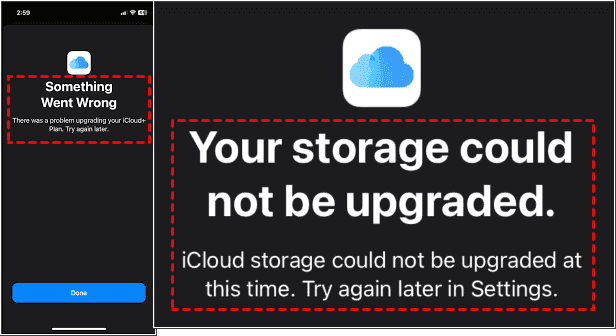
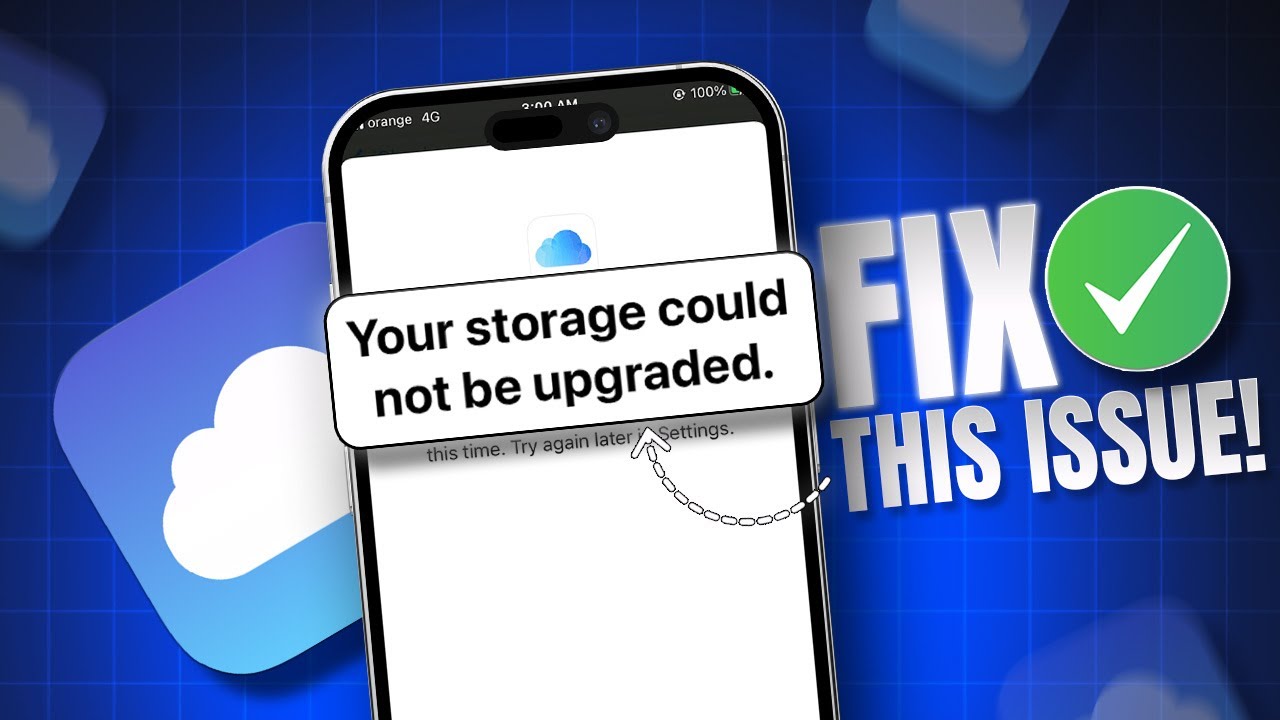
So, you’ve finally decided to bite the bullet and pay for more iCloud storage. You’re picturing a life where your camera roll isn’t a chaotic mess of “Storage Almost Full” warnings, and your videos actually back up overnight. You tap “Upgrade,” watch the little spinner, and… nothing. The dreaded iCloud upgrade not working problem has struck, and suddenly your digital zen is gone.
Take a deep breath, because this is practically a rite of passage for Apple users everywhere. It’s not a cosmic joke aimed at you personally, but rather a quirky little hiccup in the matrix. And honestly, if we didn’t have these tech puzzles, what would we complain about over coffee? Let’s untangle this together with a smile, because there’s always a fix hiding behind the curtain.
Why Your Upgrade Threw a Tantrum
Before we dive into the fixes, let’s play detective for a second. Often, the issue isn’t that Apple is secretly testing your patience—it’s that your device hasn’t synced its piggy bank with Apple’s servers. A poor Wi-Fi connection is the usual suspect, making the whole process feel like trying to fill a bathtub with a thimble.
Must Read
Another common culprit? You might be staring at an outdated iOS version, which is like trying to run a modern app on a vintage computer. And sometimes, the payment method on file is having an existential crisis, so the purchase simply can’t go through. The good news? All of these are easy to fix, and you’ll feel like a tech wizard once you do.
The Quick-Fix Dance
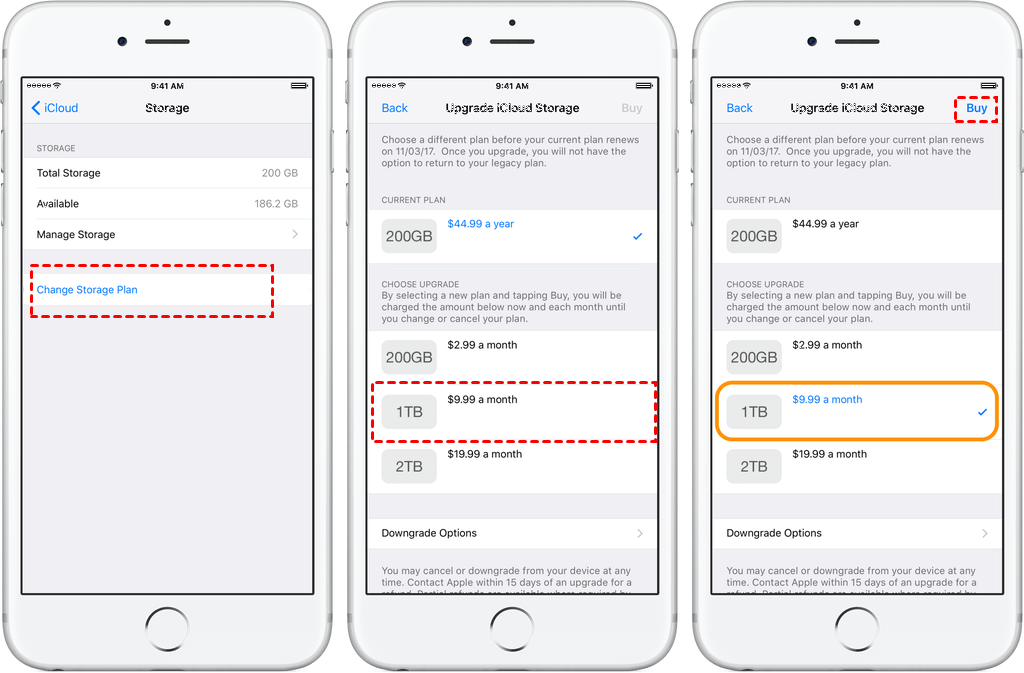
First, let’s do the classic “turn it off and on again” for your internet. Toggle your Wi-Fi off, wait ten seconds, and switch it back on. Then, go to Settings > Your Name > iCloud, and tap on “Manage Storage.” If you see your current plan, try tapping “Downgrade Options,” then re-select the upgrade—sometimes you have to tickle the button to wake it up.

Still stuck? Head to Settings > General > Software Update and make sure you’re on the latest iOS. Apple loves a good software patch, and this often waves a magic wand over payment glitches. If that doesn’t work, go to Settings > Your Name > Payment & Shipping and update your card details, even if they look fine—just re-enter them to give the system a fresh high-five.
When All Else Fails, Log Out (Don’t Panic!)
Here’s the big move: sign out of your Apple ID entirely, then sign back in. Yes, it feels scary, but your data stays safe in the cloud—this is just a refresh for your account. Go to Settings > Your Name > Sign Out, then power off your device for a minute. Turn it back on, sign in again, and then try the upgrade once more. I promise, it’s like shaking a snow globe; all the glitches settle down.
![[2026] 4 Fixes to Upgrade iCloud Storage not Working](https://www.ubackup.com/phone/screenshot/en/others/icloud/icloud-upgrade-option.png)
If the upgrade still says “No,” don’t shout at your phone—just check Apple’s System Status page online. Sometimes the servers are having their own coffee break, and you just need to wait an hour. In the meantime, enjoy the fact that you now have a legitimate excuse to clear out old screenshots and photos. It’s oddly therapeutic, like digital spring cleaning.
And here’s the uplifting twist: once you finally get that storage upgraded, you’ll have room for all the little moments—the blurry dog photos, the accidental screenshots, the 47th sunset picture. You’re not just buying gigabytes; you’re buying freedom from anxiety. So next time you hit a tech snag, remember this: every problem is just a chance to learn a new trick. You’ve got this, and your iCloud will be sorted in no time—ready for your next adventure in storage conquest.

![How to Disable iCloud Notifications [2026]](https://mobiletrans.wondershare.com/images/images2023/turn-off-icloud-notifications-04.jpg)