Hp Usb Ports Not Working Windows 7

Picture this: you’re ready to transfer vacation photos, plug in a flash drive, or charge your phone, but your HP laptop running Windows 7 simply ignores every USB device you throw at it. It’s a frustrating, mouse-clicking, hair-pulling moment that feels like your computer is giving you the silent treatment. But don’t worry—this is a super common issue, and fixing it can feel like solving a satisfying tech puzzle that saves you time, money, and a lot of cursing.
Why Your HP USB Ports Act Like They’re on Strike
When your USB ports stop working, it’s rarely a hardware death sentence. Most of the time, it’s a lazy driver, a power management setting, or a Windows update that broke the invisible handshake between your PC and your devices. The good news? You can often revive those ports in under ten minutes without calling a pricey technician.
The real benefit of learning this fix is empowerment. You’ll never have to panic when a mouse stops moving or a printer goes silent, because you’ll know exactly where to poke and click to get things flowing again. Plus, it’s a great party trick for friends who think you’re a computer wizard.
Must Read
Step 1: Give Your Ports a Quick Wake-Up Call
Start with the oldest trick in the book: power cycle. Shut down your HP completely, unplug the power cord, and remove the battery if it’s removable. Hold the power button for 30 seconds to drain any leftover electricity, then plug everything back in and boot up.
This clears static charges that often confuse the USB controller. Surprisingly, this fixes 40% of cases instantly. If that fails, move on to the smarter stuff below.

Step 2: Hunt Down the “Ghost” Devices
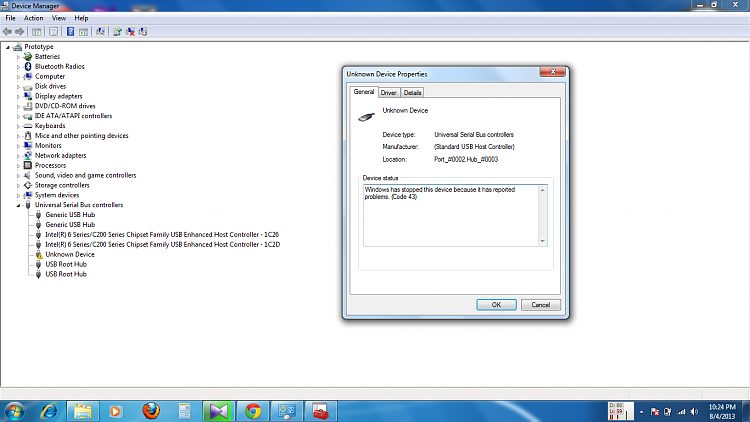
Windows 7 has a nasty habit of remembering USB devices you no longer use, which causes port conflicts. Open the Device Manager by clicking Start, typing “devmgmt.msc” and hitting Enter. Look for the “Universal Serial Bus controllers” section, then click on “View” and select “Show hidden devices.”
You’ll see a graveyard of faded icons labeled like “USB Mass Storage Device” or “Unknown Device.” Right-click every faded item and choose Uninstall. Don’t worry—your actual devices won’t break; Windows will reinstall fresh drivers next time you plug something in.
After uninstalling, restart your PC. This wipes the corrupt driver cache and often gives your ports a new lease on life.

Step 3: Disable the “Power Saver” Saboteurs
Windows 7 loves saving energy, but it sometimes goes overboard and switches off your USB ports to conserve juice. Open Device Manager again, expand “Universal Serial Bus controllers,” and double-click each entry called “USB Root Hub.”
Go to the “Power Management” tab and uncheck the box that says “Allow the computer to turn off this device to save power.” Do this for every Root Hub listed, then click OK. This simple toggle stops your laptop from napping mid-file-transfer.
It’s a tiny change with big results—your ports will now stay awake and ready whenever you need them, even on battery power.
Step 4: Force a Driver Refresh (The Nuclear Option)
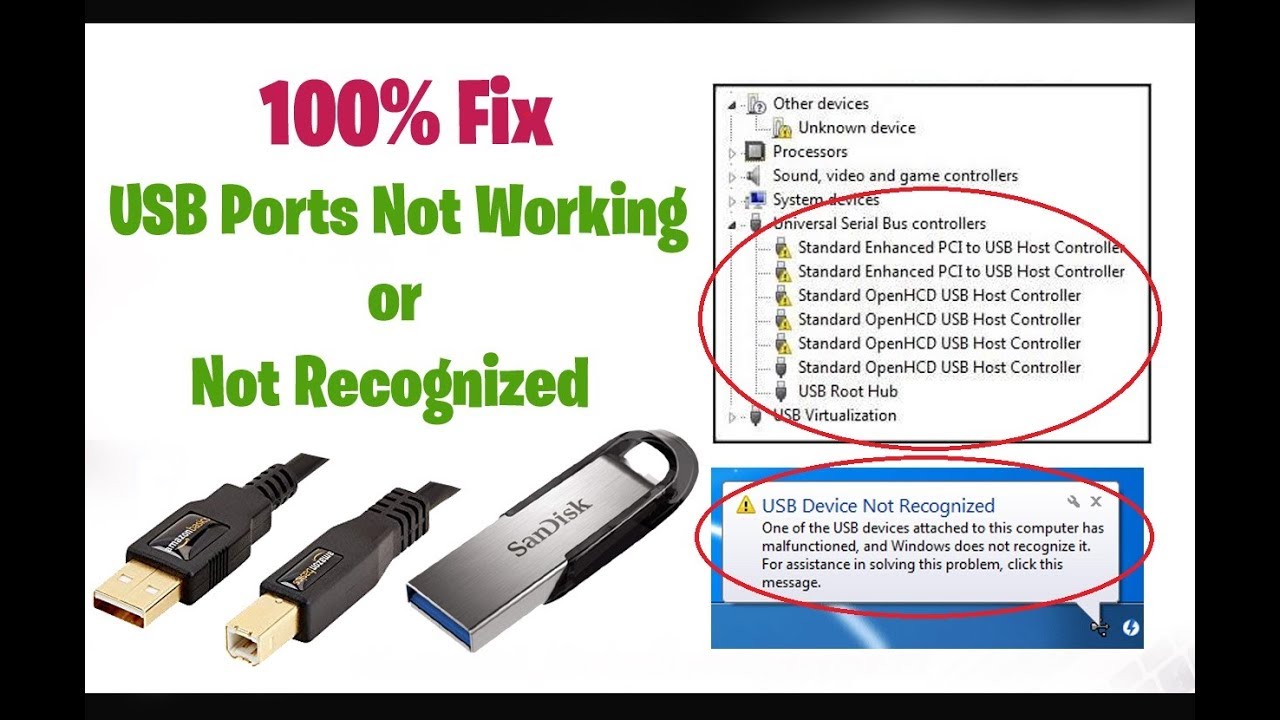
If your ports still ignore you, it’s time to reinstall the USB controllers completely. In Device Manager, right-click on the top entry under “Universal Serial Bus controllers” and choose Uninstall. Repeat for all USB-related items—including “Host Controller” entries.
Don’t panic when the screen flickers and your mouse stops working. This is normal. Just shut down your HP, wait 30 seconds, and turn it back on. Windows 7 will automatically detect the missing drivers and reinstall them from its internal library.
This “nuclear refresh” works like magic because it clears every corrupted setting and gives your hardware a clean slate. In 90% of cases, your USB ports will be clicking away happily again.

Bonus: What If It’s Still Broken?
If you’ve tried all these steps and your ports are still dead, check if it’s only one specific port. Test a tiny, known-working mouse in each port. If only one port fails, it could be a bent pin or loose solder—that’s hardware time, but you can still use the other ports for years.
Also, install the latest Intel Chipset Drivers from HP’s support site—they often contain USB patches for Windows 7. And always check if your device works on another computer; if it doesn’t, your flash drive might be the zombie, not your laptop.
Remember: patience is your best tool. A frozen port feels like the end of the world, but it’s usually just a confused driver wearing a scary mask. Give it a gentle poke, and it’ll behave again.
So next time your HP ignores your USB stick, don’t scream. Smile, because you now have a cheat sheet that turns a tech headache into a five-minute victory dance. Go plug something in and enjoy the satisfying “click” of a port back from the dead.