How To Write On A Document In Word
Meet Your New Best Friend: The Blinking Cursor
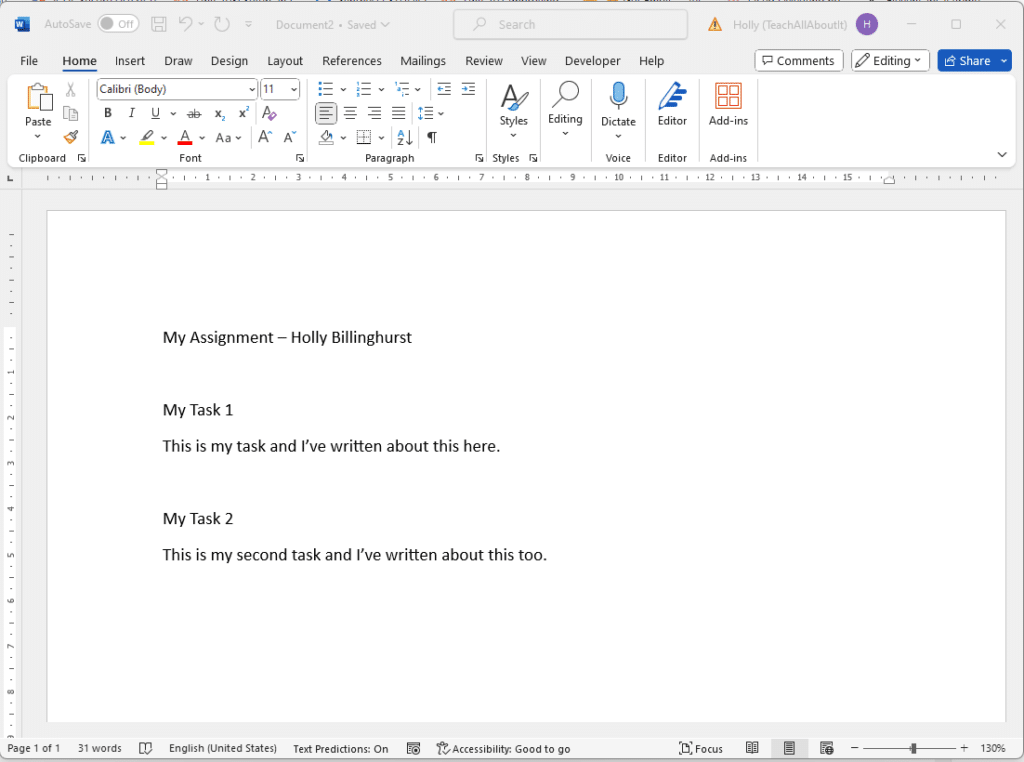
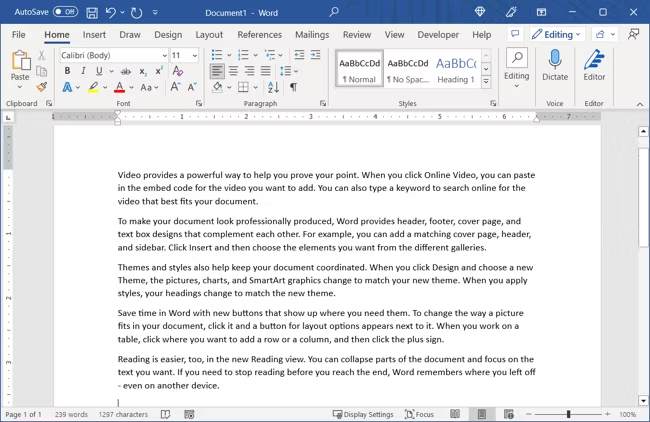
Okay, so you’ve opened Microsoft Word. You’re staring at a big, white, empty page. That little vertical line blinking at the top? That’s your cursor, and it’s basically a VIP pass to the world of typing.
Click anywhere on that blank page. Just go ahead—click! That’s where your words will magically appear.
Now, start typing. Don’t be shy. Let your fingers dance across the keyboard like they’re playing a tiny piano made of letters.
Must Read
The Art of Typing (Without Breaking the Keyboard)
Just press the keys, and watch the letters pop up like popcorn. It’s genuinely thrilling, I promise.
Made a mistake? Don’t panic. That’s what the Backspace key is for—it’s your eraser, your time machine, your “never happened” button.
Press it with confidence. Delete that silly typo and keep moving forward like a fearless word warrior.
Click, Drag, and Highlight Like a Pro
Now, let’s say you typed a whole paragraph, but you want to change the font or make it bold. First, you need to select the text.
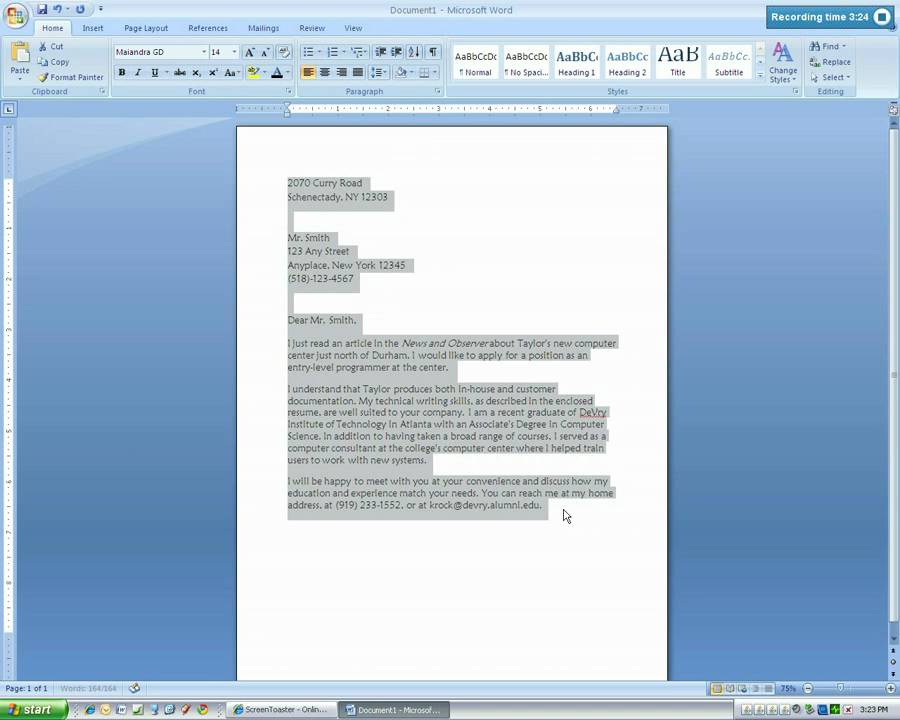
Put your mouse right at the beginning of your words. Then, hold down the left mouse button and drag your mouse to the end of the paragraph. It’s like painting over your words with a blue highlighter—very satisfying.
Once it’s all blue, you’ve got the power. Whatever you do next only affects that highlighted chunk. It’s your little kingdom.
Bold, Italic, and Underline (Oh My!)
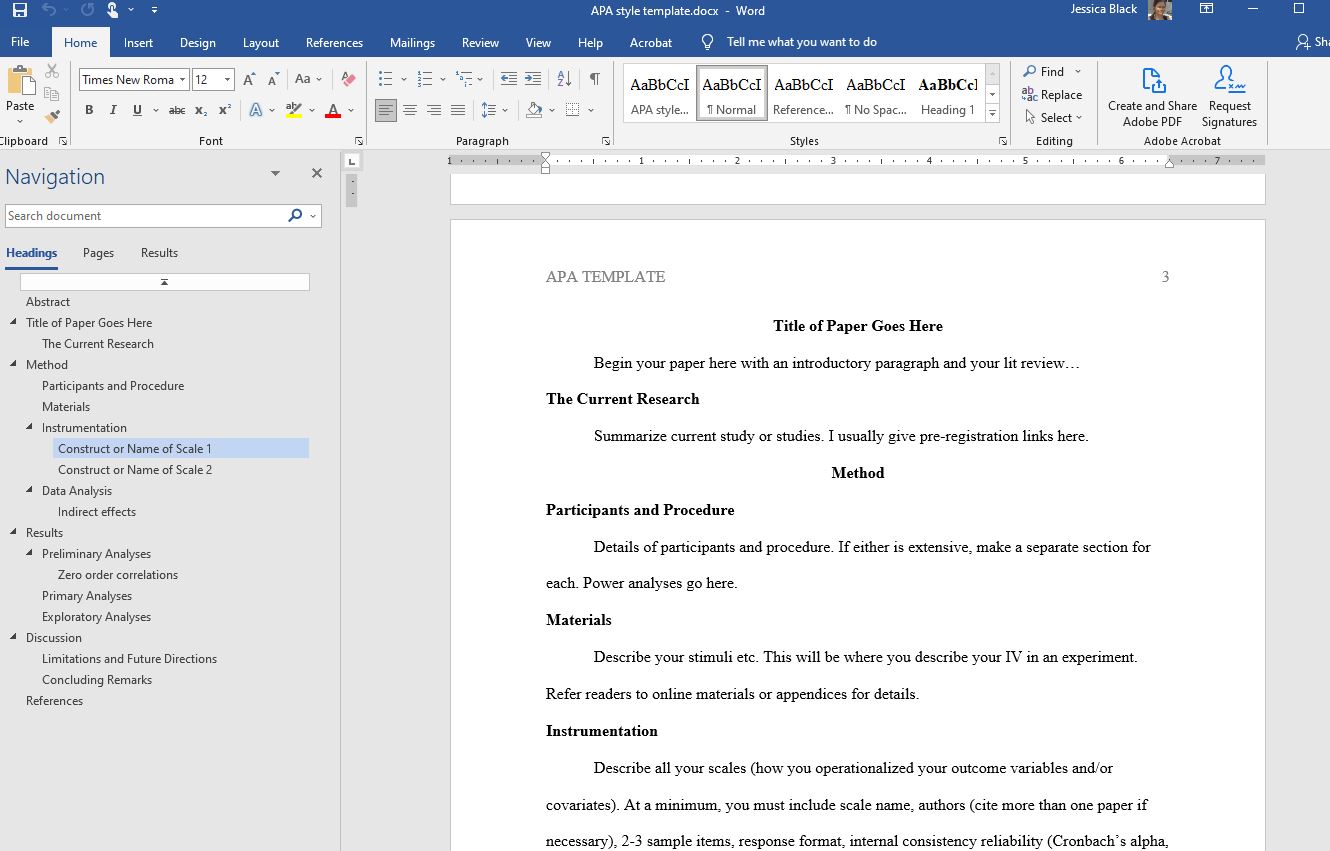
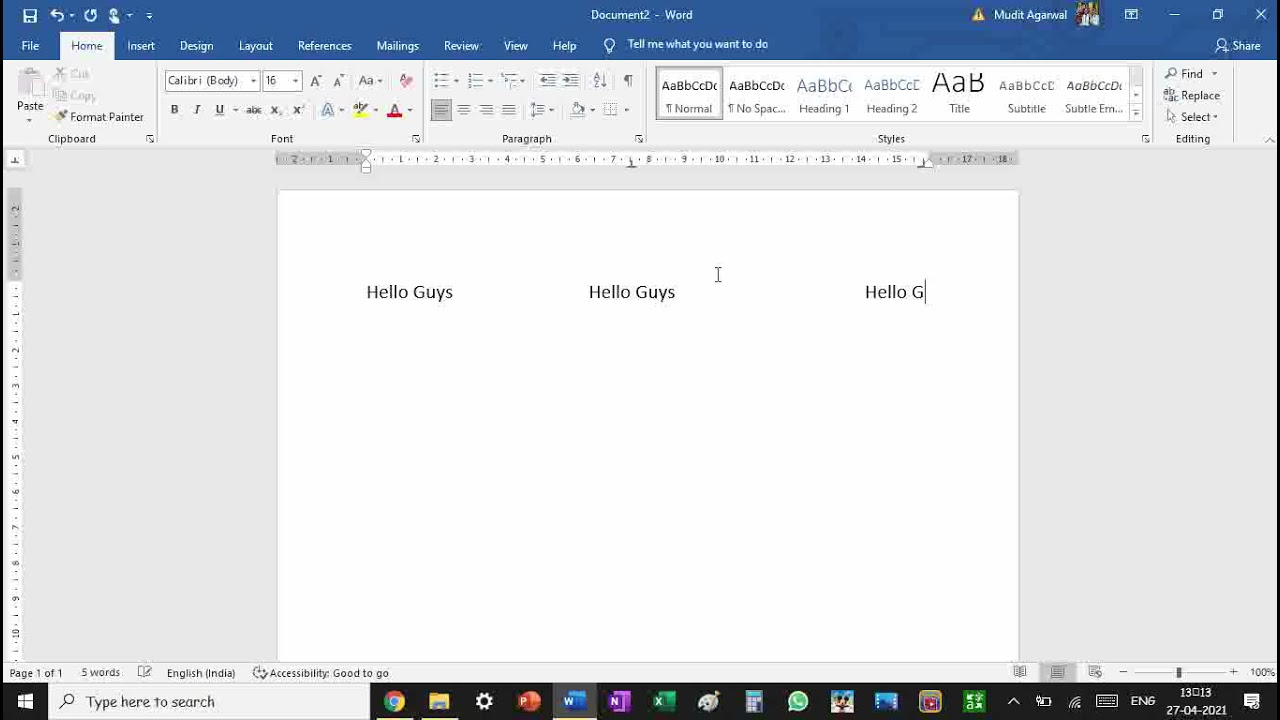
Look at the top of your screen. See those buttons with the B, I, and U? Those are your best friends for making words shout, whisper, or just look important.
Click B and your words turn into a confident, loud, “HEY, READ ME!”. Perfect for making a point at work or in a school essay.
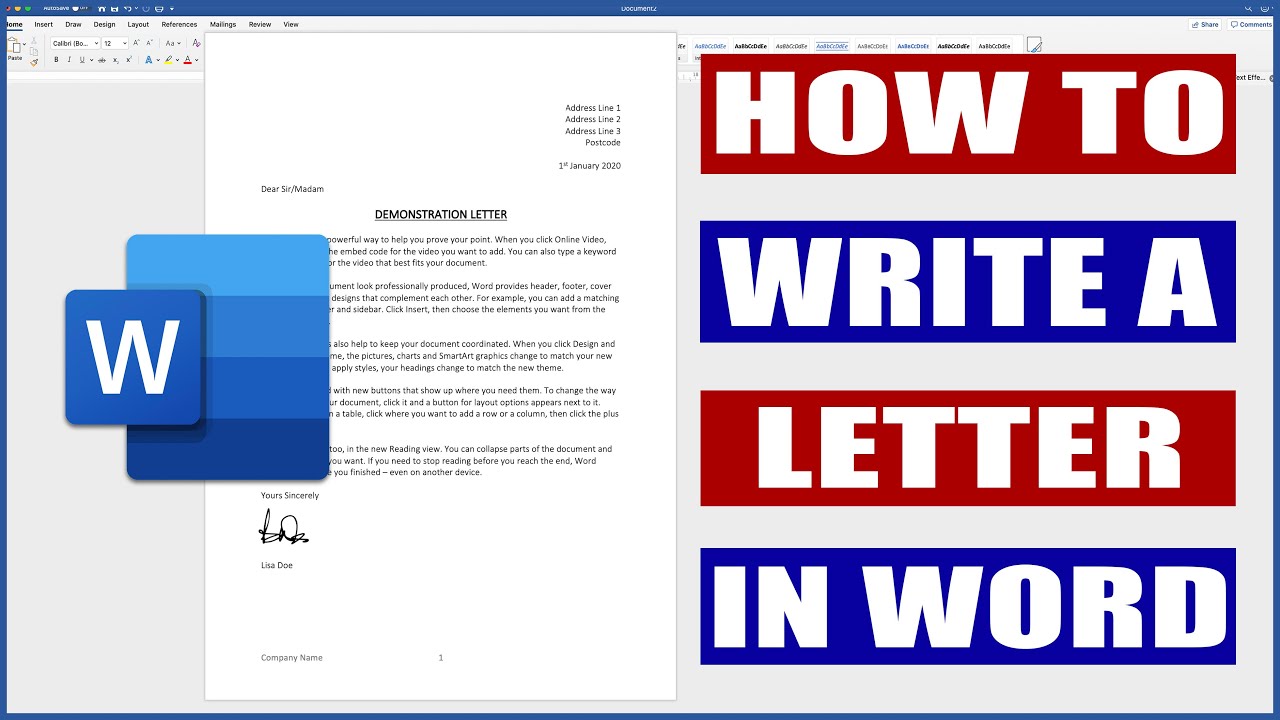
Click I for a fancy, slanted “I’m so sophisticated” vibe. And Underline is like putting a red carpet under your most important sentence.
Spacing Out (In a Good Way)
Words are great, but all smashed together? That’s chaos. You need space for your thoughts to breathe.
Press the Enter key to start a new paragraph. It’s like pressing a reset button for your thoughts—suddenly, everything looks cleaner and more organized.
If you want to add extra blank lines, just press Enter again. Whoa, so much room for activities! Your document will thank you.
Copy, Cut, and Paste (The Magic Tricks)
Did you write a brilliant sentence and realize you need it in three other places? No problem. Copy it (Ctrl+C on Windows, Command+C on Mac).
Then, click where you want the duplicate to live, and press Paste (Ctrl+V or Command+V). It’s like cloning your perfect word babies.
Want to move something entirely? That’s Cut (Ctrl+X). It deletes it from one spot but keeps it safe in your clipboard—like picking up a piece of furniture and moving it to the other side of the room.
Saving Your Masterpiece (Don’t Skip This!)
You could write the next great novel, and then—poof—your computer crashes. Don’t let that be your villain origin story.
Click the little floppy disk icon at the top left, or press Ctrl+S (Command+S on Mac). Then name your file something clever, like “My_Genius_Work”.
:max_bytes(150000):strip_icc()/word-online-30593e87cf4b4267998e7728813a7b29.png)
Hit Save, and do it often. Trust me, that little moment of panic when you realize you haven’t saved is a feeling you want to avoid. Save like your life depends on it.
Final Thoughts (You’re Ready!)
That’s it! You now know the basics of writing in Word. Feels powerful, right?
Go ahead, type a grocery list, a love letter, or your world-changing manifesto. The blinking cursor is yours to command.
Remember, Word is just a tool. The magic comes from you, your ideas, and your fantastic brain. So go write something wonderful!
“The pen is mightier than the sword, but a keyboard with spell-check is basically a superpower.” — You, probably.