How To Sign A Document On Samsung
There’s a tiny thrill in signing your name with a flourish—even on a screen. Gone are the days of printing a document, scribbling in ink, scanning it, and emailing it back like it’s 2005. Your Samsung phone or tablet has quietly become a digital pen, ready to turn a tedious chore into a five-second party trick.
The real benefit is speed and sanity. Whether you’re closing a freelance contract, approving a school field trip form, or signing for a package delivery, you can do it from your couch, in your pajamas, without hunting for a working pen. It’s the difference between a two-minute task and a twenty-minute ordeal.
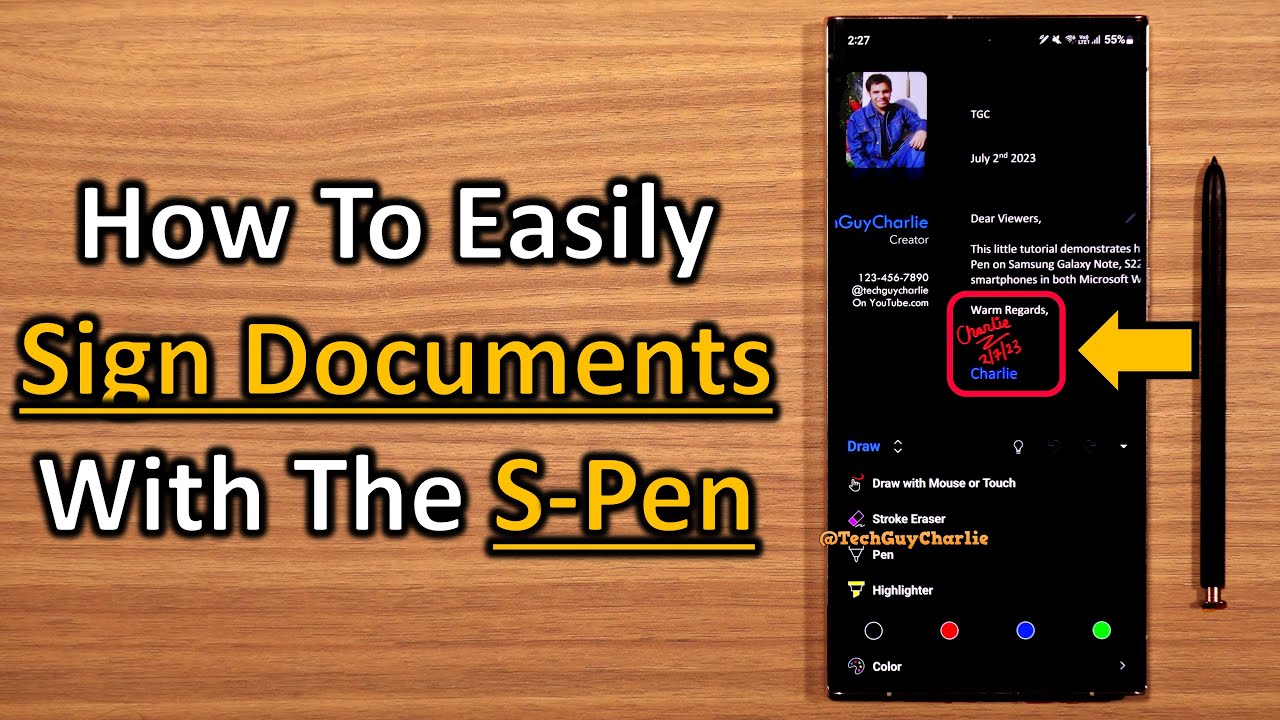
You’ll find this magic hidden inside the default photo viewer and the Notes app. For a quick signature, open any PDF or image—like a lease agreement sent via email—and tap the Edit icon (the pencil). Then select Signature from the bottom toolbar, and your phone will let you draw, type, or even use your finger as a stylus.
Must Read
For a more formal route, the Samsung Notes app is your best friend. Open a new note, tap the handwriting icon, and sign away. You can then export it as a PDF and attach it to an email in seconds. Most people don’t realize this, but your phone stores your signature as a reusable stamp, so you never have to draw it twice.
Here’s a pro tip: use a fine-tip stylus (or your fingernail, carefully) for a cleaner line. If you’re using your index finger, press lightly and move slowly—your signature will look less like a spider fell in ink and more like a human wrote it. Also, make sure your screen is clean; a smudge of grease is the enemy of a crisp autograph.
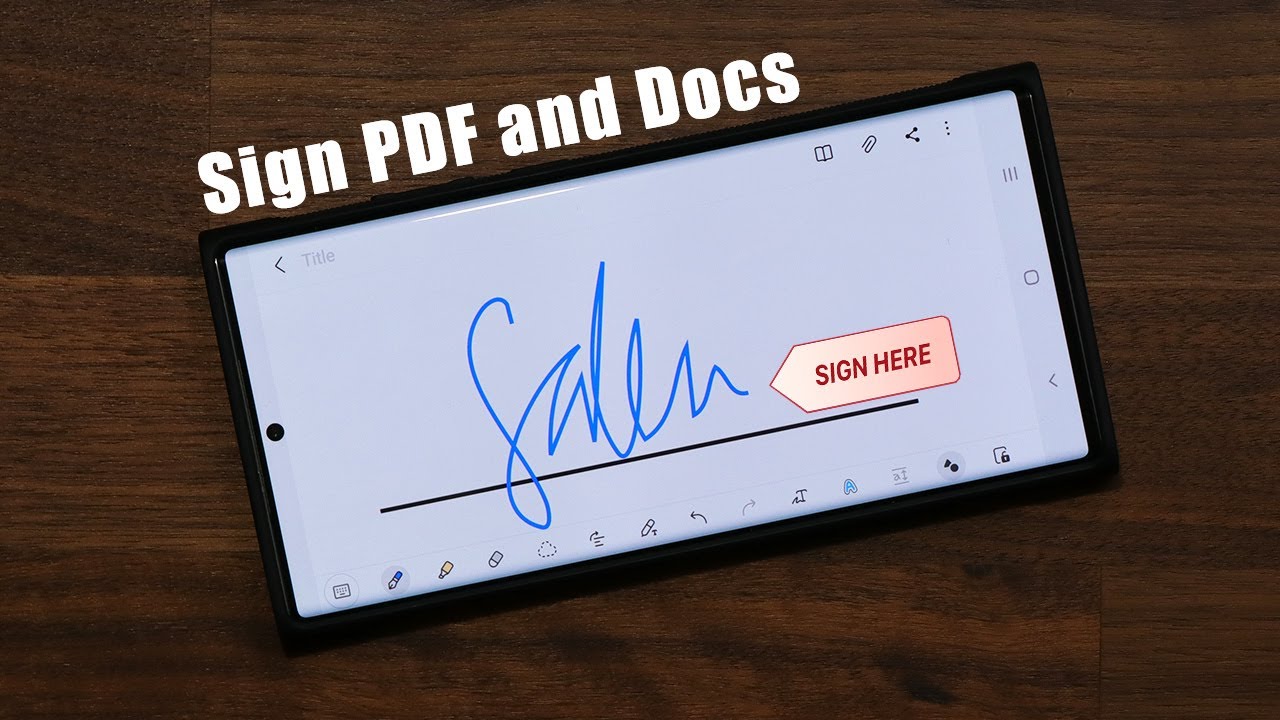
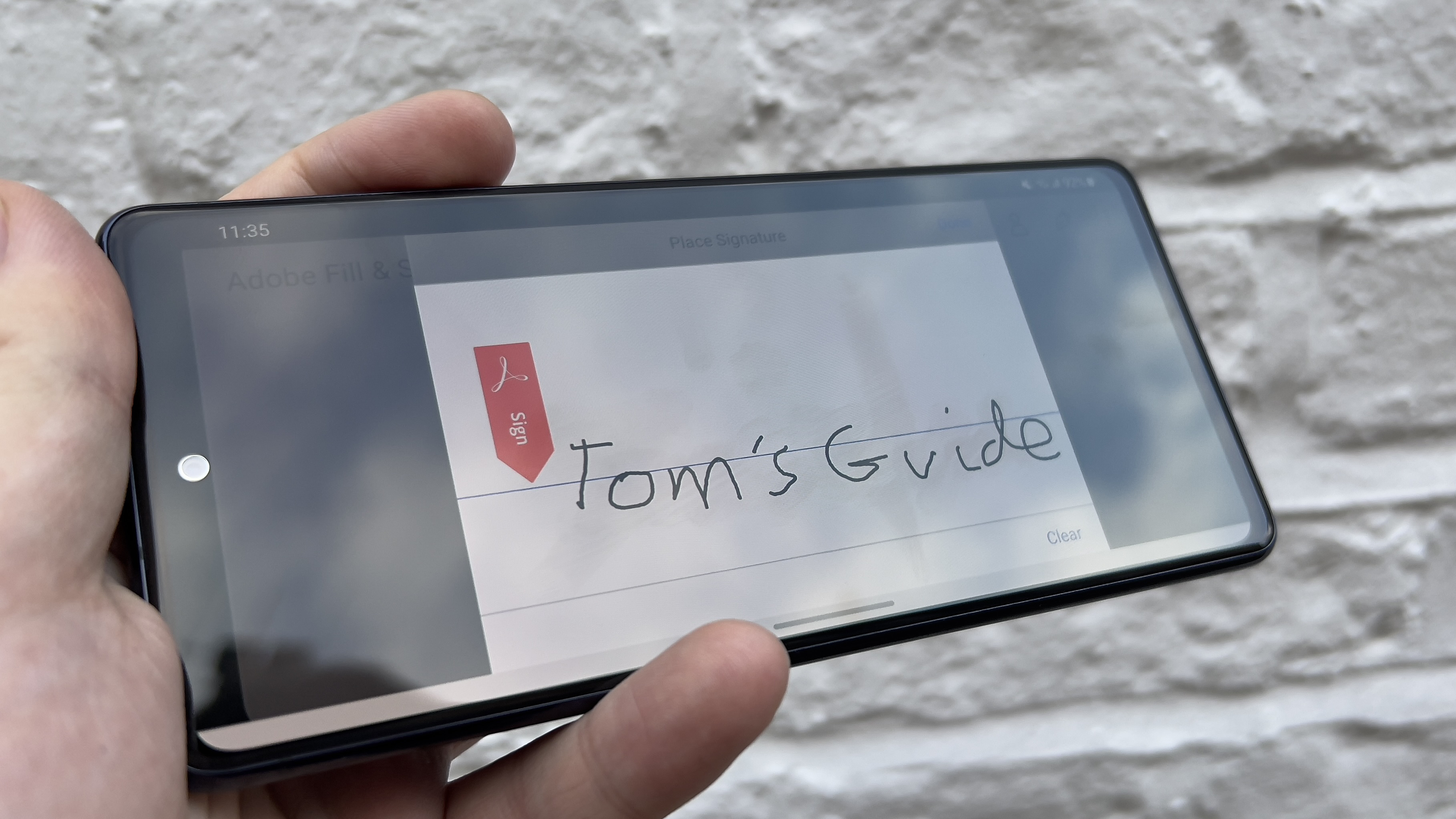
Another trick is to create a saved signature in the Adobe Fill & Sign app (free) or Google Drive’s PDF editor. Once you save it, you can drop it onto any document with one tap. That’s a game-changer for busy parents who sign three permission slips a week, or for freelancers who approve invoices daily.
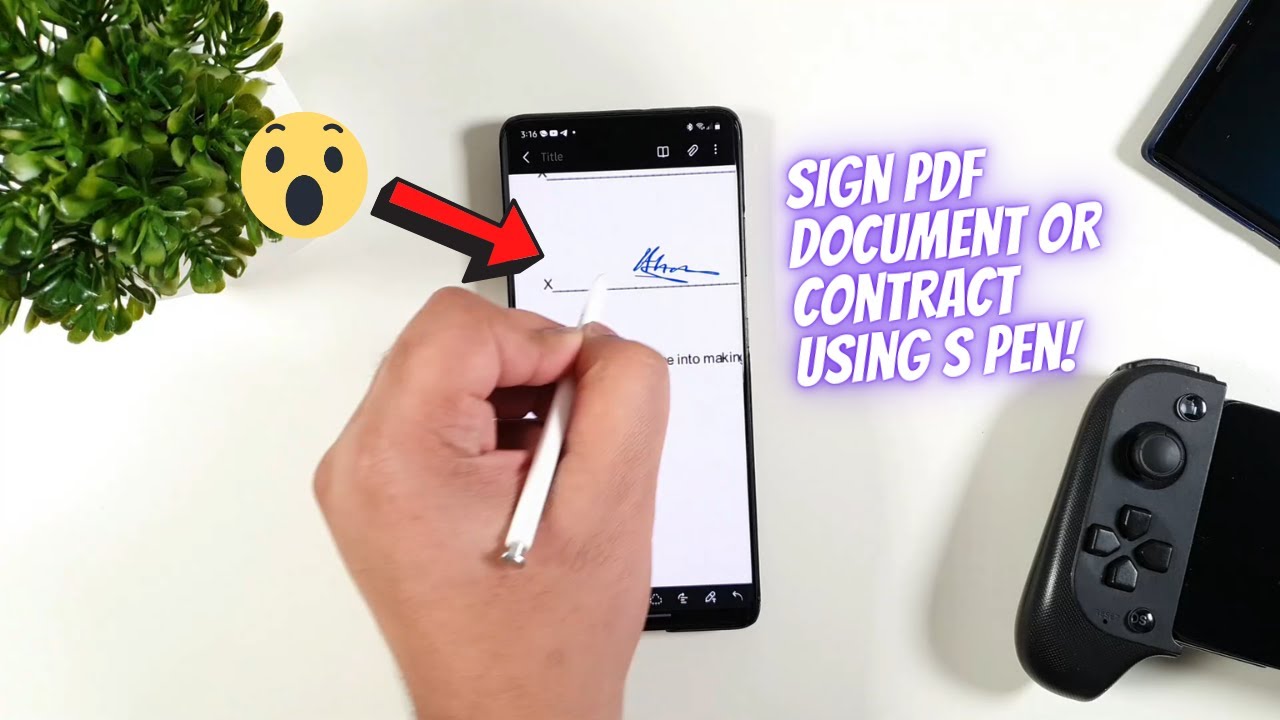
Don’t forget the floating toolbar on your Samsung device. When you pull out the S Pen (if you have a Galaxy Note or Ultra), a little icon pops up with Smart Select and Screen Write—use those to sign directly on a screenshot without opening an app. It’s clunky but perfect for a quick “I approve this” on a texted image.
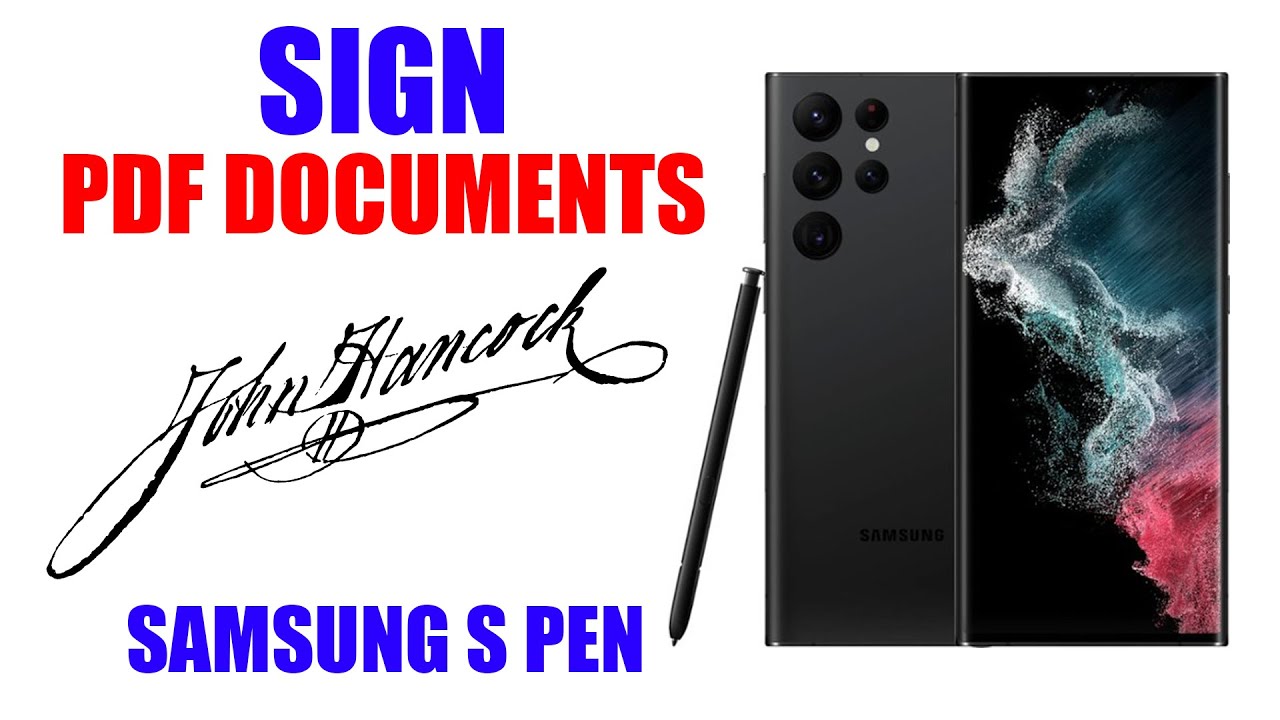
One common mistake is signing too fast, which creates shaky, unrecognizable loops. Practice a few times in Notes until your muscle memory adapts to glass. Your digital signature doesn’t need to match your paper one exactly, but consistency helps when a bank or client checks it against your ID.
Finally, always rotate your phone to landscape before signing a wide legal form. It gives you more horizontal space, which means less scrolling and a more natural wrist motion. And if you ever feel fancy, try signing with your knuckle—it doesn’t work, but it will make you laugh, and that’s the real win.
So next time a document lands in your inbox, don’t dread it. Grab your Samsung, tap, sign, and hit send. You’ll feel like a tech wizard, save a tree, and never touch a printer again—until, of course, you need to sign a birthday card. That’s still pen territory.