How To Set The Time On Your Computer
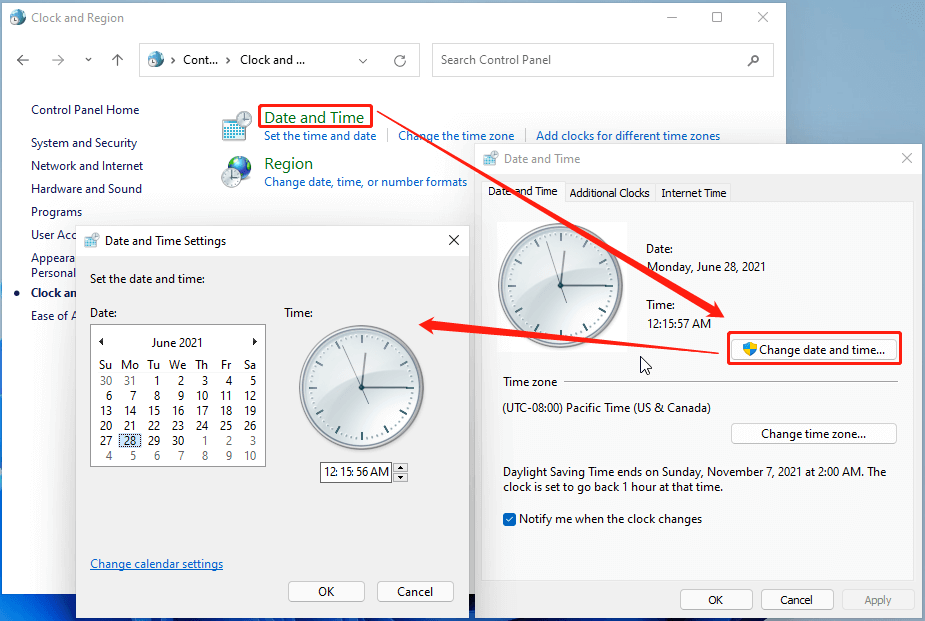
Okay, let’s be honest. Your computer’s clock is probably wrong right now. And you’re just living with it, like a monster.
That little time in the corner is a tiny, silent liar. It’s making you late for imaginary meetings and ruining your internet history timestamps. Let’s fix this chaos together.
You don’t need a degree in rocket surgery for this. It’s basically digital housekeeping. Grab your coffee, and let’s dive into the wonderfully tiny world of system settings.
Windows: The Land of Clocks and Confusion
Windows likes to hide things in weird places. But we’re smarter than the menus, right? Right?
First, find that clock at the bottom-right of your screen. Click it with your mouse, but don’t look at the calendar that pops up.
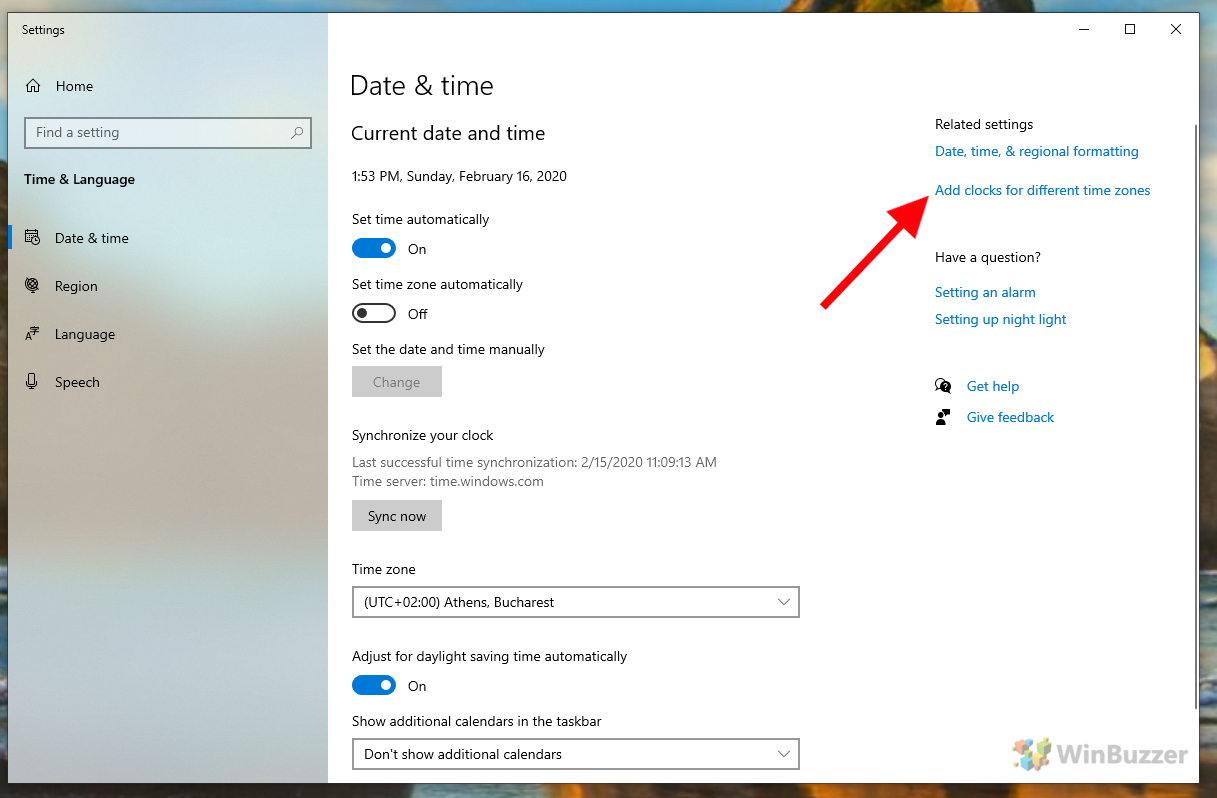
Instead, look for the words “Date and time settings”—usually a tiny link. Click that sucker. You’re officially in the settings dungeon now.
The Big Switch
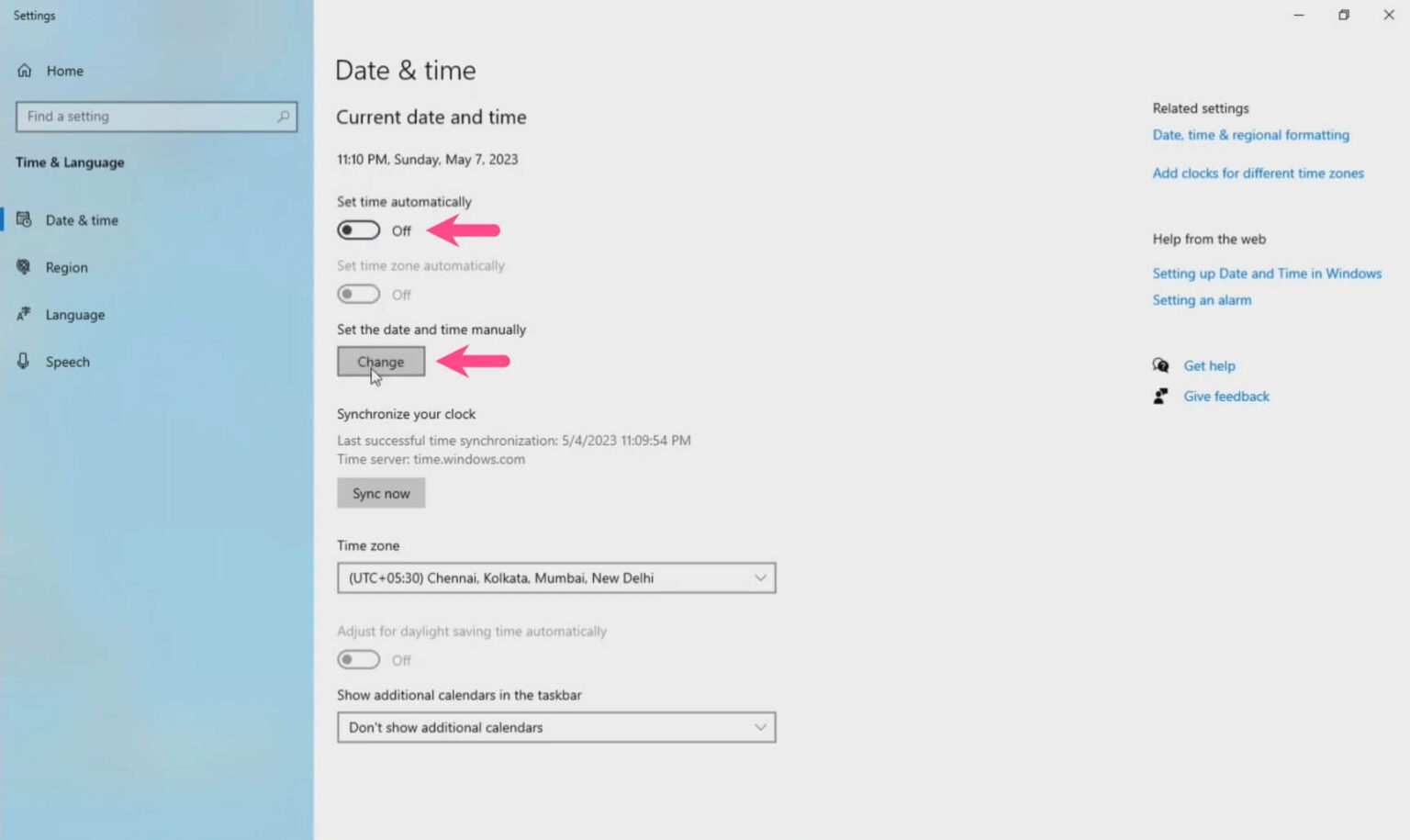
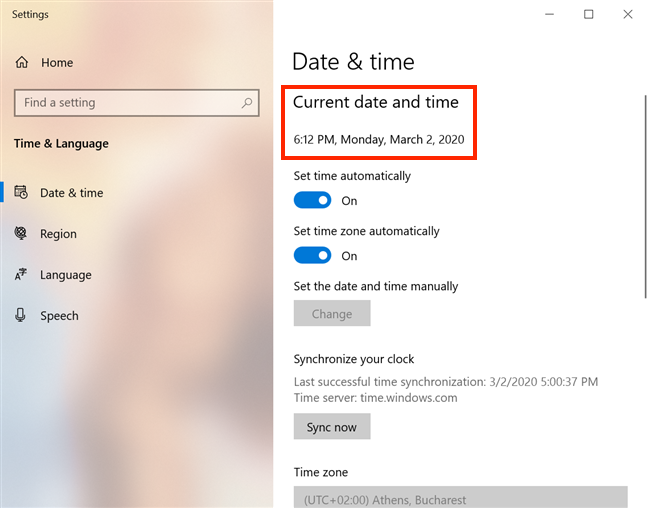
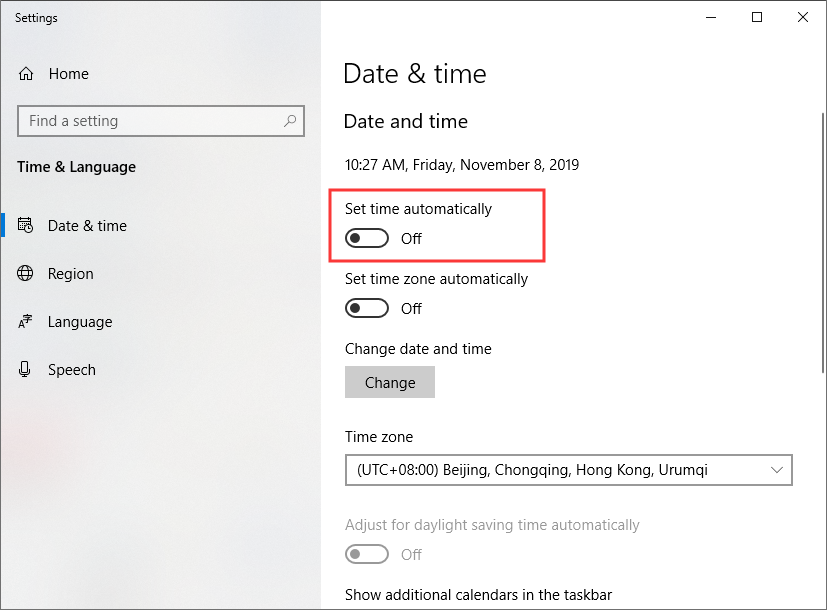
You’ll see a big toggle that says “Set time automatically.” If it’s off, turn it on. Seriously, just flip it.
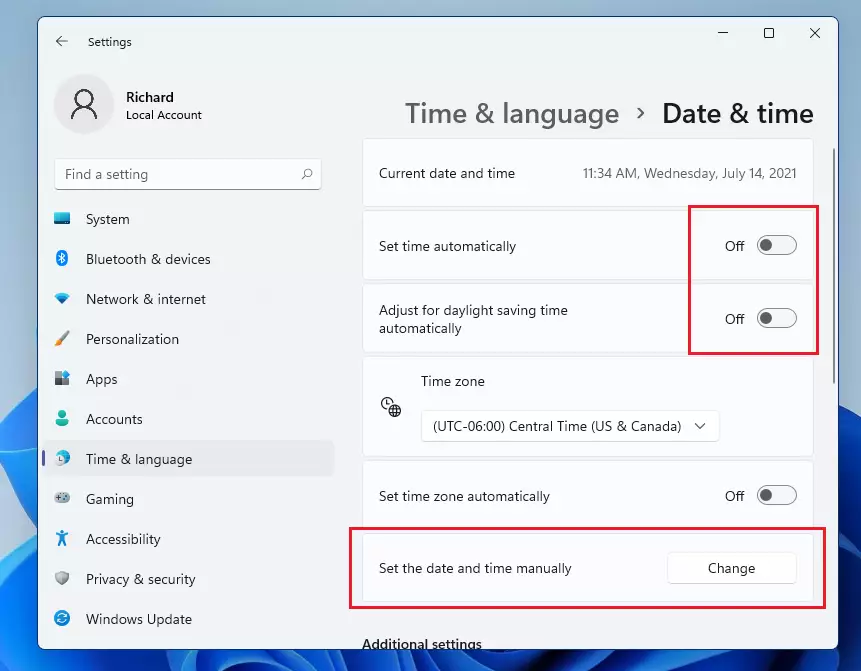
This is the magic that makes your computer talk to the internet. It’s like a tiny psychic hotline for time. If it’s already on, turn it off and then on again. Classic tech move.
If that doesn’t work, scroll down and hit the “Sync now” button. Feel the power? That’s your computer doing push-ups for time accuracy.
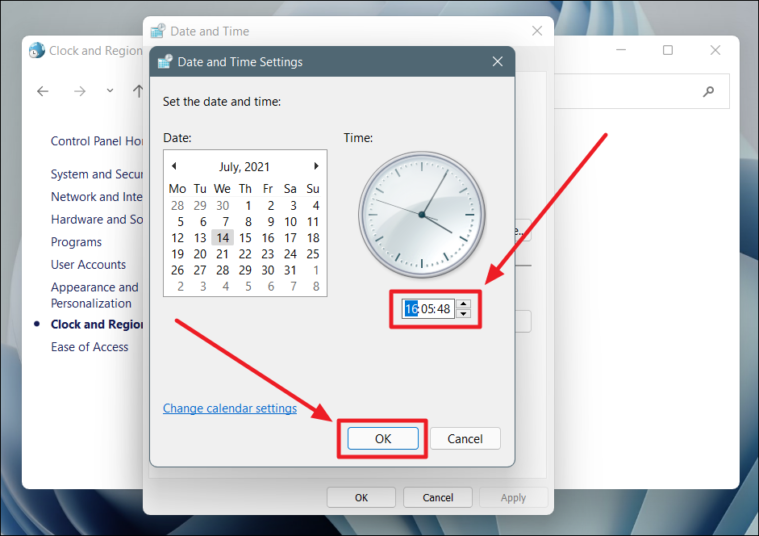
Still wrong? Try the manual route. Turn off the automatic toggle and hit “Change” under “Set the date and time manually.”
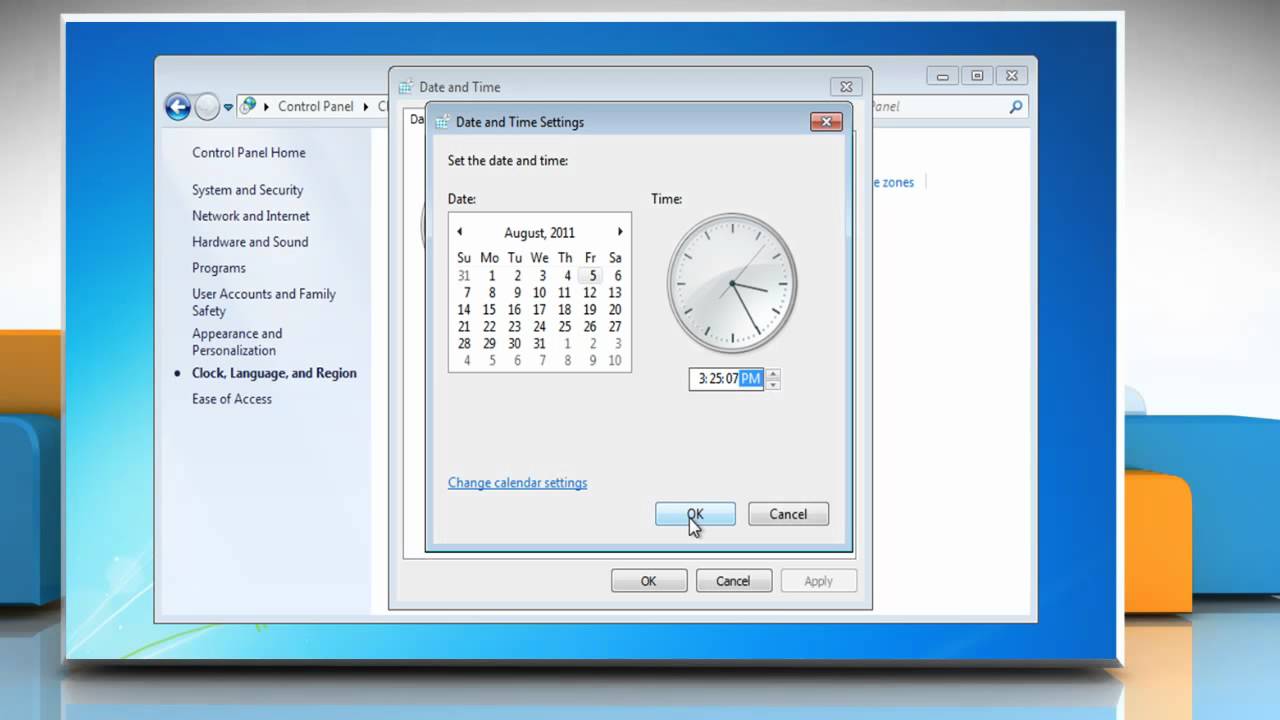
A tiny box pops up. It’s not scary. Type in the correct hour, minute, and AM/PM. Don’t mess up the AM/PM part—that’s a rookie mistake that leads to 3 AM breakfast.
Press the blue “Change” button and walk away like a boss. You did it. You’re basically a time lord now.
Mac: For the Cool Kids with the Fruit Logo
Ah, the Mac. Where everything is clean, simple, and slightly pretentious. Your clock is up in the top-right corner, hiding in the menu bar.
Click the time itself. Not the wifi icon. The time. A little dropdown will appear, looking snazzy.
Look for “Open Date & Time Settings…” at the bottom. Click it. The universal system preferences window will yawn open.
The Simple Fix
First, check if the lock icon at the bottom is closed. If it is, click it and type your password. Security is sexy, even for clocks.
Make sure your Mac is set to “Set date and time automatically.” Apple loves doing this by default, so it might already be fine.

If it’s not, check the box. Then, pick a time server from the dropdown. “time.apple.com” sounds like a secret club, right? It is. Join it.
Your Mac will silently reach out to the mothership and grab the correct time. It’s like a weird, geeky prayer answered instantly.
If you need to set it manually, just uncheck that box. Then, click directly on the date and time fields on the little mini calendar that appears. It’s very visual. You can’t break it. Probably.
Click the lock icon again to keep your settings safe. Boom. You’re done with the fancy side of things.
Why Even Bother? (The Honest Answer)
You might be thinking, “Why am I doing this? My phone is right here.” Yeah, but your computer is judging you.
A wrong clock breaks email timestamps. It makes your files look like they’re from the future or the 1980s. It also completely messes up scheduled tasks and reminder apps.
You ever set a reminder for “Lunch” and it pops up at 4 PM? That’s your clock sabotaging your snacks. We can’t have that. Food timing is sacred.
Plus, some websites will literally refuse to load if your clock is too far off. They think you’re a hacker from a different dimension. Well, you’re not. You’re just lazy.
So, take the thirty seconds. Fix the thing. Feel the quiet satisfaction of a perfectly synced second hand. It’s the small victories, my friend.
Go on. Change that time. Your future self—who won’t be late for anything—will thank you. Now, go drink more coffee. You earned it.