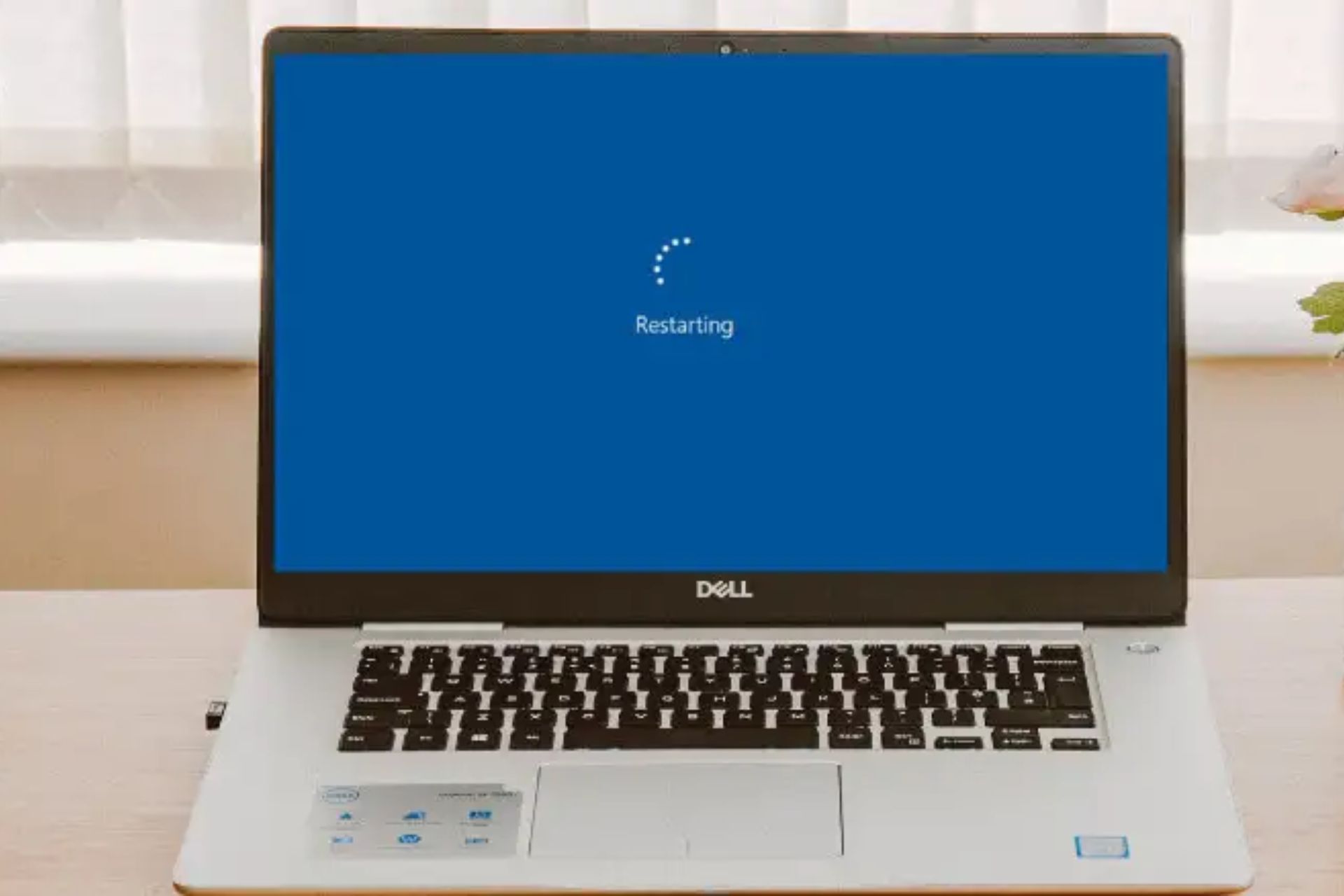
How To Restart Dell Latitude Laptop
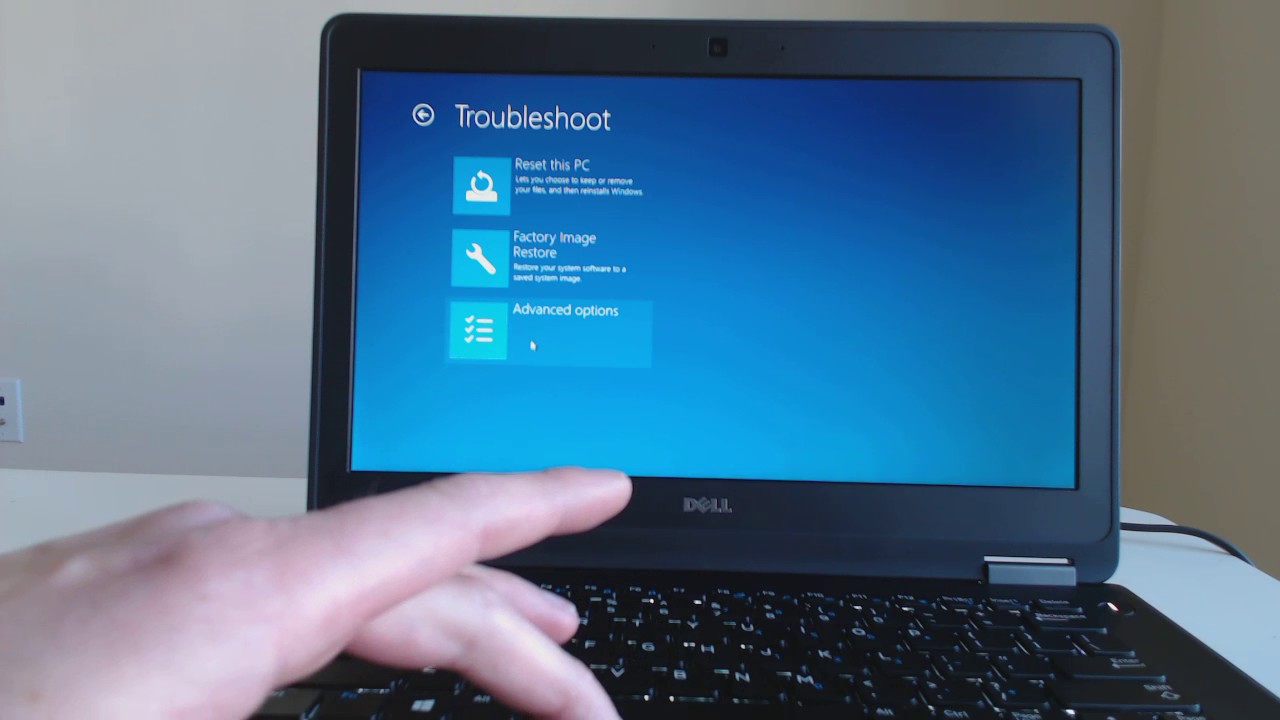
Okay, let’s be real. Your Dell Latitude is acting up, and you’re staring at a frozen screen like it owes you money. You’ve clicked, you’ve cursed, and you’ve maybe even given it a gentle, persuasive tap.
Before you toss it out the window, let’s take a breath. Restarting this thing is usually way easier than you think. And hey, I’m basically your tech-support buddy right now, so grab a coffee and let’s dive in.
The Classic “Soft” Reset (AKA The Obvious One)
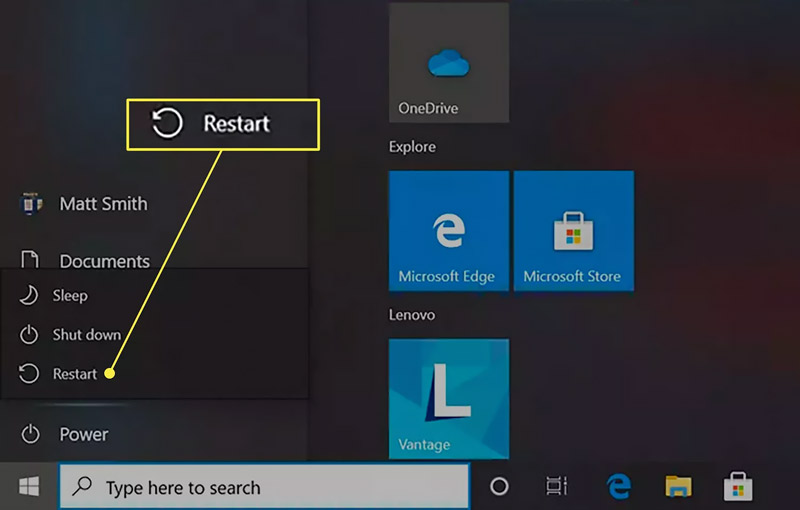
First things first, let’s not overcomplicate this. The most basic move is just using the on-screen power menu. Hit that Windows logo key in the bottom left, click the power icon, and then select Restart.
Must Read
Sounds simple, right? But you’d be amazed how many people skip this and go straight for the panic button. Give it a solid thirty seconds to shut down and boot back up, because Latitudes like to think about their life choices.
If the mouse is still moving, this is your best bet. It’s like asking your friend to politely leave the party—no drama, just a clean exit.
The “Ugh, My Mouse is Dead” Method
Okay, so the screen is frozen solid and your cursor is a permanent statue. No worries, we have a secret weapon: the keyboard. It’s not just for typing angry emails, I promise.
Hold down Ctrl + Alt + Delete all at once. You can even use your pinky, your thumb, and your nose if you’re feeling coordinated. This magic combo usually brings up a blue or black screen with a few options.
Click the power icon in the bottom right corner and choose Restart. If this doesn’t work, then we move to the heavy artillery. And yes, I’m proud of you for getting this far.
The “Full On Johnny Knoxville” (Force Shutdown)
Alright, we’re at the point of no return. The screen is black, the fan is whirring like a jet engine, and you’re pretty sure the laptop is mocking you. It’s time for the force shutdown.
Locate the power button. It’s usually on the top-left or somewhere on the side, depending on your Latitude model. I know, it’s like a treasure hunt every time.
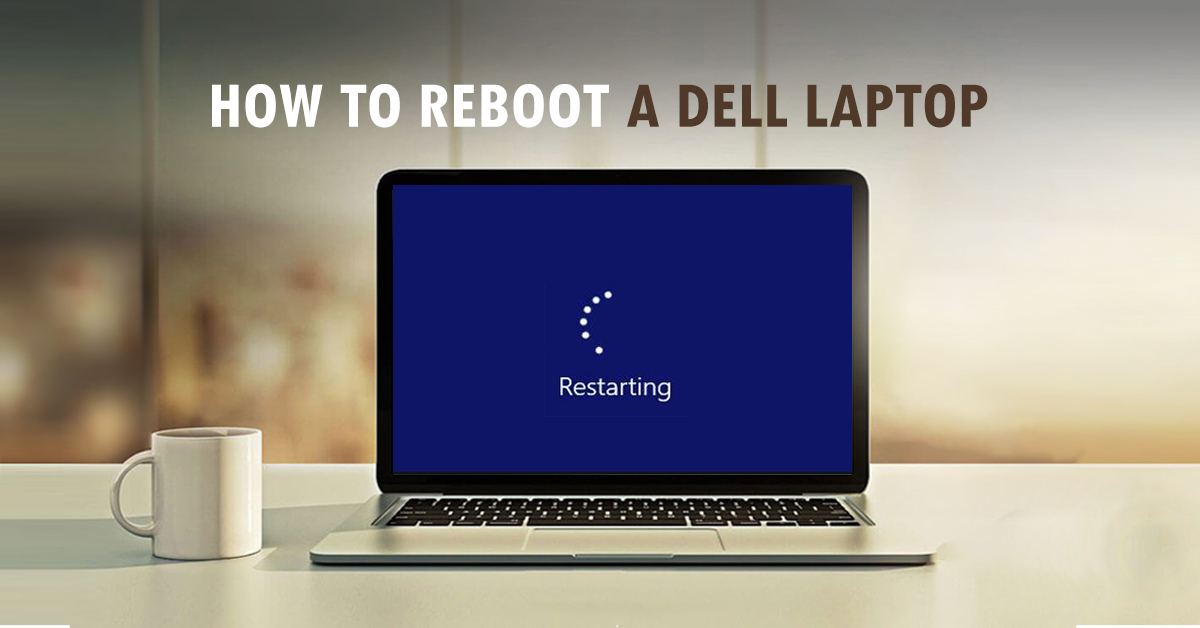
Press and hold that button down for a solid 10 to 15 seconds. Do not let go early. Count in your head like you’re launching a rocket. “Ten… nine… eight…” until the screen goes completely dark and the fan stops. That’s your cue.
This isn’t elegant, and it’s a bit like slapping a vending machine to get your snack, but it works. It cuts the power completely, wiping away all the digital cobwebs.
The Aftermath: Booting Up Like a Champion
So, the laptop is off. Now what? You’re not going to just leave it there, are you? Give it a few seconds to really relax. Let it think about what it did wrong.
Now, press the power button once, like you’re ringing a doorbell. Just a quick, gentle tap. Resist the urge to hold it down again; that’s for the next crisis.

You should see the Dell logo pop up, and then, fingers crossed, your login screen. If it loads, congrats! You’ve just performed a technical miracle. If it’s still stuck, don’t panic yet. We have one more trick up our sleeve.
The “Super F” (Advanced Boot) Rescue
This is the magic key that makes Dell users feel like wizards. When the laptop is completely off, press the power button, and then immediately start tapping the F12 key like you’re playing a frantic game of Tetris.
Tap it fast, tap it proud. This will pull up the boot menu, which is a scary list of techy words. Look for something that says “Diagnostics” or “Troubleshoot”.
Select it with the arrow keys and press Enter. This lets your Latitude run a self-check, like a doctor’s visit for your machine. It might take a few minutes, but it can fix startup issues you didn’t even know you had.
A Few Final (And Slightly Sassy) Tips
Don’t shut down your laptop every single night; a restart is often better for updates and memory refreshes. But do restart it at least once a week to keep things snappy. Think of it as a mental health day for your computer.
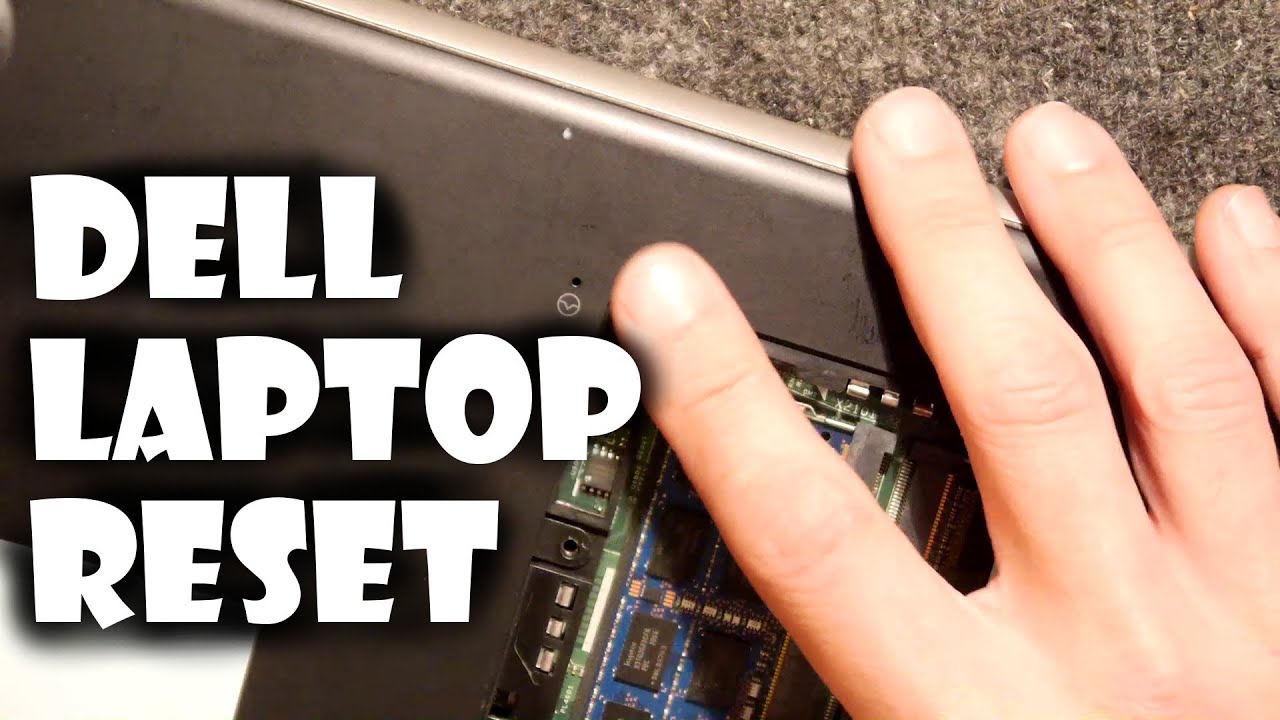
If the battery is removable (older models), you can also pop it out for 30 seconds. That’s the ultimate “unplug and plug back in” move. It resets the hardware on a deeper level.
And if you’ve tried all this and your Latitude still gives you the cold shoulder, it might be time to call in a professional. Or, you know, just sit there and stare at it until it feels guilty.
See? That wasn’t so bad. Now go forth and reboot, you glorious tech wrangler. Your reward is a screen that actually moves when you move the mouse.