How To Reset Wifi Extender Netgear
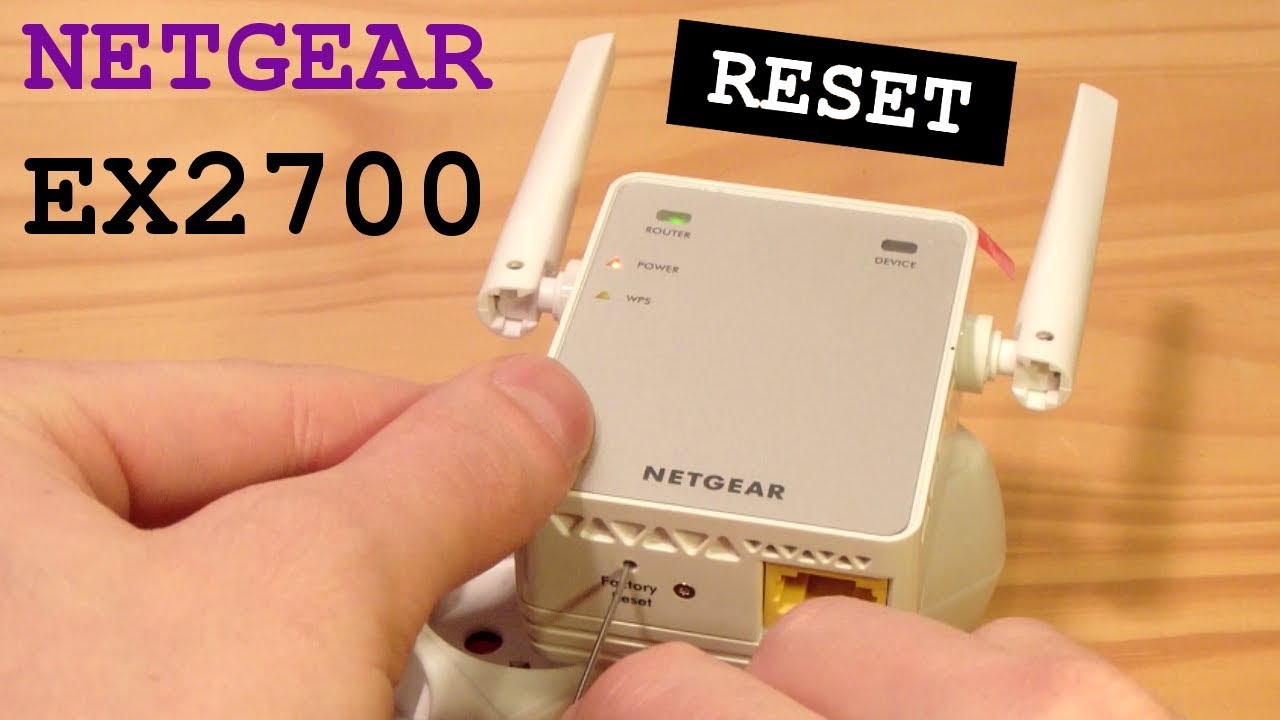
Let’s be honest: a sluggish Wi-Fi connection is a modern-day buzzkill. You’ve probably found yourself staring at that little spinning wheel on your laptop, wondering why a single webpage takes forever to load. That’s where your Netgear extender comes in—or, unfortunately, where it sometimes fails you. Learning how to reset your Netgear extender is a simple, five-minute fix that can save you from hours of frustration and a mountain of thrown remotes.
The purpose of a reset is to give your extender a clean slate. Think of it like a digital nap for your device—it clears out glitches, forgotten passwords, and stale IP addresses. The immediate benefit is a fresh connection that often restores your signal strength to full blast. It also allows you to reconfigure the extender for a new router, a new home layout, or a new internet provider without any leftover digital baggage.
In daily life, a successful reset means your video calls don’t freeze mid-sentence, and your Netflix stream stays in high definition. For students, this is a lifesaver when a week’s worth of research depends on a stable connection for online classes. Even simple tasks like smart-home light switches or a child’s tablet homework become seamless again once your extender is talking clearly to your main router.
Must Read
Before you dive in, know that there are two types of resets: a soft reset and a factory reset. A soft reset (just unplugging it for 10 seconds) is for minor hiccups, while a factory reset wipes everything back to original settings. For most problems, start with the soft reset—it’s the kinder, gentler option that often does the trick without forcing you to set up your network from scratch.
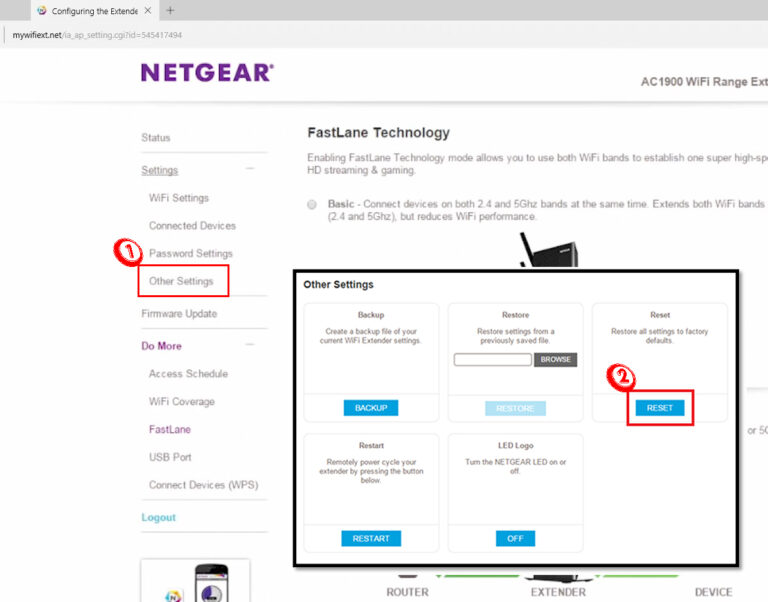
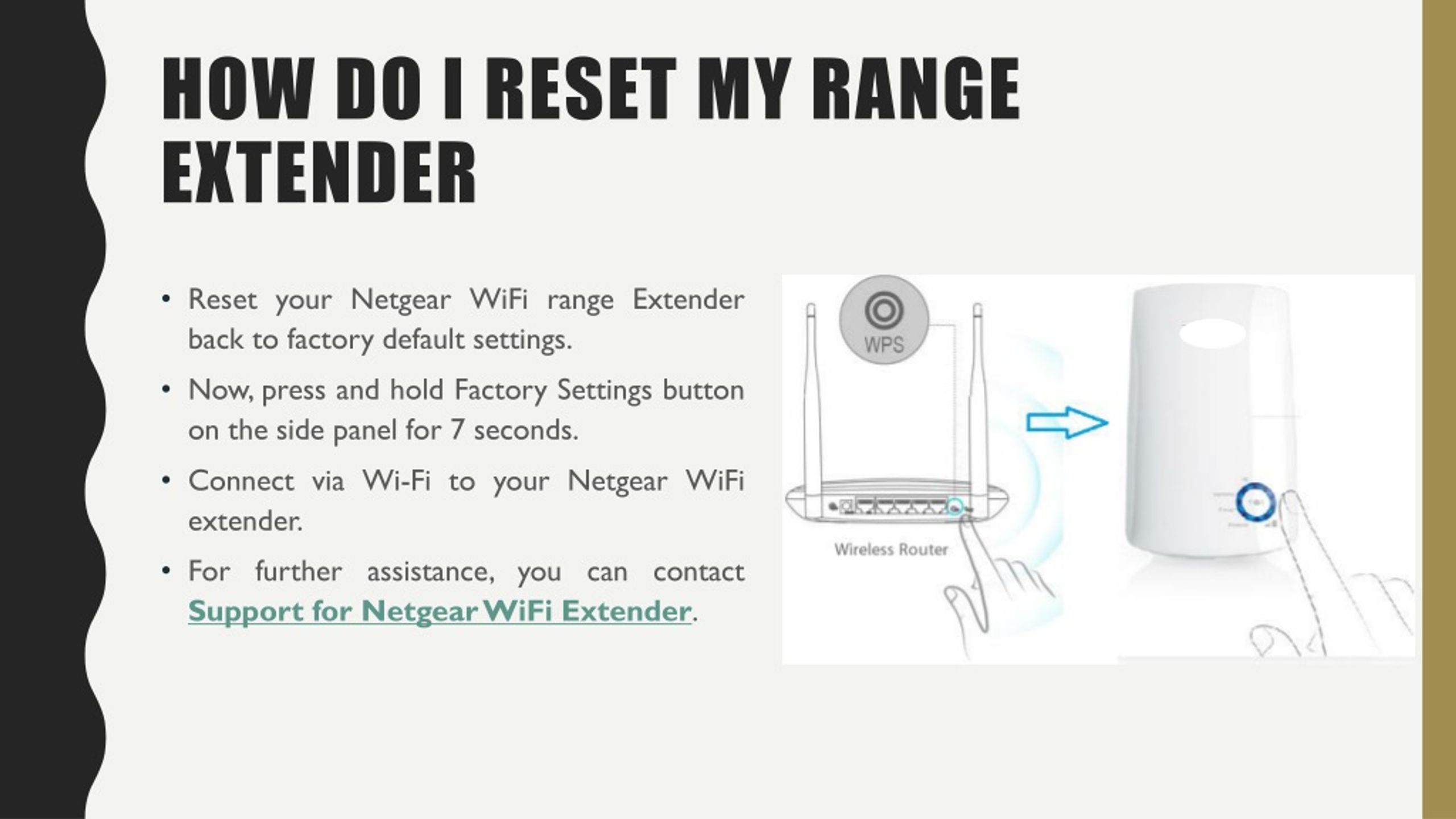
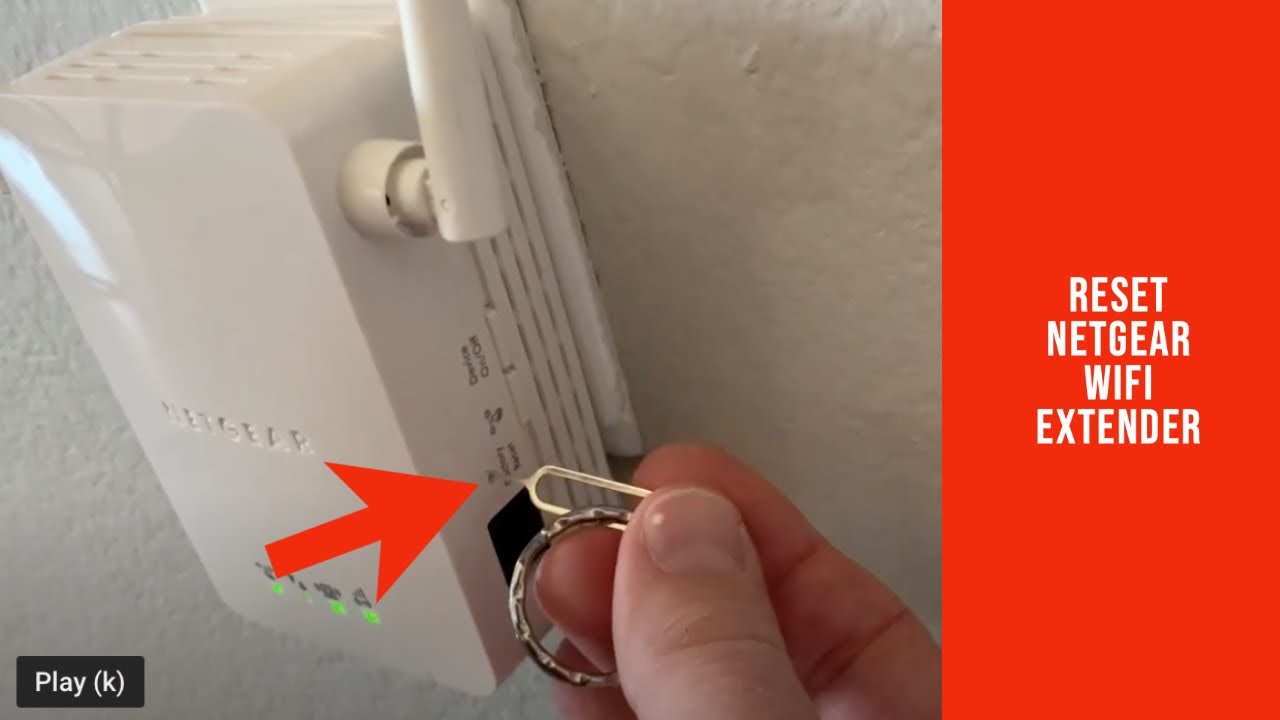
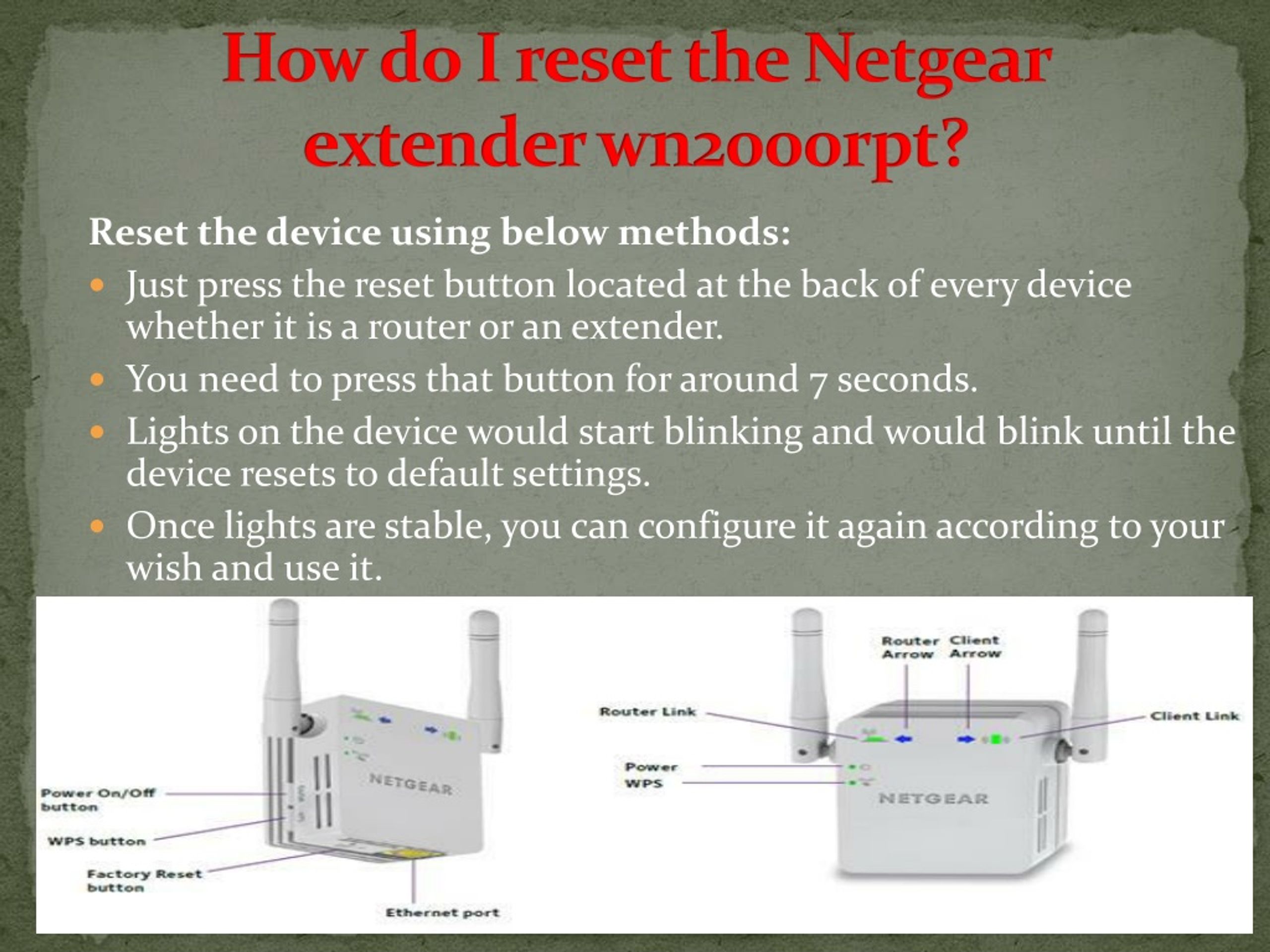
Ready to try it? First, find the small reset button on your extender—usually recessed and needing a paperclip or a pin. Hold that button down for about 7 to 10 seconds until the power LED blinks amber, then release it. Wait for the extender to reboot completely (about 30 seconds), and you’ll see the LEDs stabilize, which signals it’s back to factory defaults.
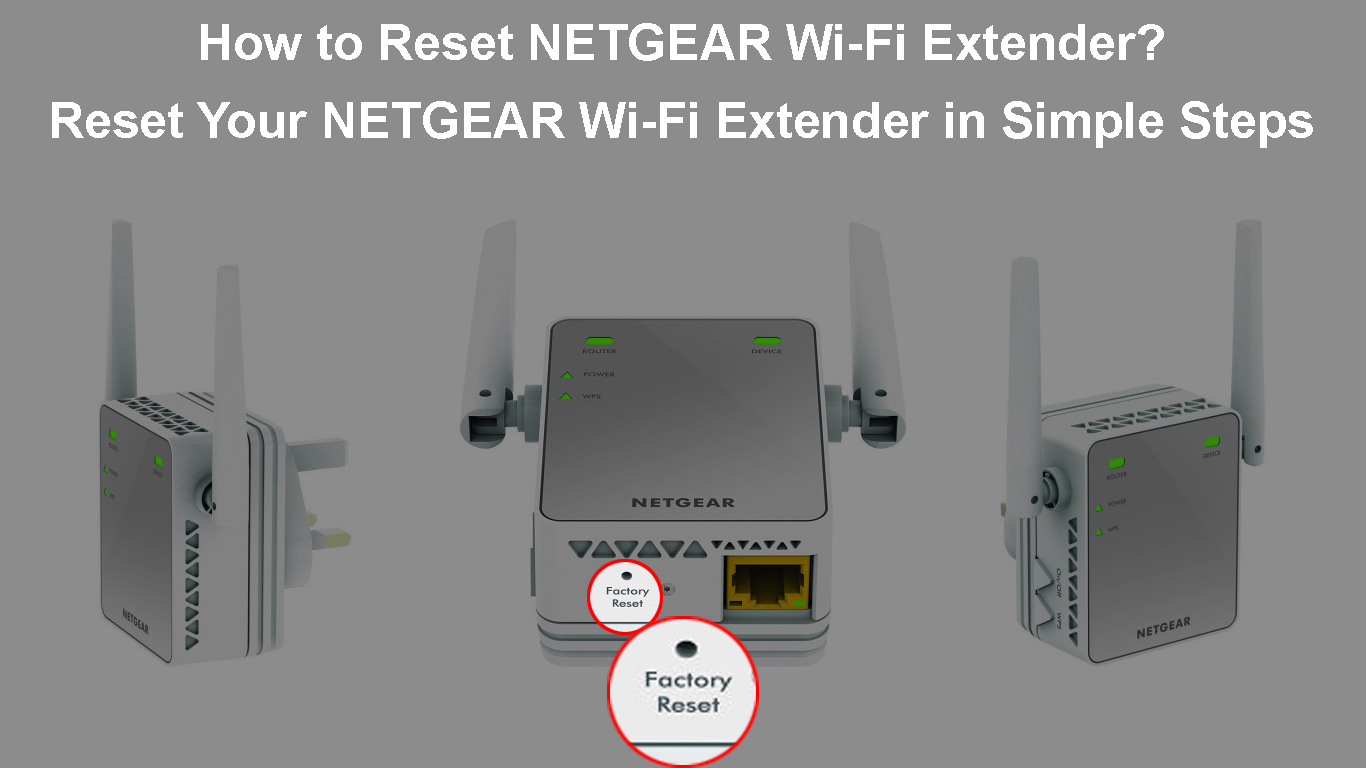
After a factory reset, you’ll need to reconnect your extender to your main router. Plug it into a power outlet near your router, and use your phone or computer to search for the extender’s default Wi-Fi name (often “Netgear_EXT”). Follow the on-screen prompts in your browser to re-enter your router’s password and choose a new name for your extended network. It’s a bit like introducing two old friends again—just a few minutes of polite conversation and they’re back to chatting perfectly.
Here’s a practical tip: always write down your router’s password before you reset anything. Nothing is more awkward than resetting your extender only to realize you’ve forgotten the Wi-Fi key for your main network. Also, consider doing a reset every few months as a preventive tune-up, especially if your home is packed with streaming devices and smart gadgets.

For the truly curious, explore the Netgear Nighthawk app or the web interface for advanced settings once you’re back online. You can adjust bandwidth, change channels, or even set a schedule to automatically reboot the extender weekly. Experimenting with these settings is the fun part—you’ll learn how your network breathes, and you’ll become the household tech guru who never panics when the Wi-Fi acts up.
Finally, remember that a reset is not a failure—it’s a maintenance ritual. Like changing a light bulb or watering a plant, it keeps your digital garden thriving. So next time your extender throws a tantrum, grab a paperclip, smile, and press that little button. You’ve got this.