How To Remove Background On Photo
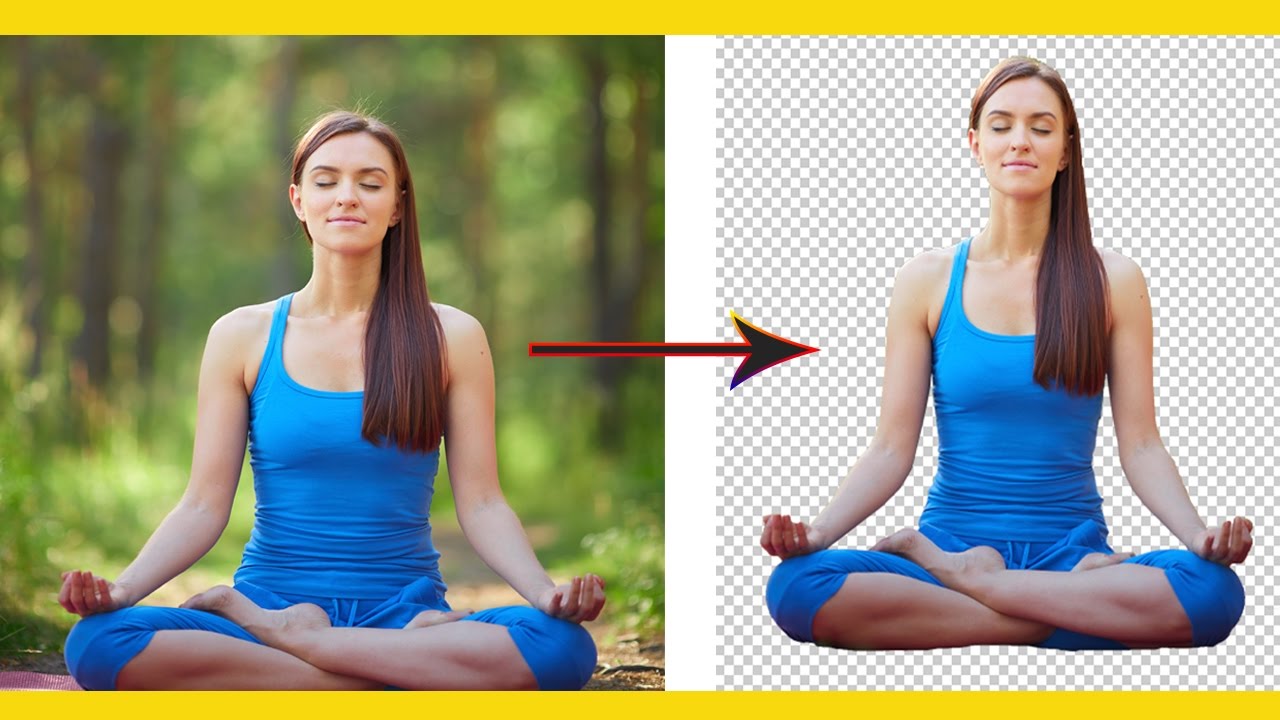
We’ve all been there—staring at a fantastic photo of your child, your dog, or that perfect vacation sunset, only to have a cluttered background ruin the magic. Removing a background is the digital magic trick that turns an ordinary snapshot into a clean, professional-looking image ready for anything. It’s the reason your favorite online store shows products on pure white, and why your passport photo looks so crisp and official.
At its core, this skill is about control. By stripping away distractions, you force the viewer’s eye directly onto the subject—whether that’s a face, a product, or a quirky meme. For everyday life, this means creating polished profile pictures, making custom invitations, or building fun collages for social media without needing a design degree. It’s also a lifesaver for small business owners who need to post products on Etsy or eBay but don’t own a professional studio.
You’ve likely seen the results everywhere, even if you didn’t know it. That sleek LinkedIn headshot where you’re wearing a suit but standing in your living room? Background removed. Those hilarious birthday memes where your friend’s face is pasted onto a superhero’s body? Also background removal. Even your kid’s school project—where a family photo is cut out and glued onto a poster board—is a low-tech version of the same idea.
Must Read
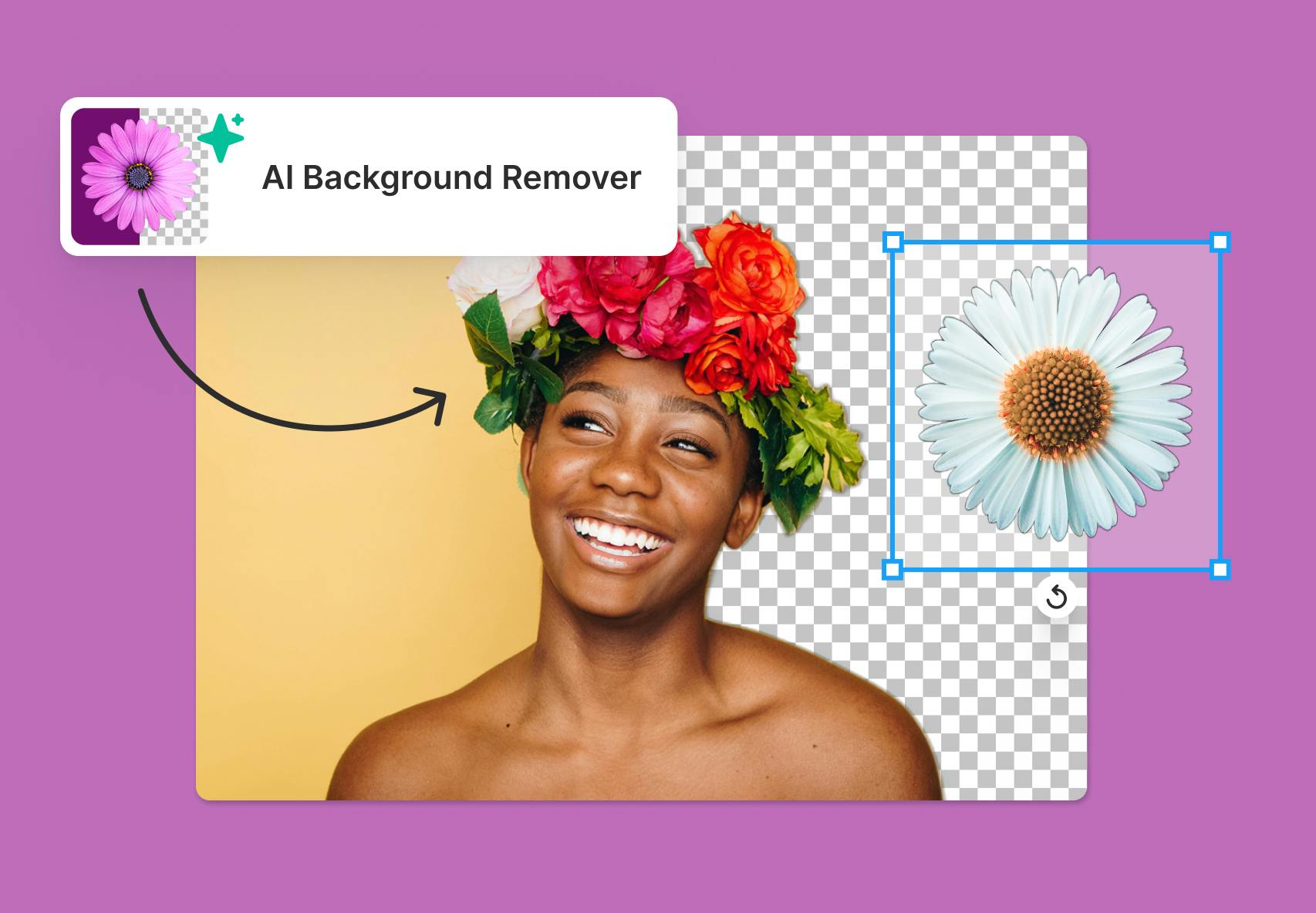
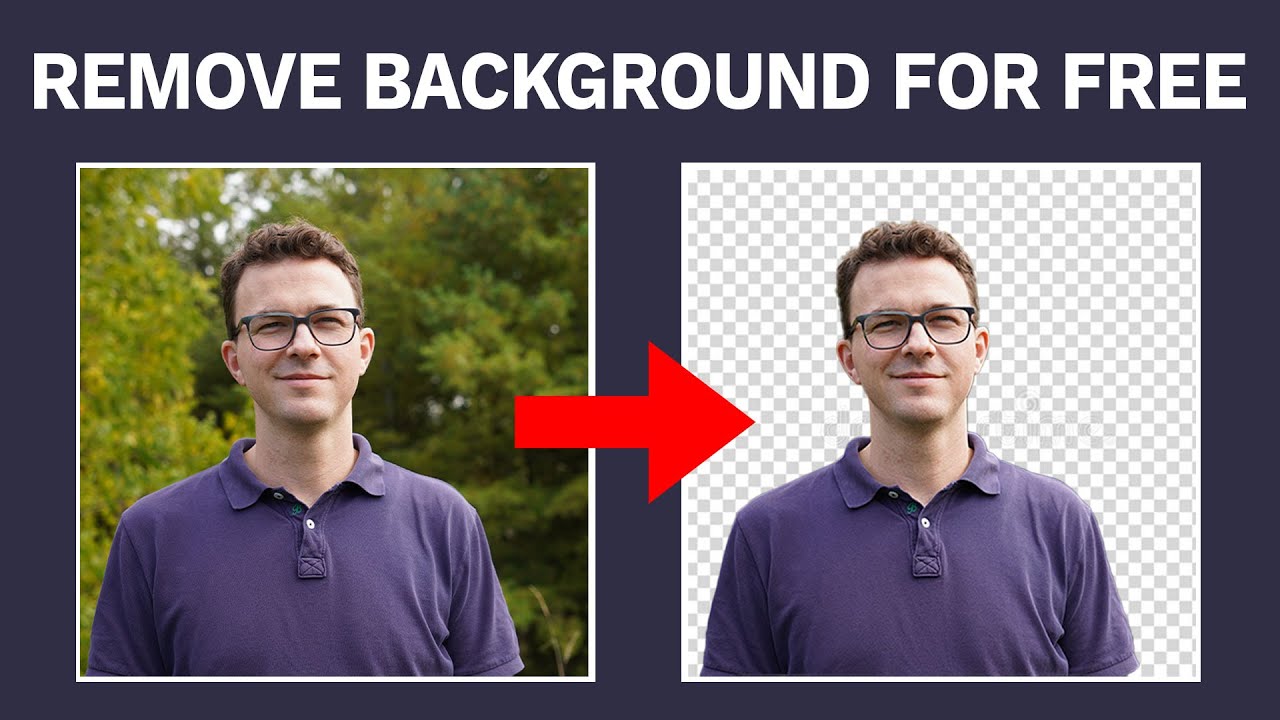
The good news? You don’t need expensive software or a degree in graphic design. For quick fixes, free online tools like Canva, Remove.bg, or even your phone’s built-in photo editor work wonders. The secret is to choose a photo with a clear contrast between the subject and the background—like a person in front of a plain wall, or a bright object against a shadowy floor. If the background is busy or similar in color to your subject, the tool will struggle and leave jagged edges.
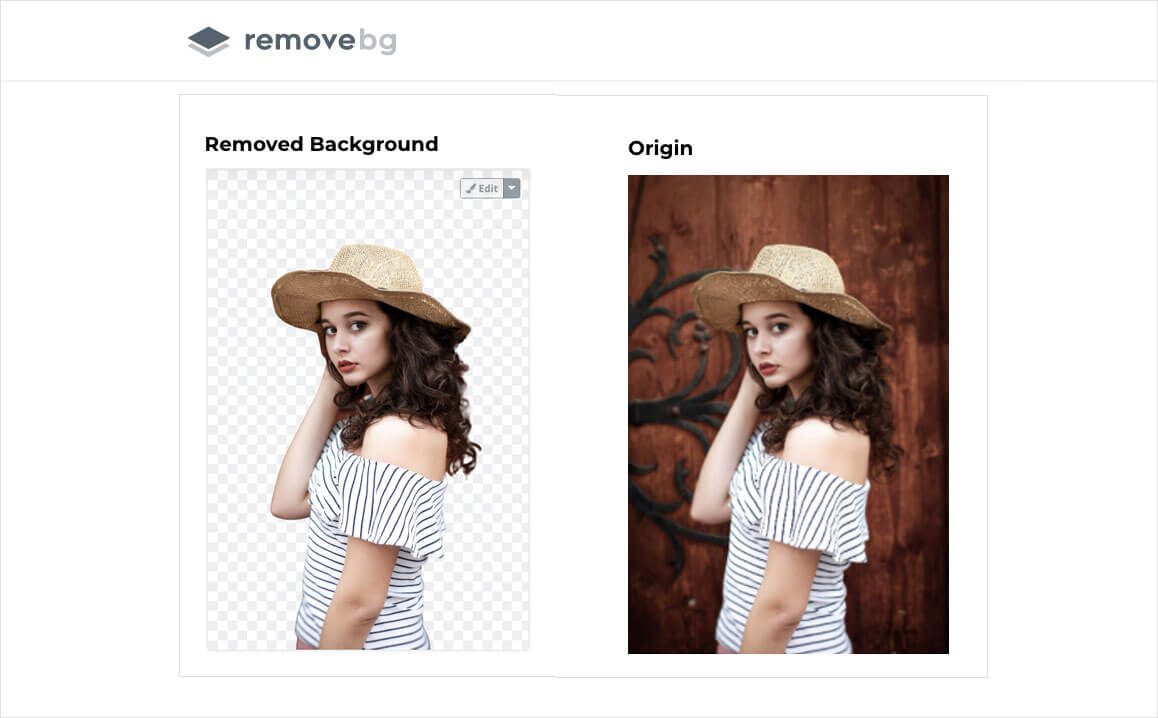
For a more polished result, spend 30 seconds using the “manual erase” or “brush” tool after the auto-magic happens. Zoom in to clean up stray hairs, flyaway strands, or fuzzy outlines around the ears and shoulders. A common tip? Work with a high-resolution image—a 2-megapixel photo will cut cleanly, while a low-res one turns into a pixelated nightmare.
If you’re feeling adventurous, try using the “Select Subject” feature in Apple Photos or Google Photos—it’s shockingly smart with one tap. For complex images like curly hair or glass, don’t fight the software; instead, use a tool with “edge refinement” or “decontaminate colors” to remove the halo effect. And always save your original file first, because once you delete the background, you can’t easily get it back unless you undo.
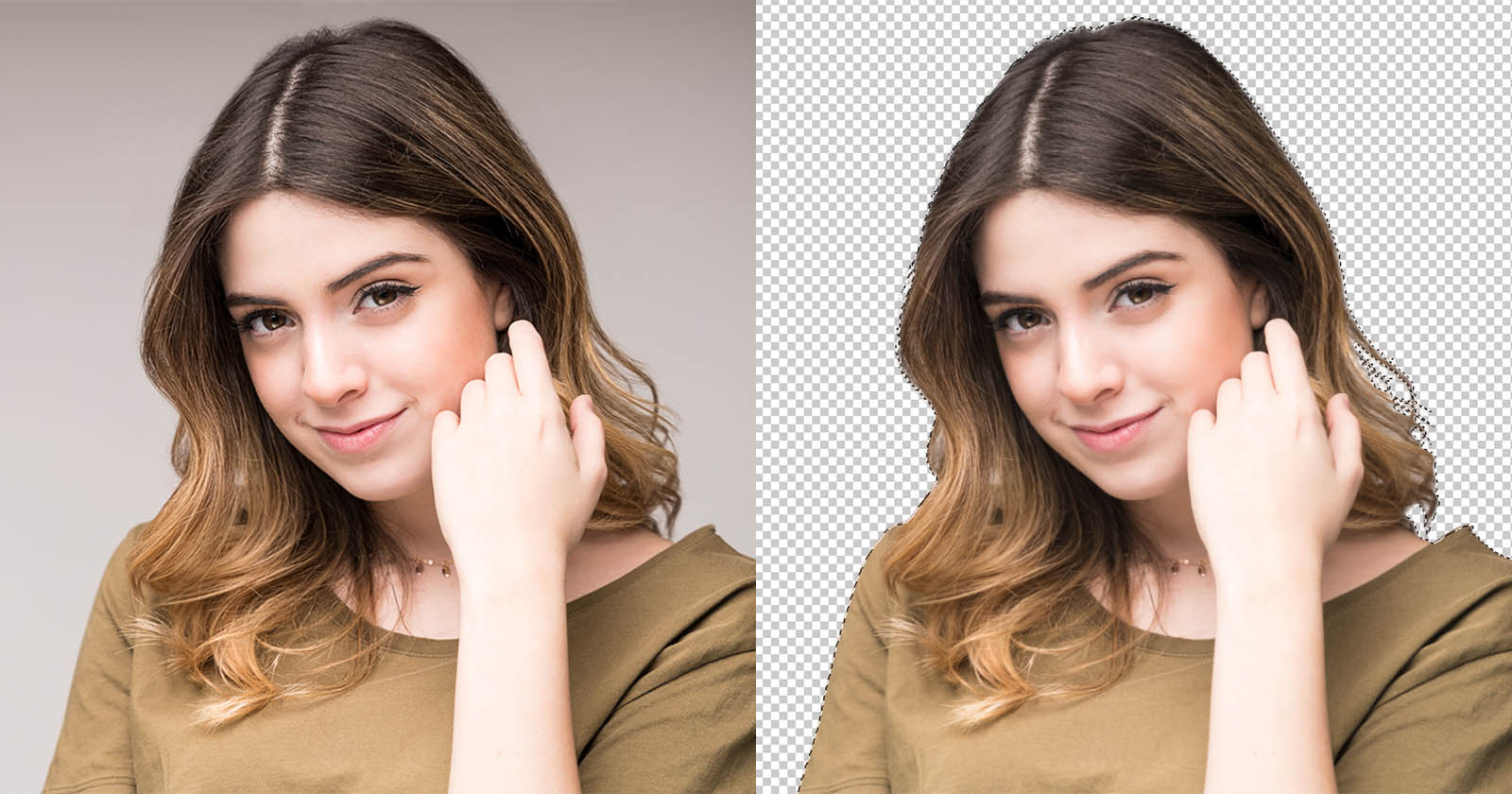
Finally, think about the purpose before you edit. A transparent background is perfect for stacking images, but if you need a white background for a document, just add a solid color fill layer. Play with different backdrops—try a subtle gradient or a fun patterned paper—to give your cutout a new life. The more you practice, the faster you’ll get, and soon you’ll be removing backgrounds in under ten seconds flat.
So the next time you’re tempted to post a messy photo, don’t delete it—fix it. With a few clicks, you’ll turn chaos into clarity, and your friends will wonder if you hired a professional. Go ahead, give your favorite photo the clean slate it deserves, and watch your digital world get a little more polished, one background at a time.