How To Edit 2 Videos Side By Side
Last Tuesday, I spent three hours trying to explain to my uncle why his new "movie" (a 40-minute drone flyover of his rooftop) needed two angles. He just wanted to show the sunset. I wanted to show the sunset and his neighbor’s cat simultaneously. That’s when it hit me: editing two videos side by side isn’t just a technical trick—it’s a philosophical debate about attention. And honestly, it’s a lot easier than convincing a 68-year-old that parallel timelines are the future of storytelling.
So, you’ve got two clips that must play at the same time. Maybe it’s a reaction video, a tutorial with a talking head and a screen recording, or you’re just flexing a split-screen aesthetic. Whatever the reason, you’re probably sitting there staring at your timeline, wondering if you need a degree in rocket science. Spoiler alert: you don’t. You just need to stop panicking and start stacking.
Step One: Pick Your Poison (The Software)
First, decide where you’re doing this. If you’re on a phone, apps like CapCut or InShot have a “split-screen” button that basically does the heavy lifting for you—no brain cells required. But if you’re on a desktop with something like Premiere Pro, DaVinci Resolve, or even the free iMovie, the logic is the same. You’re not merging clips; you’re positioning them. Think of it like arranging furniture in a tiny apartment—you’re just squeezing two couches into one living room.
Must Read
Here’s the ironic part: most beginners try to edit the videos first and then combine them. That’s backwards. Combine the timelines first, then edit the audio and cuts. Trust me, it saves you from that weird moment where you’ve trimmed clip A perfectly, but now clip B is three seconds too long and you have to re-do everything.
Step Two: The Stacking Game
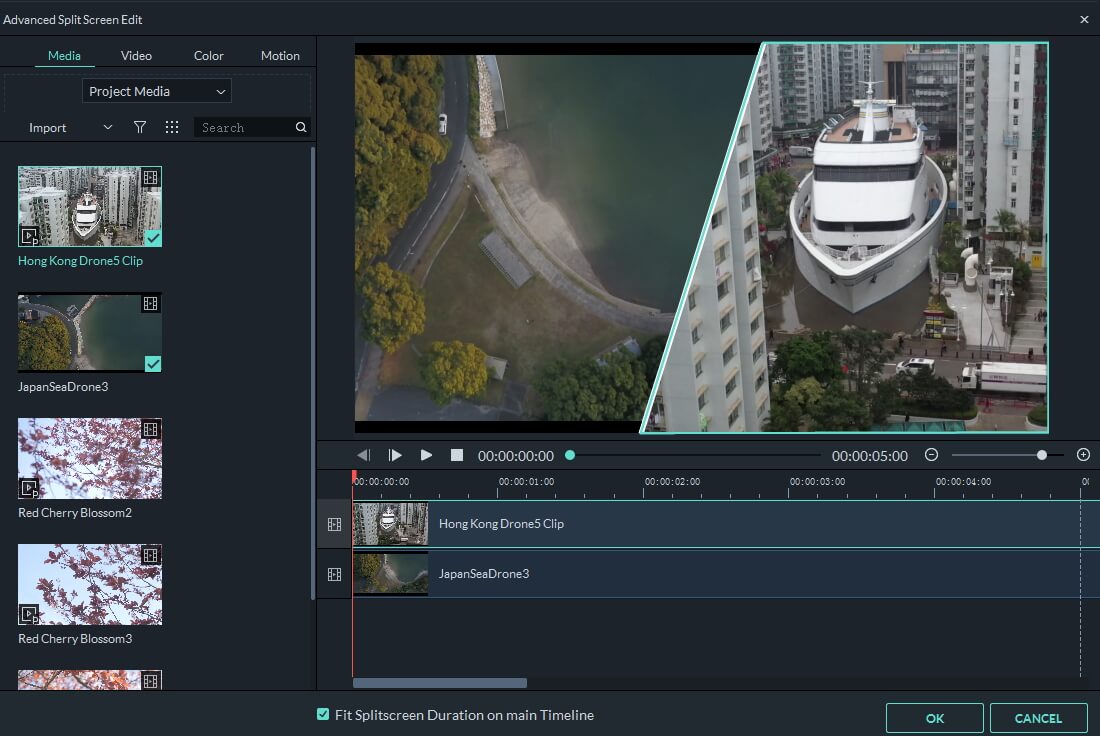
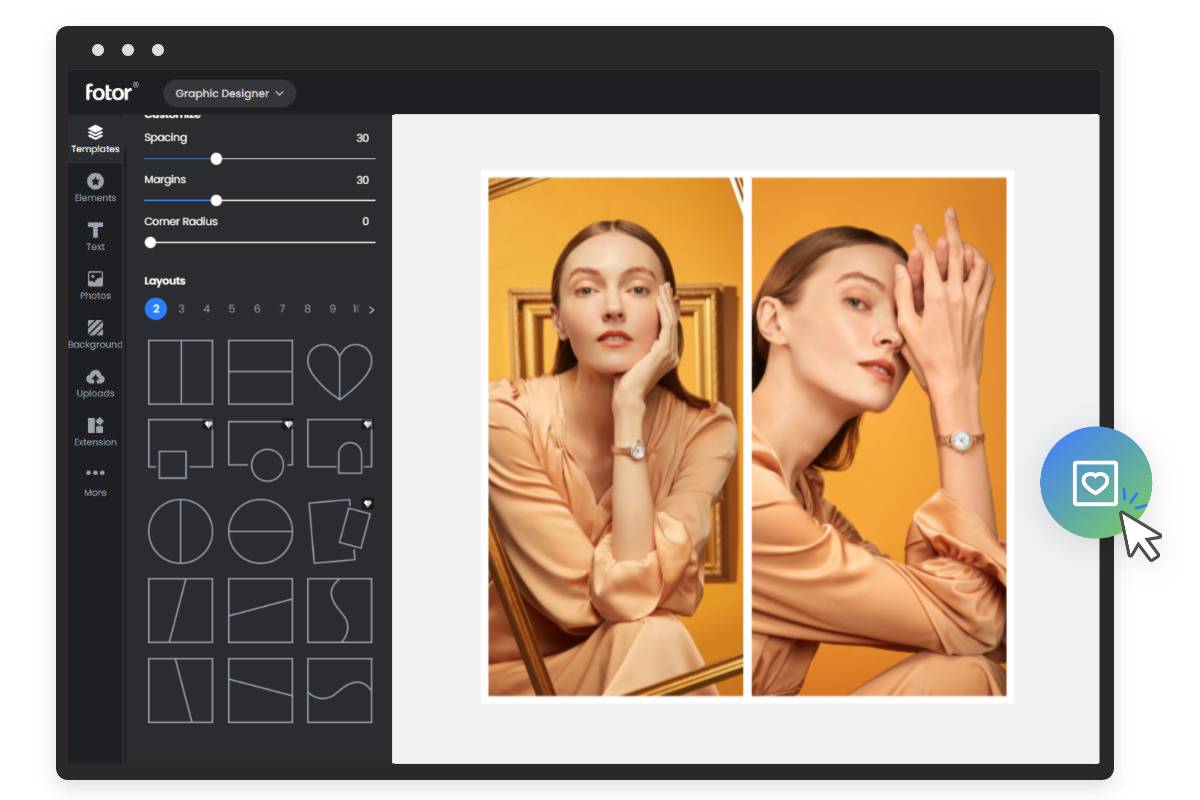
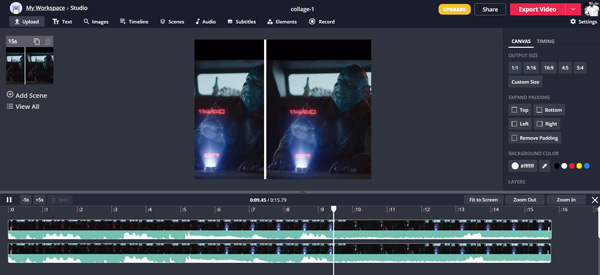
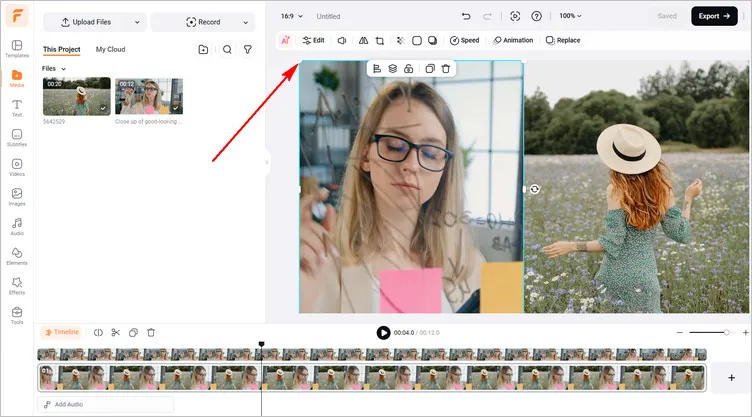
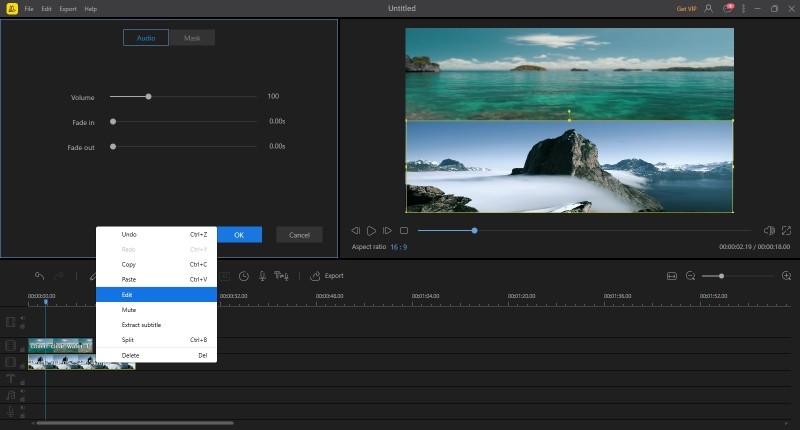
Open your project and place both clips on the same timeline, but on different video tracks. Yes, it’s that simple. Track 1 is the left side, Track 2 is the right side—or top and bottom if you’re feeling spicy. Most editors have a “scale to frame size” option. Click that, or manually resize each clip to 50% width. Then, drag one clip to the left edge and the other to the right edge. Boom. You’re officially a split-screen wizard.

But here’s the catch that nobody tells you: the audio is going to be a nightmare. If both videos have sound, you’ll get a chaotic mashup of your voice and, I don’t know, a dog barking in the background. Unless you’re making a weird experimental art piece, mute one clip’s audio entirely. Or, better yet, just keep the audio from the “main” video and let the other one be silent—your ears will thank you.
Step Three: The “Why Does It Look Wrong?” Phase
You’ll line up the clips, and suddenly one video is 16:9 while the other is a vertical phone clip. That’s when you realize that not all pixels are created equal. You’ll need to adjust the scale and position manually—think of it like fitting a round peg in a square hole, but with a lot of dragging. Pro tip: use the “transform” controls, not your mouse, to get precise numbers. I once spent 20 minutes trying to align two clips by eye, only to find out I was off by four pixels. Four pixels! My therapist says I’m doing better now.
Also, consider the visual weight. If you have a talking head on the left and a screen recording on the right, don’t make them equal size. Make the screen recording larger—it’s the “main event,” while the face is just the garnish. Play with asymmetry; it’s more dynamic and doesn’t look like a boring 50/50 split. Unless you’re doing a versus battle—then, by all means, go symmetrical.

Step Four: Sync Nightmares (And How to Survive)
The biggest headache is syncing the two clips. If you’re doing a reaction video, you need the laugh to hit exactly when the funny thing happens. Use a clap, a sharp sound, or a visual cue (like a hand gesture) in both clips as a reference point. In your editor, zoom into the waveforms and align those spikes. It’s not magic; it’s just obsessive attention to detail. Side note: if you have a webcam recording and a screen recording, there’s usually a delay of 1-2 frames. You won’t notice it until you’re watching with a friend, and then you’ll pretend you didn’t spend an hour fixing it.
And for the love of all that is holy, lock your tracks once they’re aligned. I’ve lost count of how many times I accidentally dragged the right clip a second too far because I wasn’t paying attention. The lock icon is your best friend. Use it. Embrace it. Name your first child after it.
Step Five: The Final Polish
Now, add a subtle border between the two videos. A thin black or white line (2-3 pixels) makes it look intentional, not like a technical glitch. You can do this with a background shape or a stroke effect—whatever your software calls it. It’s the difference between “I made this in 5 minutes” and “I have a YouTube tutorial channel.” Also, consider a tiny drop shadow on each clip to give them depth. It’s a cheap trick, but it works.
Finally, export in the right aspect ratio. If you’re posting to Instagram, that’s 1:1 or 9:16. For YouTube, 16:9. Your split-screen will look different depending on the frame, so preview it before you render. I once exported a beautiful split-screen for YouTube, only to realize the vertical version cut off the top of my head. My forehead is fine, but my chin was missing. Lesson learned.
Editing two videos side by side is a bit like learning to juggle—clumsy at first, then oddly satisfying. Don’t overthink it. Stack, resize, mute the second audio, and sync the beats. If it still looks messy, just pretend it’s “avant-garde.” That’s what I did with my uncle’s drone video. He still doesn’t get it, but he now thinks I’m a genius. And honestly, that’s half the battle.

![How to Put Videos Side by Side [BEST FREE Software Included]](https://images.wondershare.com/filmora/article-images/drag-and-drop.jpg)