How To Reduce File Size For Video

Every second of video you capture is a frantic negotiation between visual fidelity and physical storage. When your phone’s camera sensor captures light, it translates millions of photons into a grid of pixels, each holding a specific color and luminance value. The raw data for a single minute of 4K footage at 30 frames per second represents roughly 12 gigabytes of uncompressed information—a torrent of data that would flood your cloud storage in minutes. Your device, however, rarely saves this raw stream. Instead, it employs codecs, complex mathematical algorithms that exploit the biological limitations of your visual cortex to discard what your eyes and brain would never notice. The science of video compression is fundamentally a study in perceptual psychology: it asks not what is true, but what is visible, and then ruthlessly deletes the rest.
Understanding this invisible labour is the first step towards reclaiming control over your digital life. When you reduce file size, you are not merely "shrinking" a movie; you are engaging in a micro-level act of data ecology. The video encoder performs a Fourier-like transform on spatial data, separating high-frequency details (sharp edges, textures) from low-frequency information (broad color gradients). It then quantizes this data, essentially rounding off the exact values to the nearest approximate number. This introduces lossy compression, where the artifacts are mathematically invisible to the human eye under normal viewing conditions, but physically absent from the data stream. The result is a dramatic shift in household storage, upload bandwidth, and device battery life, all governed by a principle called rate-distortion optimization—the constant battle between keeping bytes low and keeping quality high.
In our daily lives, this battle plays out as a desperate scramble before a family vacation, a frantic export before a client deadline, or a frustrated deletion of apps to free up space for one more video. We treat file size as a rigid wall, but it is, in fact, a fluid variable. By learning the specific levers that control this compression—resolution, bitrate, frame rate, and codec—you move from being a passive consumer of storage allocations to an active architect of your digital media. This article dismantles the black box of encoding, providing you with the empirical, data-driven toolkit to master your footage, cut the fat, and keep the cinematic essence intact.
Must Read
The Biology of Perceptual Coding: Why Your Eyes Are the Best Compression Tool
Your visual system is not a camera; it is a highly selective interpreter. The human retina contains roughly 120 million rod cells for low-light vision and 6 million cone cells for color, but the optic nerve can only transmit about 1 million signals per second. This bottleneck forces a massive biological compression strategy. Your brain focuses intently on the center of your gaze (the fovea) while the peripheral vision is essentially blurry, low-resolution motion detection. Video codecs like H.264 and H.265 exploit this by using foveated rendering indirectly—they allocate more bits to the center of the frame (where your eyes naturally focus) and fewer to the edges, though modern encoders do this statistically based on scene complexity, not eye-tracking.
Furthermore, the human eye is far more sensitive to changes in luminance (brightness) than to chrominance (color). This biological asymmetry is the foundation of chroma subsampling. A typical video file, even at a high bitrate, uses a 4:2:0 color sampling scheme. This means that for every block of four pixels, the encoder stores full brightness data for all four, but only stores one set of color data. It discards 75% of the color information, and you will never notice. This is not a degradation—it is a masterstroke of physiological mimicry. When you see a "high quality" setting in an export dialog, you are often just increasing luminance precision, while the color is already heavily compressed by default, a fact most hobbyists never realize.
The most profound biological hack, however, lies in the temporal masking effect. When a scene changes rapidly—such as a quick panning shot or an explosion—your brain experiences a temporary blind spot for fine detail. The encoder detects this high-motion scenario and aggressively lowers the quality across the entire frame, saving massive amounts of data. Conversely, in a static talking-head video, the encoder can use P-frames (predicted frames) that only store the pixels that changed from the previous frame, sometimes resulting in a file that is 90% smaller than an I-frame-only video. This is why a "boring" webinar is miraculously small, while a 10-second clip of fireflies in a forest is gigantic. Your biology dictates the file size more than the actual content does. By understanding this, you can pre-empt these mechanisms: shoot with stable lighting, avoid excessive noise (which looks like high-frequency detail to the encoder), and you will get smaller files without touching a single setting.
Systemic Levers: Bitrate, Codecs, and the Physics of Data
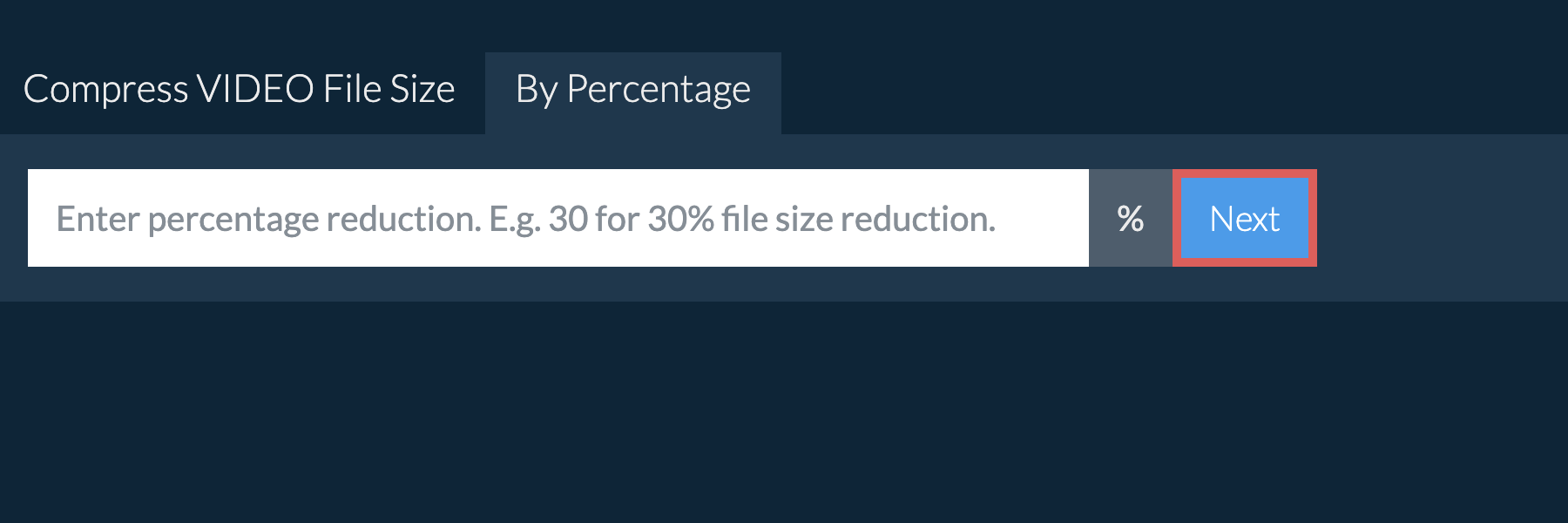
To truly master file size, you must abandon the vague notion of "quality" and embrace the quantitative metric of bitrate—the number of bits allocated per second of video, usually measured in megabits per second (Mbps). This is the single most powerful lever in your control. A 4K video at 100 Mbps will be roughly twice the size of the same video at 50 Mbps, with only a slight perceptual difference on a smartphone screen. The pragmatic rule is to match your bitrate to your viewing medium. If the video is destined for social media or email, a bitrate of 8–12 Mbps for 1080p is scientifically overkill. The physics of the display fails to resolve the extra data; you are storing pixels that your screen physically cannot show. Lowering the bitrate to 5 Mbps for 1080p will yield a 50% reduction in file size with zero visible loss on most LCD screens.
The second systemic lever is the codec itself. Older codecs like H.264 (AVC) are the standard of the early 2010s, but they are computationally inefficient. The modern H.265 (HEVC) and AV1 codecs are engineered with more advanced mathematical models for motion estimation and spatial prediction. H.265 can deliver the same visual quality as H.264 at roughly 50% to 60% of the bitrate. This is not magic; it is the result of larger block sizes (up to 64x64 pixels versus 16x16), better intra-frame prediction, and more sophisticated transforms. However, the catch is hardware compatibility. For maximum compatibility with all devices, H.264 is safe; for personal archive or modern smartphone viewing, H.265 is a scientific no-brainer that halves your storage footprint instantly.
Another critical physics-based factor is the GOP length (Group of Pictures). This defines how often the encoder inserts a full reference frame (I-frame) versus compressed difference frames (P and B frames). A longer GOP (more frames between I-frames) drastically reduces file size because P-frames are tiny. However, if you need to scrub through the video timeline or edit it heavily, a long GOP causes lag. For final delivery, set your GOP to be long (e.g., 3–4 seconds) to save space. For editing, use an "All-I" codec (every frame is an I-frame) which creates massive files but allows for fluid editing—a trade-off between accessibility and storage. This is the systemic friction of the modern video pipeline.
Finally, you must control the audio track. Most novice videographers compress audio to an uncompressed PCM or high-bitrate FLAC stream, which is utterly unnecessary for the human cochlea. A standard AAC codec at 128 kbps for mono dialogue or 192 kbps for stereo music is transparent to 99% of listeners. Audio in video files often constitutes up to 15% of the total filesize. By ensuring your audio is transcoded to a lossy but perceptually perfect format, you reclaim gigabytes per hour of footage. We are not sacrificing quality; we are aligning data allocation with the actual biological sensitivity of the ear.
Strategic Hacks for Everyday Mastery
To put this science into practice, you need a strict, measurable protocol for your workflows. First, establish a rule of thumb for delivery: for any video that will be viewed on a phone or streamed online, set your export resolution to 1080p (or 720p for vertical clips) and your bitrate to no more than 6 Mbps. Test this rule by exporting a one-minute clip at 8 Mbps and at 6 Mbps, then viewing them side-by-side on your actual viewing device. You will be shocked to find they are identical. Break the addiction to 4K export unless you are mastering for a cinema screen. The encoding software is doing the heavy lifting; you are just supplying unnecessary data.
Second, adopt the "Two-Pass VBR" encoding method (Variable Bit Rate) for your exports. This is a non-negotiable hack. In one-pass encoding, the encoder guesses how to distribute bits, leading to spikes in file size and wasted data. In two-pass, the encoder analyzes the entire video first, then performs an optimal distribution, assigning more bits to complex scenes and fewer to static ones. This routinely reduces file size by 20–30% at the same perceptual quality. It takes twice as long to render, but for final archival, it is the highest-leverage action you can take. For rapid drafts, use a fast constant bitrate (CBR) setting, but never for final output.

Third, use a dedicated compression tool for mobile footage. Apps like HandBrake (free, open-source) allow you to batch-process videos. For iPhone footage (which is often H.264 or HEVC), run it through HandBrake with the "Slow 1080p30" preset, and then manually lower the RF (Rate Factor) slider to 23 (which is visually perfect) while turning off the "Large File Size" option. This single step can reduce a 1GB phone video to a 150MB file with zero perceptible change, because the phone's original encoder is less thorough than HandBrake's advanced filter pipeline. The phone is optimized for battery life, not compression efficiency.
Fourth, crop your canvas. If your raw footage is 4K but your output is 1080p for a vertical social story, do not just scale it—crop the center 1080x1920 pixels. This removes the need to encode the peripheral pixels entirely, reducing the data load substantially. Additionally, aggressively use the denoise filter before exporting. Noise (grain) is the enemy of compression because it forces the encoder to allocate bits to random variations. A light temporal denoise filter can reduce file size by up to 20% while making the image look cleaner and more cinematic. This is a lifestyle hack for the data-conscious: you are actively removing visual chaos.
Fifth, understand the power of frame rate reduction. If you shot in 60fps for slow-motion but your final video is standard speed, you are storing twice the frames you need. Export at 30fps or 24fps. This mechanically halves the bitrate and halves the file size. Unless you are displaying smooth scrolling or detailed sports action, 24fps is perfectly acceptable and saves massive storage. For web uploads, always choose 24 fps over 60 fps unless the content absolutely demands it. Finally, always check your file's bitrate after export using a free tool like MediaInfo. Do not trust your eyes; trust the metrics. Aim to get every file under a specific bitrate budget for its resolution.
Frequently Asked Questions
Why does my video file stay large even after I lower the resolution to 720p?
Lowering resolution alone is often insufficient because your bitrate might be capped or set to a constant high number. If you don't lower the bitrate simultaneously, the encoder will still allocate the same megabytes per second to a smaller pixel grid, resulting in near-identical file size with higher-than-needed spatial detail, wasting space. Think of bitrate as the amount of water flowing; resolution is the tube size. If you shrink the tube (resolution) but keep the water flow (bitrate) the same, you don't save time. You must aggressively lower the bitrate to match the smaller resolution—try 2 Mbps for 720p to see a dramatic size drop.
Another overlooked factor is the audio bitrate and the presence of silent padding at the start or end. Editors often leave several seconds of black and silence. During those segments, video I-frames are still being encoded. Trim all leading and trailing blank footage. Furthermore, crucial files created by screen recording software often have a high, constant bitrate setting that ignores actual visual complexity. Scrolling through static text keeps the bitrate high even though the content is mostly still. In this case, run it through a two-pass encode to let the program allocate fewer bits to the static parts, which will shrink the file dramatically.
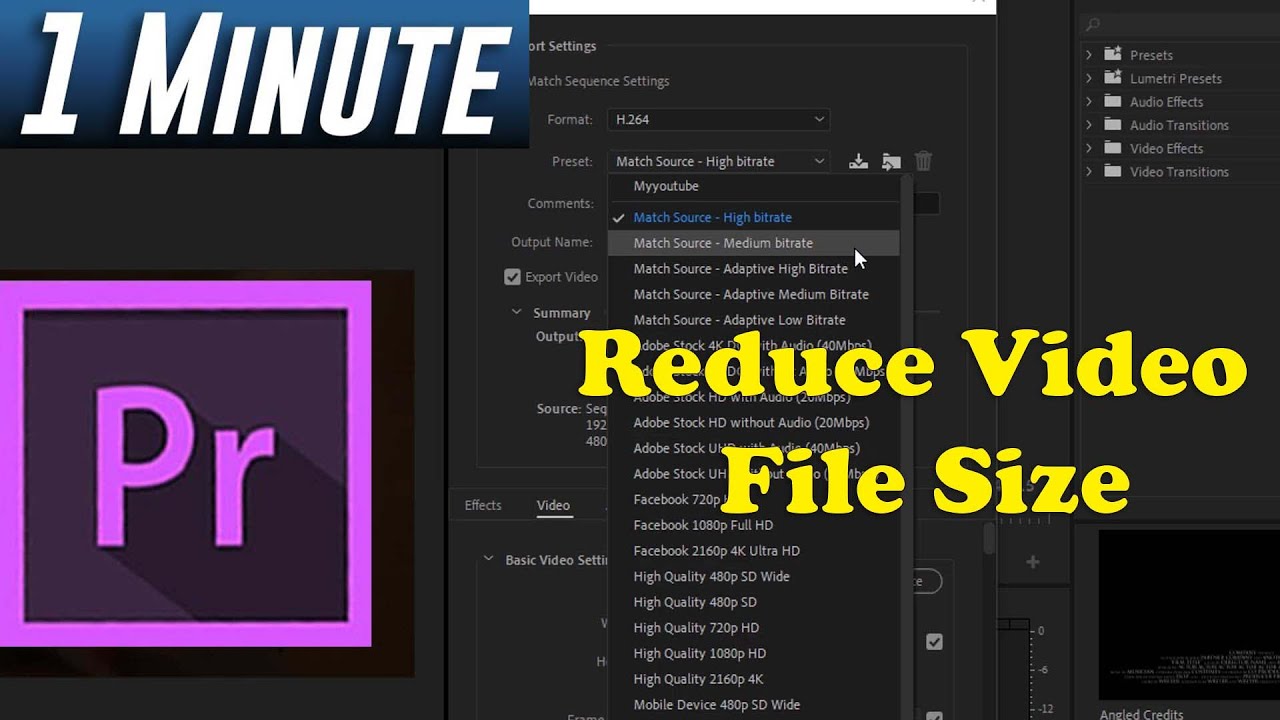
What is the difference between H.264 and H.265, and which should I use?
H.264 (AVC) is the older codec (circa 2003) and is supported by virtually every device and browser. H.265 (HEVC) is its modern successor, offering roughly 50% better compression for the same visual quality. The catch is hardware compatibility: older devices and some open-source browsers (like older versions of Chrome or Firefox) may struggle to decode H.265 in hardware, causing stutters or CPU drain. For distribution to a broad audience, H.264 is safer. However, for personal batches, cloud archives, or streaming to smart TVs, H.265 is superb. A practical compromise is to use H.265 for files you will upload to YouTube (they can handle it) and H.264 for sending via email or embedding on a website.
There is also the emerging AV1 codec, which is even more efficient than H.265 but requires heavy CPU transcoding times. For a pragmatic lifestyle, stick to H.264 for exports under 10 minutes and H.265 for long-format archival footage. Always check the "Profile" (High, Main, Baseline) options. Use High Profile for H.264 for maximum complex compression, but be aware that ancient viewers may not support it. For most modern flagships, H.265 with a high profile is the best balance of small size and quality.
My video looks "blocky" or pixelated after compression. What went wrong?
This artifact, called "blockiness" or "macroblocking," arises from insufficient bitrate allocation for high complexity, not from low resolution. The encoder is forced to quantize the data too aggressively, meaning it rounds off the detailed color and luminance values into crude blocks. Specifically, it suffers from temporal masking failure. If you have complex textures (like grass or hair) or high contrast edges moving quickly, the encoder needs more bits. The fix is not necessarily to buy more storage, but to raise the bitrate slightly for that specific piece of footage, or to use a better codec like H.265 which handles complexity more gracefully.
Another cause is encoding software that defaults to a low B-frame count. B-frames are highly efficient but rely on future frames for prediction. If you set a strict bitrate cap, the encoder may use too few B-frames and instead overuse P-frames, causing a drop in detail. Ensure your encoder settings are set to "Automatic" for B-frames. Also, never export from a compressed file again. Always export from the original source footage. Transcoding from an already lossy file amplifies artifacts, creating a cascading quality degeneration.
How can I compress a video without installing software on my laptop?
You have two options: online web tools and the built-in feature of your operating system. For web tools, websites like Clideo or CloudConvert can handle small files (under 500MB) but upload/download times and privacy concerns are significant. A more robust built-in hack on Windows is to use the built-in Video Editor app (formerly Story Remix) and export to a "Lower" quality setting. On macOS, you can use the Share > Compress feature in QuickTime Player, which creates an H.264 version with a fixed lower bitrate. However, these built-in tools lack fine control over bitrate, often resulting in unpredictable file sizes.
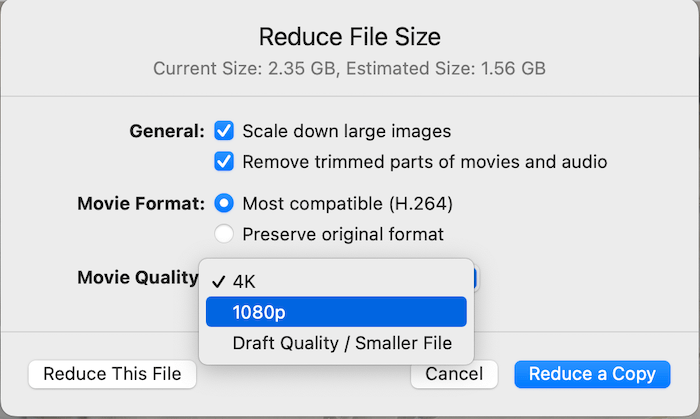
The most scientific approach without new software is to rely on your cloud storage provider. Google Photos and iCloud have "Storage Saver" options that automatically compress videos to 1080p and reduce bitrate. By uploading the original and letting the cloud process it, you download a compressed version locally, effectively using server-side encoding. Be warned: these services deliver lossy outputs. For command-line savviness, you can also use ffmpeg if you have it installed via any package in your system, but that is not strictly "no software." For absolute zero install, the mail client trick works: email a large video to yourself; many providers like Gmail will compress attachments, but this is rudimentary and unsafe for quality.
Does reducing file size always harm quality, or is there "free" storage?
There is indeed "free" storage, thanks to perceptual transparency and redundant data. The first type of free storage comes from removing audio silence and switching to a proper lossy audio codec. The second type comes from lowering the bitrate to the actual threshold of your display's pixel density. If you watch a 4K video on a 1080p monitor, the extra detail is lost regardless of file size—removing it is free. Thirdly, reducing frame rate from 60 to 30 fps for content without motion is free. Finally, using an efficient codec without visual changes is free within the bounds of your decoding hardware.
However, there is a hard limit where compression becomes lossy. Once you drop below the perceptual threshold for your specific viewing conditions, you start introducing artifacts. The scientific answer is that we are almost always over-encoding. We allocate bits for a quality that our eyes and screens cannot resolve. The "free" storage is the difference between a purely mathematically lossless file and a heavy perceptually lossless file. Aim for a perceptually lossless target—a file that looks identical to your eye, not the source file. That target is typically achievable with moderate bitrates, saving you 70-80% of your original storage, with loss that is scientifically invisible.
Respecting the science of video compression is an act of self-respect for your time and energy. Every gigabyte saved is a gigabyte not consumed by a backup cloud, a minute less of upload waiting time, and a reduction in the digital anxiety of a full storage drive. We are often taught to hoard data out of fear of losing a moment, but true mindfulness in the digital age is curating files that retain their experience without carrying the dead weight of imperceptible illusion. You are deciding to store the memory, not the mathematical surplus of the light that formed it.
By applying these systematic rules, you transform from a passive recorder of pixels to a deliberate editor of reality. You internalize the biological truth that your eyes are the ultimate gatekeepers of quality, and you align your technology with that reality. This is the ultimate life hack: not to conquer the machine, but to negotiate with it intelligently. The result is a leaner, faster, and more resilient digital footprint—one that respects the physics of storage while maximizing the joy of the view, leaving you with more room in your pocket, your cloud, and your mind.