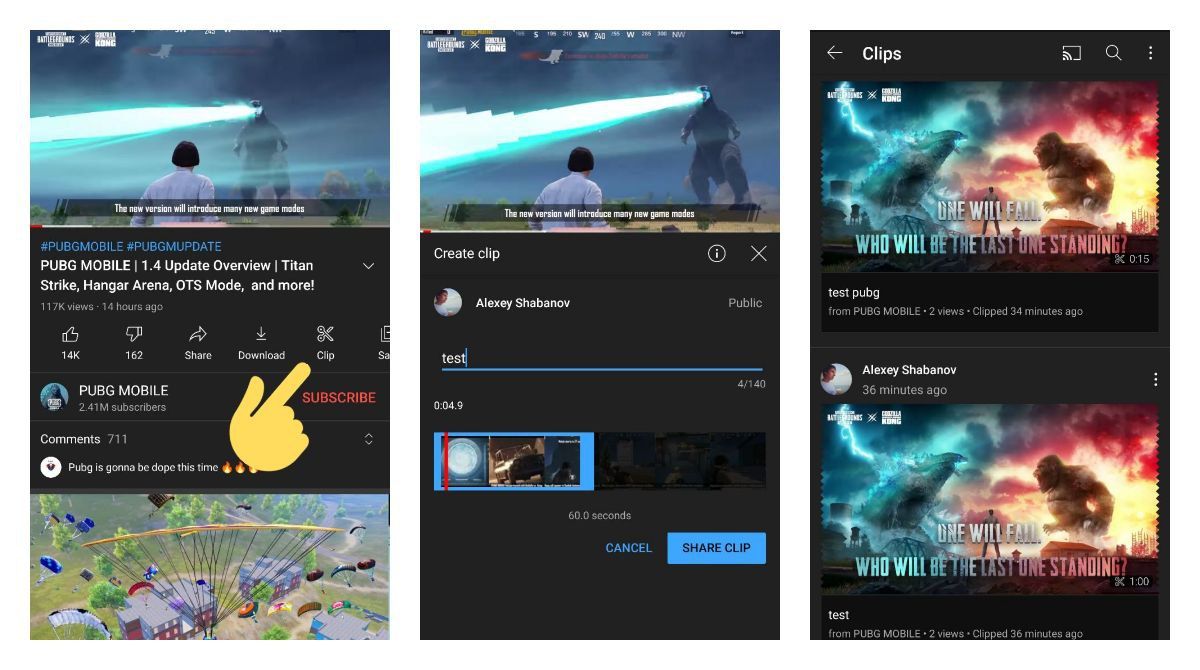
How To Make A Video Clip On Android
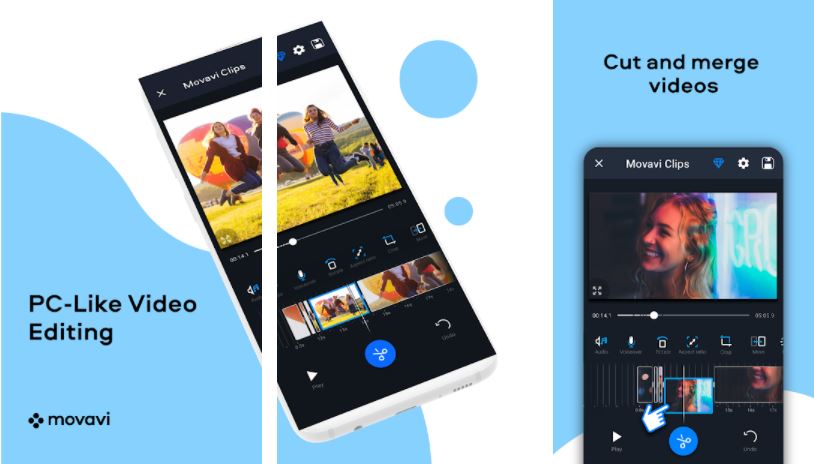
Ever captured a hilarious moment with your dog and wished you could turn it into a shareable loop? Or maybe you’ve got a travel montage stuck in your camera roll, begging to be set to music. Making a video clip on Android is your superpower for turning everyday moments into mini-movies, and it’s ridiculously easy once you know the tricks.
Beyond just trimming a video, you can merge clips, add text, and even drop in soundtracks—all without a computer. The best part? You don’t need to be a tech wizard or pay for expensive software. Your phone is already a pocket-sized editing studio, and this guide will show you how to unleash it.
Your Built-In Starter Kit: Google Photos
Before downloading anything, open Google Photos. It’s pre-installed on most Android devices and acts as your silent movie editor. Simply tap a video, hit the Edit (pencil icon), and choose the scissors tool to trim the beginning or end.
Must Read
But here’s the hidden gem: tap the “Create” button at the bottom (the plus sign) and select “Movie.” You can then pick multiple videos and photos, and Google will auto-generate a slick, timed clip with background music. It’s perfect for a 10-second birthday burst or a 30-second holiday recap.
Pro tip: Don’t like the auto-music? Tap the music note icon to swap it for a different track or mute it entirely.
Going Pro with CapCut (Free & Powerful)
If you want more control—like cutting out the middle of a video or adding slow-motion—install CapCut. This free app is the secret weapon behind many viral TikToks, and it works flawlessly on Android. Open the app, hit New Project, and select your footage.

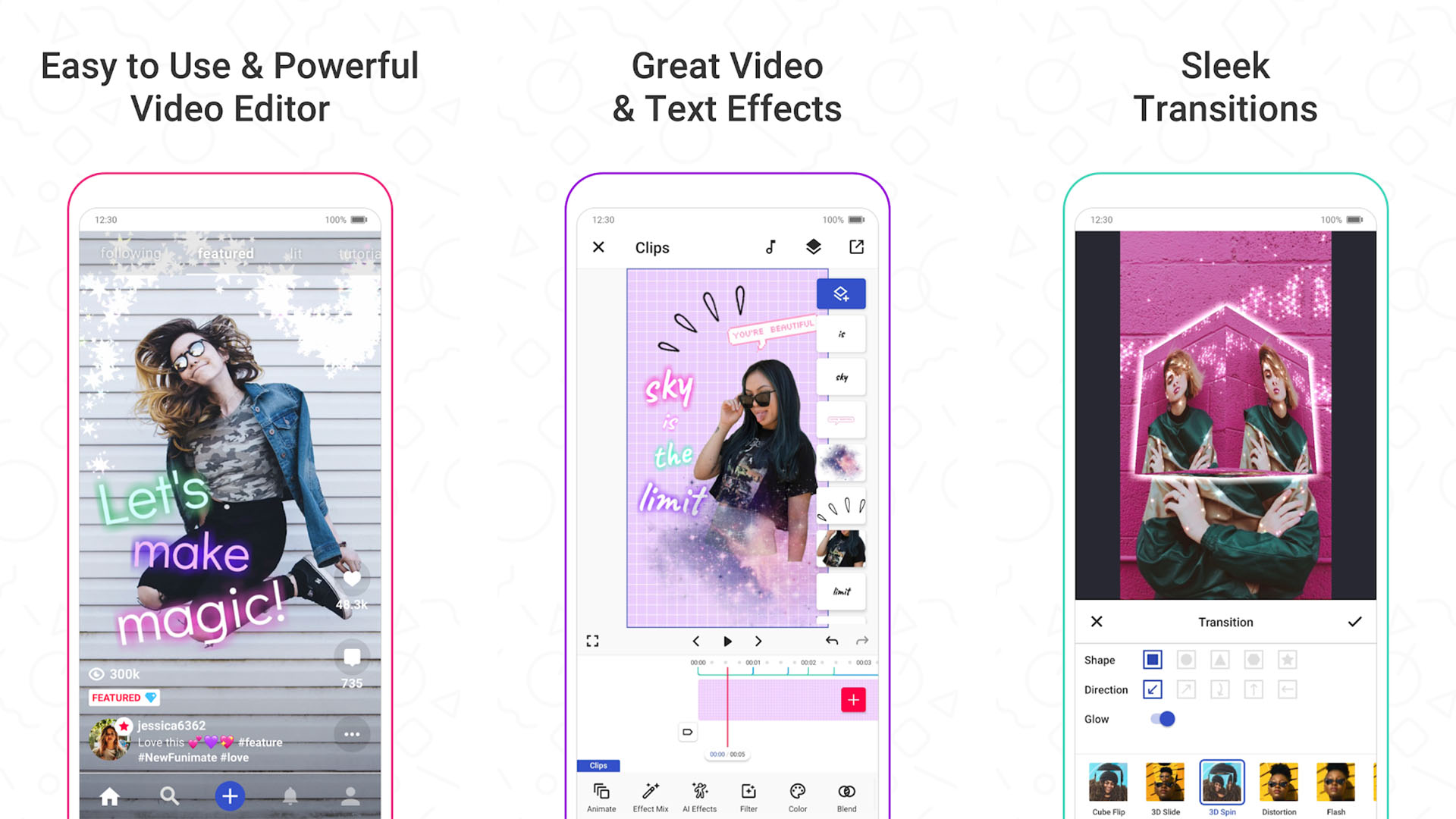
You’ll see a timeline at the bottom. Drag the white handles at the ends to trim, or tap on the clip and select “Split” to chop out an unwanted section. The magic really happens when you explore the Effects and Transitions tabs—a simple fade or zoom can make your clip look professionally produced.
And here’s the fun part: add text overlays with catchy phrases or emojis directly onto the video. If you’re making a clip for Instagram Stories, CapCut even exports in the perfect vertical format (9:16).
Quick Trim Without Any Apps
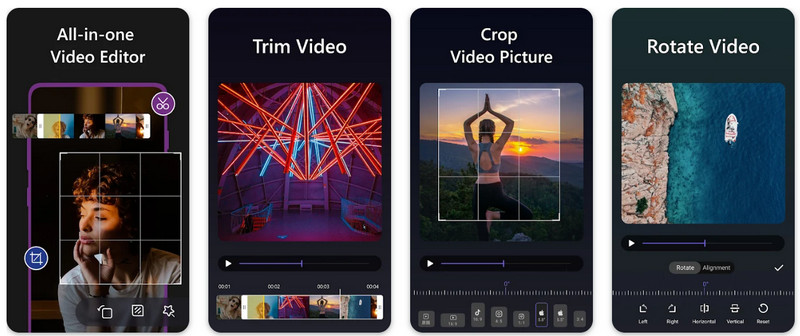
Did you know your phone’s native Gallery app can also do basic cuts? Open a video in your default gallery, tap the Edit (or Pencil) icon, and move the sliders. This works offline and takes under 30 seconds.
Perfect for when you just need to send a 5-second clip of your kid scoring a goal without the dead air before and after. It won’t give you fancy effects, but it’s the fastest route from “recorded” to “shared.”
Remember: Always save a copy of your edit, never overwrite the original. Look for a “Save copy” option to keep your raw footage safe.
Add Music and Sound Effects Like a Pro
Silent videos are boring, but you don’t need a studio to fix that. In CapCut, tap “Audio” and then “Sounds” to pick from a huge library of trending songs. Or, hit “Extract” to pull the audio from another video you’ve recorded—say, the sound of ocean waves from a beach clip.
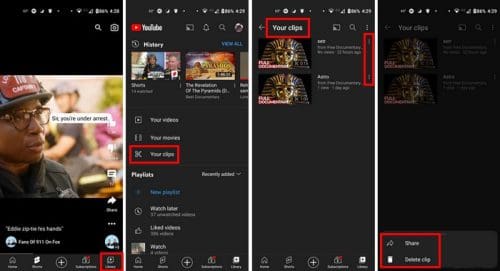
For voiceovers, record your commentary directly in the app by tapping the Microphone icon. No need for a separate recorder. You can even change the speed of your video (0.5x for slow-mo, 2x for a fast-paced vibe) which automatically shifts the audio pitch, creating a funny chipmunk effect if you slow it down too much.
A final pro move: use the “Keyframe” feature (it’s a diamond icon in CapCut) to zoom in slowly on a still photo. This creates the classic Ken Burns effect that makes old photos feel alive.
Ready to Share Your Masterpiece
Once you’re happy with your clip, hit Export. For social media, choose 1080p resolution and 30fps—it’s the sweet spot for quality without a huge file size. If you’re just texting it to a friend, pick 720p to save data.
Exporting takes just a few seconds on most modern Androids. Then hit Share and pick WhatsApp, Instagram, or TikTok. You’ll instantly feel that thrill of watching others react to your creation.
Final thought: Don’t overthink it. The first clip you make might be rough, but every edit teaches you something new. Go film something silly right now, and turn it into a loop—you’ll be hooked in seconds.