How To Fix Movie Maker Black Screen

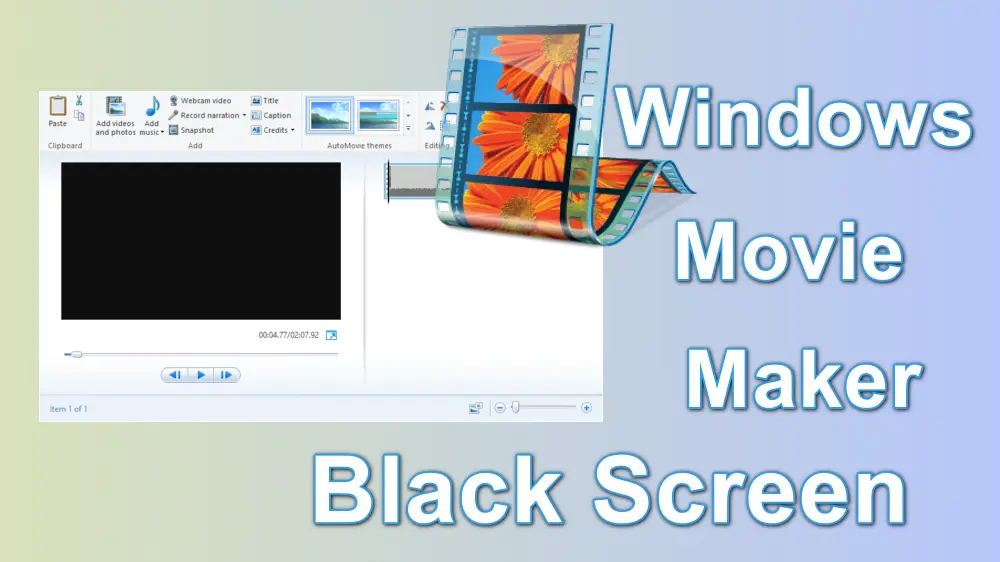
There’s a special kind of magic in stringing together your own home videos, complete with captions and a soundtrack. That’s why Windows Movie Maker remains a beloved favorite for countless storytellers, even years after its official retirement. But few things kill that creative buzz faster than launching the app and being greeted by a stubborn, unresponsive black screen.
Before you panic, know that this is a classic quirk, not a digital death sentence. With a few simple fixes, you’ll be back to crafting little masterpieces in minutes. This isn’t just about troubleshooting; it’s about reclaiming your creative space.
For the aspiring artist, Movie Maker is the perfect sandbox for testing editing instincts without a steep learning curve. Hobbyists love turning chaotic family footage into tidy, heartwarming montages. Even casual learners can grasp basic sequencing and timing, skills that translate to any professional editor later.
Must Read
The real joy is in the variety—you can whip up a fast-paced travel vlog with punchy cuts or build a slow, emotional tribute for a birthday. Experiment with different styles: try a retro 8mm filter for a vintage feel, or use the auto-movie feature to generate a polished theme in one click. The black screen simply blocks you from these playful choices, so fixing it unlocks your full creative palette.
Let’s start with the easiest remedy: update your graphics drivers. An outdated driver is the usual suspect, so visit your manufacturer’s site (Intel, NVIDIA, or AMD) and grab the latest version. If that doesn’t work, run the program in compatibility mode for Windows 7—right-click the shortcut, go to Properties, then Compatibility, and tick that box.
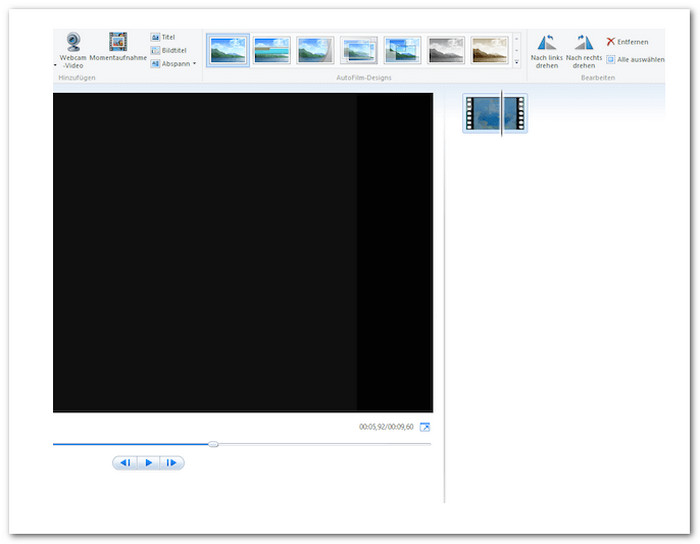
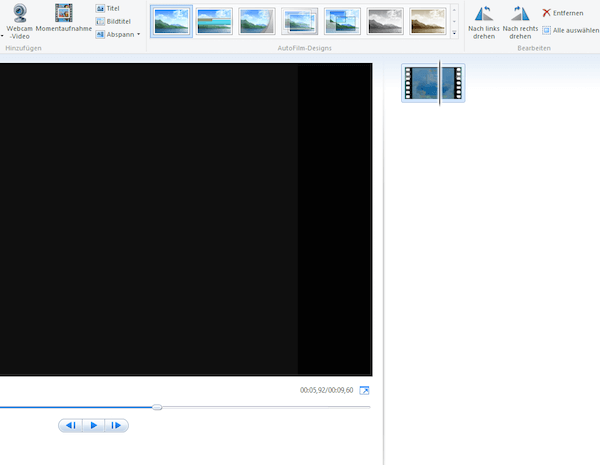
Another sneaky fix involves your display’s color quality. Go to your desktop, right-click, choose Display Settings, then Advanced Settings, and ensure the color depth is set to True Color (32-bit). A lower setting often confuses older video software, causing that blank preview window.
If the screen still won’t show, try disabling hardware acceleration inside Movie Maker’s options menu. This forces the app to rely on your CPU instead of the graphics card, which is a reliable workaround for many users. For a quick sanity check, also make sure your project isn’t using a corrupted video file—swap it for a short clip from your phone to test.
When you’re at home, remember to keep your media files in a simple folder on your local drive, not on cloud storage. Movie Maker sometimes chokes on network paths, causing black screens with imported clips. And finally, uninstall and reinstall the software cleanly—this resets any corrupted preferences that might be hiding in the background.
What’s genuinely enjoyable about this whole process is the sense of victory when the screen flickers to life. You feel like a detective who just cracked the case, and that little rush makes the editing that follows even sweeter. Plus, you’ll have bragging rights to help your friends when their Movie Maker acts up.
Once the video preview appears, you’ll immediately remember why you started—the sheer fun of dragging clips, adding titles, and hearing your story come together. The black screen was never a wall; it was just a tiny speed bump on a joyful road. So grab that old footage, fix that screen, and let your inner filmmaker run wild again.