How To Find Devices On Your Network
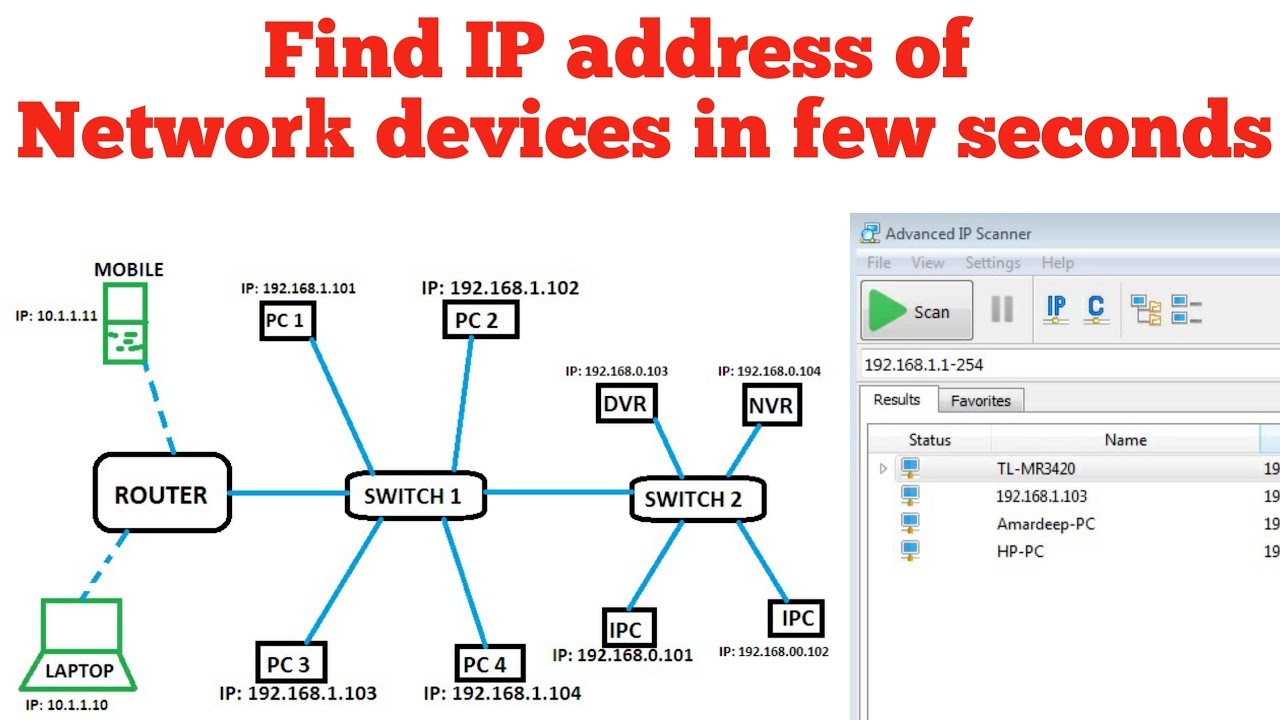
Imagine your Wi-Fi network is a bustling little city. Every device—your phone, laptop, smart TV, and even that mysterious smart plug—is a resident with a name tag. The fun part? You’ve probably never met all of them.
The Thrill of the Digital Census
Finding out what’s connected is like playing detective in your own home. It’s strangely addictive, like checking who viewed your story, but for nerds. You’ll be shocked to discover your neighbor’s printer or a forgotten old tablet lurking in a drawer.
The easiest way to start is by logging into your router’s admin page. You know, that weird IP address like 192.168.1.1 that’s printed on the sticker underneath your modem.
Must Read
Think of your router as the city hall—it keeps a guest list of every device that’s ever knocked on its door.
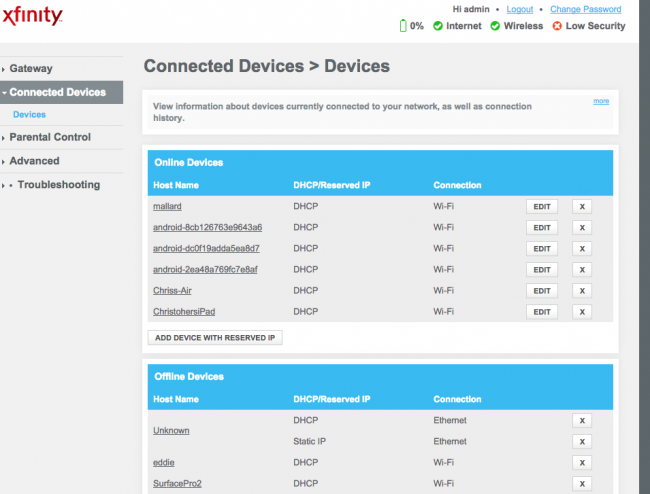
Type that number into your browser, log in (check the same sticker for the password), and look for a tab called “Connected Devices” or “DHCP Clients.” Boom. A list pops up, and suddenly you’re a network superhero.
Why It’s Better Than a Treasure Hunt
Each device shows a funky name like iPhone-12-Mark or Living-Room-TV—but sometimes you’ll see a nonsense string like ESP-8266. That’s your cue to yell, “Who are you?!” and start unplugging things to find the culprit.
The entertainment value is real. You’ll finally find that old Kindle you lost during a move, still happily chatting with your Wi-Fi. It’s like reuniting with a pet you forgot you had.
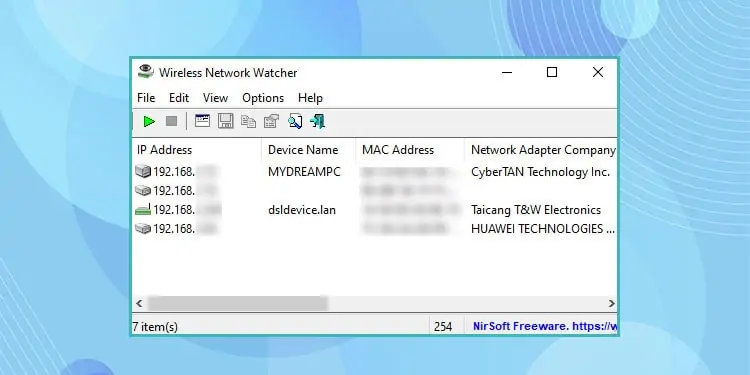
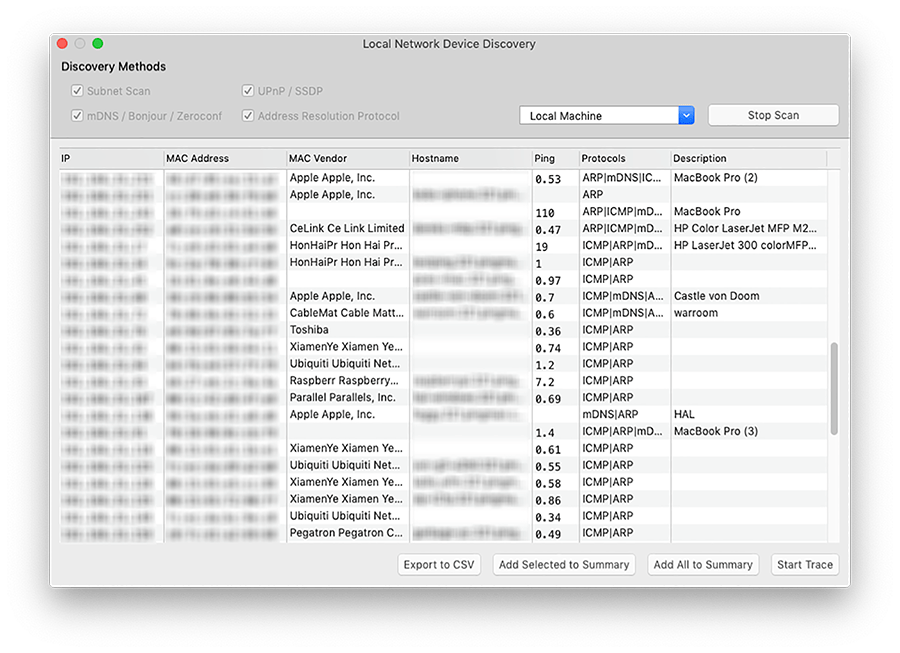
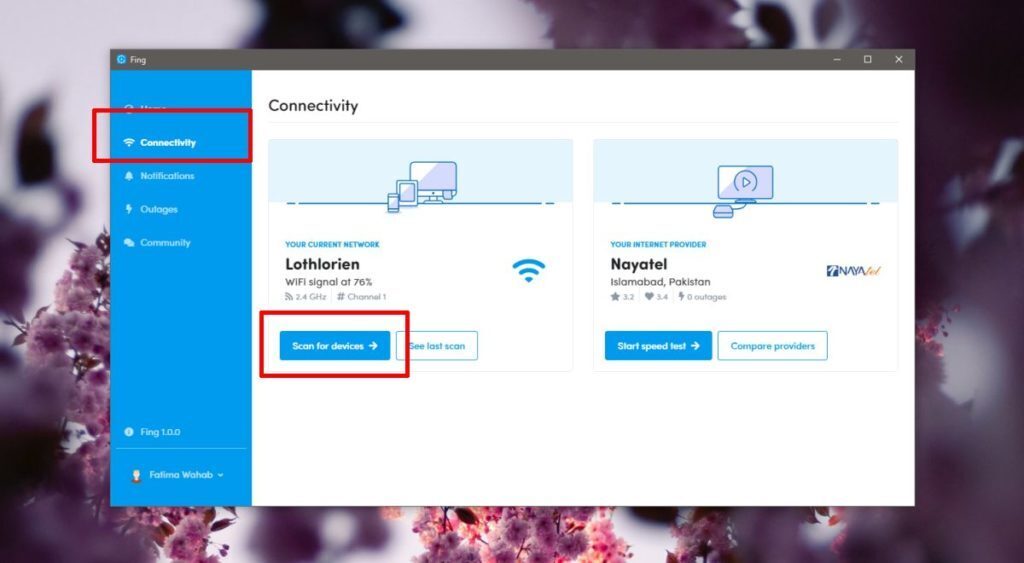
If router menus feel too techy, you can use a free app like Fing on your phone. It scans your network in seconds and shows every device with a cute icon.
The Guest List Gets Even Wilder
Here’s the kicker: you’ll also spot things like smart bulbs that listen for your voice commands. Or that weird Alexa in the bathroom—wait, do you have an Alexa in the bathroom? Exactly. That’s the thrill.

Once you see the list, you can rename each device to something silly like My Precious Phone or Goose Lamp. Doing this makes your network feel like a personalized theme park.
You’ll also notice when a device goes rogue. If your TV suddenly appears even though it’s unplugged, you’ve got a mystery to solve. Probably just a ghost, or a firmware update.
Safety With a Side of Fun
Knowing your devices is actually a stealthy security move. If you see an unrecognized name like Hacker_420, you can kick it off with one click. It’s the digital equivalent of throwing a party crasher out the door.
Change your Wi-Fi password after that, just to be safe. But first, enjoy the satisfaction of banning a device—it feels like you’re a bouncer at an exclusive club.
Most routers even let you pause the internet for a specific device. That means you can pause your kid’s Xbox from your phone mid-rage-quit. Honestly, that feature alone is worth learning this whole trick.
Go Ahead, Be Nosy
The best part is that this whole adventure takes about five minutes. You’ll swipe through your device list, laugh at the weird names, and feel oddly proud of your little wireless kingdom.
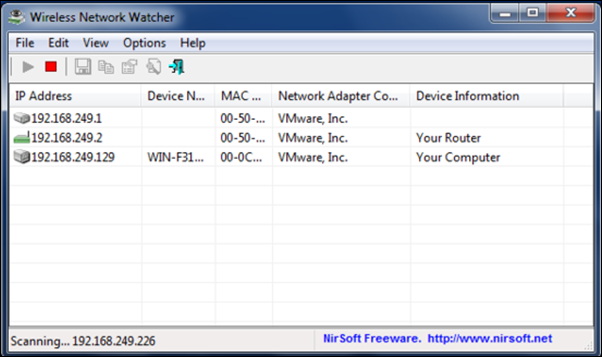
Next time your Wi-Fi feels slow, you won’t blame the router. You’ll blame that mystery device hogging all the bandwidth—and then you’ll hunt it down like a pro.
So grab your phone, log into your router, and start counting. Just don’t be surprised if you find three things you forgot you owned. That’s the magic of going digital exploring.
Your network is a living, breathing map of your digital life—and now you hold the flashlight.