How To Create Your Own Google Account

Okay, let’s be real for a second. You’re probably reading this because you just realized you can’t watch a YouTube video without a Google account, or maybe you want to stop typing your email into random websites like a digital nomad with no luggage. Either way, the idea of making an account feels like a bureaucratic chore, right? It’s like filling out a DMV form, but with more pop-ups and less fluorescent lighting.
But here’s the secret: creating a Google account is actually the easiest key you’ll ever get. It’s the digital equivalent of a Swiss Army knife—you don’t know you need it until you’re lost in the woods, and suddenly you’re opening cans with a tiny blade and a toothpick. So, why not just do it? Think of it as giving your online self a permanent home base, a cozy little cabin in the cloud.
Step One: The Big Blue Door
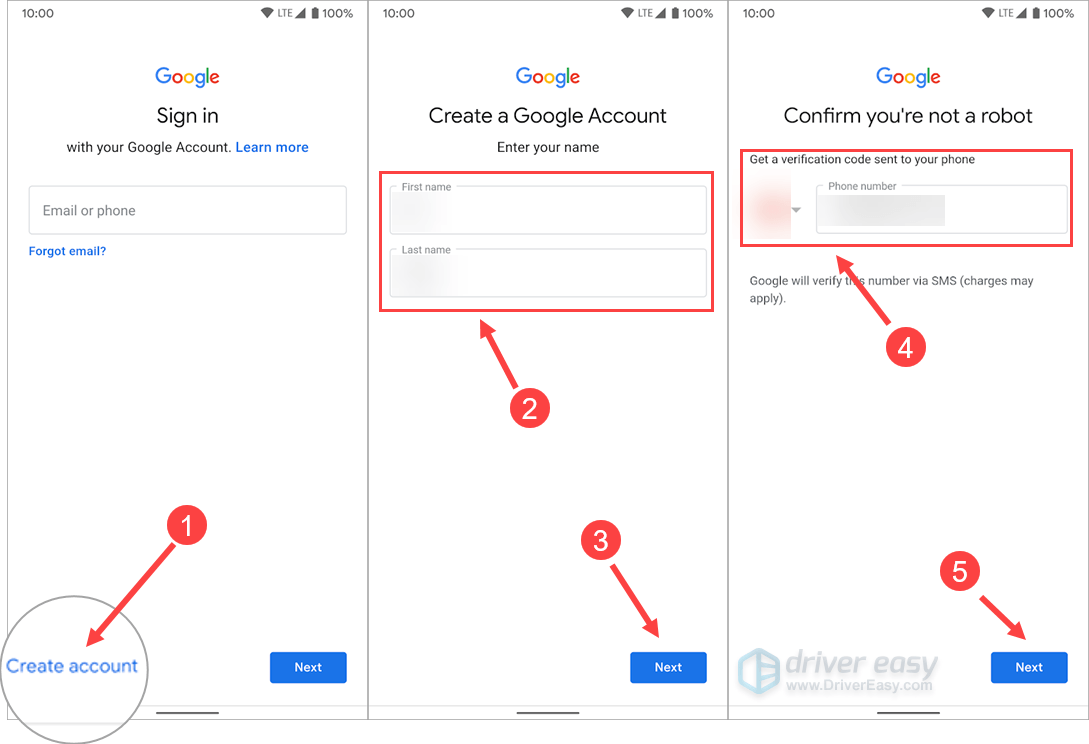
First, go to whatever browser you use—Chrome, Firefox, Safari, it doesn’t matter—and type in “Google.com.” Right in the top right corner, you’ll see a blue “Sign in” button. Click it, and then look for the tiny, almost shy link that says “Create account.” It’s usually right below the login box, hiding like a cat behind a curtain, but it’s there.
Must Read
Now, you’ll have a choice: “For me” or “For my child.” Unless you’re a tiny human wanting a custom Roblox avatar, click “For me.” This is your moment—the digital birth of your new identity, minus the hospital bracelet.
Step Two: Name, Birthday, and a Little Bit of You
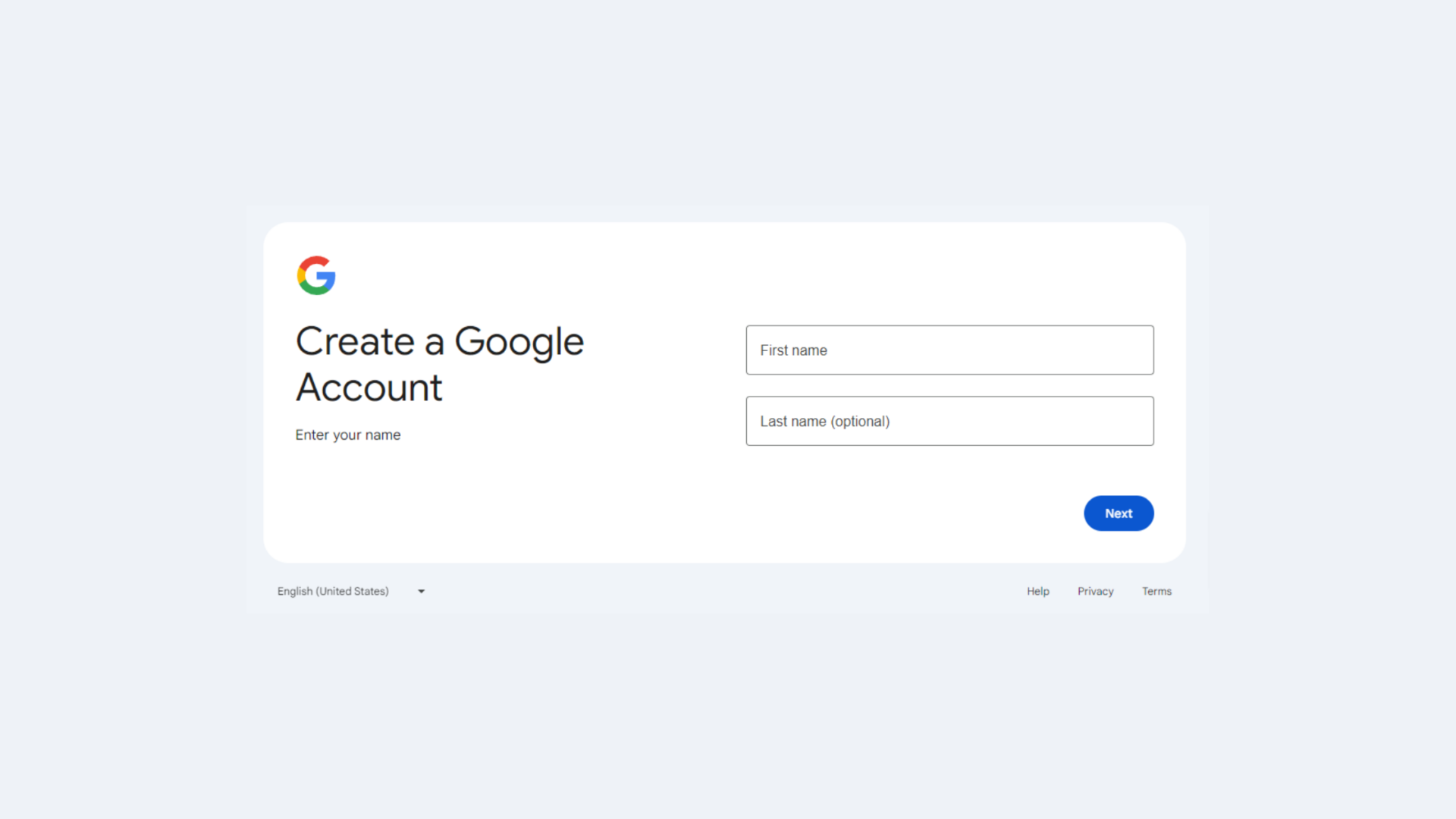
This is where you get to be a bit of a creator. They ask for your first and last name. Go ahead, use your real name—or if you’re feeling spicy, a nickname that sounds official, like “River Stone” or “Jazz Hands.” Just remember, you’ll have to live with this choice later when you send an email to your boss. Probably stick to your actual name.
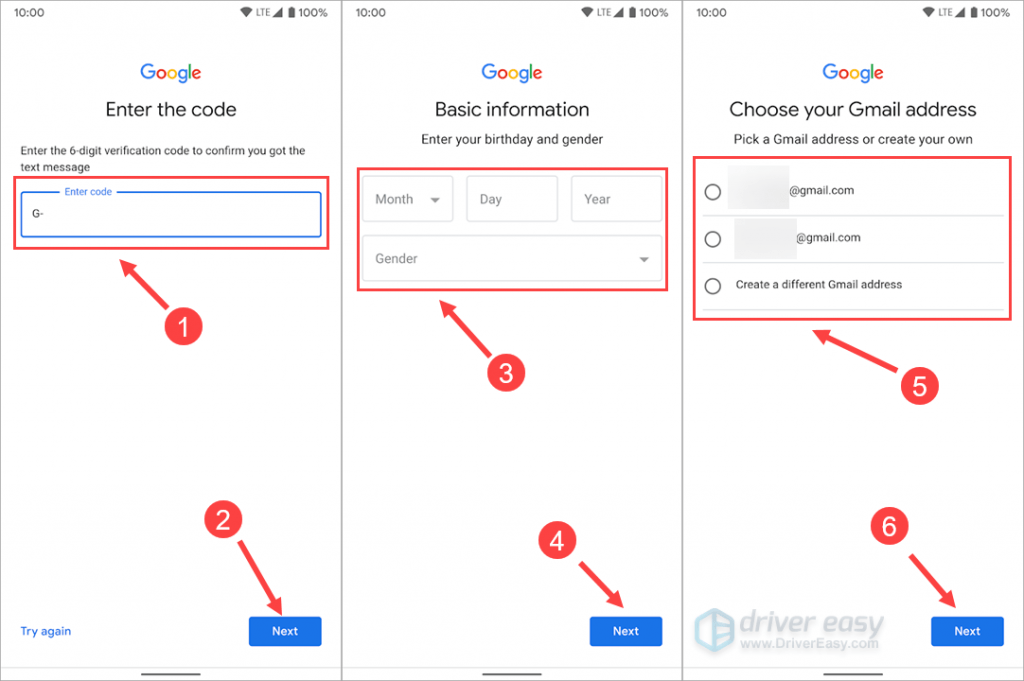
Then comes the birthday. They’re not being creepy, promise. It’s just to help with age-related settings and to make sure you’re not a 5-year-old running a stock portfolio. And for your gender—you can pick, or you can choose “Rather not say.” It’s like a multiple-choice quiz where every answer is correct. No pressure.
Step Three: The Password Dance
Ah, the password. This is the part where everyone groans. But here’s a fun trick: instead of a random string of letters no one can remember, make a passphrase like “PurplePizzaNinja2!”—it’s long, hard to guess, and oddly satisfying to type. You’ll also get a phone number request. You don’t have to add it, but honestly, it’s a lifesaver if you ever forget your password. It’s like leaving a spare key with a neighbor you actually trust.
:max_bytes(150000):strip_icc()/ScreenShot2020-02-18at9.23.09AM-29ce856c0c6a4b9b937bb2d1c049f006.jpg)
Step Four: Pick Your Gmail and Accept the Magic
Here’s the coolest part: you get to pick your own email address that ends in @gmail.com. It’s like naming a star, but way more useful than a trophy on a shelf. Once you type it in, the system checks if it’s taken—and if it is, it will suggest weird variations like “FluffyBunny8872.” Embrace the numbers. They make you look tech-savvy.
Finally, you’ll see a long page of terms and conditions. Yeah, it’s a snoozefest, but click “I agree.” And just like that—poof—you’re in! You now have a portal to Gmail, YouTube, Google Maps, and even cloud storage. It’s like getting a membership to a theme park where all the rides are free, and the only price of admission is scrolling past a few ads. So go ahead, create it, and then take a victory lap. You’ve just unlocked the internet’s front door.


:max_bytes(150000):strip_icc()/CreateGmailAccount-5b043c8a3128340037c1093b.jpg)