
How To Connect Apple Watch With Apple Phone

Hey there, tech buddy! So, you've finally joined the Apple fan club and got yourself an Apple Watch and an iPhone? Congratulations! Now, let's get these two besties connected and make the most out of your new gadgets.
Getting Started
First things first, make sure your iPhone is running on the latest iOS and your Apple Watch is running on the latest watchOS. This will ensure a smooth and seamless connection between the two devices. Don't worry, it's easier than updating your Facebook status!
Now, grab your iPhone and open the Apple Watch app – it's like a special portal that connects your watch to your phone. If you can't find it, just swipe down on your home screen and type "Apple Watch" in the search bar, and voilà! You'll be taken straight to the app.
Must Read
Pairing Time
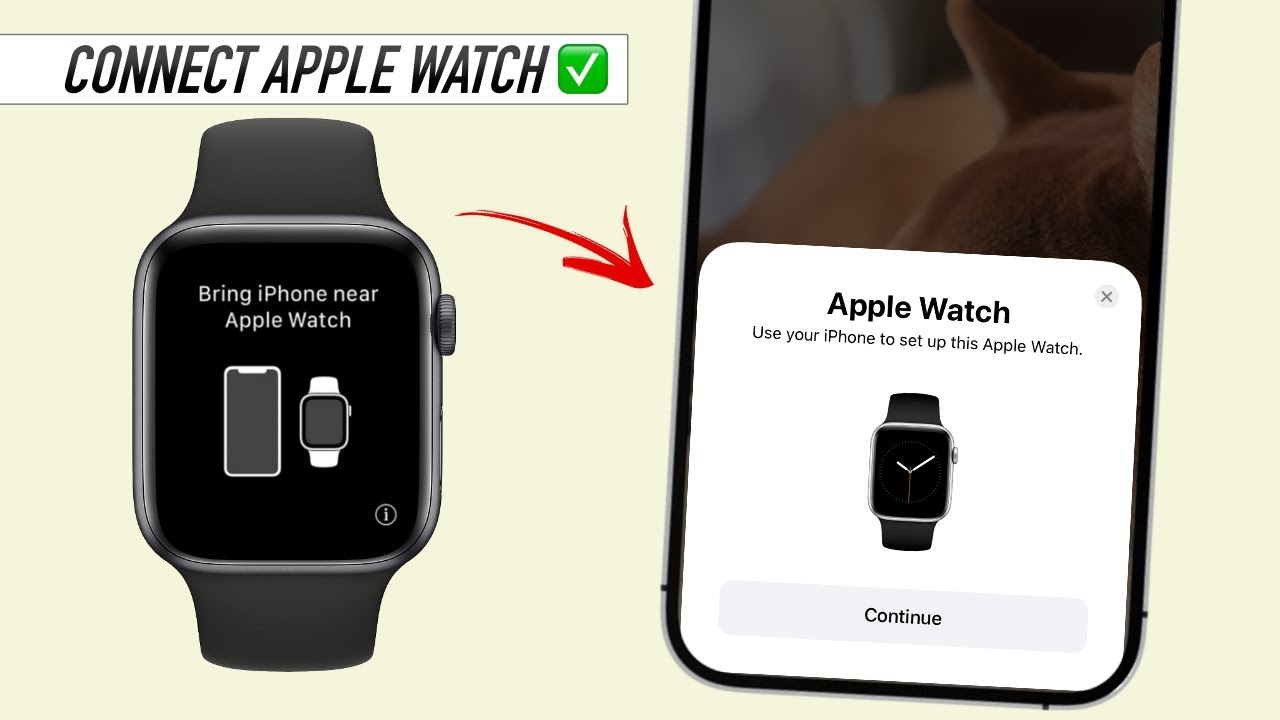
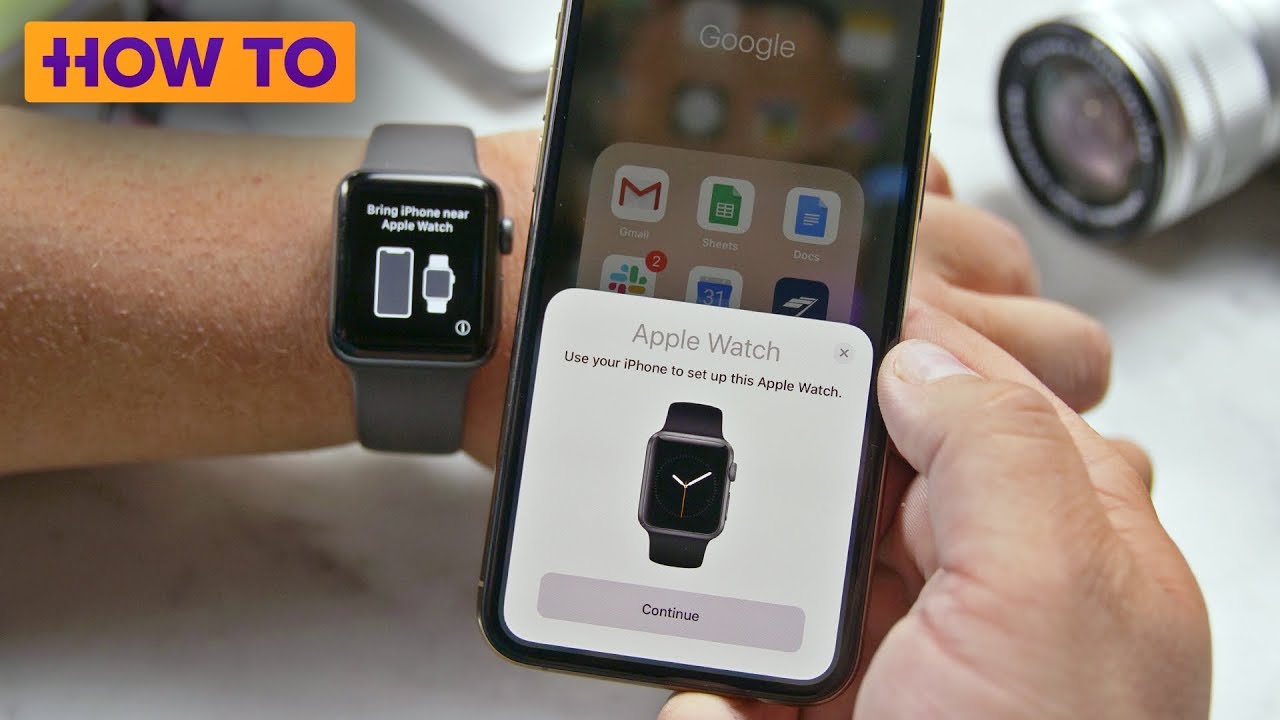
Once you're in the Apple Watch app, tap on "Start Pairing" and get ready to connect your watch to your iPhone. You'll see a cartoon-like animation of an Apple Watch and an iPhone becoming best friends – it's like a mini-celebration! Keep your Apple Watch close to your iPhone during the pairing process, as they need to be within range of each other.
When prompted, place your iPhone over the animation on your Apple Watch to capture the pairing code. This might take a few seconds, so be patient and don't get frustrated if it doesn't happen right away. It's like trying to take the perfect Instagram selfie – it takes a little practice!
Setting Up Your Apple Watch
After the pairing process is complete, you'll be asked to set up your Apple Watch by choosing your language and country or region. Don't worry if you mess up – you can always change these settings later. Next, you'll need to agree to the terms and conditions, which are basically like the rules of the Apple universe.
You'll also be asked to create a passcode for your Apple Watch – make sure it's something you can remember, but not so easy that it's like using "password123" (we've all been there, right?). If you have an iPhone with Touch ID or Face ID, you can use those to unlock your Apple Watch instead of entering your passcode.
Syncing Your Data
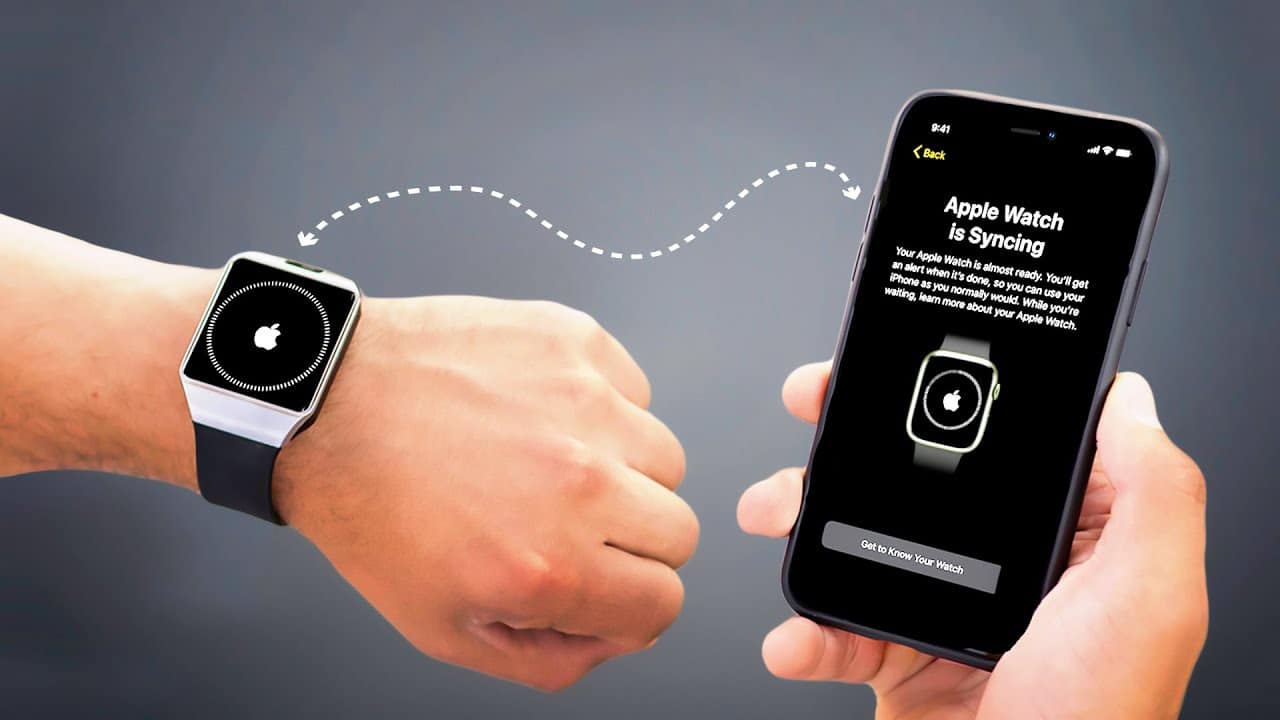
Now that your Apple Watch and iPhone are connected, it's time to sync your data. This includes things like your contacts, calendar, and music – basically, all the things that make your iPhone so essential. You can choose what data you want to sync and what you don't, so don't worry if you're a private person – your secrets are safe!
The syncing process might take a few minutes, depending on how much data you have. But don't worry, you can use this time to grab a snack, stretch your legs, or practice your watch-face poses in the mirror. When it's all done, you'll have access to all your favorite apps and features right on your wrist – it's like having a tiny supercomputer attached to your body!
Using Your Apple Watch
Now that your Apple Watch is all set up, it's time to start using it! You can use it to track your workouts, monitor your heart rate, and even receive notifications from your iPhone. It's like having a personal assistant built right into your watch – minus the attitude and constant requests for raises.
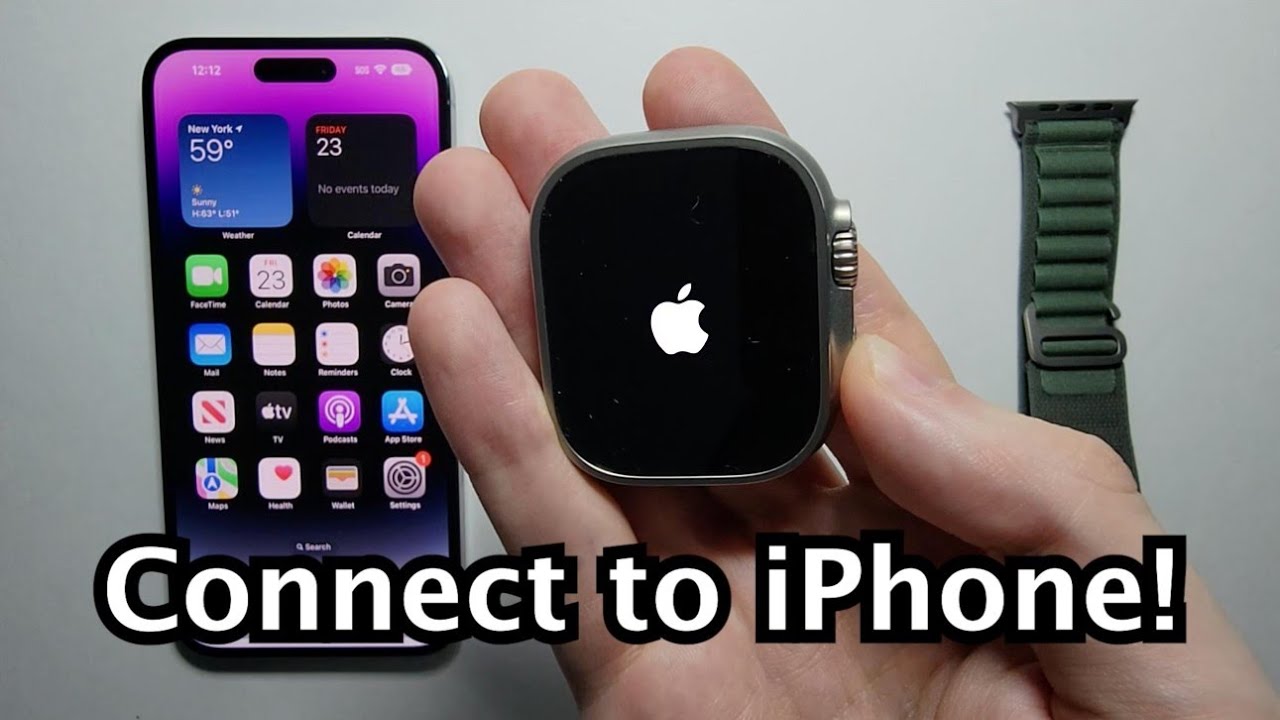
You can also use your Apple Watch to control your music, podcasts, and even your iPhone's camera. It's like having a tiny remote control for your life – just be careful not to lose it, or you'll be like me, searching everywhere for that pesky little device!
Tips and Tricks
Here are a few tips and tricks to get you started with your Apple Watch: first, make sure to regularly update your watchOS to get the latest features and security patches. Second, experiment with different watch faces to find the one that suits your style – you can even add your own photos or designs to make it truly unique.
Finally, don't be afraid to get a little creative with your Apple Watch – try out different apps, features, and settings to see what works best for you. And if you ever get stuck, just remember that you can always reset your Apple Watch to its factory settings – it's like hitting the reset button on your life, but without the drama and angst!
Conclusion
And that's it – you've successfully connected your Apple Watch to your iPhone! It's like you've just levelled up in the game of life, and everything is going to be okay. With your new Apple Watch and iPhone duo, you'll be unstoppable – you can track your fitness goals, stay connected with friends and family, and even stream your favorite music right from your wrist.
So go ahead, take a deep breath, and enjoy the Apple experience – it's like a warm hug for your tech-loving soul. Remember, the most important thing is to have fun and enjoy the journey – and if you ever need any help, just give your Apple Watch a tap, and it'll be there in a heartbeat. Happy Apple-ing, and see you in the next adventure!

