How To Clear My Cache On My Laptop
Your Laptop’s Little Digital Dust Bunnies
Ever feel like your laptop is just… slow? Like it’s thinking about yesterday’s lunch before opening a simple web page?
That’s your cache—a secret stash of old files, images, and scripts your browser saved “just in case.” It’s like a hoarder’s garage, but for ones and zeros.
Don’t worry, you’re not a tech wizard to fix this. Clearing it is ridiculously easy, and the payoff feels like giving your machine a fresh cup of coffee.
Must Read
Why Bother? It’s Actually Fun
First, you get to be a digital detective. You’ll see exactly how much junk your browser has been hiding from you—sometimes gigabytes! It’s oddly satisfying to press “delete” and watch that number drop to zero.
Second, you’ll fix weird problems. That button that won’t click? That video that buffers forever? A clean cache magically makes those gremlins vanish.
And third, privacy—you’re basically shredding your digital footprints. Your laptop will feel lighter, and honestly, you’ll feel a tiny bit like a hacker.
:max_bytes(150000):strip_icc()/Cleannow-0e2bec0cc8fc4dc5abf9954ce87d62ec.jpg)
The 30-Second Trick (For Chrome, Edge, or Firefox)
Open your web browser. Now press Ctrl + Shift + Delete (Windows) or Cmd + Shift + Delete (Mac). That’s it—that’s the secret handshake.
A little pop-up will appear with checkboxes. Make sure “Cached images and files” is checked, then hit “Clear data.” Done. No, really—that’s the whole trick.
Pick a time range of “All time” for a deep clean, or “Last hour” for a quick swipe. It’s like choosing between a full body scrub or a quick face wash.
But Wait, What If You Use a Different Browser?
If you’re a Safari fan (macOS), click Safari in the top menu, then Settings (or Preferences), then the Privacy tab. You’ll see a button that says “Manage Website Data.”
Click “Remove All,” and then confirm. That’s your Safari’s version of shaking out a dusty rug.
And for you brave souls using Brave or Opera? The same Ctrl/Cmd + Shift + Delete shortcut works there too. They all speak the same keyboard language.
The “Other” Cache (Hidden But Important)
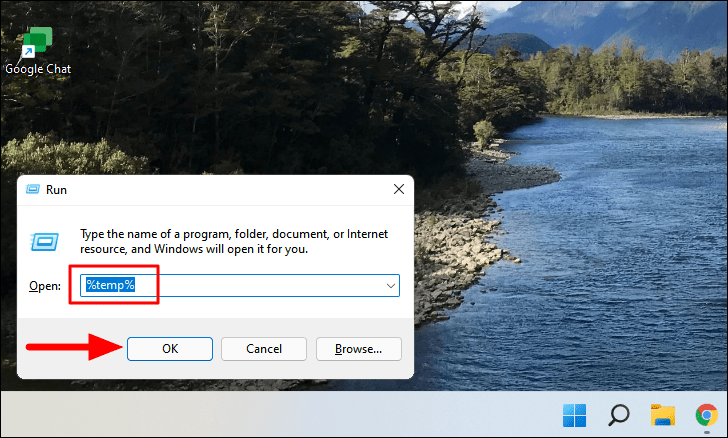
Your browser isn’t the only hoarder. Your laptop’s system itself saves temp files—like old installation bits and thumbnail previews. These are the bonus junk.
On Windows, press the Windows key + R, type “temp” (no quotes), and hit Enter. A folder will explode with random files. Select all (Ctrl + A) and delete them. If some files say they’re busy, just skip them—no biggie.

On a Mac, open Finder, hit Cmd + Shift + G, and type “~/Library/Caches”. Then drag whatever you see into the Trash. It feels naughty, but it’s totally legal.
The Entertaining Aftermath
Here’s the best part: after you clear, restart your browser. Watch it open instantly—like a racehorse out of the gate.
Websites will load a bit slower for a minute because they’re rebuilding the cache, but that’s the magic. They’re re-downloading fresh, clean versions—no old 2019 images stuck in there.
And if your laptop has been acting like a grumpy snail, you might actually hear the fan spin down. That’s your machine whispering, “Thank you.”

Make It a Habit (It’s Weirdly Satisfying)
Do this once a week, maybe on Sunday with your coffee. It takes under a minute, and you’ll feel super productive.
You won’t lose your passwords or bookmarks—promise. You’re only deleting temporary stuff, not your digital life.
So go ahead. Press those three keys right now. Your laptop will love you for it, and you’ll get to enjoy the tiny thrill of watching digital garbage disappear. Best. Five minutes. Ever.
“A clean cache is a happy laptop. A happy laptop is a happy you.” — Someone who just did it

:max_bytes(150000):strip_icc()/Configurestorage-1be743ab8d844bcc91ef8e4269aee01f.jpg)