
How To Add Your Discord Bot To Your Server
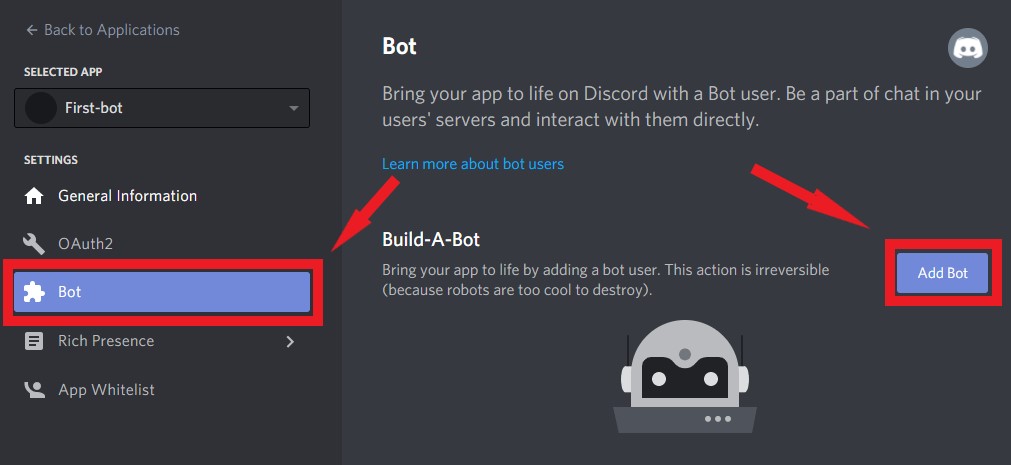
So, you've finally created your very own Discord bot - congrats, you're a bot master! Now, it's time to add it to your server, and I'm here to guide you through the process. Don't worry, it's easier than you think, and I'll make sure to explain it in a way that's super easy to understand.
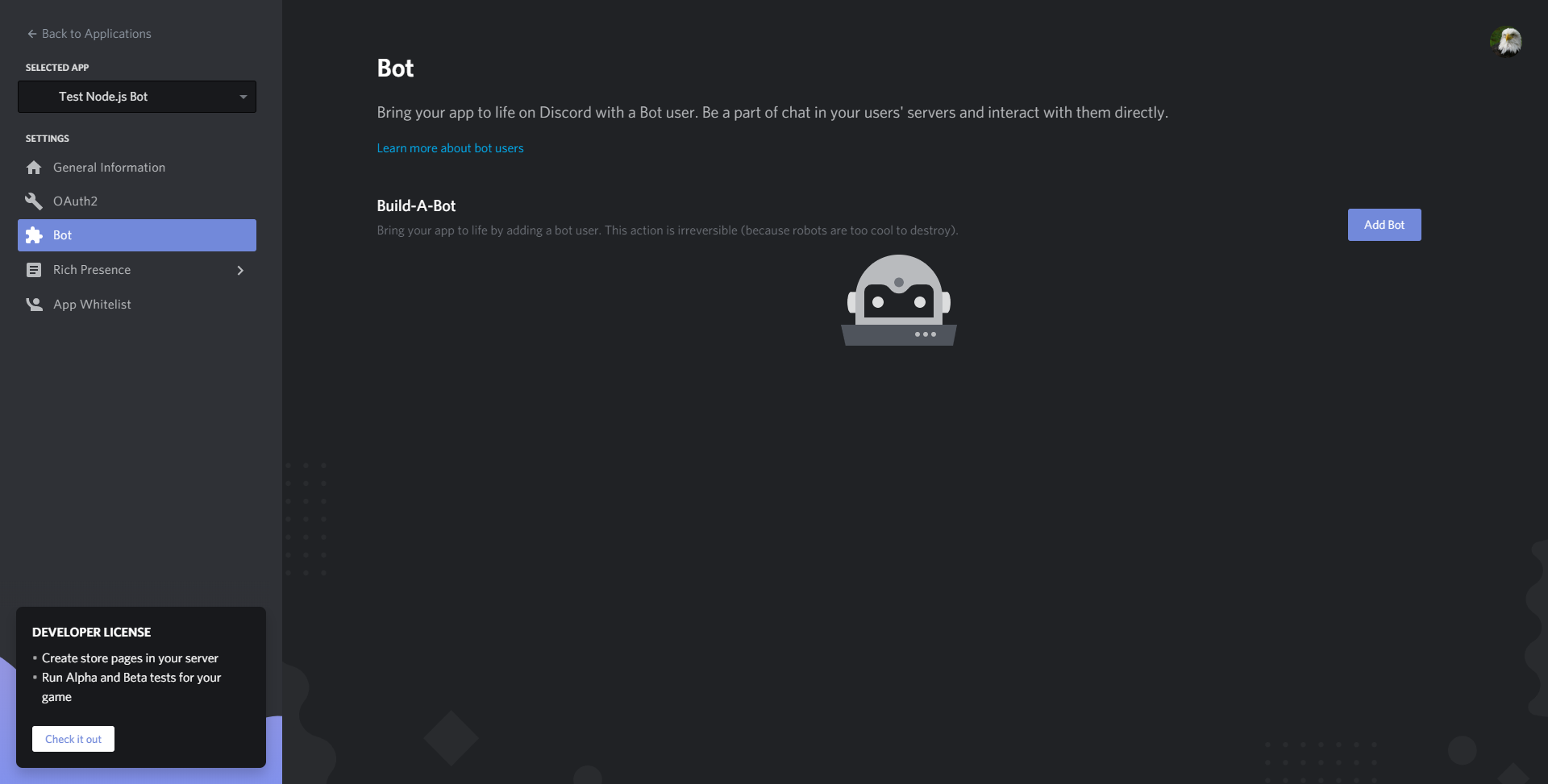
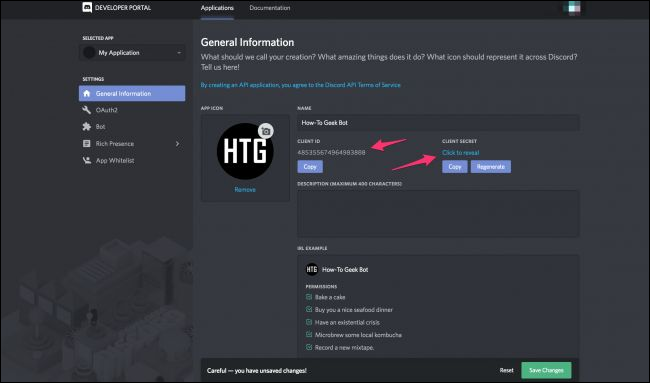
First things first, you'll need to invite your bot to your server. To do this, you'll need to create an invitation link, which can be found in the OAuth2 section of the Discord Developer Portal. Just head on over to the portal, select your bot, and click on the Oauth2 tab - easy peasy!
Getting Your Bot's Invite Link
In the Oauth2 section, you'll need to select the bot scope and the permissions your bot requires. Don't worry if this sounds confusing - just think of it like setting up a new user account, but instead, it's for your awesome bot. Make sure to copy the invite link, as you'll need it in the next step.
Now that you have your invite link, it's time to add your bot to your server. Just head on over to your server, click on the invite link, and select the server you want to add your bot to. You'll need to have the manage server permission to do this, so make sure you're a server admin or have the necessary permissions.
Adding Your Bot To Your Server
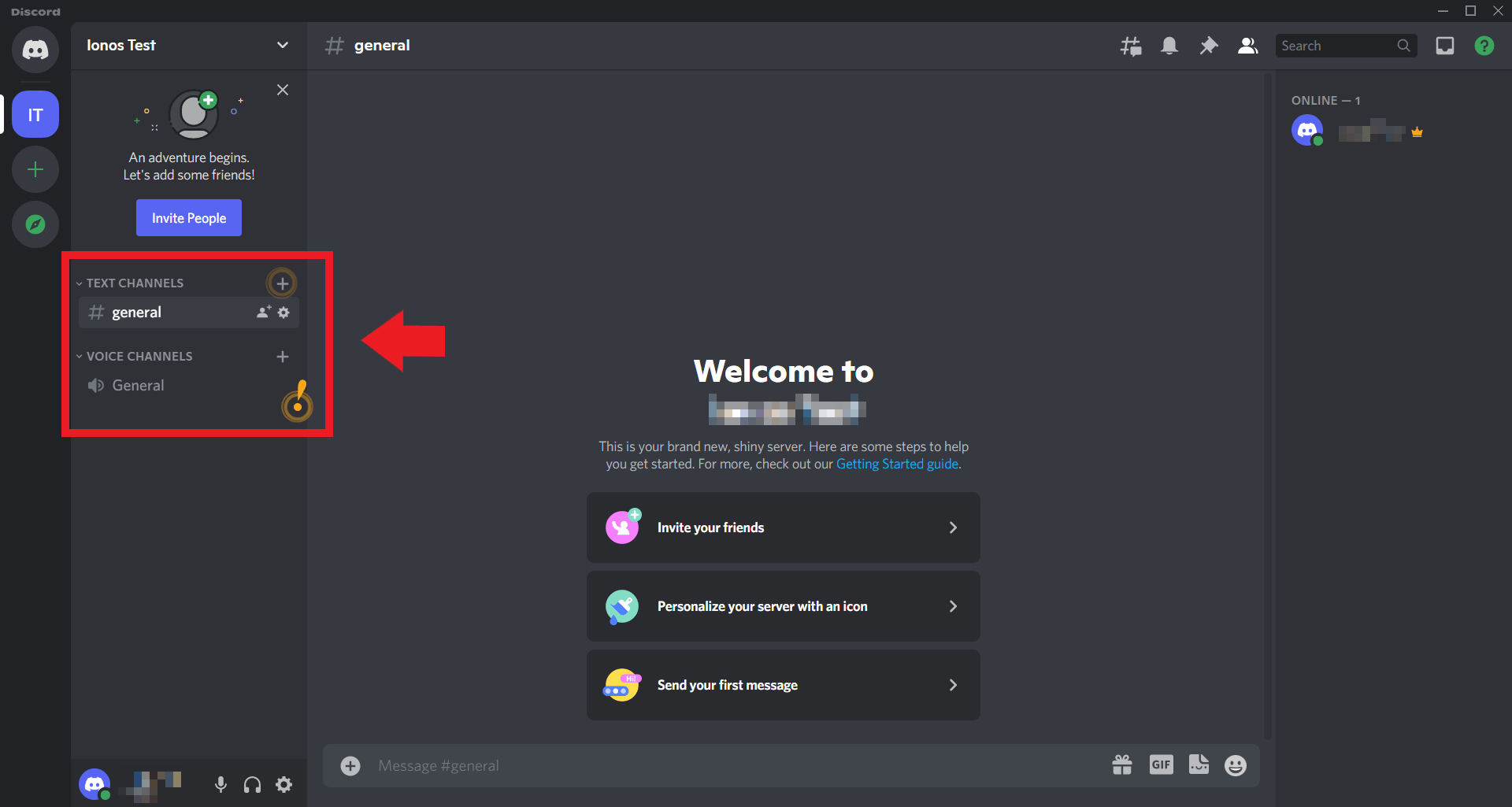
Once you've selected your server, click authorize, and your bot will be added to your server - voilà! You should now see your bot in the member list, ready to start chatting and interacting with your server members. If you don't see your bot, don't panic - just check that you've invited it to the correct server and that it has the necessary permissions.
If you're having trouble getting your bot to work, don't worry - it's probably just a tiny issue with the permissions or the invite link. Just head on back to the Discord Developer Portal, double-check your settings, and try again. And remember, if all else fails, you can always ask for help in the Discord API community - they're a super helpful bunch!
Okay, so your bot is now up and running in your server - yay! Now it's time to start experimenting with different commands and features. You can use your bot to play music, share funny memes, or even help with server management tasks - the possibilities are endless! Just remember to keep your bot updated and secure, and you'll be well on your way to creating an amazing Discord experience for your server members.
/images/2025/11/14/discord_bot_hosting-select-your-server.png)
Customizing Your Bot
One of the best things about Discord bots is that you can customize them to fit your server's unique personality. You can change the prefix, add custom commands, and even integrate your bot with other services like Twitch or YouTube. Just use your imagination, and you'll be creating a one-of-a-kind bot in no time!
So, there you have it - adding your Discord bot to your server is a breeze! With these simple steps, you'll be well on your way to creating an amazing Discord experience for your server members. Just remember to have fun, be creative, and don't be afraid to experiment - and you'll be a Discord bot master in no time!
In conclusion, adding your Discord bot to your server is just the beginning of an amazing adventure. With your bot by your side, you'll be able to create a unique and engaging experience for your server members, and make your server the best it can be. So, what are you waiting for? Get out there and start bot-ing - your server members are waiting!
![How to add bots to Discord [quick guide] | Zapier](https://images.ctfassets.net/lzny33ho1g45/4wBx4nPUPTAfr83LHuyRGs/5accfdf086284457588038496ae68e21/more_commands.png?w=1400)