How To Add Printer To Wireless Network

Let's face it, setting up a printer can be a real pain in the neck. But, adding it to a wireless network can be a total game-changer. You'll be printing out your favorite
cat memesin no time!
First things first, you'll need to make sure your printer is wireless enabled. Some older models might not have this feature, so be sure to check your manual or manufacturer's website. If it's not wireless enabled, you might need to consider upgrading to a newer model.
Getting Started
To add your printer to the wireless network, you'll need to know your network name and password. This is usually found on a sticker on the back of your router or in your internet service provider's documentation. Write it down somewhere safe, like a post-it note on your desk.
Must Read
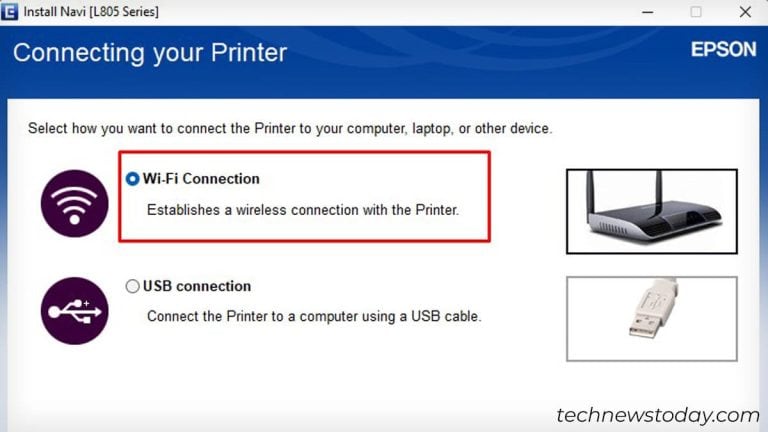
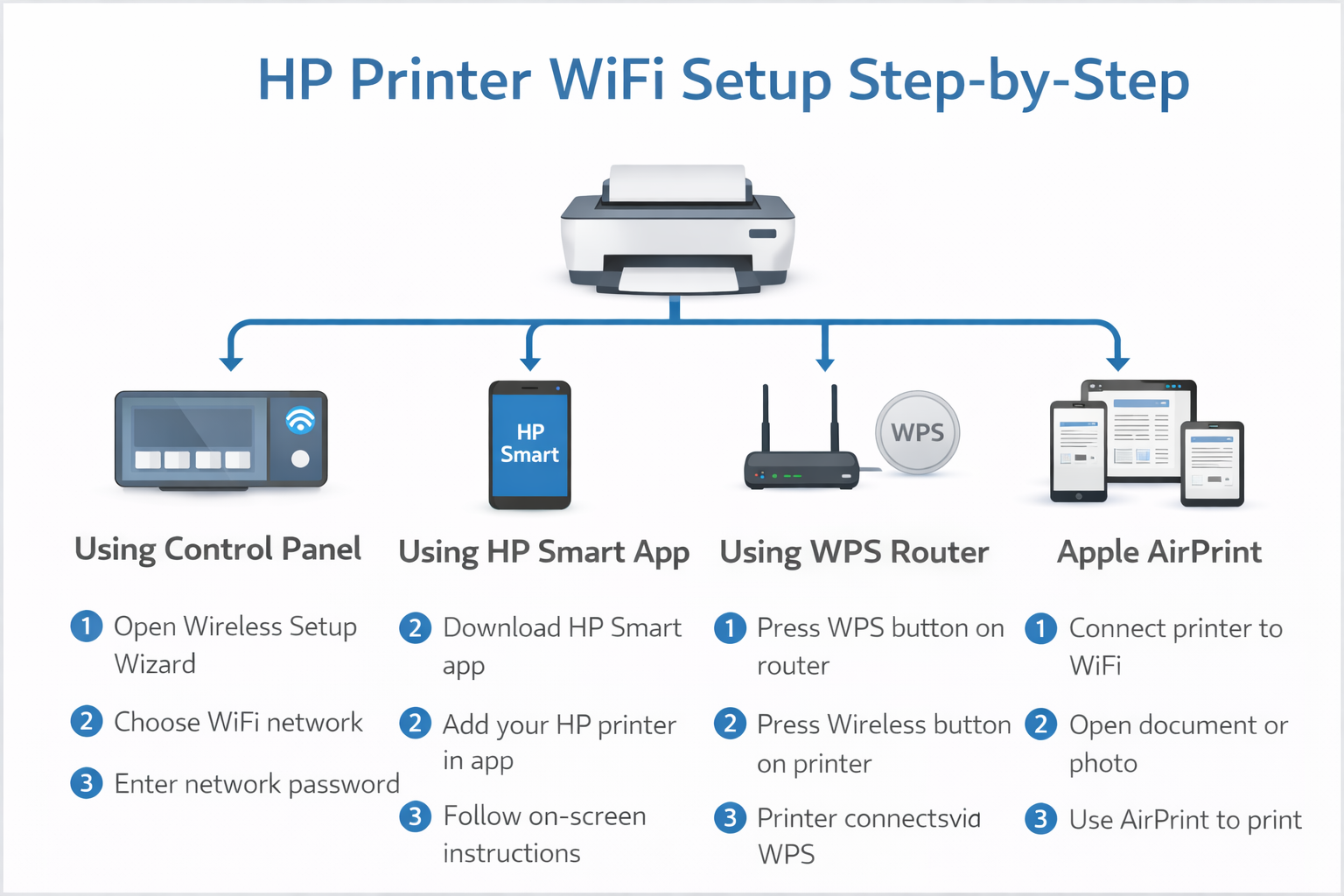
Next, you'll need to go into your printer's settings and select the wireless setup option. This will search for available wireless networks and prompt you to enter your network name and password. It's like setting up a new smartphone, but less exciting.
Once you've entered your network credentials, your printer should connect to the wireless network. You might need to wait a few minutes for it to configure itself, but be patient, it's worth it. When it's all set up, you can print from any device connected to the same wireless network, it's like magic!
Troubleshooting
If your printer won't connect to the wireless network, don't panic! Check that your network name and password are correct, and that your router is turned on. You can also try restarting your printer and router, this usually fixes the issue.
Another common issue is that your printer might not be compatible with your wireless network. This can be due to the wireless standard or frequency not being supported. In this case, you might need to consider using a wireless range extender or upgrading your router.
In conclusion, adding a printer to a wireless network is easier than you think. With a few simple steps, you can be printing wirelessly in no time. So, go ahead and give it a try, your wireless network will thank you!

As a final tip, make sure to keep your printer's firmware up to date, this will ensure that your printer stays connected to the wireless network and prints smoothly. You can usually find the latest firmware updates on the manufacturer's website. Happy printing!
Now, go forth and print those
cat memes! Your printer is now part of the wireless network, and you're ready to take on the world, one printed page at a time. Remember, a wireless printer is a happy printer!
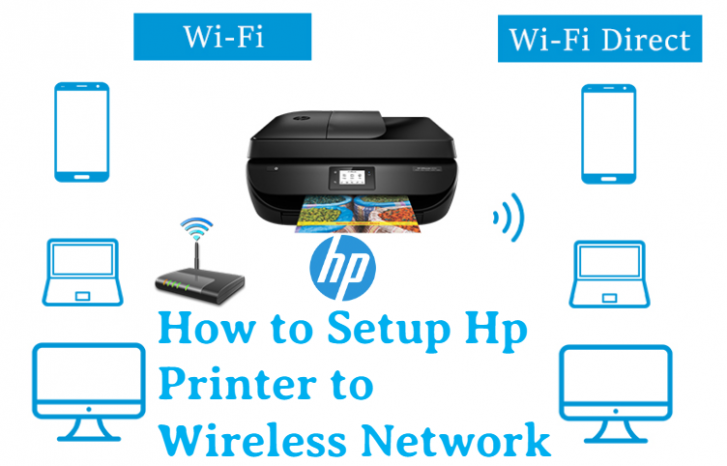
In the world of wireless printing, there are many printers to choose from. Some popular brands include Epson, HP, and Canon. Each has its own unique features and wireless capabilities, so be sure to do your research before making a purchase.
Lastly, if you're feeling extra tech-savvy, you can even set up your printer to print from the cloud. This allows you to print from anywhere, using any device with an internet connection. It's like having your own personal printing assistant, minus the attitude and constant requests for coffee breaks.
And there you have it, a comprehensive guide to adding a printer to a wireless network. With these simple steps, you'll be printing like a pro in no time. Happy printing, and remember, a wireless printer is a happy printer!