How Do You Join Two Photos Together
So there I was, staring at a photo of my dog, Leo, looking majestic on the left side of my screen, and a perfectly sunny beach on the right. My mission, should I choose to accept it, was to make it look like he was living his best life in the Maldives. I spent a good twenty minutes trying to drag one image onto the other with my mouse, hoping for a miracle. Spoiler alert: I got a very large, very pixelated dog head on a tropical horizon.
It was a comedic disaster, but it sparked a genuine question: how do you actually join two photos together? Trust me, if you’ve ever tried to make a meme, a comparison shot, or just a cool before-and-after, you know the struggle is real. It’s not just about slapping them side-by-side; it’s about making them feel like one cohesive image. Today, we’re going to fix that, minus the frustration (and the terrifying dog Godzilla).
The Simple Side-by-Side: Your Digital Glue
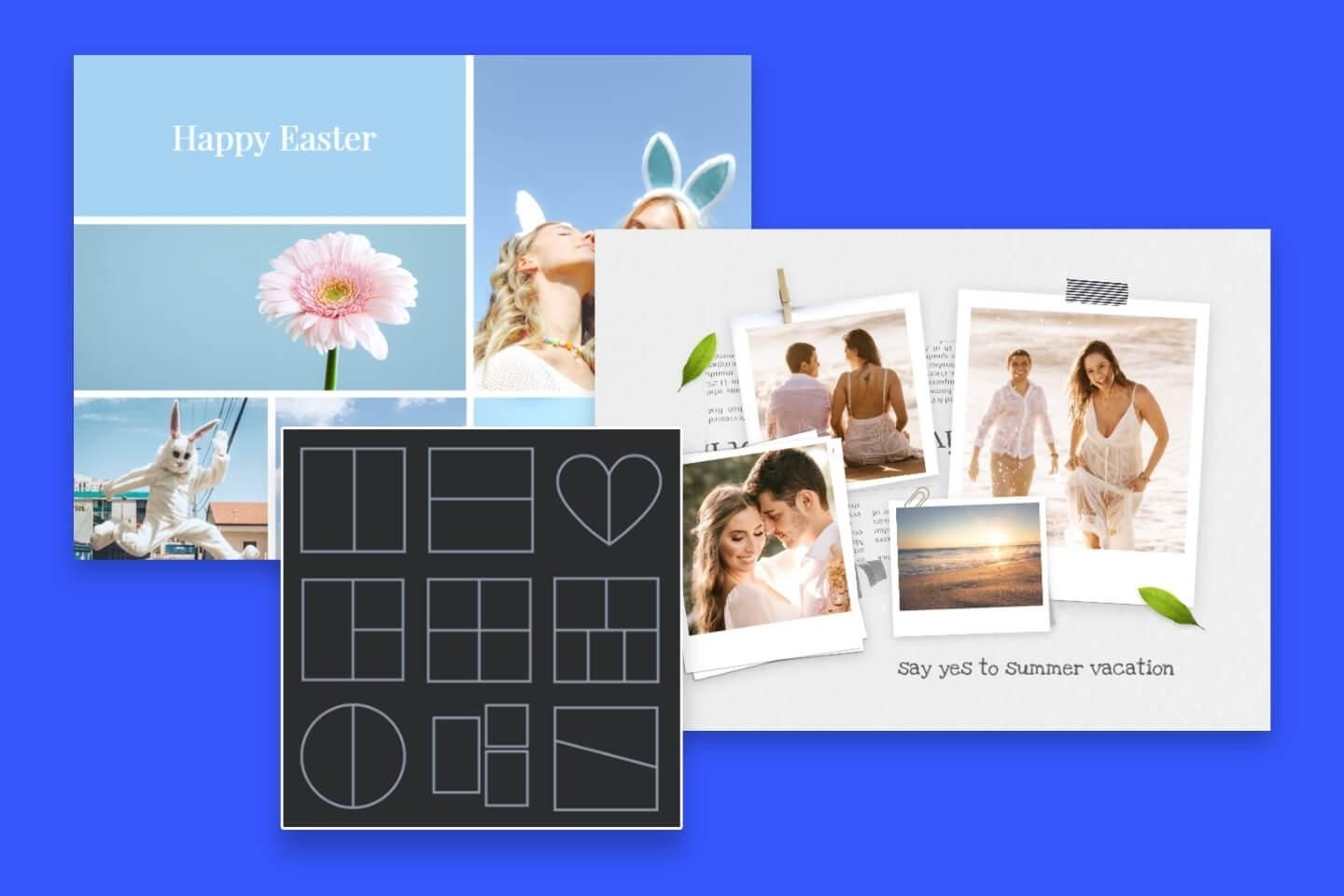
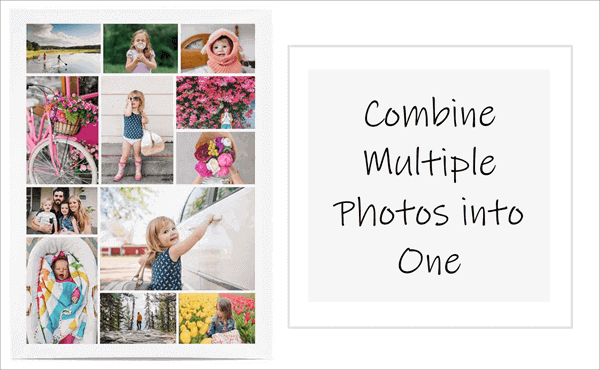
Let’s start with the easiest way, the equivalent of using a glue stick on paper. If you just need two photos next to each other—like a “then and now” or a product shot—you don’t need any fancy art school skills. You just need a tool that can put them on the same canvas.
Must Read
Think of apps like Canva, PicMonkey, or even the built-in tools on your phone (yes, your iPhone Photos app can do a basic collage). The trick is to create a new blank canvas with a width that is roughly the sum of your two photos’ widths. Then, you simply upload both images and drag them into place.
(Side note: If you’re using your phone, be careful with the auto-crop feature. It has a personal vendetta against my horizontal shots, and it will happily chop off your subject’s head.) Once they’re in, you can align them by eye or use the built-in alignment guides. It’s quick, it’s dirty, and for 90% of your everyday needs, it’s more than enough.

The “Blend” – When Simple Just Isn’t Cool Enough
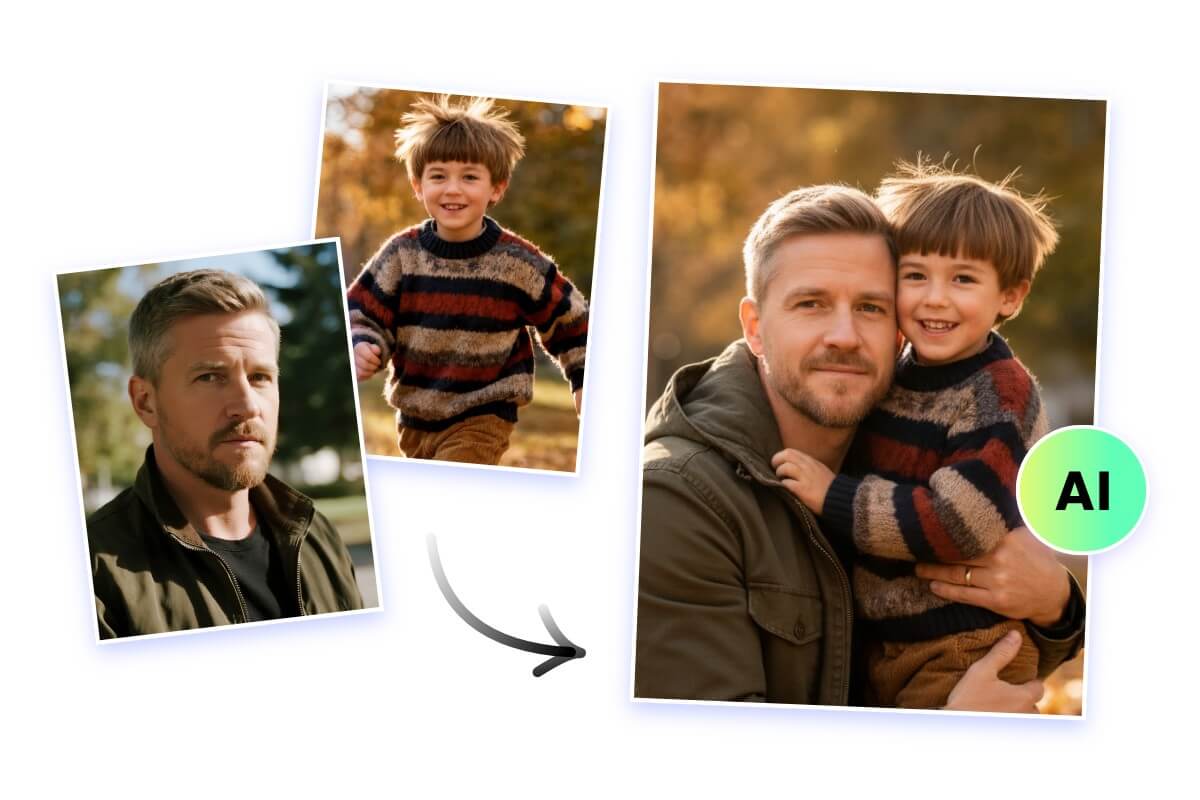
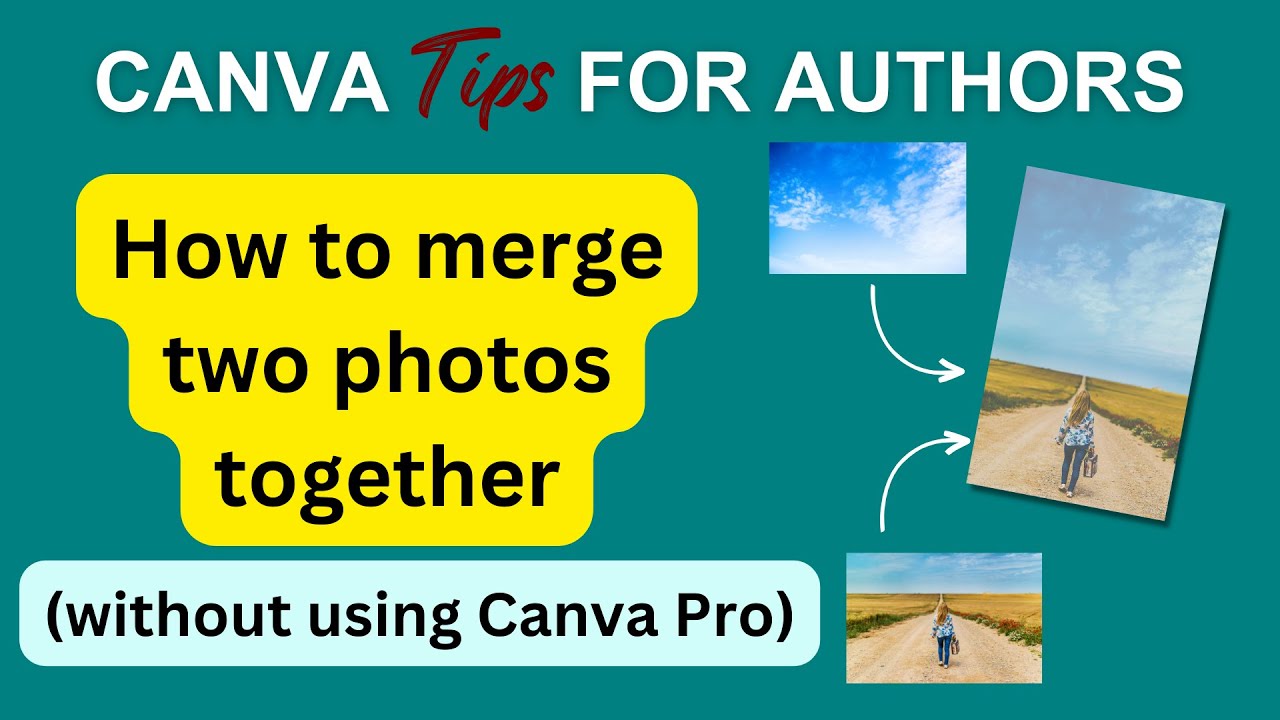
Now, what about when you want it to look like one continuous scene, not two separate panels? That’s where the real magic happens, and this is where we move from glue stick to Photoshop wizardry. The professional term is blending, and the most beginner-friendly way to do it is with a layer mask.
Open both images as separate layers in a program like Photoshop, GIMP (which is free!), or Photopea. Put the photo you want on top, and then add a white layer mask to it. A layer mask is basically an invisible sheet that lets you hide or reveal parts of the layer. Painting with black on the mask hides the top image, revealing what’s underneath.
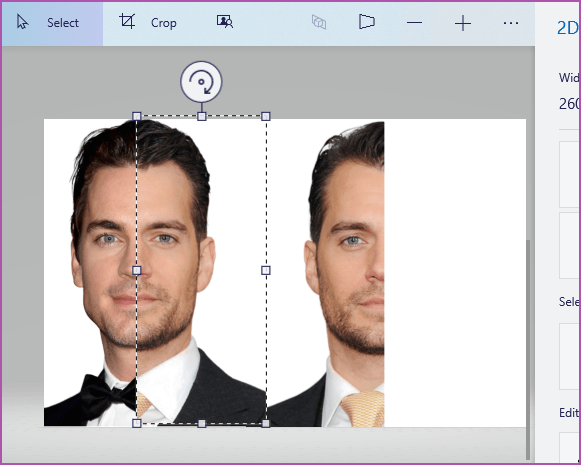
Here’s where the fun begins: grab a big, soft brush and start painting black over the edges where the two photos meet. You’re not erasing; you’re creating a smooth transition. (Imagine you’re a digital ghost, gently wiping away the edge of reality.) The softness of the brush is your best friend here—it creates a gradient of opacity, so nothing looks like a harsh cutout.
The Golden Rule: Match the Lighting
Okay, you’ve blended the edges, but if one photo is bright noon and the other is a moody sunset, it will still look like a patchwork quilt. The secret sauce to making a seamless join is to match the tones and lighting before you even start blending.
Look at your two images. Is one warmer (yellowish) and the other cooler (bluish)? Use a “Photo Filter” adjustment layer to tint the cooler one to match the warmer one. Then, check the exposure—does one look darker? Add a “Levels” adjustment layer and drag the mid-tones slider until the overall brightness is closer to its partner.
(Pro-tip that took me forever to learn: Don’t be afraid to be imperfect. Nature has no hard edges, so your blend shouldn't either. If it looks a little too perfect, it will look fake.) The goal is to trick the eye, and the eye is very good at spotting mismatched light. Get that light right, and you’re already 80% of the way there.
What About Your Phone? The Unsung Hero
If you’re on the go, don’t think you’re left out. There are incredible apps like Snapseed and PicsArt that have a “Double Exposure” or “Blend” feature. They work almost exactly like the layer mask method, but with your finger as the brush.

You can zoom in with two fingers for precise blending, and they usually have a built-in “Opacity” slider so you can dial back the top layer. It’s a little fiddly on a small screen, but honestly, it’s a great way to procrastinate at a coffee shop. Just be prepared to hold your phone at arm’s length and squint—it’s the universal sign of a photo editor at work.
The Final Piece: Just Do It
So, after my dog-horror incident, I finally opened up Photopea (it’s free, remember?). I followed my own advice, matched the lighting, added a mask, and painted with a soft brush. Twenty minutes later, I had a picture of my dog lying on a beach so convincing that my mom called to ask if I’d taken him on a secret vacation.
I hadn’t, of course, but the point is that joining photos is less about technical skill and more about understanding the simple mechanics of layers and light. Whether you’re making a silly meme or a polished album cover, the process is the same. Go on, give it a try—and this time, maybe keep your dog’s head attached to his body.