How Do I Backup My Google Account
Last Tuesday, I spilled a full mug of coffee directly onto my laptop. As I watched the steam rise from the keyboard, my first thought wasn’t about the burnt circuitry—it was about the 2,847 photos of my dog that I’d never backed up. My second thought was pure panic, because I realized I had no idea where my life actually lived.
Sound familiar? You probably have your entire existence tucked inside your Google Account—emails from your ex, that one spreadsheet from 2015, and your entire contact list. But here’s the kicker: Google is not your friend, it’s just a landlord, and you could get evicted at any moment.
So, let’s fix that. I’m going to walk you through the painfully simple process of backing up your Google Account, and I promise it’s less annoying than flossing. No, really, stick with me.
Must Read
The Holy Grail: Google Takeout
Google actually built a tool for this, and it’s called Google Takeout. It’s the digital equivalent of packing your bags before a fire alarm goes off—except the fire is your own forgetfulness.
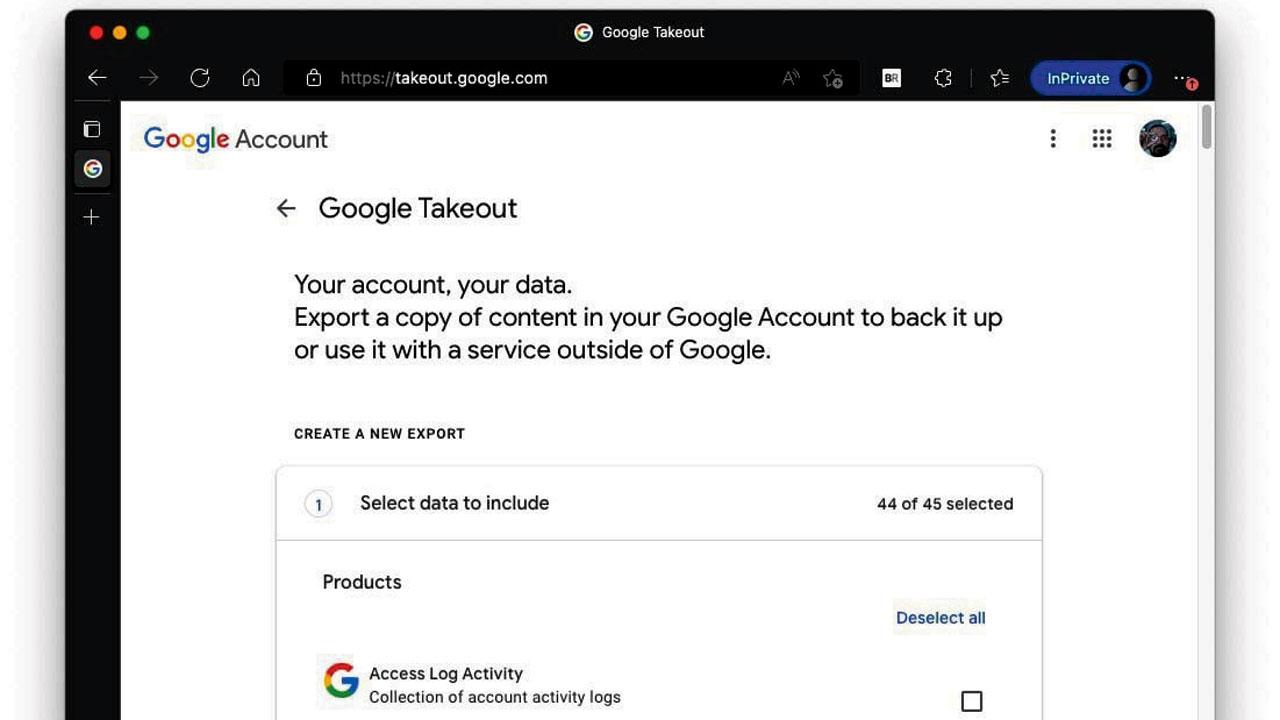
Head over to takeout.google.com and sign in. You’ll be greeted by a nightmare of checkboxes, and no, you don’t need to select everything. Unless you want a 50GB zip file that takes three days to download, which I don’t recommend (unless you’re into digital masochism).
Here’s the strategic move: click “Deselect all” first, because nobody needs to archive their “Google Play Games” cloud saves from 2016. Then, cherry-pick the essentials—Gmail, Drive, Photos, and Contacts. That’s your digital core, your bacon.
But Wait, There’s a Catch
Once you hit that blue “Next Step” button, Google asks you how you want to receive your archive. You can get a download link, but I always choose “Add to Drive”—it’s like asking the moving company to just leave your boxes in the garage. However, that’s still inside Google’s house, which is a bit like moving your stuff to the neighbor’s shed.
For the love of all that is holy, also set the export frequency to “Once” and the file type to “.zip”. You’re not a tech wizard? Fine, neither am I, but .zip is the universal language of “just let me open this.” Also, keep the file size under 50GB if you can, because your free Google Drive storage is lying to you.
The “Do It Yourself” Method for Gmail
If you don’t want to deal with Takeout’s massive files, you can also back up your emails manually using a desktop client like Thunderbird or Outlook. Yes, this throwback feels like using a fax machine, but it works. Set up your Gmail via IMAP, and let the app slurp down every single email—including that one chain where you hit “reply all” by accident.

Just make sure you have enough disk space on your hard drive, because your “inbox zero” goal is a myth. I once downloaded my own Gmail and discovered I had 4GB of memes sent to my boss. That’s not a fun surprise.
Alternatively, you can use a service like Backupify if you want to pay money for something I just taught you for free. But hey, rich people buy bottled water, so you do you.
Don’t Forget Your Photos (The Real Treasure)
Let’s talk about Google Photos, because that’s where your soul lives. If you’ve been using the free “High quality” storage (now called “Storage saver”), your photos are compressed—but they’re still there, which is better than nothing.
In Google Takeout, select “Google Photos” and choose the album you want. But here’s a pro tip: download your photos in batches by year. Trying to grab 10 years of vacation pics at once will crash your browser faster than a politician’s promise. Also, you can use the “Export once” feature, but if you take new photos daily, set up a monthly automatic export to Drive. Future you will send past you a thank-you card.
And Then, Move It Off-Google
This is the step that 90% of people skip, and it’s the most important. After you download your Takeout files, do not leave them in your Downloads folder. Copy them to an external hard drive, a USB stick, or even burn them to a DVD if you have a time machine. The point is: get the data off of Google’s servers.
Because here’s the ugly truth—if Google decides to suspend your account because you sneezed wrong, your backup is gone. So, take your zip files and stick them on a physical drive. Yes, physical, like a rock. It’s the only way to be sure.
And please, for the love of all that is nerdy, encrypt that external drive with a password. You don’t want some random person finding your “Selfie with a raccoon” folder and sharing it on Reddit.
Set a Recurring Reminder
You’re not going to remember to do this every month. Let’s be honest, you forgot about this article the moment you closed the tab. So, set a recurring calendar event called “Backup My Life” every quarter.
When the notification pops up, just click through Takeout again, download the fresh files, and overwrite the old ones. It’s a 15-minute chore, and it buys you peace of mind for the next 90 days. That’s less time than you spend scrolling through TikTok reels about people who lost their data.
I didn’t spill coffee on my laptop, obviously—I actually dropped it down the stairs last month. But now, knowing my Google Account is safe, I can laugh about it. Okay, maybe not laugh, but I can at least cry without worrying about my dog photos.
So, go on. Open that Takeout tab. Your future self, with their intact photo collection, will be incredibly grateful. And if you spill a latte on your keyboard tomorrow, you might actually be able to keep working—or at least, you’ll have the satisfaction of knowing your backups are saved.
![[Guide complet] Restaurer des fichiers définitivement supprimés sur Android](https://images.tenorshare.com/guide/android-data-recovery/select-accounts-and-backup.jpg?w=1430&h=804)