
How Do I Backup My Data On My Phone
Okay, let’s be real for a second. Your phone is basically a tiny, glowing extension of your brain, right? It holds your embarrassing photos, your genius-level memes, your secret Pinterest boards, and the contact info for that guy you met once at a party. Losing all of that is the digital equivalent of tripping in public—it’s devastating, and you’ll replay it in your head for years.
So, how do we avoid this mini heart attack? We back up our data! It’s easier than teaching your grandma to use TikTok, and it takes less time than waiting for your coffee to brew. Let’s dive into this digital safety net, and I promise, no techno-babble, just plain English.
Step 1: The Cloud (It’s Not Just for Weather Anymore)
The “cloud” sounds all mysterious and sci-fi, but it’s really just a secure warehouse in the sky for your stuff. You don’t have to rent a storage unit or physically haul anything—it’s all done behind the scenes. The easiest way to back up your phone is to let it do the heavy lifting.
Must Read
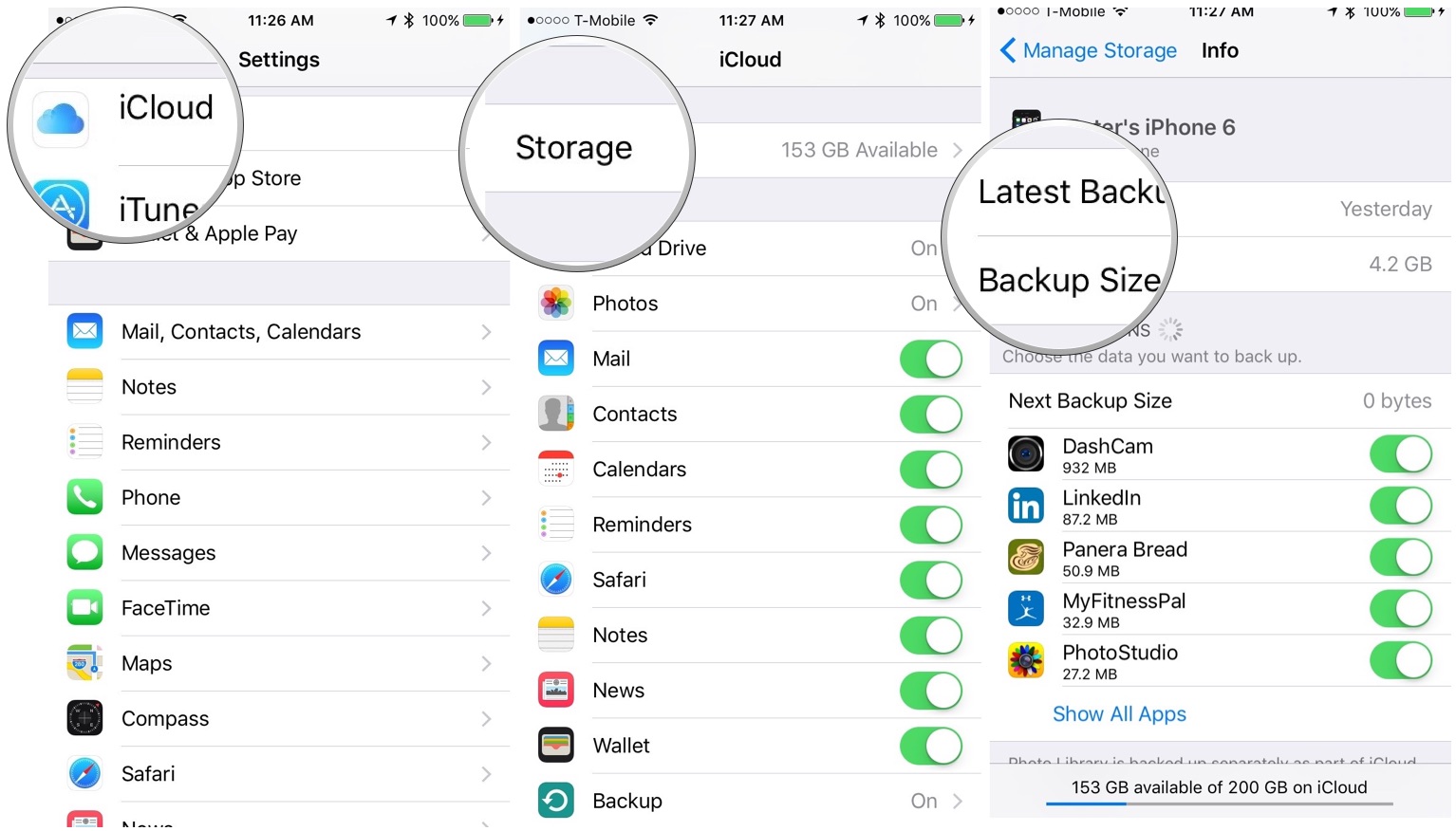
If you have an iPhone, you’ve got iCloud. If you’re an Android person, you’ve got Google Drive or Google Photos. They’re like your phone’s best friend, secretly copying your life while you binge-watch a show. Just make sure to turn on the backups and set them to run on Wi-Fi, so you don't blow through your data cap watching cat videos.
How to actually do it (without breaking a sweat)
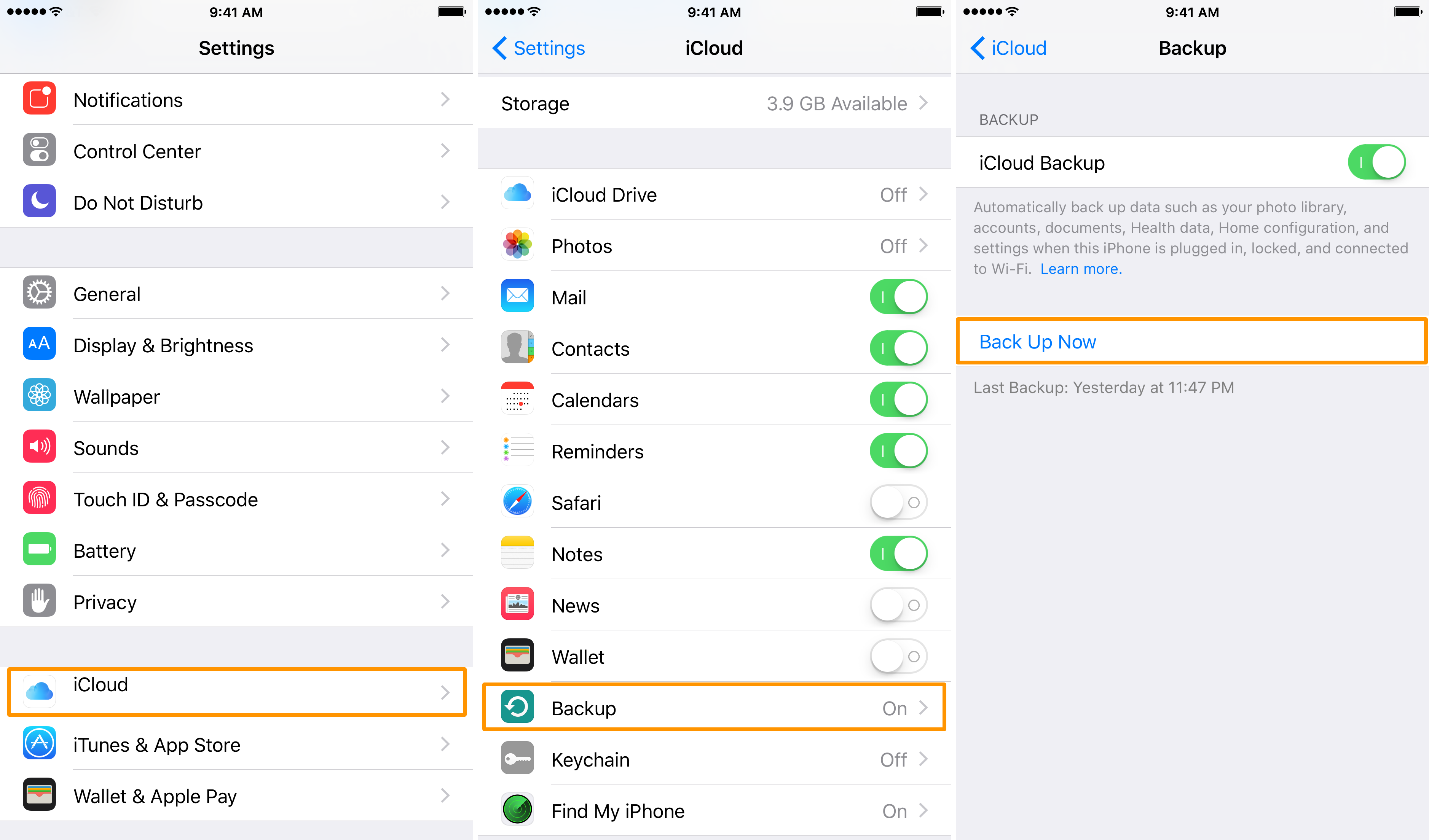
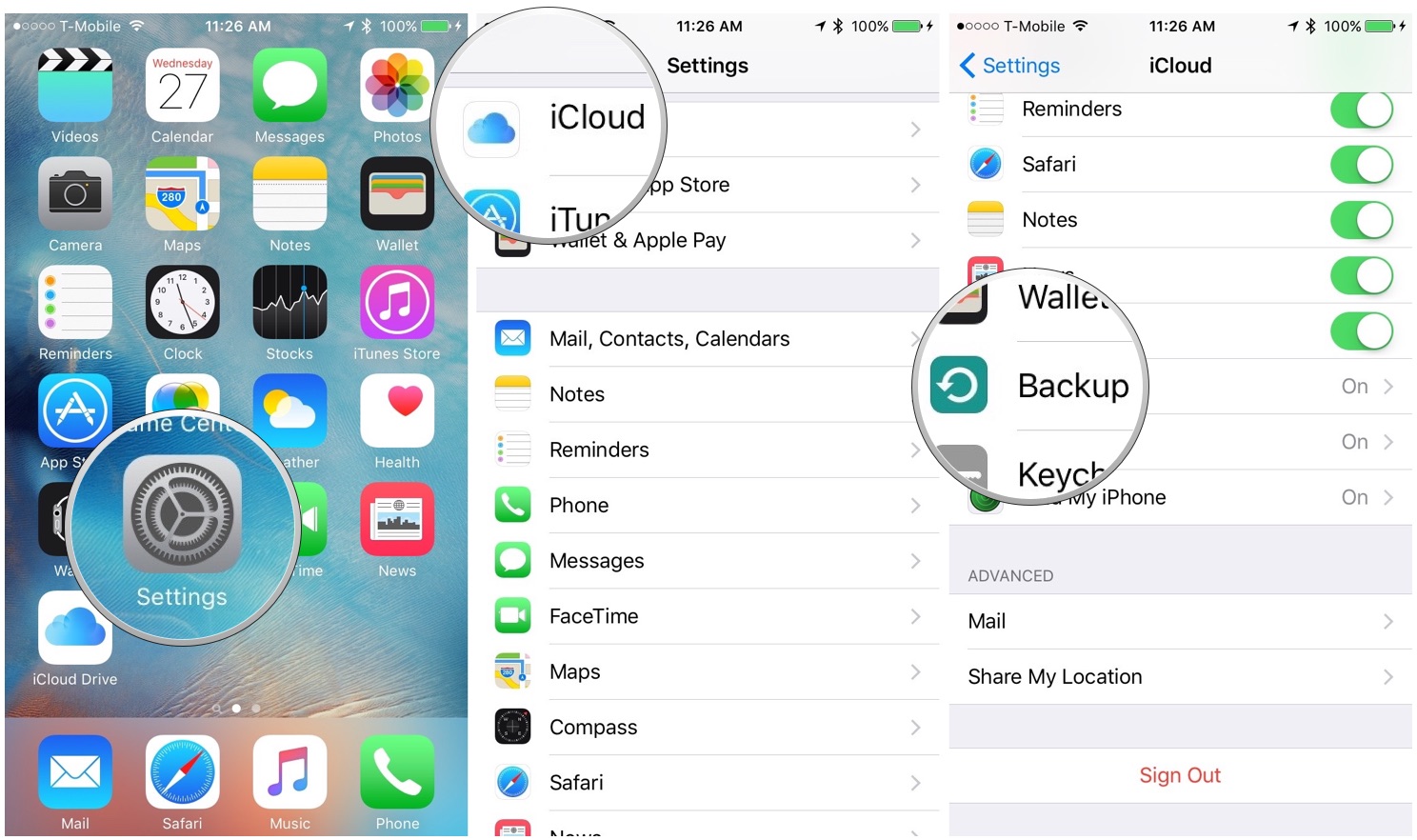
Open your Settings app—that’s the gear icon that you’ve probably ignored for months. Look for your name or “Accounts” and tap it. Then, find the backup option. On iPhone, tap iCloud > Backup > Back Up Now. On Android, look for Google > Backup > Back Up Now.
That’s it. Seriously. Go grab a snack while it works. Just don’t drop your phone in the salsa—that’s a whole different type of backup crisis.
Step 2: The Good Old-Fashioned Computer (Your Phone’s Not-So-Distant Cousin)
Not a cloud fan? Do you suspect the “sky” is just a giant government drone? No judgment here. You can go retro and plug your phone into a computer with a USB cable. It’s like sending your data to a digital retirement home, but way faster and with less bingo.
When you plug in, your computer will often ask if you “trust this device.” Just say yes; it’s not asking for a kidney. On a Mac, use Finder (or iTunes if you’re on older software), and on Windows, use File Explorer. You’ll see your phone’s files like a mini hard drive.
Copy your photos, videos, and documents onto the computer. It’s like moving your treasure from a small chest to a bigger vault. The downside? You need to remember to do this every week or so, which is about as likely as me remembering to floss daily.

Step 3: The Photo Predicament (Where Most Tears Happen)
Photos are the real VIPs of your phone. They’re the only thing you’ll care about when you’re old and telling stories about that time you tried to cook a turkey. So, let’s give them extra special treatment.
Use Google Photos! It’s free (with unlimited storage at a slightly compressed quality, which is fine for most of us). It automatically backs up every snap you take, making you feel like a hoarder with a plan. You can also use iCloud Photos on iPhone for the same effect.
Here’s a pro-tip: Don’t skip this step. I lost a whole year of travel photos once because I thought I was invincible. I wasn’t. I’m just a person with a non-backed-up phone and a deep regret for ignoring that "Storage Almost Full" notification.

What about apps and messages?
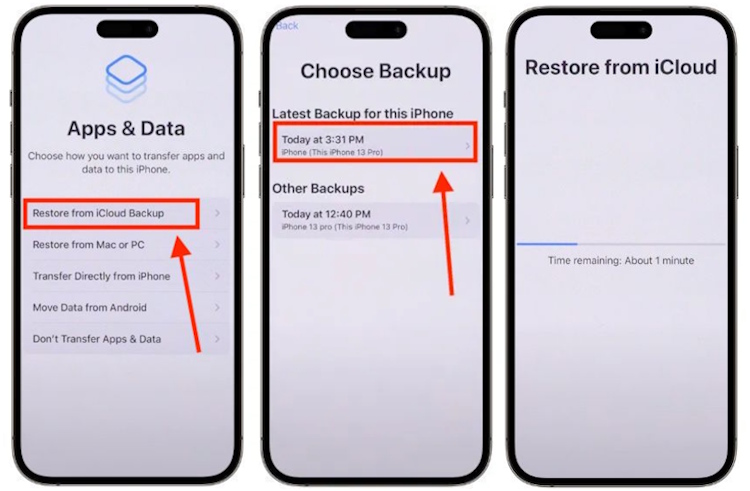
Good question, smarty pants! Your apps can be re-downloaded, but your WhatsApp or iMessage history is precious. That’s where the drama lives. Make sure your chat app has its own backup toggle in its settings—it’s often separate from the main phone backup.
Most messaging apps will let you back up to the cloud (again, that magical sky warehouse) or to your Google Drive. It’s a lifesaver if you ever switch phones and want to remember that joke you sent three years ago. Nobody wants to start their digital life from square one like a caveman drawing on a wall.
One Final Weird But True Tip
Set a monthly reminder on your calendar: “Hey, backup my life!” Treat it like a date with yourself, but with less awkward small talk. A notification pop-up is the only thing that will make you actually do it, besides a mild panic attack.

And if you’re feeling extra fancy, invest in an external hard drive. You can copy your cloud downloads, photos, and music onto it. It’s like having a backup for your backup, which is a weirdly adult thing to do.
You’ve Got This!
Look at you, being all responsible and tech-savvy. You’re officially the friend who gets asked, “How do I save my contacts?” at dinner parties. And honestly, that’s a great vibe.
Backing up your data is like wearing a seatbelt—it feels unnecessary until it’s the only thing between you and a digital disaster. So go ahead, click that button, and let your phone do its little robot dance of saving your stuff.
Sleep well tonight, my friend. Your memes are safe. Your sanity is safe. And if you ever lose your phone in a lake, at least you’ll know your life’s story is safely tucked into a cloud. Now, go treat yourself to a cookie—you’ve earned it. 🍪

:max_bytes(150000):strip_icc()/001_backup-android-phone-4177052-7f47ba8011fd4244ba33d814bed33a3f.jpg)