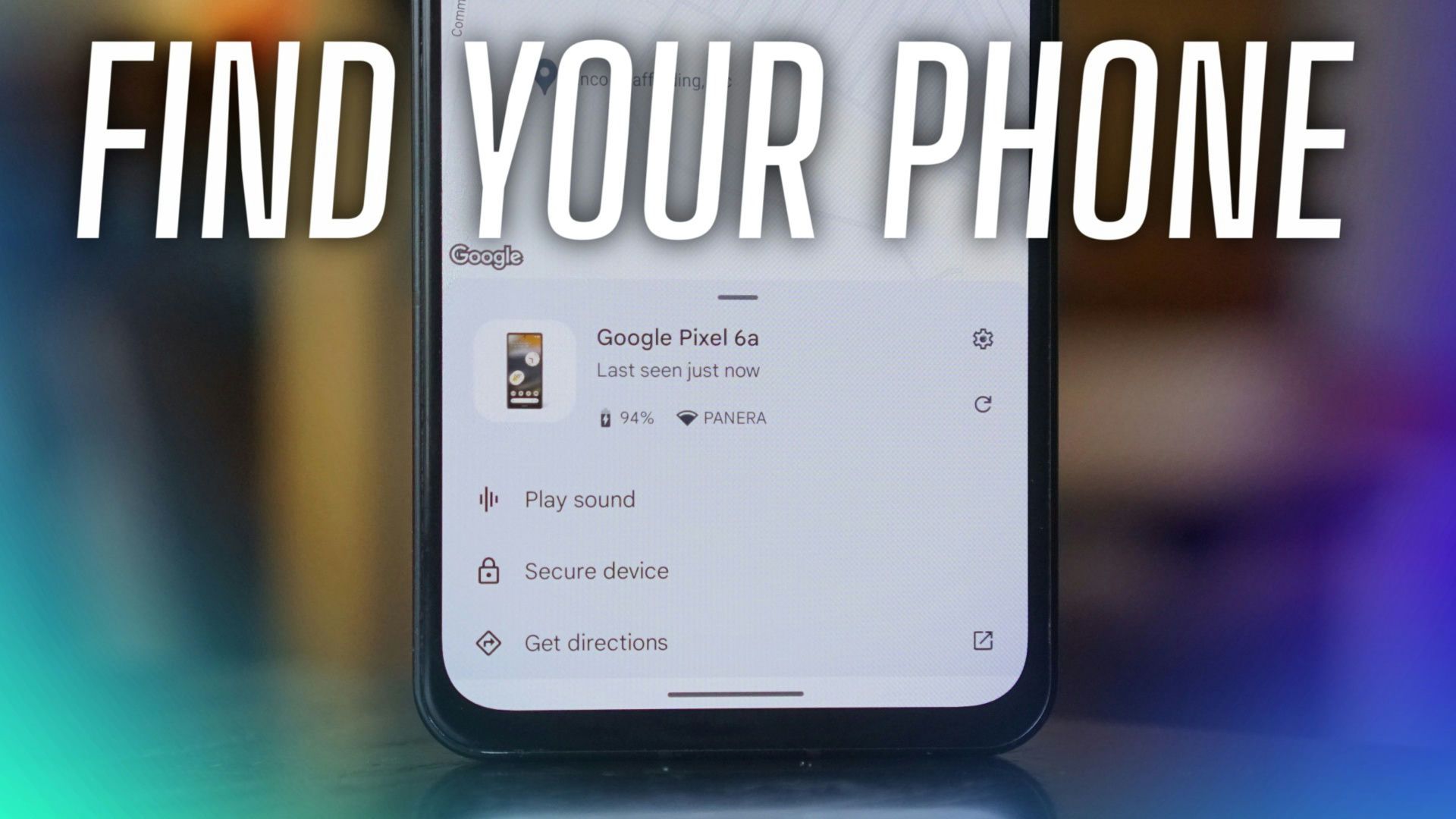
How Can I Get Pictures Off My Phone

There is a specific, almost anthropological moment that occurs in every modern household: you are sitting on a sofa, phone in hand, and someone says, “Remember that trip to Lisbon?” or “Can you send me that photo of Mum from the wedding?” You nod, open your camera roll, and are instantly confronted by 14,000 images of sunsets, blurry dogs, half-eaten pasta dishes, and screenshots of memes you swore you would delete. The panic sets in. The digital hoard becomes a physical weight. Your phone, that sleek little slab of glass and lithium, has become a reluctant museum of your life—but a museum with no exits, no curators, and crucially, no easy way to move the art out.
Getting pictures off your phone is one of the most universally relatable yet surprisingly charged technical tasks of our era. It sounds absurdly simple, yet it sits at the intersection of 21st-century anxiety, cloud subscription fatigue, and our deep, primal need to physically hold onto memories. We have moved from shoeboxes of physical photographs—tangible, slightly sticky from humidity, with white borders—to a vast, invisible archive that lives in a server farm in Oregon. This shift happened in less than two decades, and our instincts haven't caught up. We still want to touch the past, but now we have to negotiate with a lightning cable, a Wi-Fi signal, and the ghost of a 2019 Google Photos storage policy to do it. Understanding how to liberate your images is not just about file management; it is about reclaiming your personal history from the clutches of device obsolescence.
The Psychology of the Camera Roll: Why We Hoard and How to Digitally Detox
Let’s talk about the elephant in the room: the storage bar in your Settings that is perpetually red. According to purveyors of digital wellbeing, the average smartphone user takes around 20 to 30 photos a day, but deletes less than 2%. This is not laziness; it is a neurological compulsion. The act of taking a photo feels like an achievement—a little dopamine hit of preservation. Deleting that photo, however, feels like an act of violence against a potential future memory. We are conditioned by a scarcity mindset that was baked into us by 35mm film. Back then, every shot cost money, so every shot was precious. Now, storage is effectively infinite until it isn't, and we treat every pixel as a relic of a potential past that might have value in a future we can't predict. This hoarding instinct is compounded by a phenomenon called digital object permanence—if I can’t see the photo on my screen, my brain worries it has ceased to exist. Getting pictures off your phone requires you to defeat this primal fear and trust an external system.
Must Read
Culturally, we have swung from the "Kodak Moment" to the "Blackout Scroll." In the 1980s and 90s, a photograph was a deliberate curation; you had 24 exposures and had to wait a week to see them. Today, we capture everything because we fear missing out on a future nostalgia. But this over-capture leads to a weird emotional phenomenon known as the photo-taking impairment effect. Studies have shown that when you focus on capturing an experience, you fail to actually remember it. Your brain outsources the memory to the camera lens, effectively erasing your personal sensory input. Therefore, the act of moving photos off your phone isn't just digital tidying—it is a mental health intervention. By backing up and archiving, you are acknowledging that the memory exists independently of your immediate field of vision. You are curating your life, not just documenting it. In the dark fun fact category: a 2023 study found that the average person spends roughly 45 minutes a week scrolling back through their own photos to "relive" moments they can't actually recall happening, proving that our camera roll is often a fiction we tell ourselves.
The Great Migration: Case Studies, Cable Chaos, and the Cloud Conundrum
Let’s look at three archetypes of the photo-hoarder and how they valiantly attempted to solve the evacuation problem. First, there is Sarah, the iCloud Trapped. Sarah has an iPhone with 256GB of storage, but her iCloud plan is 50GB, and it has been "full" for eleven months. She receives daily pop-ups that read like aggressive love letters from Apple. Her solution was to plug her phone into her MacBook, expecting a simple drag-and-drop. Instead, she was greeted by the agonizingly slow "Import" window in the Photos app. The issue wasn't the connection; it was that her phone was also trying to upload 40,000 videos to iCloud simultaneously. The workaround? She turned off iCloud sync entirely (temporarily), plugged in, and used the Image Capture utility on Mac or the Phone Link app on Windows. This bypasses the ecosystem and treats the phone like a digital camera, allowing for a raw, unmanaged transfer that doesn't choke on cloud conflicts. The lesson: sometimes you need to disconnect from the network to access your data physically.
Then we have Marcus, the Android Archiver. Marcus hates subscriptions. He refuses to pay for Google One storage after his free tier ran out. Instead, he uses a USB-C to USB-C cable and connects his Android phone directly to a portable SSD. He treats it like a hard drive, using the native file manager to copy the DCIM folder. It works perfectly, but his problem was organization. He realized he had 1,200 screenshots of concert tickets and memes mixed in with his family photos. His actionable takeaway for you: use file sorting filters. On most Android phones, you can search by "Screen recordings" or "Screenshots" in the gallery app and bulk-select them to delete or move to a separate folder before the big transfer. This reduces the transfer volume by 30% instantly. He now backs up his phone to a 2TB NVMe drive every Sunday, which is cheaper in the long run than cloud storage and gives him a warm, analogue sense of security that no server farm can provide.
Finally, we have Joanna, the "Cloud Native." Joanna has 5TB of Google Photos and uses the "Free up device space" feature religiously. But her conundrum arose when she wanted to print a physical photo album for her parents' 50th anniversary. She discovered that photos downloaded from Google Photos are often compressed if backed up in "Storage Saver" quality. For high-resolution originals, she had to go into Google Takeout, which is a bureaucratic quagmire of metadata and JSON files. The real tip for her (and you) is to use Direct Transfer services or to always toggle the download setting to "Original Quality" in the Google Photos web interface before pulling files. More importantly, she learned to use Immich or Nextcloud—self-hosted servers that mimic the cloud but live on a device you own. It was a steep learning curve, but it broke the cycle of subscription anxiety. The takeaway from these three stories is simple: your transfer method should be dictated by your short-term emotional need and long-term storage ethics, not by the default settings of your operating system.
For the average user, the best practical approach involves a hybrid "3-2-1" strategy that prosumers have used for decades. Keep three copies of your photos: one on your phone (the working copy), one on an external SSD or desktop computer (the local backup), and one in a cloud service (the off-site safety net). To achieve this, you don't need fancy software. For iOS users, downloading a third-party app like PhotoSync is a game-changer because it allows you to schedule automatic transfers to a NAS or FTP server without relying on Apple's rigid iCloud integration. For Android users, Solid Explorer allows for wireless FTP transfers to a PC—no wire needed, just a fast 5GHz Wi-Fi network. And for the truly lazy (or busy), set up a daily auto-backup to Dropbox or OneDrive, then use the mobile app to cull the duplicates. The absolute best time to do this deep archive is when your battery is at 100%, you are not using the phone, and you have nowhere to be. This is not a passive activity; it is a digital heist, a rescue mission, and a therapeutic purge all rolled into one.
Open the Secure Vault: Frequently Asked Questions
1. What is the fastest way to transfer all my photos to a PC without damaging quality?
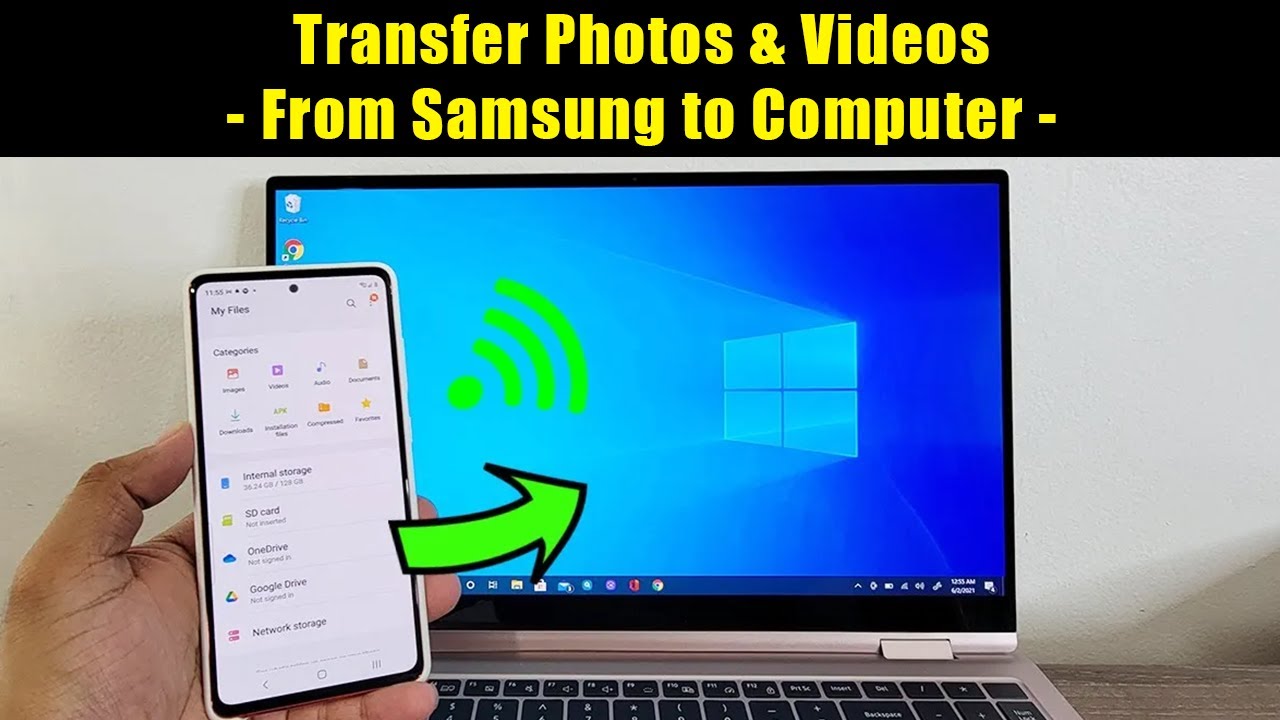
The fastest and most reliable method is a direct wired connection using the original USB cable. For iPhones, use the Lightning-to-USB or USB-C cable and pick "Trust This Computer." On Windows, open Photos app (the pre-installed one) and click "Import." It will automatically find the newest images and pull them over as full-resolution copies. On a Mac, use Image Capture, which allows you to select a destination folder and doesn't alter the file format or EXIF data. Wired transfers are up to ten times faster than Wi-Fi, and they do not compress the photos. There is no "wireless hack" that beats a physical cable in terms of speed, especially when moving thousands of RAW files or 4K videos. In fact, a common mistake is using a multi-card reader or a cheap third-party cable that limits transfer speeds—always use the cable that came with the phone or a certified high-quality replacement.
2. Can I use Airdrop or Nearby Share to mass-export my entire library?
Technically, yes, but you shouldn't. AirDrop and Nearby Share are excellent for sending a handful of photos to a friend, but they have a file-size and quantity limit per session. Sending 5,000 photos via AirDrop will often cause the transfer to fail halfway, drop files silently, or create massive duplicates. Furthermore, AirDrop does not preserve the original file structure (like albums or folders) unless you select them individually. These protocols are designed for ephemeral sharing, not archival. If you have more than 100 photos, use a cable or a cloud sync service. For larger batches wirelessly, set up a local FTP server on your PC and use an app like Documents by Readdle (iOS) or Cx File Explorer (Android), which can handle batch transfers over the local network without the flimsy peer-to-peer limitations.

3. Why are my photos "blurry" or compressed when I download them from Google Photos?
This is the notorious Google Photos compression trap. When you back up photos, Google offers two options: "Original Quality" and "Storage Saver" (formerly High Quality). If you chose Storage Saver before June 1, 2021, those photos were compressed to 16 MP and slightly reduced in file size. However, the "blur" you are seeing on download is often a different issue—it is the preview cache. When you hit download, Google sends you a preview version if the original is in "cold storage" (to save server costs). You need to specifically click the three-dot menu and select "Download Original" or go into the photo's details and look for the phone icon with "Original" next to it. If the original is not available, you are out of luck unless you use Google Takeout. Takeout usually provides the originals at whatever resolution you uploaded, but if you backed up in Storage Saver, that is the best you will get. Always upload in Original Quality if you care about archiving—sadly, this requires paid storage now, but your memories deserve it.
4. Is there an automatic way to sync my photos to a hard drive at home while I sleep?
Absolutely, and this is the holy grail of photo management. The most user-friendly way is to use a Network Attached Storage (NAS) device like a Synology or a WD My Cloud. These devices come with their own mobile apps (e.g., Synology Photos) that can run in the background. On the app, you can enable "Backup" and set it to "Only on Wi-Fi" and "When charging." The phone will then silently push every new photo to the NAS whenever you are connected to your home network overnight. This bypasses the cloud entirely and creates a local, private server. If you don't want to buy hardware, you can install Resilio Sync on your phone and PC; it uses peer-to-peer technology to sync a folder directly over the same Wi-Fi network without any intermediary server. Leave your PC on, and your photos will trickle across the network while you sleep, ensuring you always have a physical copy that isn't reliant on a subscription.
5. How do I transfer photos from an old, dead phone to a new one?
If the screen is cracked but the phone still vibrates or makes sounds, you can connect it to a PC via USB and use the file manager. If it doesn't connect, you might need to use the cloud backup that was made before it died (iCloud or Google backup). If that fails, things get MacGyver-level tricky. For iPhones, you can connect the dead phone to a computer with a Lightning to USB cable; Windows will often recognize it as a portable device even with a black screen, allowing file access. For Android, the USB debugging mode must be enabled beforehand—if you didn't enable it, the data is often cryptographically locked to the internal storage. In that case, you can try taking the phone to a professional data recovery specialist who uses chip-off techniques, but this is expensive. The fun fact here is that most modern phones use UFS 2.1 or 3.0 flash storage that is not soldered, meaning a technician can actually remove the microSD-like chip and read it directly. Prevention is the only cure: enable auto-backup the moment you get a new phone, and test the backup every six months.
As we navigate this digital labyrinth, we must remember why we started taking pictures in the first place. It was never about the pixels; it was about the face in the frame, the light on the water, the moment of pure, unadulterated happiness that we feared slipping away. Our obsession with getting photos off our phone is a modern expression of an ancient human instinct to build a legacy, to prove we existed, and to hand that proof to the next generation. The phone is just a temporary vessel—a shining, fragile ark sailing on a sea of software updates and battery cycles. Letting go of that dependency and moving your photos to a secure, dedicated archive is an act of maturity, a declaration that you are the curator of your own biography, not just a passive consumer of notifications.
In our daily lives, this task represents a rare opportunity for digital mindfulness. When you connect that cable and watch the progress bar fill, you are physically transferring memories from a volatile memory (the phone) to a stable disk. It is a meditative act characterized by a strange mixture of nostalgia and waste management—you will laugh at old selfies, cringe at exes, and wonder why you took thirty screenshots of the same meme. But when the bar hits 100% and the "Device Storage Free" notification pops up, you feel a surge of liberation. You have created space—both in your digital life and in your mind—for new experiences.
Finally, remember that the cloud is not a cloud; it is just someone else's computer, subject to power outages, corporate policy changes, and forgotten passwords. Your photos are your life's story, written in light and shadow. Do not trust them to a platform that could vanish in a lawsuit or a merger. Take the time—perhaps an hour on a Sunday afternoon—to plug in, export, and organize. The act of backing up your photos is, in essence, a promise to your future self that you will not forget. And in a world that moves at the speed of a refresh rate, holding onto that memory is the most rebellious, luxurious, and deeply human thing you can do.