Download Fonts Clip Studio Paint
Ever stared at a speech bubble in Clip Studio Paint and thought, “This font is so boring”? You’re not alone. Downloading fresh fonts for your comics, illustrations, or even just your journal pages can transform a flat project into something with real personality. It’s like giving your art a brand-new voice—and it’s easier than you think.
Why Bother With New Fonts?
Default fonts are safe, but they’re also everywhere. Your story deserves lettering that matches its mood—whether that’s a grungy horror title or a whimsical fairy-tale narration. Custom fonts also help separate dialogue, sound effects (KAPOW!), and captions so readers instantly know what’s happening. Plus, downloading fonts is free or cheap, and the payoff is instant visual wow.
Think of fonts like costumes for your words. A spooky serif can make a ghost story chillier; a hand-drawn script can make a romance feel intimate. Clip Studio Paint lets you import all of these, so your toolbox becomes limitless.
Must Read
Where to Find Great Fonts (Without Getting Lost)
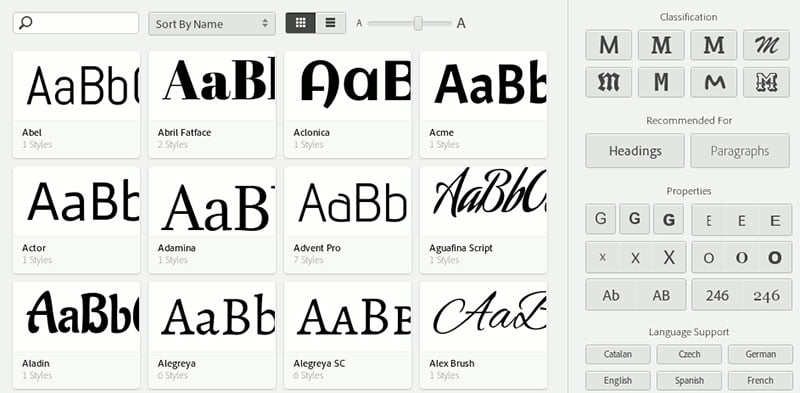
Start with trusted sites like Google Fonts, DaFont, or Font Squirrel—they’re safe, user-friendly, and packed with options. For comic-specific styles, check out Comic Craft or Blambot, where you’ll find lettering made for speech bubbles and action words. Always check the license, though. Some fonts are free for personal use but require a small fee for commercial comics or merchandise.
Once you’ve picked a few, download the file (usually a .ttf or .otf file). Don’t worry—you don’t need to open it. Just remember where you saved it.

How to Install Fonts for Clip Studio Paint
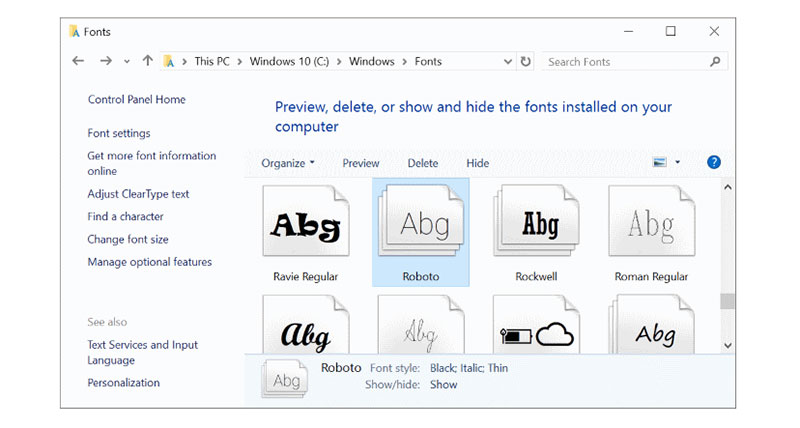
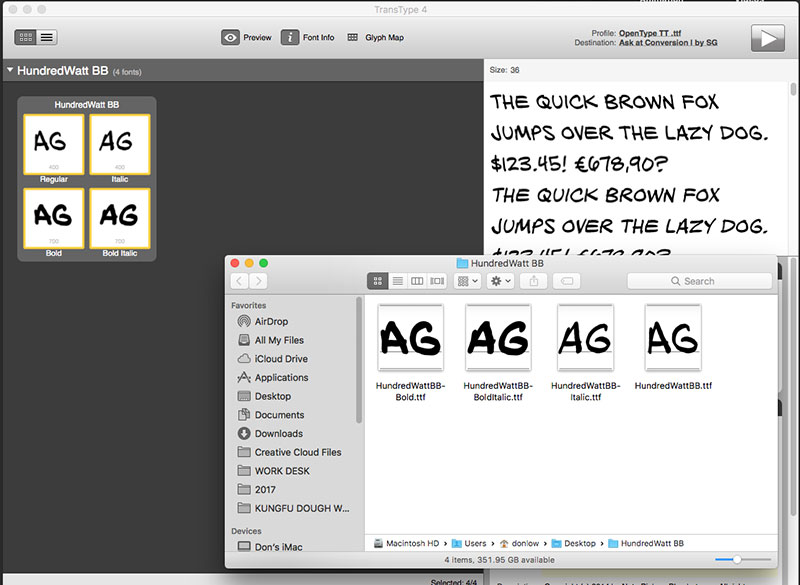
Installing is a two-step trick: first, add the font to your computer’s system, and then refresh Clip Studio Paint. On Windows, right-click the font file and choose “Install.” On Mac, double-click the file and click “Install Font.” That’s it.
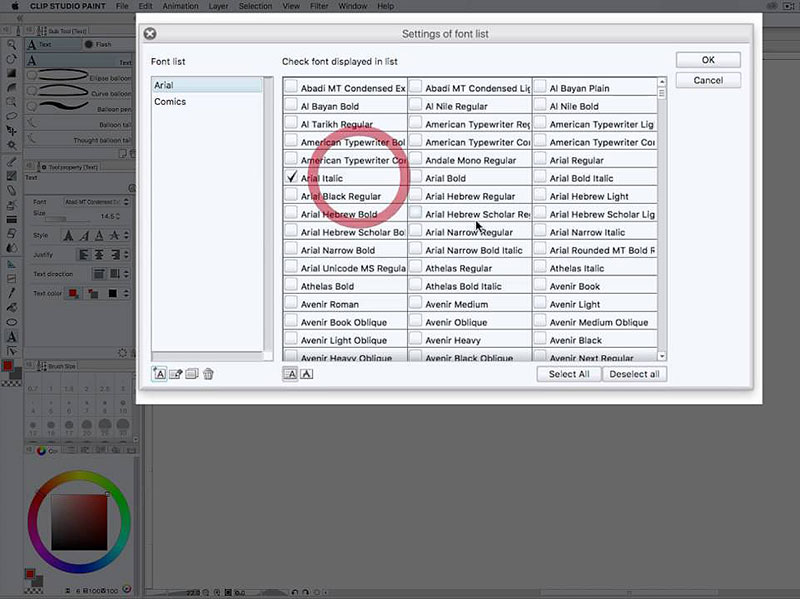
Now, here’s the fun part—close and reopen Clip Studio Paint. If it’s already open, it won’t “see” the new font until you restart it. Once reopened, select the Text tool (the “T” icon), and click on your canvas. In the tool property panel, find the font dropdown menu—your new download should be listed alphabetically.
Pro tip: If you don’t see your new font, don’t panic. Save your work, restart the app completely, and check again. Sometimes you need to restart your computer if the system hasn’t fully registered the font.
Making Your Fonts Work Harder
Clip Studio Paint isn’t just about picking a font—you can stretch, skew, and color it like any other layer. Use the Transform tool to tilt letters for dynamic sound effects, or add a layer effect like a glow or outline to make words pop. You can even turn text into vector layers, which lets you edit individual letter shapes without losing quality.
Want to reuse a font style across panels? Save a text preset (right-click in the text tool’s property panel, then “Register preset”). That way, your next comic page will have perfectly consistent lettering in seconds.
Common Mistakes (and How to Dodge Them)
One big mistake is using a font that’s too thin or too ornate for small sizes. Readability wins—if your reader squints, they’ll stop reading. Another pitfall is ignoring the baseline offset; Clip Studio’s text tool has a vertical alignment option, so you can center text perfectly inside speech bubbles.
Also, don’t forget about kerning. In Clip Studio, you can adjust letter spacing by selecting the text layer and dragging the “Character spacing” slider in the tool options. Tight spacing for impact, loose spacing for elegant captions—experiment!
Your Art, Your Voice
Downloading fonts is a tiny habit that yields huge creative dividends. You’ll never open a default font again without imagining the possibilities. So go ahead—grab a wild display font, a clean sans-serif, and a playful handwritten style. Install them, restart, and watch your next comic or illustration speak with a whole new voice.
Remember: the best font is the one you actually use. Start small, test a few on a dummy text layer, and have fun. Your future readers (and your inner perfectionist) will thank you.