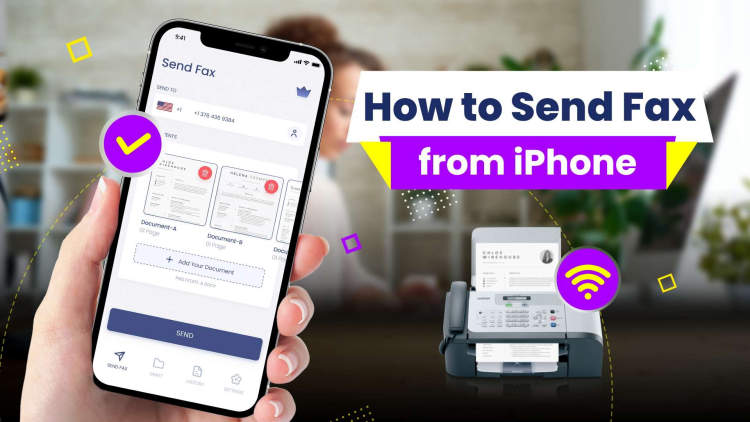
Can You Fax A Pdf From Your Iphone

Last Tuesday, I watched my friend, a perfectly rational woman in her thirties, have a small meltdown over a parking ticket. She’d fought the citation online, gathered the photographic evidence, and then hit a brick wall: the city’s appeals portal demanded a fax. She looked at me, phone in hand, as if I might magically produce a time machine and a dial-up modem. That’s when the truth hit me—we’ve all been there, staring at a digital document that somehow needs to travel through 1980s technology.
The short, glorious answer is yes, you can absolutely fax a PDF from your iPhone. It’s not only possible, but it’s almost embarrassingly easy, which makes the fact that we still need to do it feel like a cosmic joke. You don’t need a fax machine, a landline, or a dedicated carrier pigeon. You just need your phone, your document, and a little patience with the universe.
The “It’s Just an App” Reality
Your iPhone doesn’t have a fax radio hidden inside, obviously. (Wouldn’t that be a fun Apple keynote surprise?) Instead, you’ll use a “fax service” app that acts like a magical bridge between your digital world and the ancient analog network.
Must Read
These apps work by taking your PDF, converting it into fax tones, and sending it over the internet to their server, which then dials the actual fax machine. Think of it as a very polite, high-speed messenger who still wears a bow tie and uses a rotary phone on your behalf.
My personal favorite method is using the built-in Files app combined with a service like eFax or Fax.Plus, but you have options. Honestly, the App Store is flooded with these little beauties, and most offer a free trial that’s perfect for your once-a-year “I need to fax a signed lease” emergency.
Step One: The Painless Setup
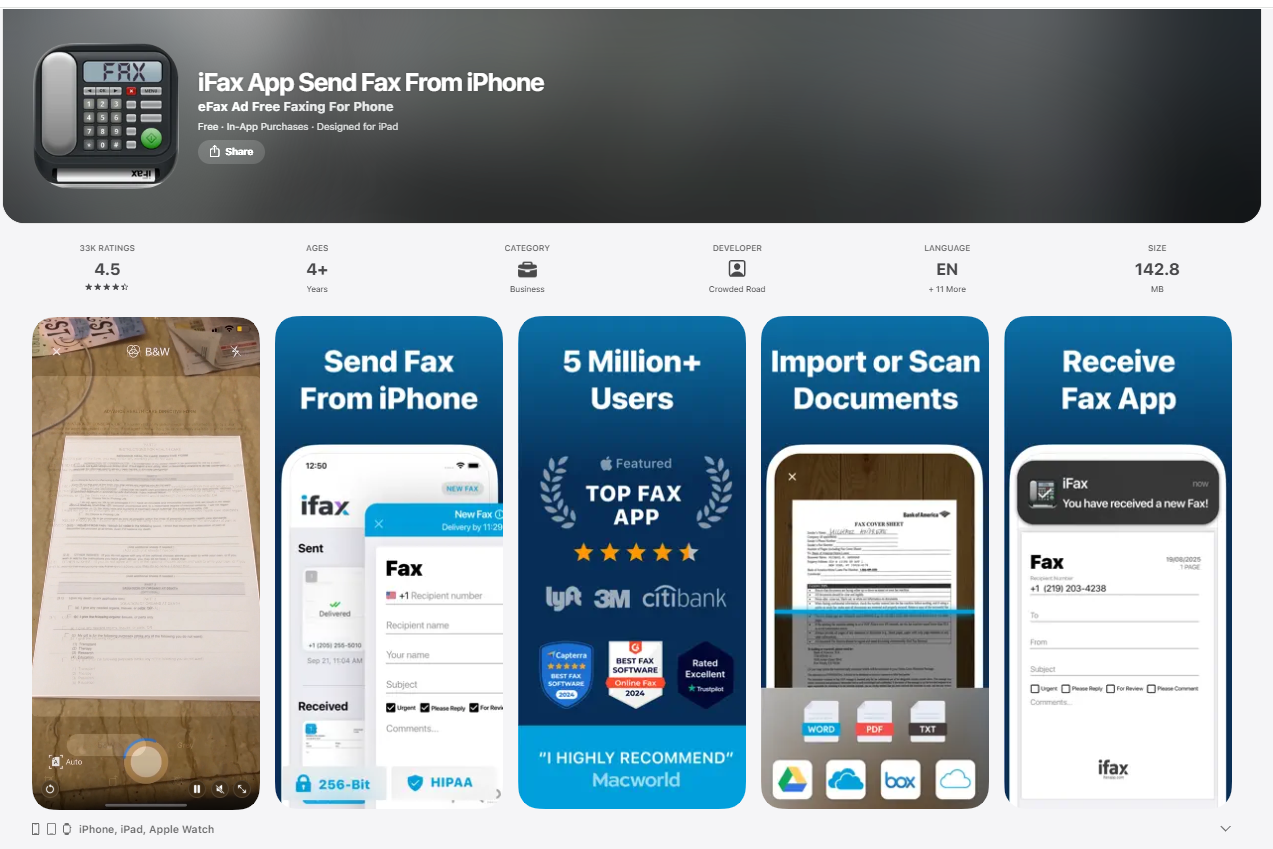
First, download a faxing app. I swear by Fax.Plus because it’s clean and doesn’t bombard you with ads for toner. The app will ask for your email and phone number that’s it. You’re now the proud owner of a virtual fax machine that fits in your pocket.
Some apps ask for a signature, which feels official and slightly ridiculous. You’re not signing a treaty, you’re just trying to send a utility bill to a stubborn HR department.
Step Two: The “Add a Document” Dance
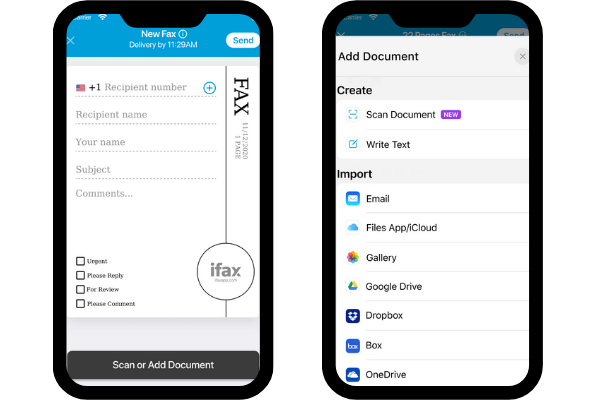
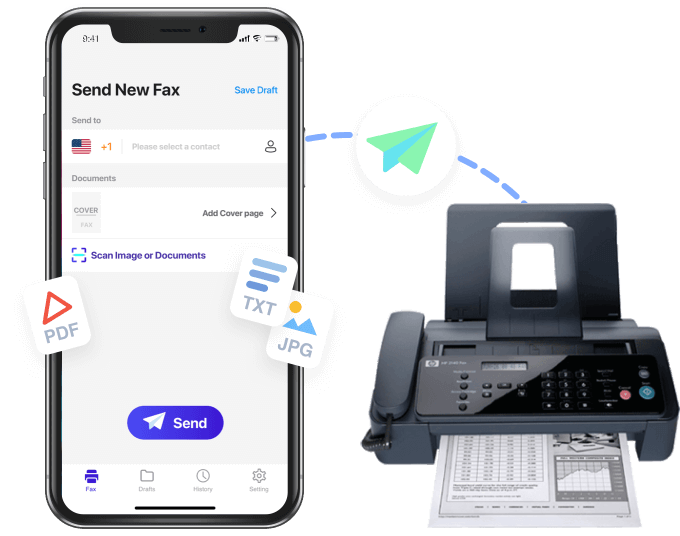
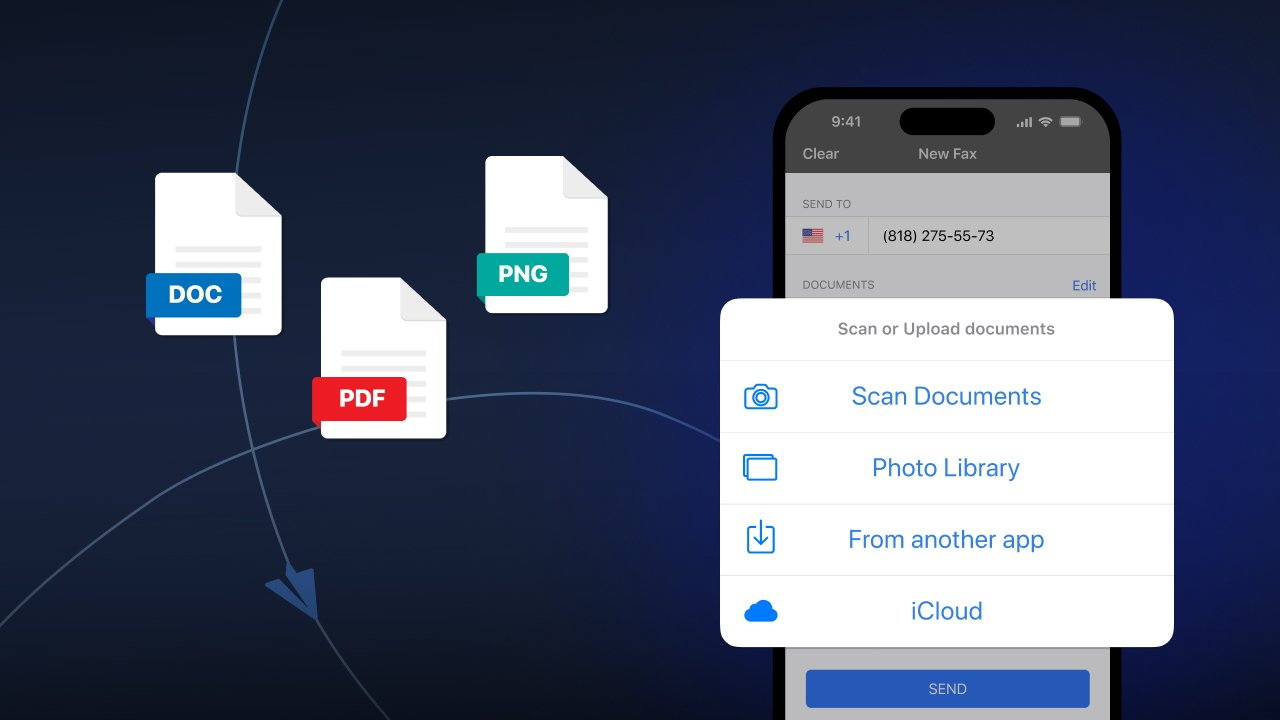
Here’s where the magic happens. Open the fax app and tap the big, friendly “Send” button. It will prompt you to upload a file, so choose your PDF from the Files app, Photos, or even your email inbox.
If the PDF is already on your phone, you’re done. If it’s in your email, you’ll need to save it to Files first—a quick “Save to Files” tap in the share sheet does the trick. (Pro-tip: Do this before you’re panicking about a deadline.)
You can also scan a physical paper document directly with your iPhone’s camera using the Notes app, which creates a PDF on the spot. It’s like having a scanner that lives inside your phone, and it’s shockingly good at removing shadows and glare.
Step Three: Dialing Into the Void
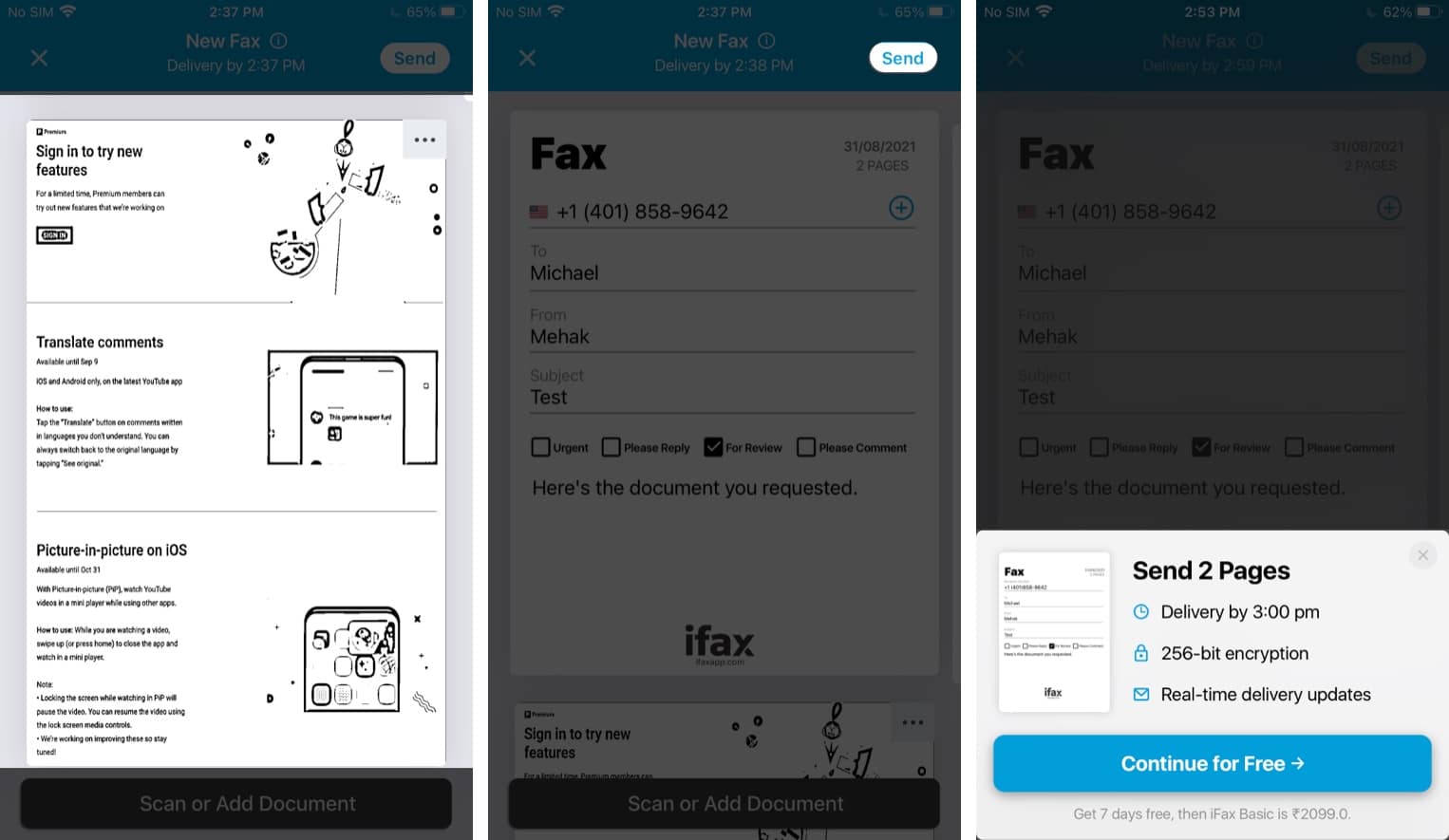
Now, type in the recipient’s fax number, including the area code and any international prefixes. Double-check it. I cannot stress this enough: a wrong fax number means your medical records go to a dentist’s office in Nebraska, and trust me, that’s a headache you don’t want.
You’ll also add a cover page, which is optional but polite. Type a brief message like “Please find the attached documents,” which feels both professional and oddly nostalgic.
Hit “Send,” and the app will mimic the screeching, beeping sounds of a fax machine on your screen. (You can mute it, but honestly, the dramatic effect is worth it.) Within a minute, you’ll get a success confirmation, and that’s it—you’ve done it.
Why Is This So Weirdly Satisfying?
There’s a strange pleasure in sending a fax from your iPhone. It’s like using a toaster to microwave a pizza—completely possible, yet it sparks a little existential confusion. You feel a flash of superiority over the poor soul on the other end who’s still feeding paper into a machine the size of a microwave.
The reality is that faxing isn’t dead; it’s just hiding in healthcare, real estate, and government offices. These institutions move slower than a glacier in a snowstorm, so your iPhone just becomes a tool to make them feel comfortable.
So next time you’re asked to fax a PDF, don’t panic. You’ll smile, tap your screen, and secretly know you’ve managed to time-travel a digital file back into 1985 without leaving your couch. Just be prepared for the other side to call you and ask, “Did you receive my confirmation?” And you’ll say yes, because you have, indeed, received the future.