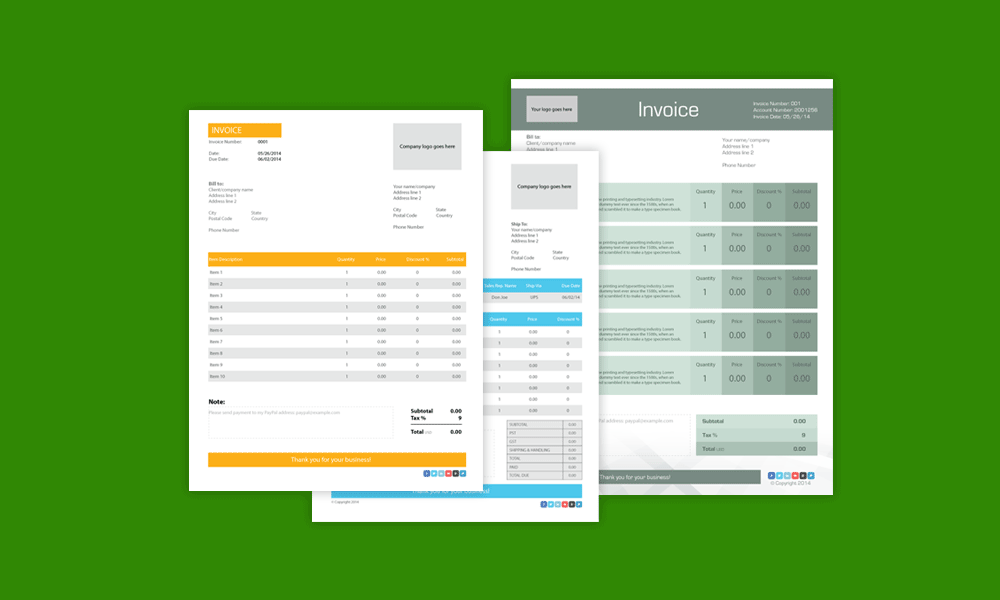
Adobe Illustrator Invoice Template

Creating an invoice might sound like a snooze-fest, but with Adobe Illustrator, it turns into a fun little design project. You get to build something that looks professional and reflects your personal brand, which is way cooler than using a boring template. Whether you’re a freelancer, a side-hustler, or just someone who sells stuff to friends, a custom invoice feels like a superpower.
The main purpose of an Illustrator invoice is to get paid, but it also does so much more. For beginners, it’s a gentle way to learn the tools without the pressure of creating art from scratch. For families, it’s perfect for tracking chores, babysitting, or splitting shared expenses with a clear, friendly format. And for hobbyists—think crafters or tutors—it adds a layer of credibility that makes you look seriously professional.
There’s no single “right” way to make one, which is the best part. You can go bold with a colorful header and playful fonts, or keep it sleek and minimalist with lots of white space and a simple logo. Another fun variation is adding a custom QR code for quick payments, or a little illustrated icon that matches your hobby, like a paintbrush or a musical note. For families, you might even add a “fun meter” for chores—just to keep the kids motivated.
Must Read
Getting started is easier than you think, and you don’t need to be a design whiz. First, open Illustrator and set up a new document—use A4 or Letter size, and add some margins so nothing gets cut off when printing. Then, grab the Rectangular tool to draw a box for your business name, and use the Type tool to click and type your details. Keep it simple: your name, the client’s name, a list of items, a total, and your payment terms.
Here’s a pro tip: use symbols for your logo or a recurring graphic, so you can drag it into future invoices in one click. Another trick is to set up paragraph styles for your headings and body text—this saves you from re-formatting every time. And don’t forget to export as a PDF with “Preserve Illustrator Editing Capabilities” checked, so you can tweak it later without redoing anything.

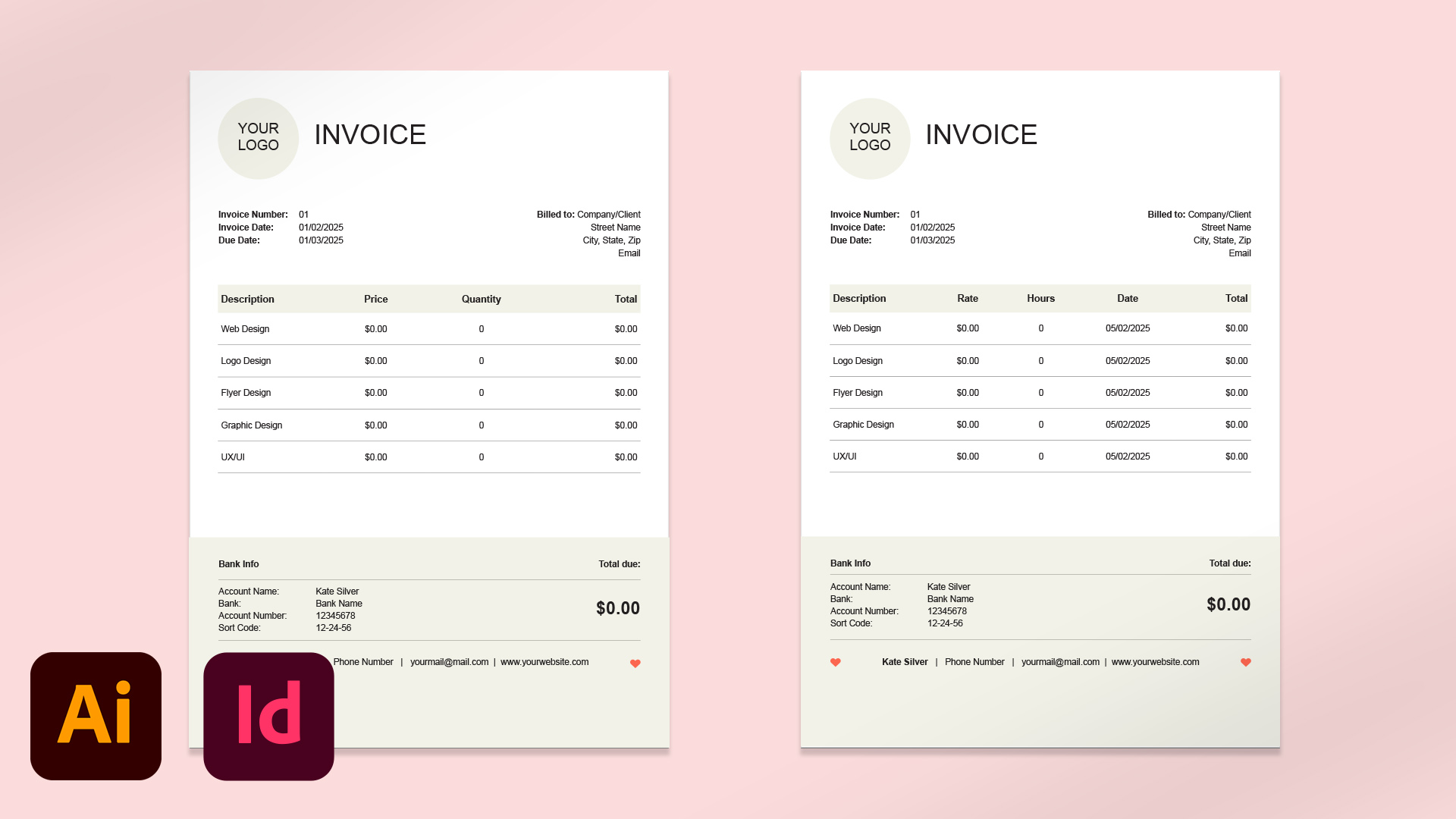
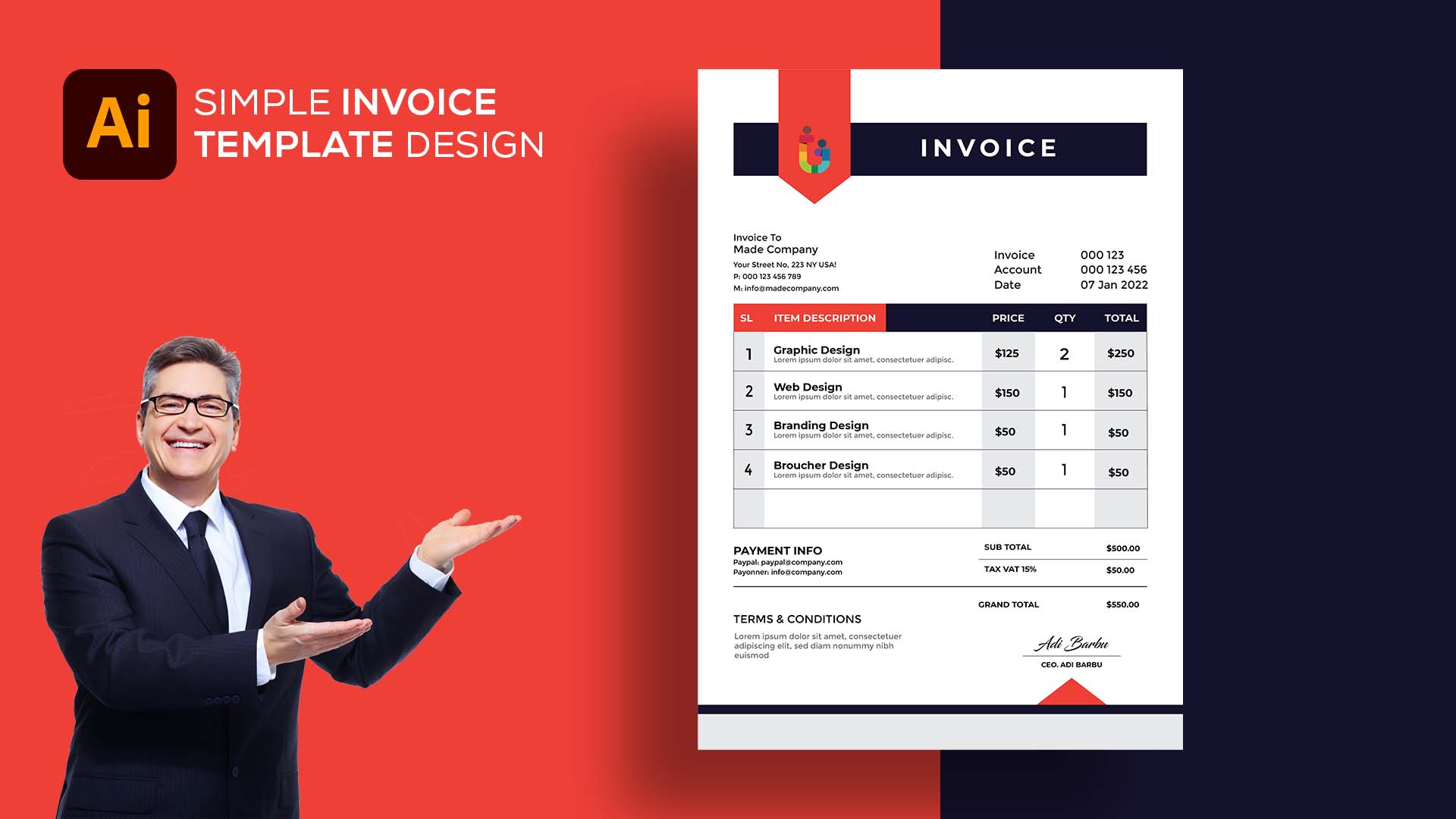
One more simple idea: start with a pre-made template from Adobe’s library, then just swap the colors and fonts to match your vibe. That way, you skip the blank-page panic and jump straight to the fun part. You’ll have a polished, ready-to-send invoice in under fifteen minutes, and you’ll feel a little burst of pride every time you hit “send.”
In the end, using Adobe Illustrator for invoices turns a daily chore into a tiny creative outlet. It’s practical, but also a little delightful—like a handwritten thank-you note in a world of text messages. So go ahead, make something that looks as good as the work you’re billing for. You’ll wonder why you ever settled for plain.

.png)