What File Formats Does Vistaprint Accept
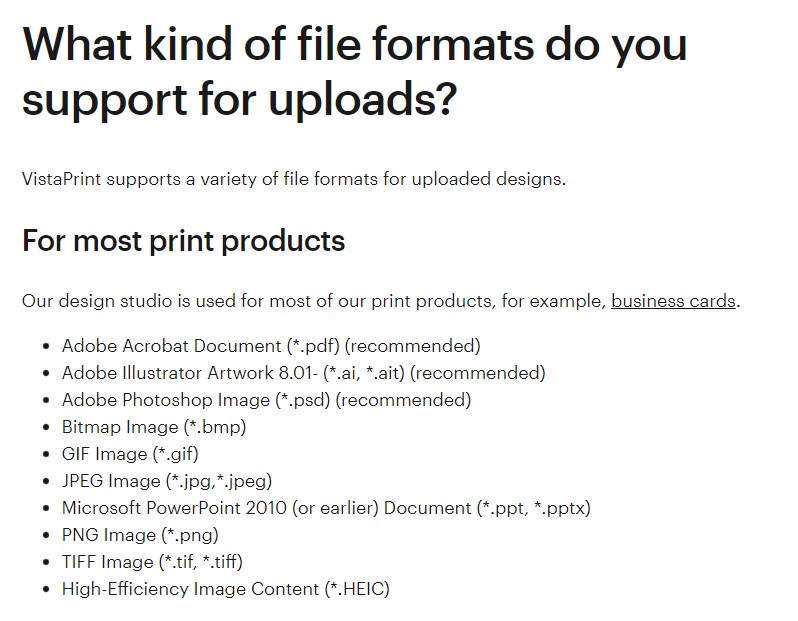
When it comes to creating and printing various marketing materials, such as business cards, brochures, and posters, file format compatibility is crucial to ensure that the final product looks professional and meets our expectations. Vistaprint, a popular online printing service, accepts a variety of file formats to cater to different design needs and preferences. Understanding the accepted file formats is essential to avoid any potential issues during the printing process. In this article, we will delve into the world of file formats, exploring the science behind each type and providing actionable steps to optimize our design workflow.
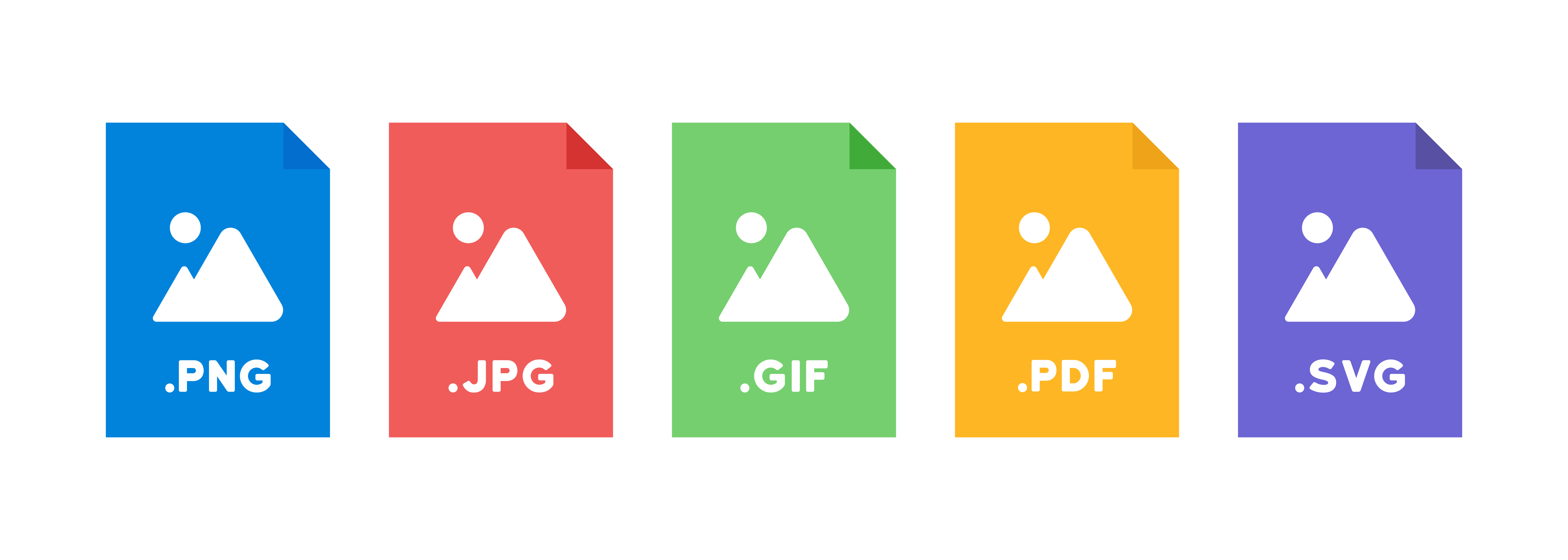
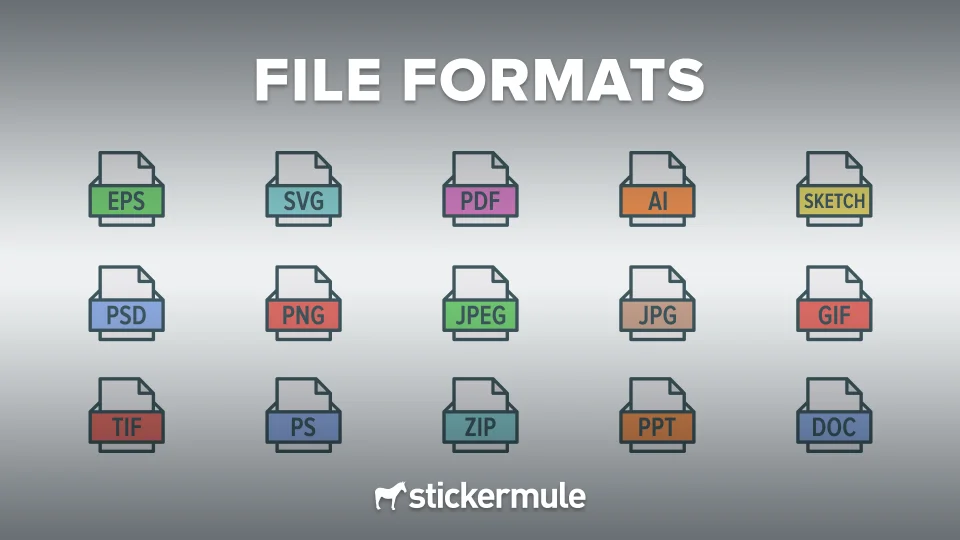
The journey begins with the basics: raster graphics and vector graphics. Raster graphics, such as JPEG and PNG, are composed of pixels and are ideal for photographs and images with complex colors. On the other hand, vector graphics, like SVG and EPS, use mathematical equations to create shapes and are perfect for logos, icons, and other graphics that require scaling. Vistaprint accepts both raster and vector graphics, allowing designers to choose the best format for their specific needs.
In addition to image files, Vistaprint also accepts document files, such as PDF and Microsoft Word. These files are useful for creating text-based documents, like brochures and flyers, and can be easily uploaded to the Vistaprint website. Furthermore, Vistaprint supports font embedding, which ensures that the chosen fonts are preserved during the printing process, resulting in a more professional and polished finish.
Must Read
Understanding File Formats
To truly master the art of file format compatibility, it's essential to understand the technical aspects of each format. For instance, resolution plays a critical role in determining the quality of raster graphics. A higher resolution, measured in dots per inch (DPI), results in a sharper and more detailed image. In contrast, vector graphics are resolution-independent, meaning they can be scaled up or down without affecting their quality.
Another important consideration is color mode. Vistaprint accepts files in CMYK (cyan, magenta, yellow, and black) and RGB (red, green, and blue) color modes. While RGB is ideal for digital displays, CMYK is better suited for printing, as it provides a more accurate representation of the final product's colors. By understanding the differences between these color modes, designers can make informed decisions when preparing their files for print.
In the world of file formats, compression is also a crucial factor. Compression reduces the file size, making it easier to upload and transfer files. However, excessive compression can lead to a loss of image quality. Vistaprint recommends using lossless compression algorithms, such as LZW or zip, to minimize the risk of quality degradation.

Mastering File Format Optimization
To optimize our design workflow and ensure seamless printing, it's essential to follow a set of best practices. Firstly, designers should save files in the correct format for their specific needs. For example, if creating a logo, it's best to save it as a vector graphic to allow for easy scaling. Secondly, embedding fonts can help prevent font substitution issues during the printing process. Finally, compressing files using lossless algorithms can reduce file sizes without compromising image quality.
Another critical aspect of file format optimization is file naming conventions. Using descriptive and consistent file names can help designers keep track of their files and avoid confusion during the printing process. It's also essential to organize files in a logical and structured manner, making it easier to locate and upload the correct files to Vistaprint.
In addition to these best practices, designers can also utilize file format conversion tools to convert files between different formats. These tools can help resolve compatibility issues and ensure that files are in the correct format for printing. Furthermore, proofreading and quality control are essential steps in the design workflow, as they help identify and correct any errors or issues before the printing process.
By following these optimization strategies, designers can streamline their workflow, reduce errors, and produce high-quality printed materials that meet their expectations. Whether creating business cards, brochures, or posters, understanding and mastering file format compatibility is crucial for achieving professional-looking results.
Frequently Asked Questions
What file formats does Vistaprint accept for business cards?
Vistaprint accepts a variety of file formats for business cards, including JPEG, PNG, SVG, and PDF. It's essential to note that the recommended file format for business cards is JPEG or PNG, as these formats provide the best image quality. However, if designers prefer to use vector graphics, SVG is also accepted.
In addition to these file formats, Vistaprint also recommends using a bleed area of 0.125 inches to ensure that the design extends to the edge of the card. This helps prevent any white borders or edges during the printing process. By following these guidelines, designers can create professional-looking business cards that meet their expectations.
How do I ensure that my fonts are embedded correctly in my files?
Embedding fonts correctly is crucial to prevent font substitution issues during the printing process. To ensure that fonts are embedded correctly, designers can use font embedding software or conversion tools that support font embedding. Alternatively, designers can also convert text to outlines or rasterize text to ensure that fonts are preserved during printing.
It's also essential to note that Vistaprint supports a wide range of fonts, including TrueType and OpenType fonts. However, if designers are using a custom or specialty font, it's recommended to embed the font in the file to ensure that it prints correctly. By following these guidelines, designers can ensure that their fonts are preserved and print correctly.
What is the recommended resolution for uploading files to Vistaprint?
The recommended resolution for uploading files to Vistaprint is 300 DPI. This resolution provides the best image quality and ensures that the final product looks professional and polished. However, if designers are uploading files for digital products, such as email newsletters or social media graphics, a lower resolution of 72 DPI may be sufficient.
It's also important to note that Vistaprint accepts files with a maximum file size of 100 MB. If files exceed this size, designers may need to compress or optimize the files to reduce their size. By following these guidelines, designers can ensure that their files are uploaded correctly and print at the highest quality.
Can I use RGB color mode for printing, or do I need to convert to CMYK?
While Vistaprint accepts files in RGB color mode, it's recommended to convert files to CMYK for printing. This ensures that the final product's colors are accurately represented and match the designer's expectations. However, if designers are creating digital products, such as email newsletters or social media graphics, RGB color mode may be sufficient.
It's also essential to note that Vistaprint provides a color conversion tool that can convert files from RGB to CMYK during the uploading process. However, designers should be aware that this conversion may affect the final color outcome, and it's recommended to proofread and quality control the files before printing.

How do I troubleshoot issues with my uploaded files, such as blurry or pixelated images?
Troubleshooting issues with uploaded files can be a challenging task, but there are several steps designers can take to resolve common problems. Firstly, designers should check the file resolution and ensure that it meets the recommended 300 DPI resolution. Secondly, designers can check the file format and ensure that it's in the correct format for printing.
If issues persist, designers can contact Vistaprint's customer support for assistance. The support team can help resolve issues with file formatting, resolution, and color mode, ensuring that the final product meets the designer's expectations. By following these troubleshooting steps, designers can quickly identify and resolve issues with their uploaded files.
By respecting the science behind file format compatibility, we can become more efficient and effective designers. Understanding the technical aspects of file formats, such as resolution, color mode, and compression, allows us to make informed decisions when preparing our files for print. This knowledge also enables us to troubleshoot issues and optimize our design workflow, resulting in high-quality printed materials that meet our expectations.
Furthermore, mastering file format compatibility can also improve our overall productivity. By following best practices and using the correct file formats, designers can reduce errors and minimize the need for revisions. This, in turn, allows designers to focus on the creative aspects of their work, resulting in more innovative and effective designs. By embracing the science behind file format compatibility, we can unlock our full potential as designers and produce exceptional printed materials that exceed our clients' expectations.