Ways To Transfer Android To Iphone
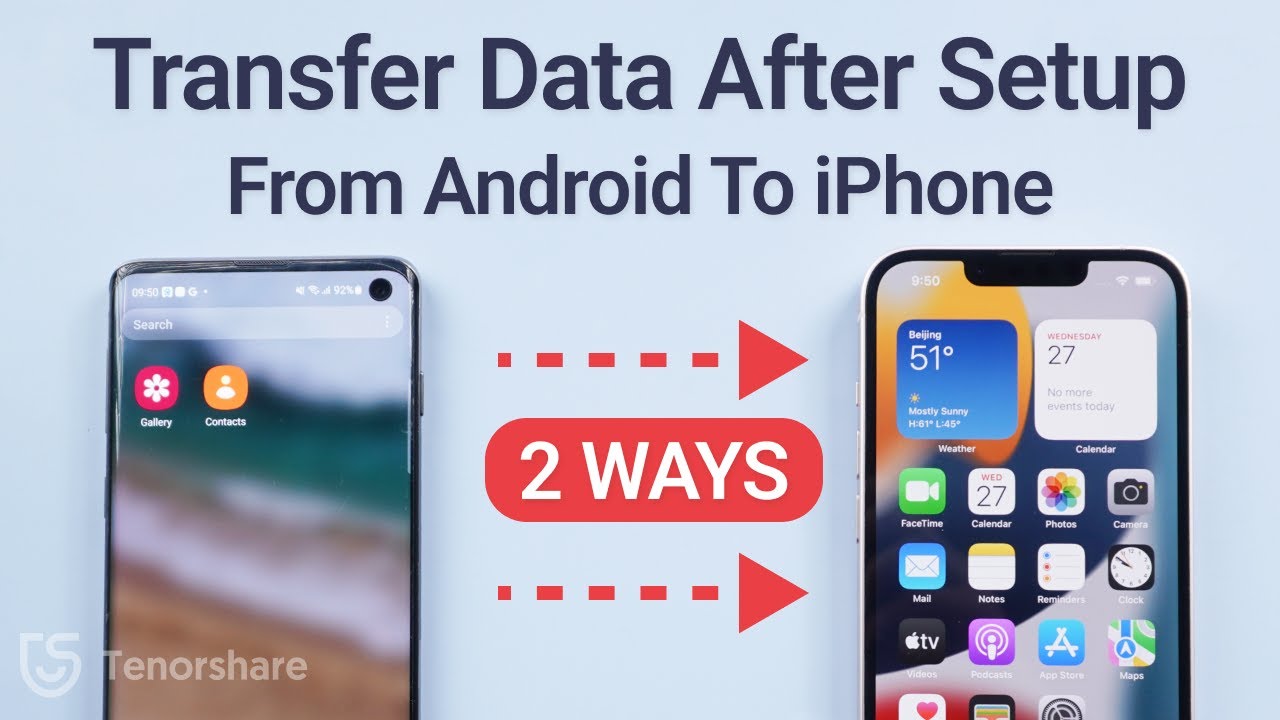
So, you’ve decided to trade in your Android for an iPhone. Congratulations—you’re either joining the cool kids’ table or finally admitting that green bubbles were giving you social anxiety. But let’s be real: the moment of panic hits when you realize your entire digital life is stuck in a robot-shaped prison.
You’re not moving houses; you’re moving memories, playlists, and that one photo of your cat looking judgmental. It feels like packing a suitcase for a trip where you forgot the zipper. Don’t worry—I’ve been there, and I’ve got the digital duct tape to fix it.
The “Just Use Apple’s App” Method (For the Optimists)
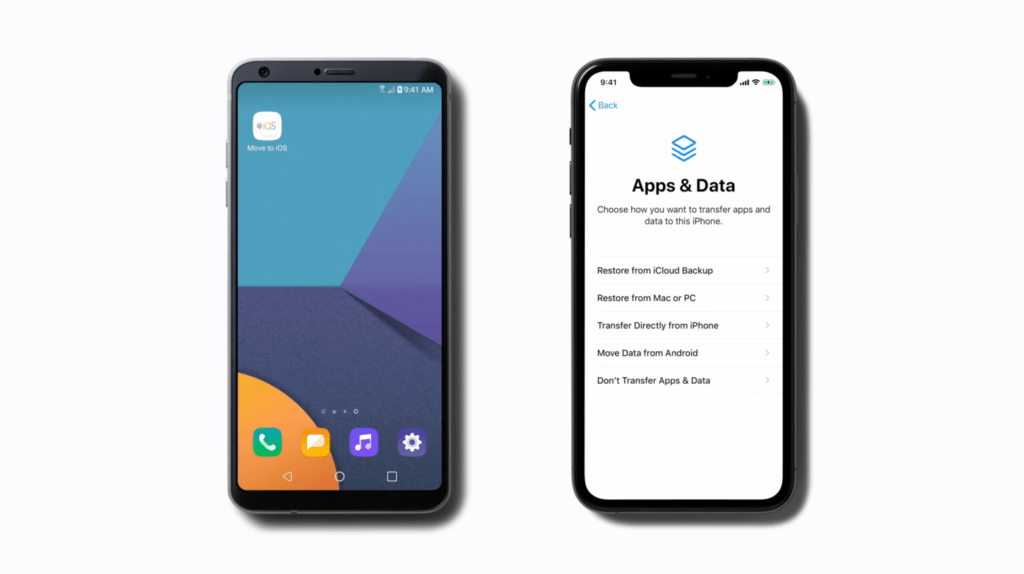
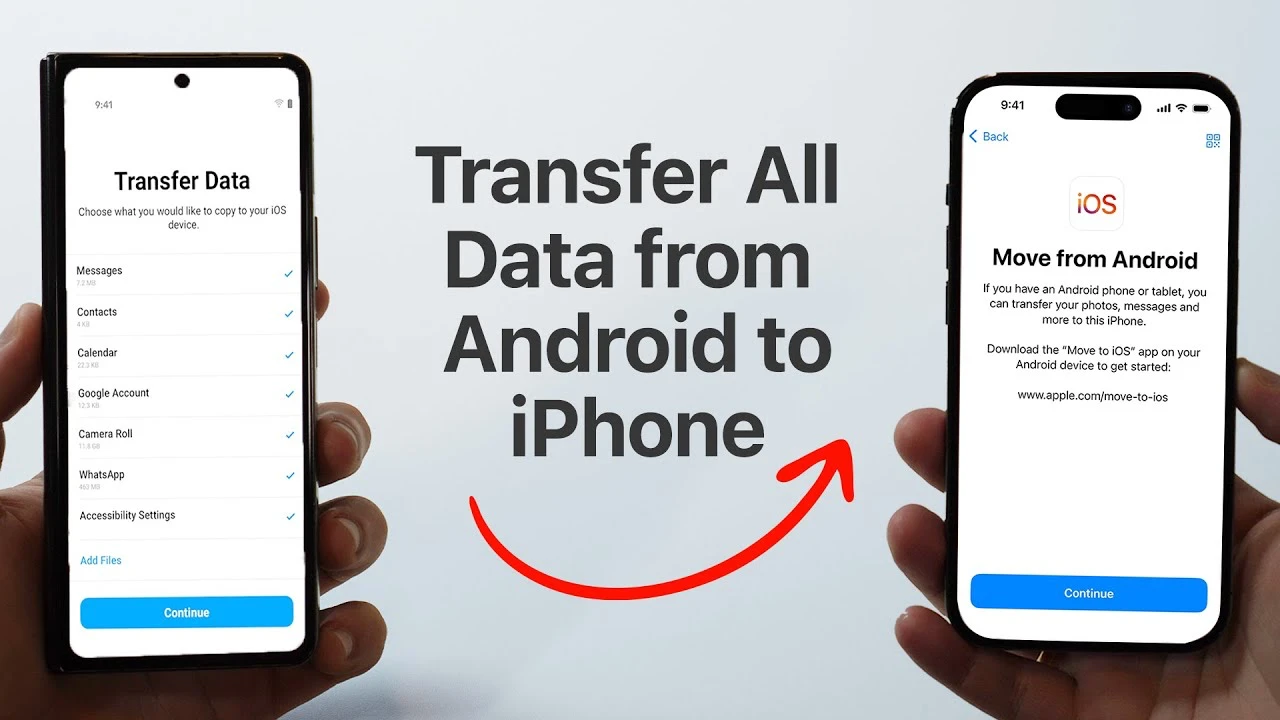
Apple isn’t clueless; they made an app called Move to iOS. It’s like the dating app for your data—swipe right on your contacts, photos, and messages, and hope it works.
Must Read
Here’s the kicker: you’ll both need Wi-Fi, and you’ll be staring at each other like awkward strangers at a party. The app generates a code, and then it pretends to move 90% of your stuff while you nervously tap your foot.
Pro tip: Plug in both phones. Nothing kills the vibe like an 8% battery warning mid-transfer. It’s the digital equivalent of running out of gas on a highway—except you’re not going anywhere, just sweating.
What Moves, What Gets Left Behind
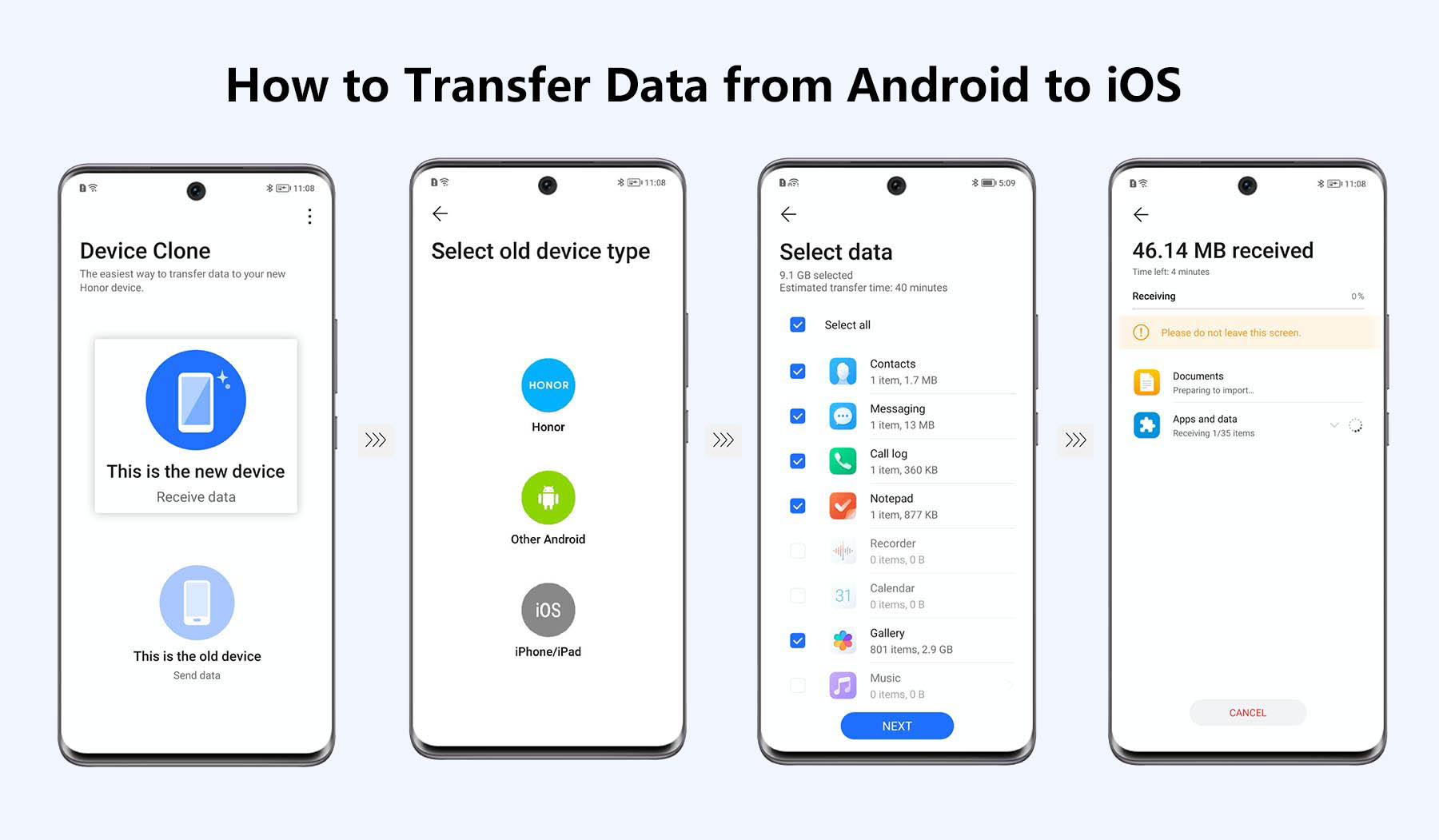
Move to iOS is great for the basics: contacts, calendars, photos, and even your WhatsApp history (bless their hearts). But it’s not a magical eraser—your apps won’t transfer over as intact packages.
You’ll land on the App Store and re-download everything, like moving to a new city and re-buying your favorite mugs. Also, your custom ringtones? Gone. Your weird launcher setup? Gone. Your “notifications sound like a robot fart” settings? Thankfully gone.
The Cloud Tango (For the Patient Ones)
If you’re a Google loyalist—yes, you with the 47,000 unorganized photos—you’re in luck. Google Drive is your best friend, even if you’ve never opened it. I once ignored mine for years, and it still greeted me like a loyal golden retriever.
Back up everything: contacts (via Gmail), photos (via Google Photos), and notes (via Keep or even a Google Doc). Then on your iPhone, download the Google apps and log in. It’s like unpacking boxes, but the boxes are invisible and don’t smell like mothballs.
![How to Transfer Data from Android to iPhone [Full Guide]](https://imobie-resource.com/en/support/img/phonetrans-connect-android-and-iphone.png)
The catch? Patience is not a virtue; it’s a requirement. Uploading 12GB of vacation photos to the cloud takes longer than your cousin’s wedding slideshow. Grab a snack, watch a show, and don’t touch the phone—touching it cancels the magic.
The “Manual Grunt Work” (For the Control Freaks)
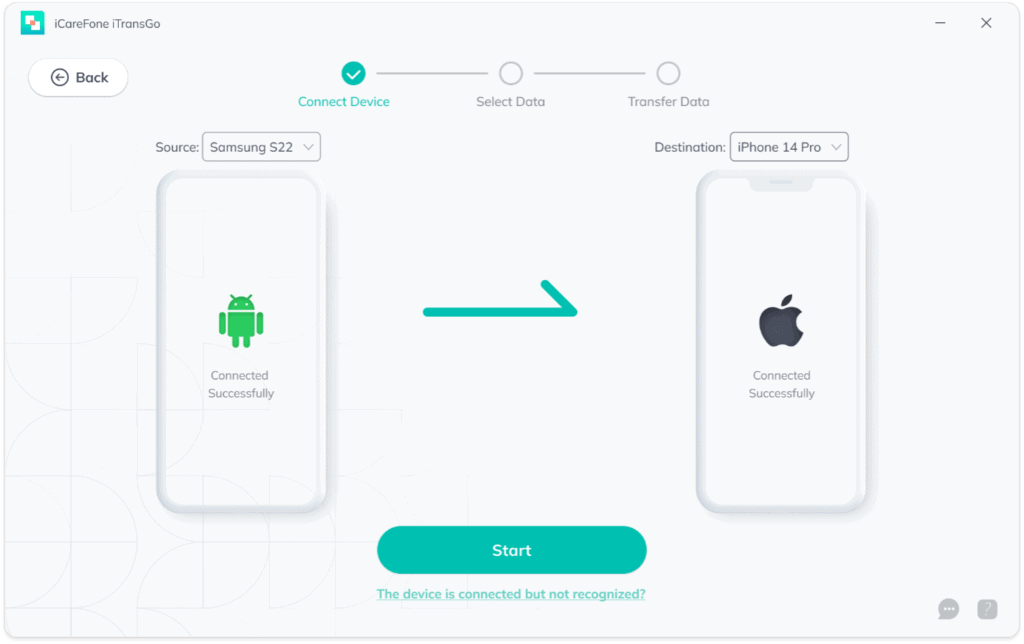
You know who you are—you still have a physical address book “just in case.” For you, there’s the old-school route: USB cables, desktop software, and sheer willpower.
Plug your Android into a computer, drag your photos and files to a folder, then plug in the iPhone and drag them back. It’s like using a flip phone in 2025—tedious, but it works. For contacts, export them as a vCard, then import them via iCloud on a browser.
Honestly, I did this once, and about halfway through, I questioned my life choices. But when you see that rogue meme from 2019 safely on your new screen, the satisfaction is weirdly profound.
Don’t Forget the “Oh Crap” List
You will forget something. It’s a law of physics. Maybe it’s your alarm clock settings, or that one note with your WiFi password, or—oh no—your authenticator app for banking.
Yes, the two-factor authentication apps don’t transfer. You’ll need to log into every bank, email, and social media account and re-set them up. I once spent a Sunday afternoon doing this, and I felt like a hacker who forgot their hacking gloves.
Write it down, screenshot it, or just accept that a little chaos is part of the deal. Moving ecosystems is like getting a new pet—you love it, but you’ll clean up a mess first.
The Final Verdict
Transferring from Android to iPhone isn’t rocket science; it’s more like rearranging furniture in the dark. You’ll bump your shin a few times, but eventually, you’ll find the couch.
Use Move to iOS if you’re lazy, the cloud if you’re organized, and the manual method if you hate yourself. Just remember: your data isn’t gone—it’s just on a vacation in limbo for a few hours.
And when it’s all done, you’ll stare at your new iPhone, swipe left, and smile. Then you’ll remember your old ringtone and miss it for about five seconds. Then you’ll forget it ever existed. Welcome to the blue bubble side—it’s pretty nice here.
![3 ways to Transfer eSIM from Android to iPhone [iPhone 16 Ready]](https://mobi.easeus.com/images/en/screenshot/phone-resource/how-to-transfer-files-from-iphone-to-android-wirelessly.jpg)