Set Up Scan To Email On Hp Printer
Imagine this: you’re holding a signed contract, a treasured photo, or a napkin with a million-dollar idea scribbled on it. Instead of playing email ping-pong with your scanner, you press a button and it flies to your inbox like digital magic. That’s the joy of Scan to Email, and it’s about to become your new favorite office superpower.
This clever feature turns your HP printer from a paper-chewing machine into a personal digital courier. No more wandering to a shared PC, no more USB drives that mysteriously vanish, no more emailing yourself a photo of a document (we’ve all been there). It’s fast, it’s tidy, and honestly, it just feels delightfully modern.
Why You’ll Love It
The biggest win is pure convenience. You scan a document from your desk, and it lands in your inbox before your coffee cools down. It’s perfect for sending receipts to your accountant, sharing meeting notes with a colleague, or preserving a child’s artwork before it gets crumpled.
Must Read
It also saves you from the dreaded “I’ll send it later” trap. With Scan to Email, the sending is done instantly, right at the machine itself. You can even set it up to send to multiple people at once, turning a tedious chore into a two-tap task.
Plus, this feature is a total paper-clutter killer. Every scanned document becomes a neat PDF or JPEG file, ready for cloud storage or archive. You won’t just be clearing your desk; you’ll be building a searchable, shareable digital library in minutes.

The Setup Secret: Your Printer’s Little Black Book
Here’s the fun part—your printer doesn’t actually email anyone. It needs to know who you are, and that’s where your SMTP server settings come in. Think of these as your printer’s secret handshake to your email provider, like Gmail, Outlook, or Yahoo.
You’ll need three magic ingredients: your email address, your email password (or an app-specific password for security), and the outgoing mail server address. For Gmail, that’s usually
smtp.gmail.com—but don’t worry, your printer’s setup wizard will guide you.
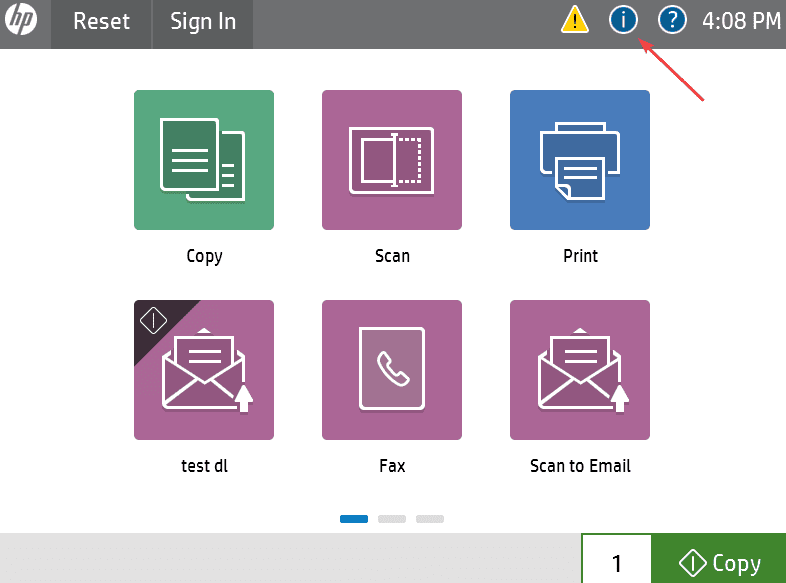
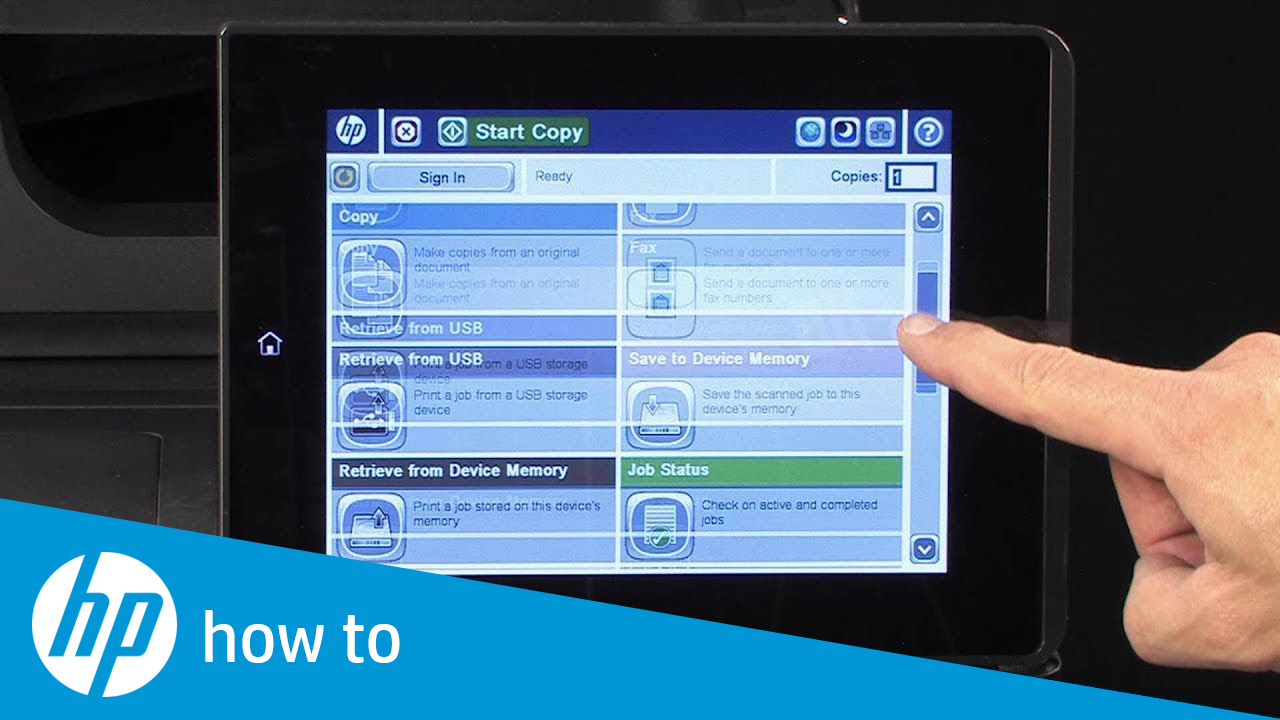
Most modern HP printers have a touchscreen that walks you through the process step-by-step. You’ll find it in the Network Settings or Setup menu, then look for “Email” or “Scan to Email”. It’s honestly as easy as adding a contact to your phone.

Step-by-Step: The Friendly Way
First, grab your printer’s IP address. You can find it by printing a network configuration page (usually a button on the screen or a long press on the Wi-Fi icon). Then, type that IP address into your web browser—a handy dashboard will pop up, like your printer’s personal control room.
From that dashboard, click on Scan or Digital Send and then “Email Server”. Here, you’ll punch in your SMTP server details. For most home users, choosing “Google” or “Outlook” from a dropdown list is enough—the printer fills in the rest.
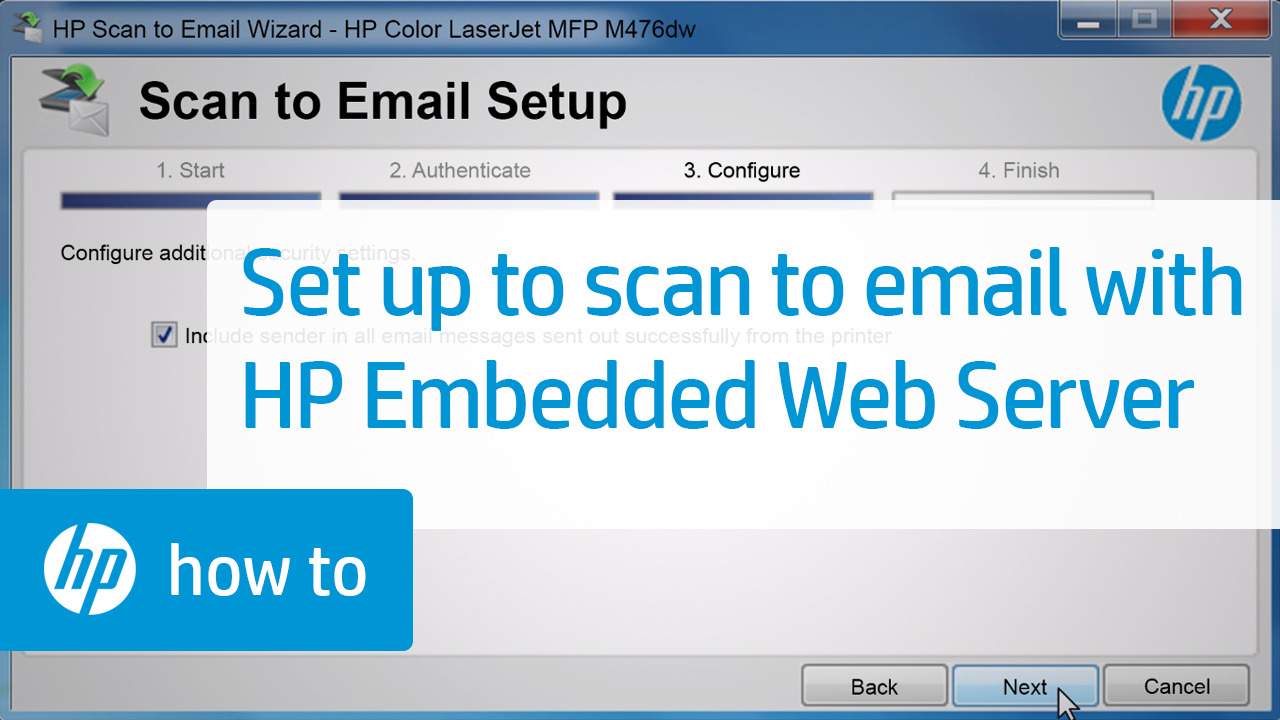
Next, enter your email address as the “From” address, and then add your password. If you use two-factor authentication, don’t panic—create an
app passwordfrom your email account settings, and use that instead. It’s a small security detour with a huge payoff.
Testing Your Digital Magic
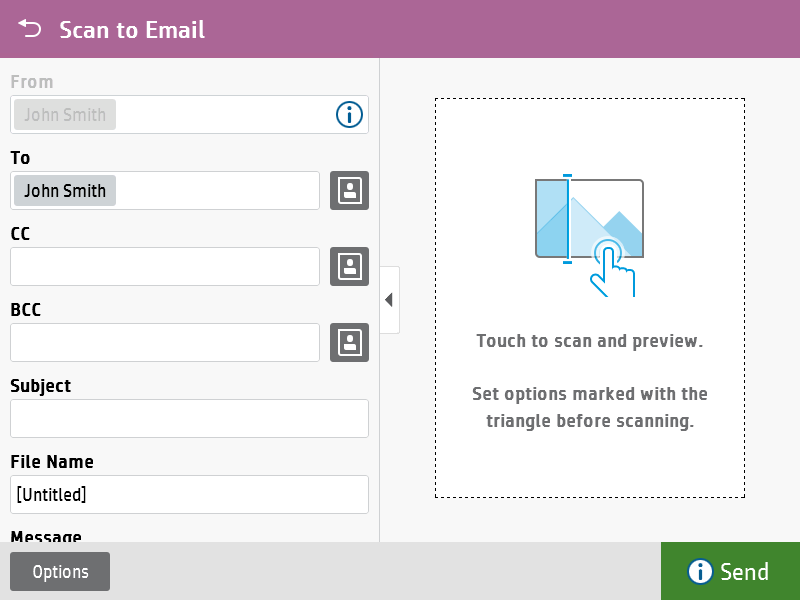
Now comes the fun moment: the test scan. Place a document face-down on the glass, hit the Scan to Email icon, and enter your own email address as the recipient. Press start, and hold your breath for three seconds.
When that email pings into your inbox with a crisp PDF attachment, do a little happy dance. You’ve just untethered your documents from the printer forever. From now on, scanning feels like sending a text message—simple, instant, and oddly satisfying.
Pro Tips for Smooth Sailing
If the first scan fails, double-check your password—typos are the usual culprit. Also, ensure your printer’s firmware is updated; HP regularly patches these features to work with changing email security. And if you’re using a corporate network, ask your IT person for the “relay” server—they’ll know what that means.
Finally, remember that you can always set up multiple email profiles on your printer. One for work, one for home, one for the family newsletter. The printer becomes your personal assistant, ready to deliver scanned smiles at a button’s touch.
So go ahead—empower your paper, impress your friends, and reclaim your time. Your HP printer is no longer just a scanner; it’s your loyal email secretary with ink. Happy scanning!