Send Text Messages To Another Phone
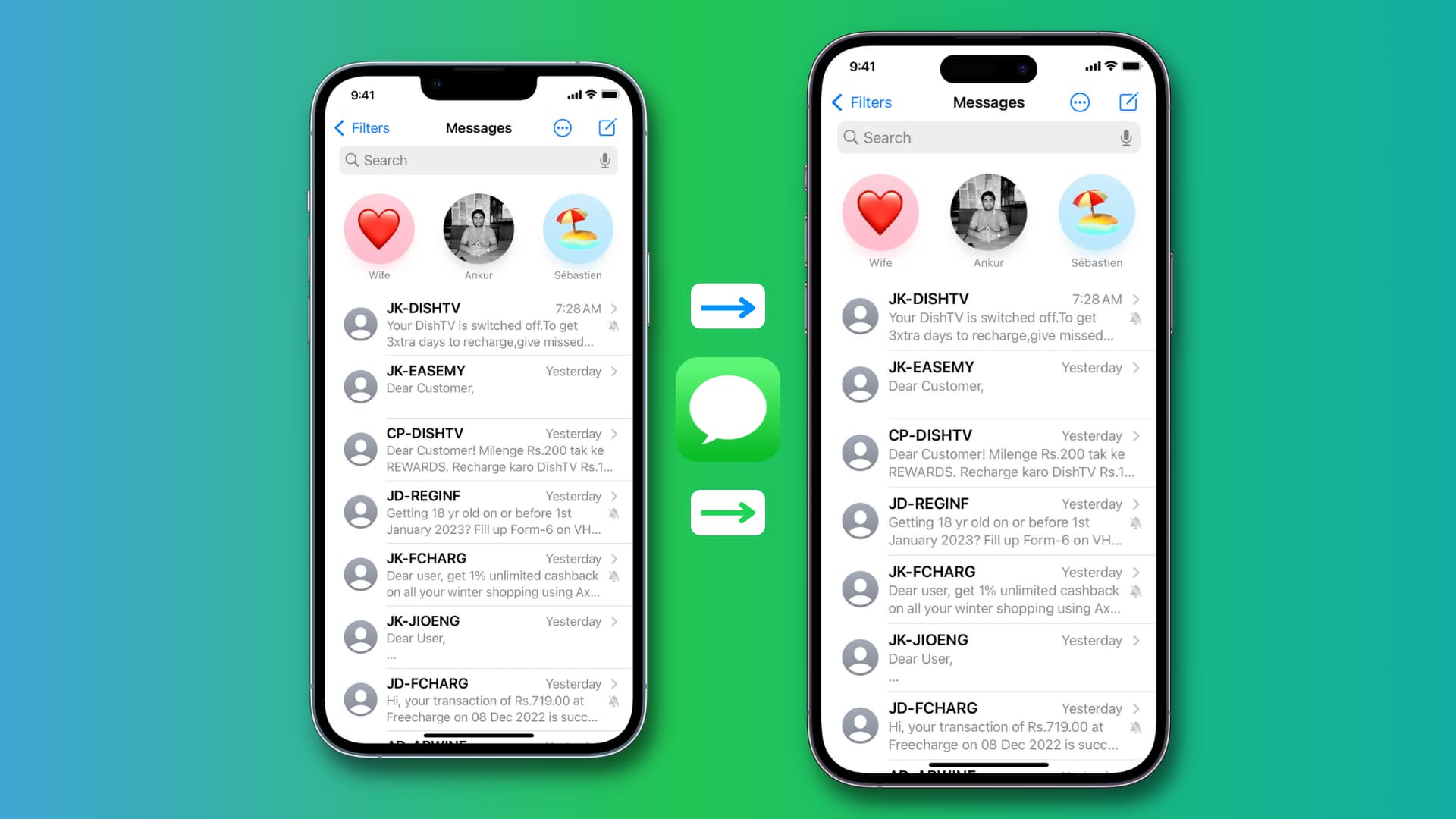
We’ve all been there—watching a video on your phone and suddenly wishing you could send it straight to your friend’s screen, or needing to grab a link from your laptop without emailing yourself. Sending a text message to another phone isn’t just about typing “hello” anymore; it’s about sharing your digital life in the most direct way possible. Whether you’re coordinating a family dinner or just showing off a funny meme, this simple skill makes everyday tech feel a little more magical.
For beginners, the biggest win is simplicity—you don’t need a special app or a tech degree to do it. Families love this for sharing photos from a school play or texting a grocery list to a partner’s phone without any fuss. Hobbyists, like photographers or planners, use it to bounce ideas quickly, sending notes, maps, or even voice clips between their own devices.
The most obvious example is a standard SMS from your phone to another person’s number, but the trick goes further. Did you know you can send a text to your own second device (like a tablet) using email-to-SMS gateways? For instance, if your friend’s carrier is Verizon, you can email their [email protected] and it lands as a text. Another fun variation is using messaging apps like WhatsApp or Signal, which let you send texts, files, and locations—without using your cellular minutes.
Must Read
Need to send a text from your computer to a phone? That’s a game-changer for office workers. Services like Google Messages for Web mirror your phone, so you can type on a full keyboard while your thumbs take a break. For quick, offline sharing, look into direct transfer apps like AirDrop (for Apple) or Nearby Share (for Android), which send texts and files via Bluetooth and Wi-Fi—no internet required.
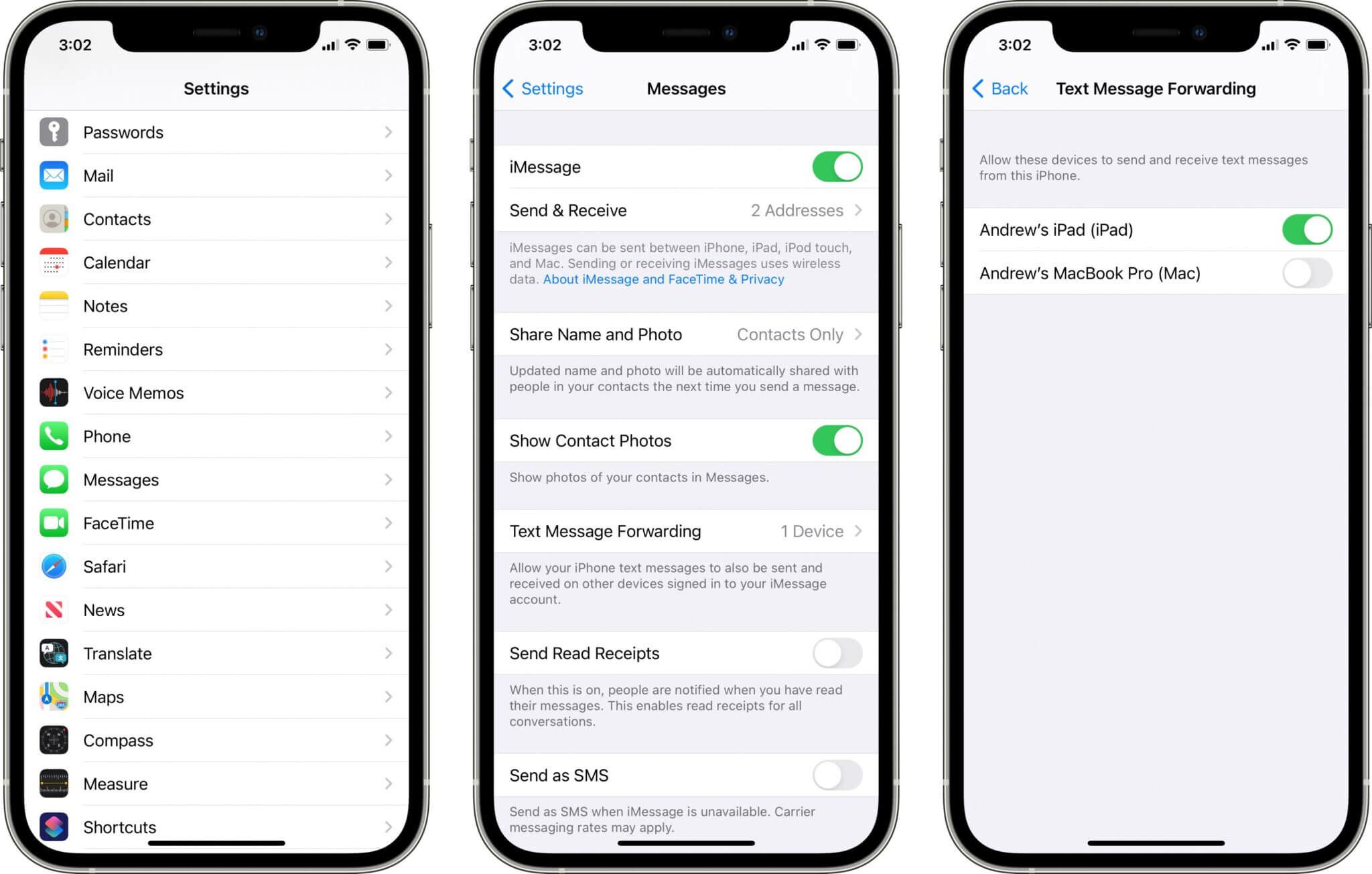
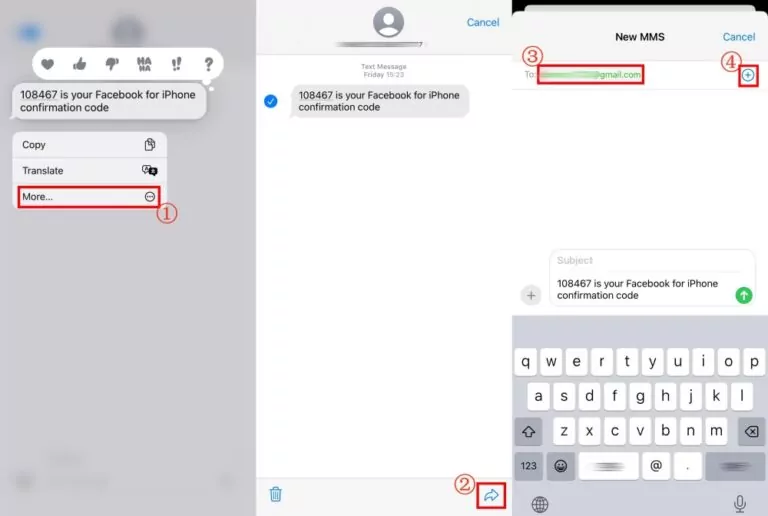
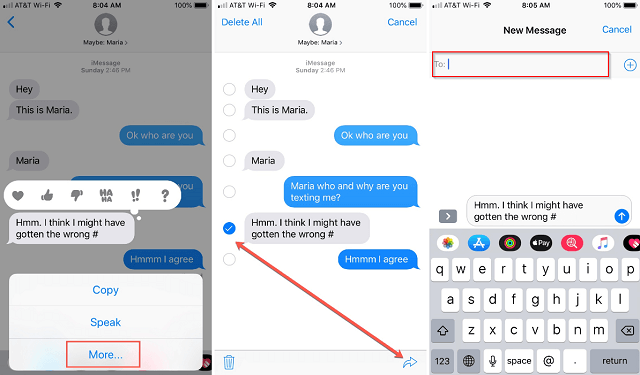
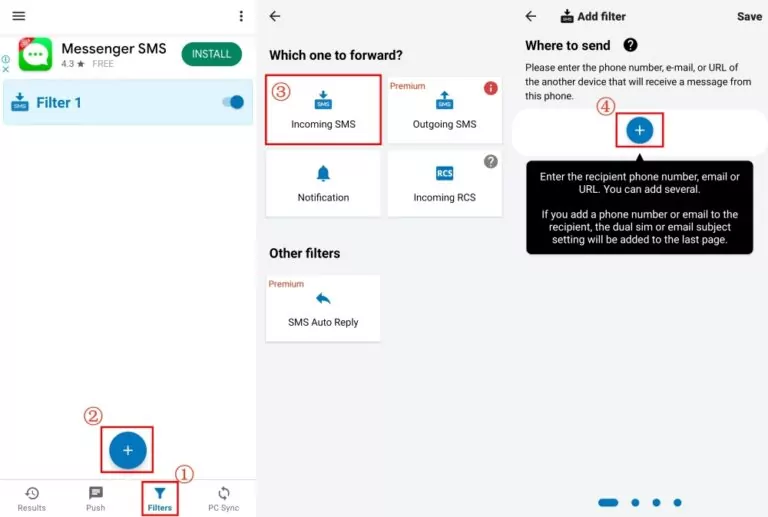
Getting started is easier than you think. First, check your phone’s default messaging app—most already have a “send to other device” option in the share menu. Second, if you’re trying to text a different phone you own, simply save that number in your contacts and label it “Tablet” or “Work Phone.” Third, for cross-device magic, install a companion app like Pushbullet or Join—these let you push a text from any browser to any phone in seconds.
Here’s a practical tip: always double-check the phone number’s area code before hitting send, especially if you’re using email-to-SMS. A wrong digit means your message goes to a stranger, which is awkward but harmless. Also, remember that standard SMS has a 160-character limit—for longer notes, break them into parts or use an app that splits them automatically. Don’t forget to turn on Wi-Fi calling if you’re in a poor signal zone; it lets you text over the internet instead.

One fun idea is to set up a “secret” text channel to a friend’s smartwatch—if they have one, you can buzz them without them pulling out their phone. For families, create a group chat that includes a shared tablet on the kitchen counter, perfect for adding to a shopping list remotely. The joy here is instant connection: you’re not waiting for an email or a call—you’re just tapping the words directly into someone’s pocket.
In the end, sending texts to another phone is like having a remote control for your conversations. It saves time, sparks laughter, and keeps you in touch in ways that feel effortless. So go ahead, try texting a photo from your phone to your laptop—and watch your own little tech magic show begin.