Moto X Play Flashlight Not Working
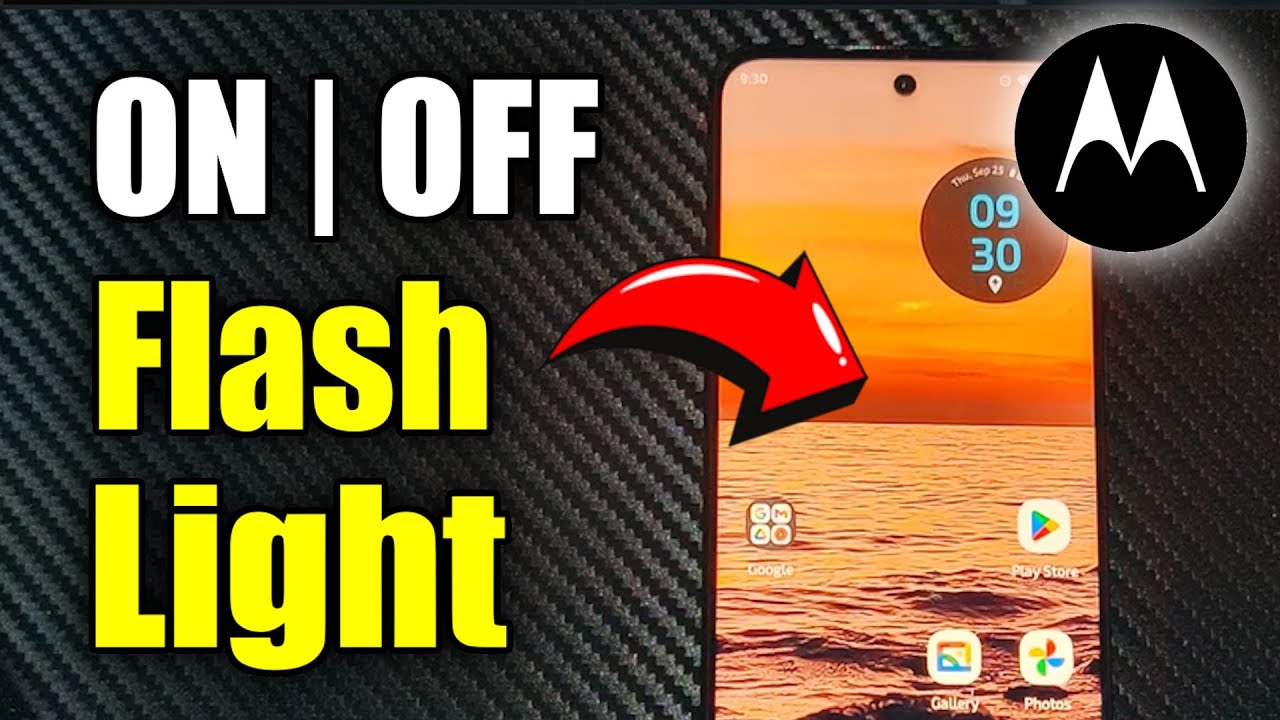
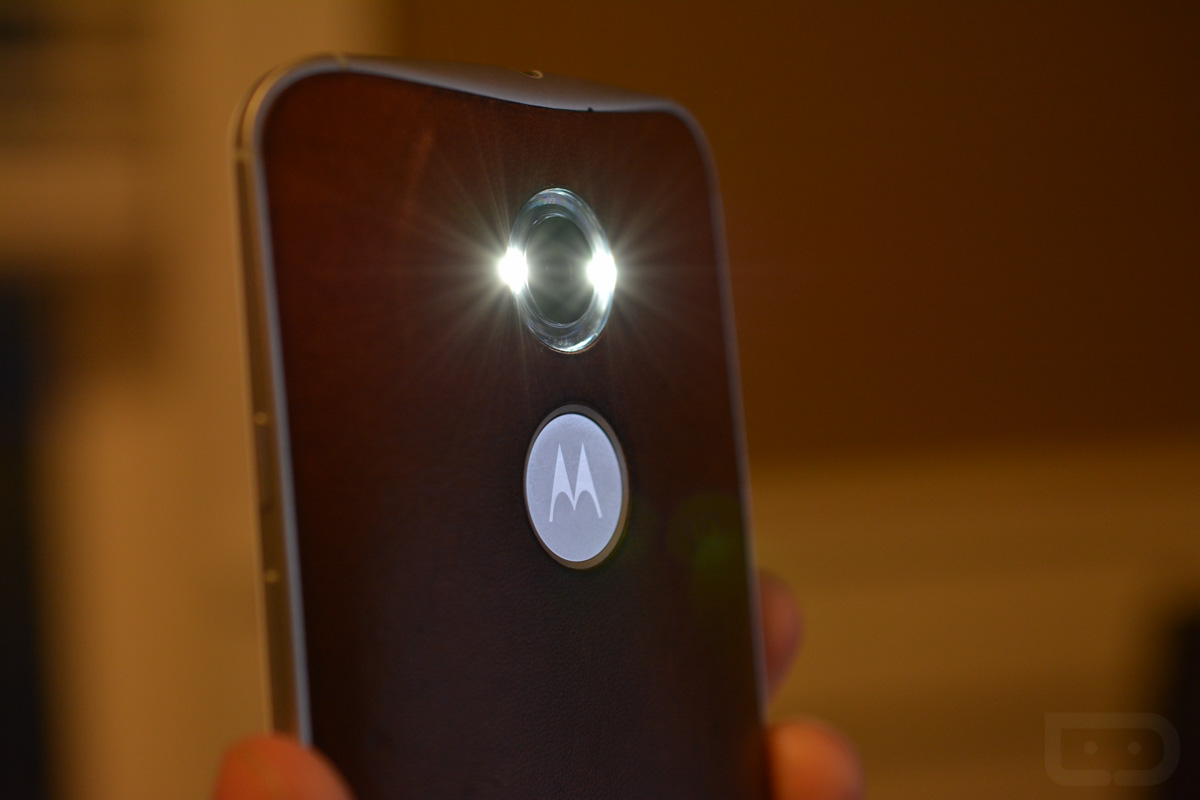
Let’s be honest—your Moto X Play’s flashlight is the unsung hero of your daily chaos. It’s the difference between finding your keys under the couch and fumbling in the dark like a raccoon. We all rely on that tiny LED burst to navigate late-night snack runs, power outages, or that terrifying moment when you drop an earring on a black rug.
Beyond convenience, this little light is a pocket-sized safety net. It helps you check a dark alley before walking down it, or signals a friend in a crowded parking lot. It’s also a party trick—yes, a flashlight—that turns any boring room into an impromptu shadow-puppet theater for bored kids. Honestly, it’s the most used feature on your phone after the camera, and you never think about it—until it stops working.
So when that flashlight icon goes gray or the light just won’t fire, panic sets in. You’re not alone; this is a classic Moto X Play quirk, and it’s usually fixable in minutes. The frustration is real, but the solutions are simpler than you’d think, and I’m here to give you the rescue plan.
Must Read
First, check the obvious culprit: the camera app. The Moto X Play’s flashlight shares hardware with the camera flash, so if the camera is stuck in a background process, the light locks out. Swipe away all recent apps, then try the flashlight again—this fixes it for about half of users. If that fails, reboot the phone; it clears the software hiccup that freezes the LED controller.
Next, look at your battery saver or low-power mode. Some Moto software deliberately disables the flashlight to save juice, and it won’t tell you. Go to Settings > Battery, turn off any power-saving mode, then test the light. Also, check if you’ve accidentally toggled the flashlight in the notification shade but a glitchy overlay is blocking it—toggle it off and on three times quickly to reset the gesture.
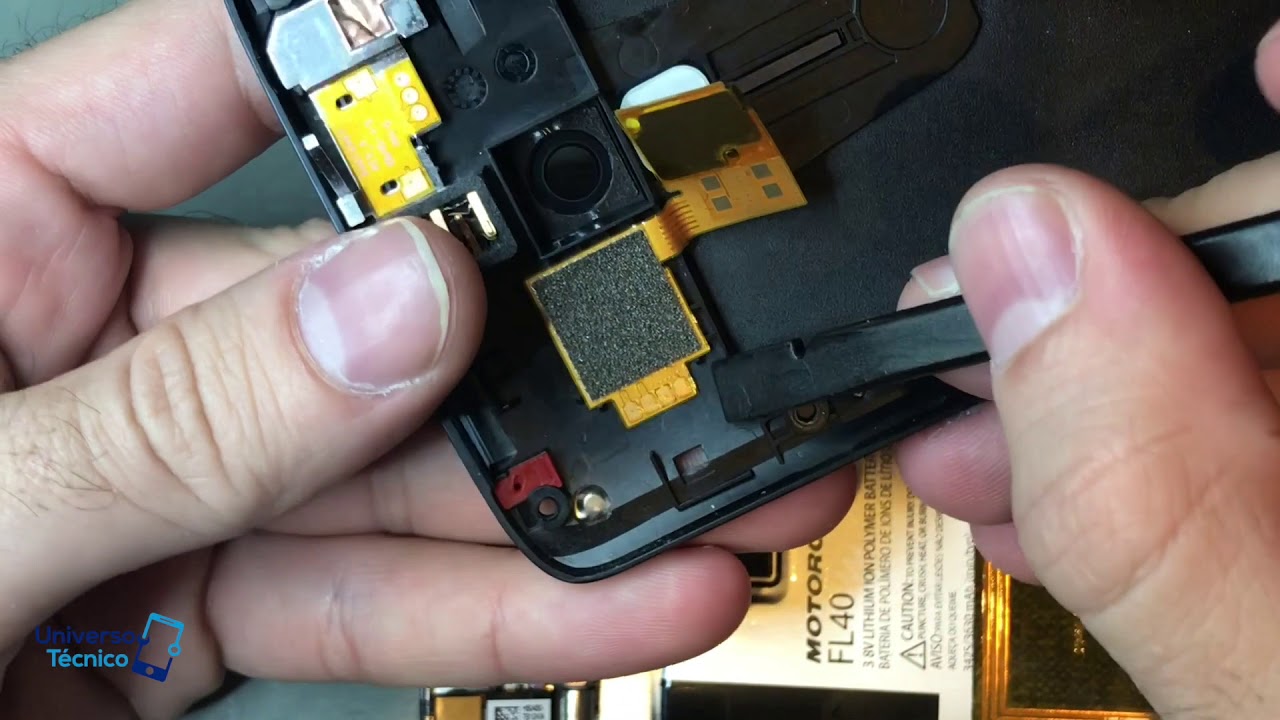
For a deeper fix, head to Settings > Apps > Camera and tap “Clear Cache” and “Force Stop.” This resets the flash’s control layer without erasing your photos. If that doesn’t work, go to Settings > Apps > Moto Actions and disable then re-enable the “Chop Chop” flashlight gesture—that gesture often gets confused after an update. A final software step is to check for a system update; Motorola has patched this exact bug twice in the past, and a fresh update often brings the light back from the dead.
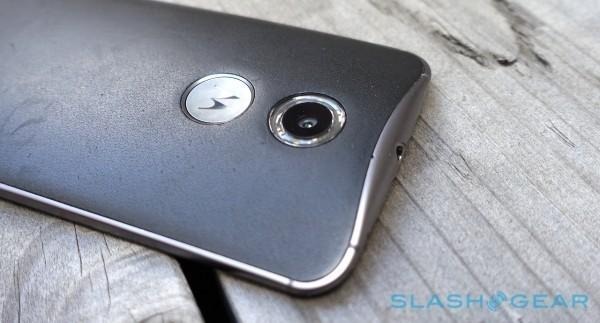
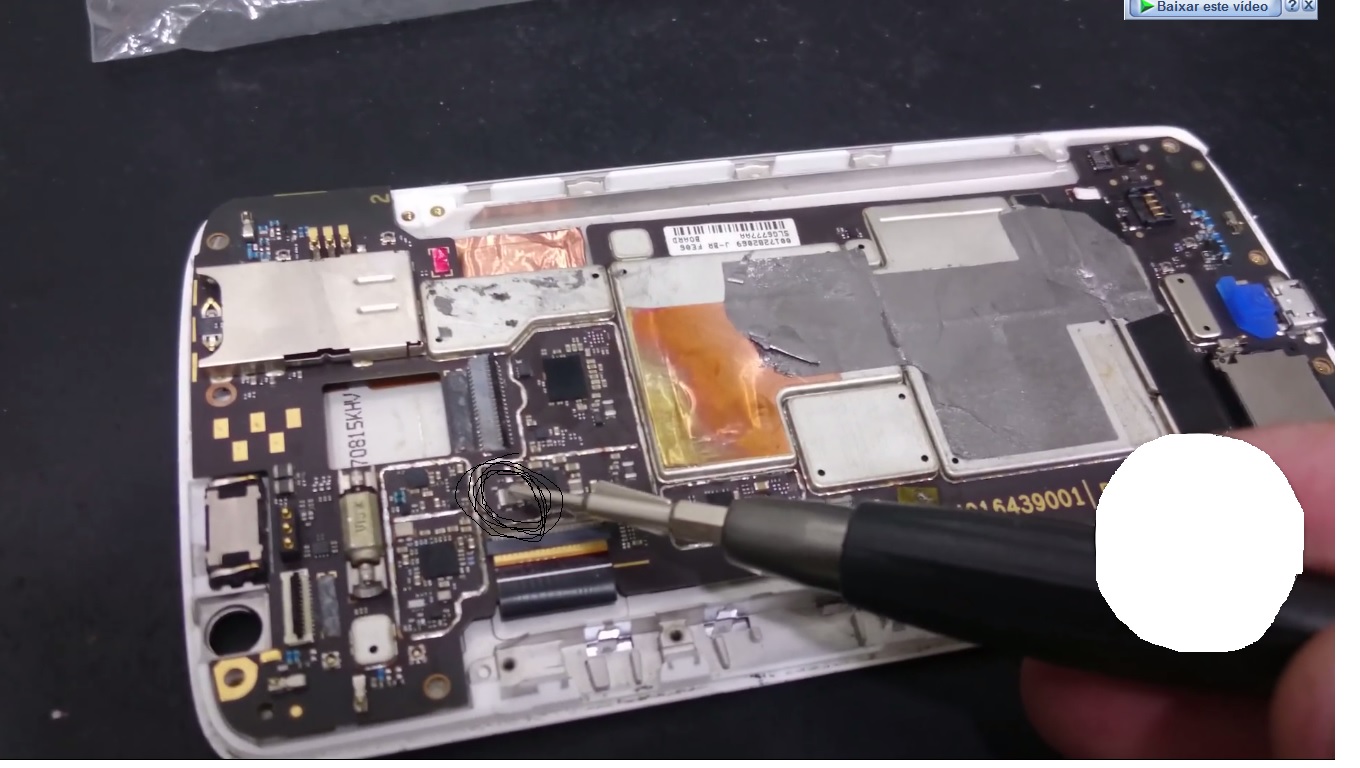
If none of that works, gently clean the flash lens with a soft, dry cloth. A layer of pocket lint or grease can block the light, making it seem broken when it’s actually just dirty. And don’t forget to test the light in a dark room—some users think it’s broken simply because they’re staring at it in bright daylight. After cleaning, try a third-party flashlight app from the Play Store; if that works, your system app is corrupt, and a factory reset (after backing up) is your golden ticket.

To avoid this headache going forward, make a habit of closing the camera app before using the flashlight. Also, avoid using battery saver mode while camping or at night, as that’s the prime time the light will betray you. Finally, download a flashlight widget to your home screen—it uses a different software path and often bypasses the glitch entirely.
Your Moto X Play may be aging, but with these tricks, its flashlight will shine on for years. Remember, a working flashlight isn’t a luxury; it’s your daily ally in a world that’s always a little too dark. So poke, prod, and clear that cache—you’ve got this, and the light will be right there with you.