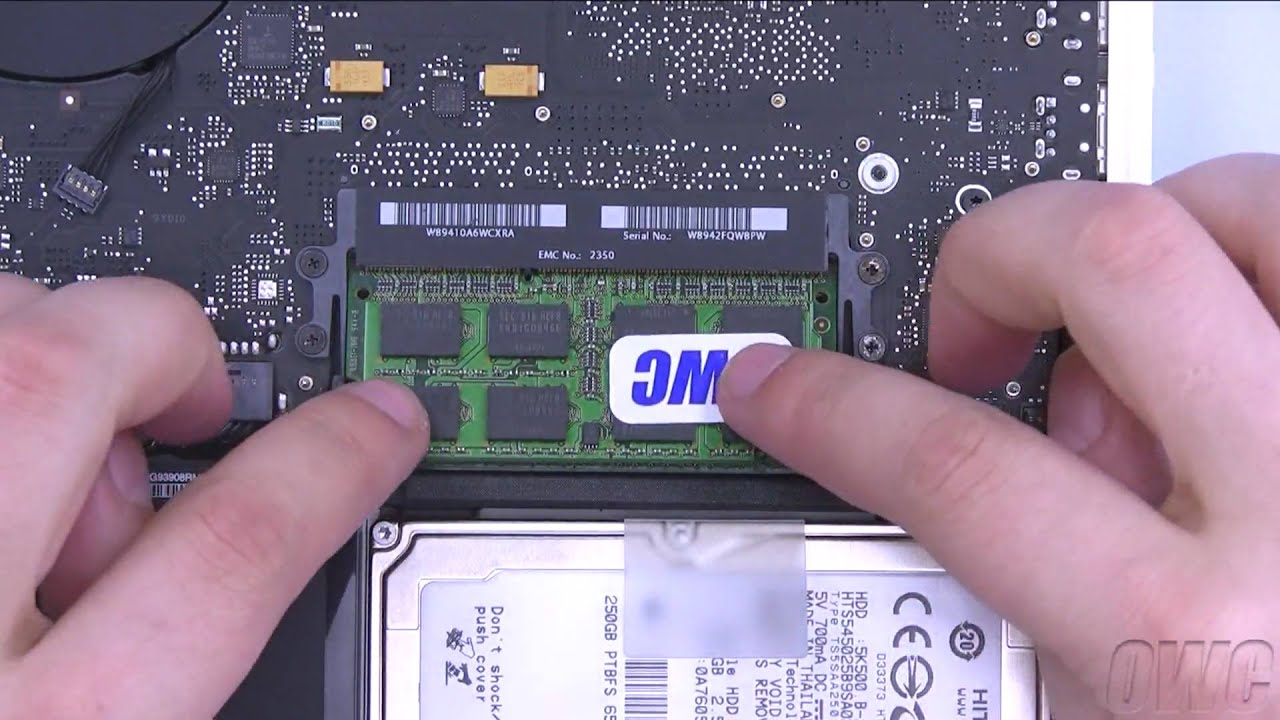
Macbook Pro Mid 2010 Memory Upgrade
There’s a special kind of love that people still have for the 2010 MacBook Pro. It’s that chunky, aluminum workhorse with a glowing Apple logo, a disc drive, and a keyboard that feels like actual keys. Sure, it’s old enough to vote, but for millions of us, it’s the laptop that refuses to die—and that’s exactly why we keep tinkering with it. The best way to show this old friend some love? A memory upgrade that makes it feel brand new again.
Upgrading the RAM in a Mid 2010 MacBook Pro is the single most effective way to breathe life into a sluggish machine. With just 4GB of stock memory, modern browsers and apps turn it into a spinning-wheel nightmare. Bump it to 8GB, and you’ll see instant improvements in multitasking, photo editing, and even basic video streaming—all without spending a fortune on a new laptop. For everyday life, this means fewer frustrating wait times and more time actually getting things done, whether you’re writing a report or just juggling fifty open tabs like a digital circus performer.
Think about the common pain points: that awkward lag when switching between Spotify, Chrome, and Word, or the beach-ball cursor that appears just as you’re about to save a file. Upgrading the memory cures these specific annoyances because the system finally has breathing room. It’s also perfect if you’re a student on a budget, a hobbyist running GarageBand, or a home user who just wants to keep using their favorite machine for another five years. You’re not just adding RAM; you’re extending the lifespan of a reliable tool that already knows your workflow.
Must Read
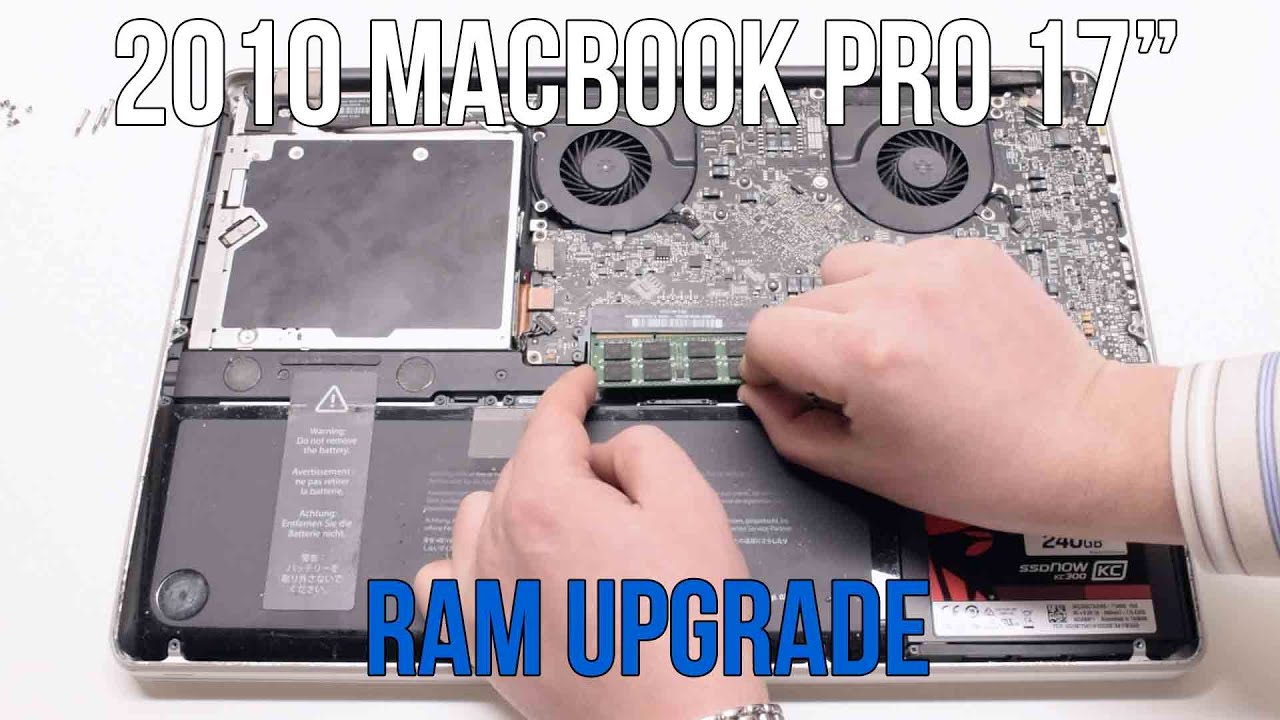
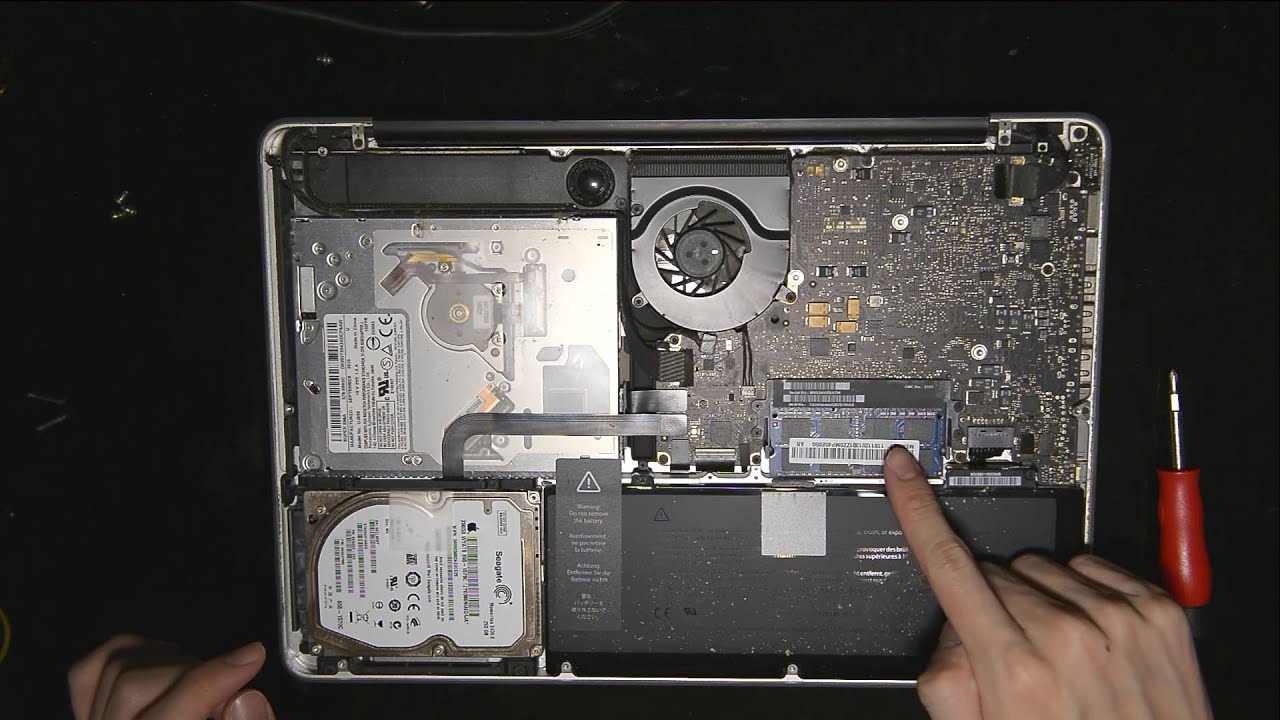
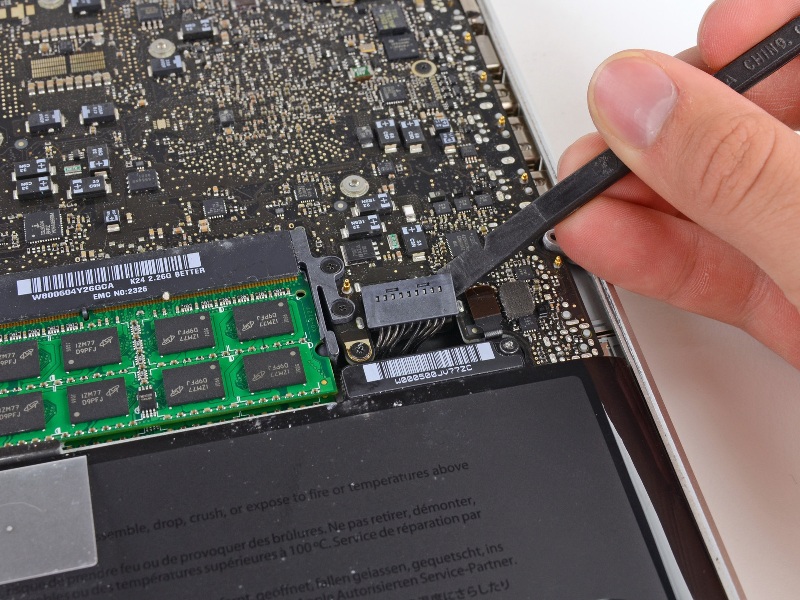
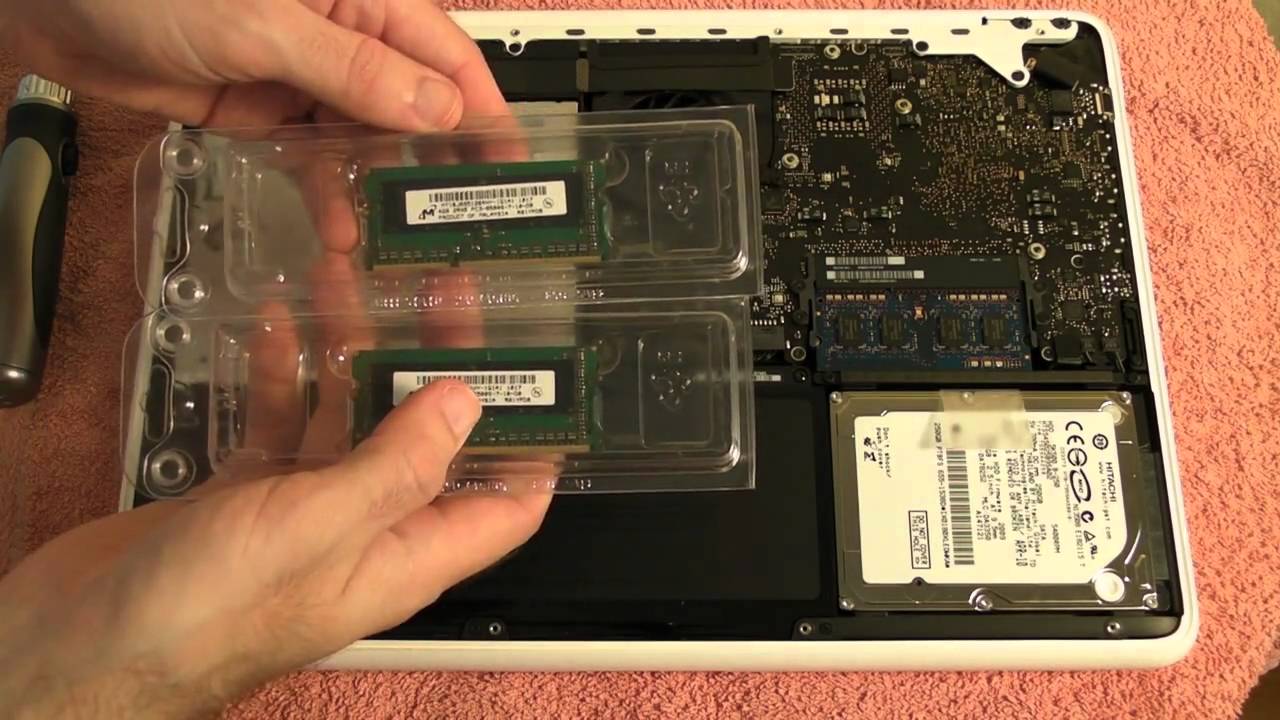
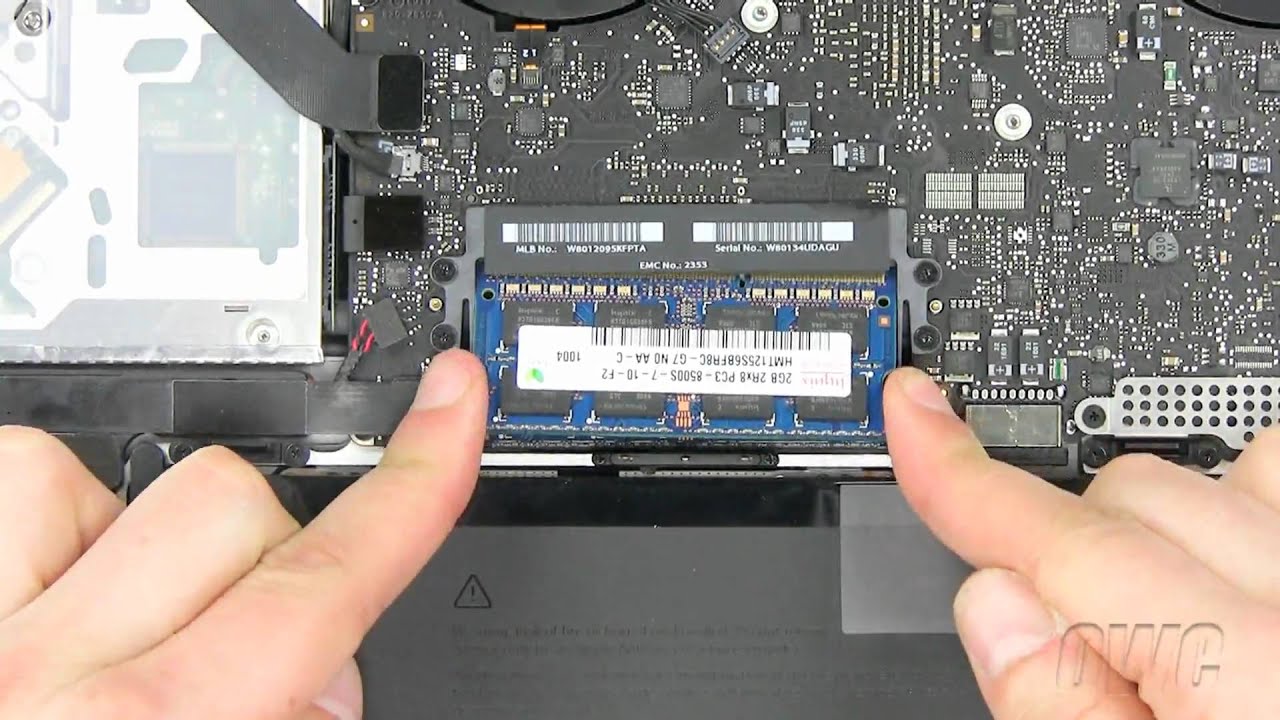
Before you start, do one crucial check: your exact model needs to be the “Mid 2010” version with a 2.4GHz or 2.66GHz Core 2 Duo processor. Use the “About This Mac” feature to confirm, and then grab two 4GB DDR3 PC3-8500 SODIMM sticks—the Mac actually runs better with two matching sticks instead of one 8GB module. The whole process takes about ten minutes: flip over the laptop, remove the bottom case’s ten screws, gently pop out the old sticks, and push in the new ones until you hear a click. Just be sure to touch a metal surface first to discharge static, because a tiny spark can fry your motherboard.
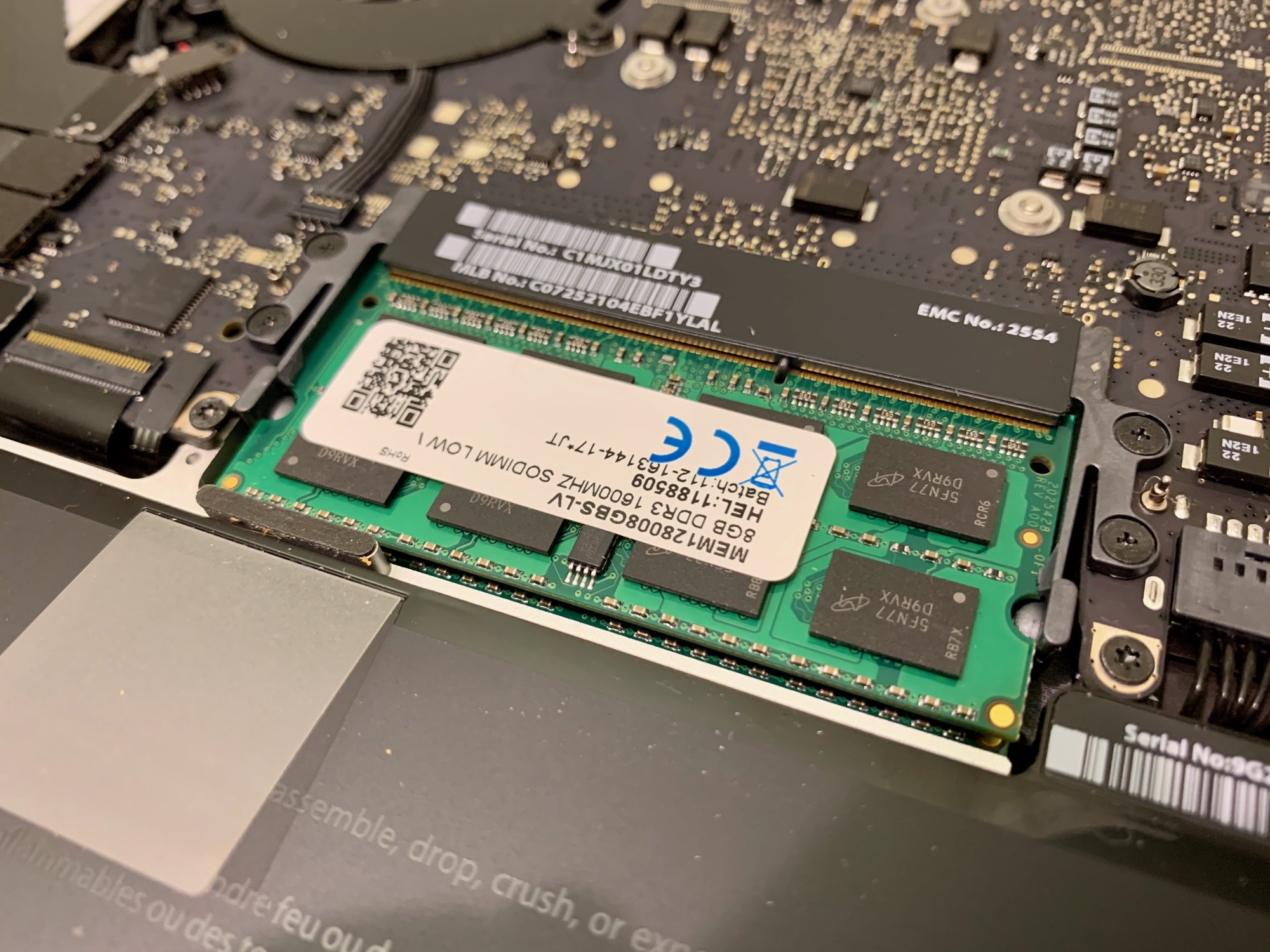
Here’s the practical kicker: this isn’t a scam or a complicated hack—it’s a legit, inexpensive upgrade that costs around $25 to $35 on used markets. You’ll also want to reset the System Management Controller (SMC) afterward by holding Shift+Control+Option+Power for five seconds, which helps the new memory register correctly. Once you boot up, go to “About This Mac” to see 8GB, and then open everything you own at once just to watch it stay smooth. That feeling of triumph is deliciously old-school, like fixing a vintage car with a wrench instead of calling a tow truck.
Finally, don’t stop at RAM—this machine also takes a cheap SSD, but that’s a story for another day. For now, enjoy the fact that you’ve outsmarted planned obsolescence with a little research and a screwdriver. Your MacBook Pro will reward you with years of dependable service, and you’ll have the smug satisfaction of knowing your “obsolete” laptop runs just as fast as newer models for basic tasks. So go ahead, give that old friend a new brain, and let it keep working for you long after the newer laptops have bitten the dust.