Iphone 5c Bluetooth Not Connecting

Ah, the iPhone 5c—that burst of candy-colored plastic that promised fun in your pocket. Even today, many of us cling to our little polycarbonate buddy for its nostalgic charm, compact size, and its surprisingly decent camera for quick snaps. But there’s one frustrating hiccup that can turn that sunny exterior into a storm cloud: when it just refuses to connect to your Bluetooth speaker, car, or wireless earbuds.
Let’s face it, Bluetooth is the invisible glue of modern life. It lets you stream your favorite podcast while cooking, take hands-free calls on your commute, or rock out to a workout playlist without tripping over cords. For the iPhone 5c, this connection is your ticket to a wireless world—but when it fails, the silence is deafening. You might find yourself at the gym, tapping your phone in desperation, while your AirPods mock you from their case.
The most common culprit? A stale software cache from years of iOS updates and app installs. Another frequent offender is the phone’s Bluetooth radio simply “forgetting” a device after a battery pull or a system crash. You might also be dealing with interference from Wi-Fi routers, microwaves, or even your own pocket—yes, your body can block that weak 2.4 GHz signal.
Must Read
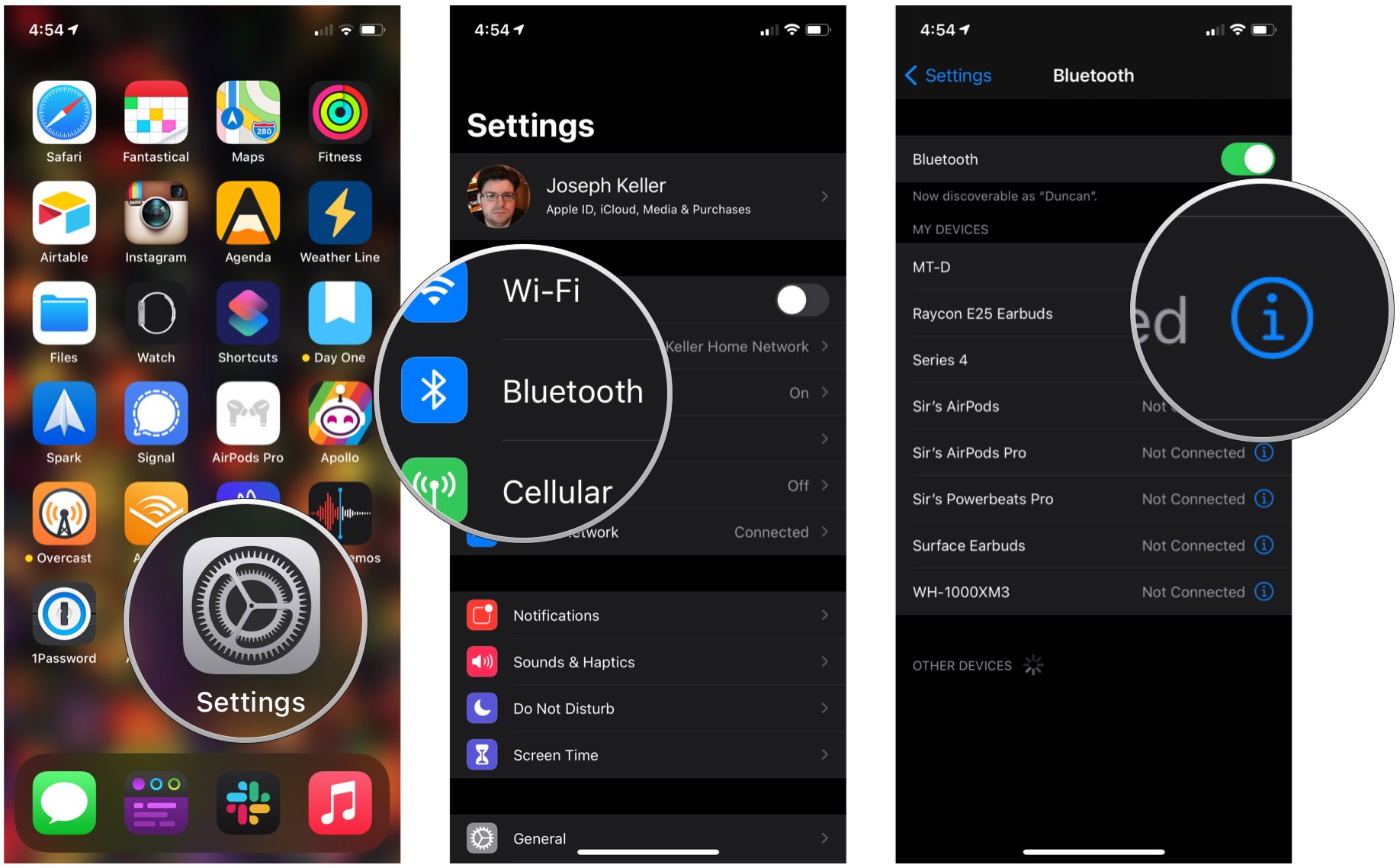
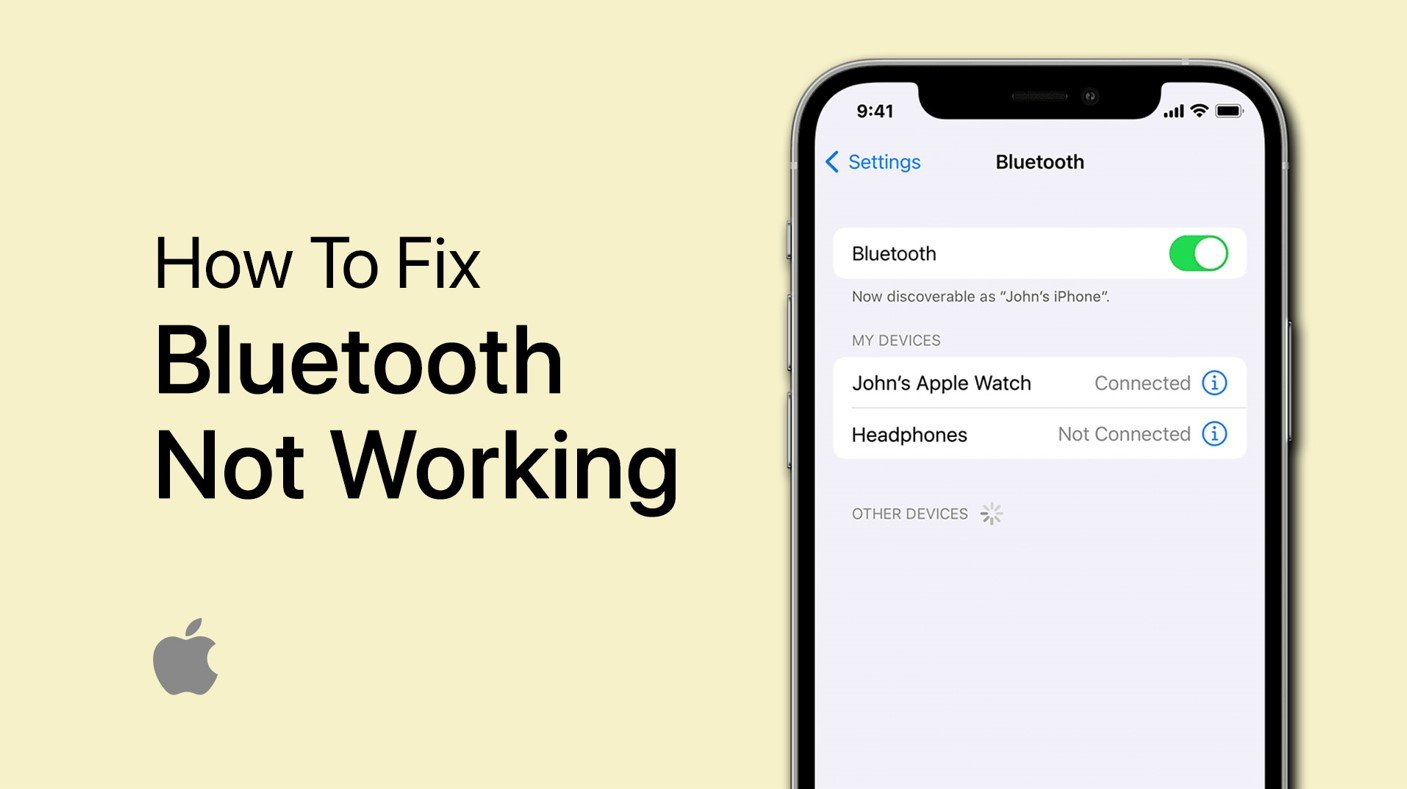
First, try the classic “turn it off and on again”—both your iPhone and the target device. For the iPhone 5c, hold down the power button until “slide to power off” appears, then restart. If that fails, go to Settings > Bluetooth, tap the “i” icon next to the problematic device, and select “Forget This Device.” Then, put your speaker or headphones back into pairing mode and start fresh—this clears out old digital handshakes.
Another trick that works wonders is resetting the network settings. Head to Settings > General > Reset > Reset Network Settings. This wipes all saved Wi-Fi passwords and Bluetooth pairings, but it’s like a brain cleanse for your phone’s radio. After that, reconnect to your Bluetooth device first, before rejoining your Wi-Fi network. This often fixes the “invisible wall” that blocks new connections.
If you’re still stuck, check for a pending iOS update—but beware, the 5c maxes out at iOS 10.3.3. That old system is fine, but it’s picky with modern Bluetooth 5.0 gadgets. In that case, prioritize older Bluetooth 4.0 devices, like a JBL Flip or a solid pair of Bose QC35s, which are built for compatibility with vintage iPhones.
Also, try moving your phone closer to the audio device—within three feet, with no obstacles. This tiny orange phone has a weak antenna, so distance is your enemy. And if you’re using a fancy smartwatch or fitness tracker, turn it off temporarily; its constant scanning can confuse the 5c’s ancient radio.

Finally, power-cycle the Bluetooth module itself. Go to Settings > Bluetooth and toggle the switch off, wait ten seconds, then toggle it back on. Then, without touching anything else, try connecting again. Sometimes, that little digital “kick” is all it takes to wake up the sleeping giant inside that plastic shell.
Remember, your iPhone 5c is a survivor, not a quitter. With a little patience and these steps, you’ll be jamming to your oldies playlist or taking clear calls in your car again. So dust off that colorful case, give your phone a gentle restart, and let the wireless magic flow—because your favorite tunes are just as timeless as your phone.