
Importing Data Into Google Sheets

Let’s be honest. Typing data into Google Sheets is about as thrilling as watching paint dry on a spreadsheet. You’re better than that. You deserve robot helpers and magic portals.
So, let’s talk about importing data. It’s the art of making your sheet do the heavy lifting while you sip coffee. This isn’t just a feature; it’s a superpower for your inbox.
Why Bother With Imports?
Because copy-pasting is for cavemen. Manual entry leads to typos, eye strain, and a deep hatred for your keyboard. Automation is your new best friend.
Must Read
Imagine a sheet that updates itself while you sleep. It’s like having a tiny, tireless elf who loves commas and clean columns. That is the dream we’re chasing.
The Humble CSV: Your Plain-Jane Hero
First up: the CSV file. It’s boring, simple, and everywhere. Banks, apps, and ancient systems all spit out these text files.
Here’s the fun part: you can drag and drop a CSV right onto a blank browser tab. Google Sheets opens it instantly. It’s like magic, but with more commas.

Pro tip: always check the separator. Sometimes it’s a comma, sometimes a sneaky semicolon. If numbers look like gibberish, your locale is messing with you. Trust me.
Paste With Style: Ctrl+Shift+V
Ever pasted something in, and it brought along neon green backgrounds? That’s formatting chaos. You don’t want that.
Use Paste special – just hit Ctrl+Shift+V (or Cmd on a Mac). This strips all the ego from the data, leaving only pure text and numbers. It’s the minimalist approach to data entry.
Quirky fact: this shortcut is also great for pasting text from that one website that refuses to let you copy cleanly. We’ve all been there.
The Power Tool: =IMPORTDATA()
Now we’re cooking with gas. This function grabs a live CSV from a URL. No downloading, no saving, just pure automated bliss.
Type =IMPORTDATA("https://example.com/data.csv") into a cell. Boom. The entire file floods your sheet like a data-waterfall. The best part? It refreshes every hour if you reload the page.
Find a random public dataset online. Watch it appear. You’ll feel like a hacker in a movie. Seriously.

Import HTML Tables: Scraping for Dummies
See a neat table on a Wikipedia page? Don’t copy-paste it like a peasant. Use =IMPORTHTML().
You feed it a URL, and you say “grab the 3rd table on this page.” It does it. No questions asked. This is how you accidentally become a data hoarder.
Fun detail: you can import from any public website. Yes, even that one. Just be polite and don’t break the internet.
The Ultimate Integration: Google Sheets Connectors
For the fancy folks, there are third-party add-ons like Zapier or Apipheny. They connect your sheet to Twitter, Stripe, or even your dog’s GPS collar (probably).
![How to Import CSV Files in Google Sheets [2026, updated]](https://images.ctfassets.net/pt9zoi1ijm0e/DT9XKMAarEc08cLDsrDCn/8efe35808a3819cbd73b2e122cf9ee7a/method_1_pt_5.png)
This is where fun turns into obsession. You set up a “trigger” – like a new email – and the data pops in automatically. It’s like ordering pizza with no human interaction.
Remember: every time you import data manually, a robot loses its wings. Automate and be free.
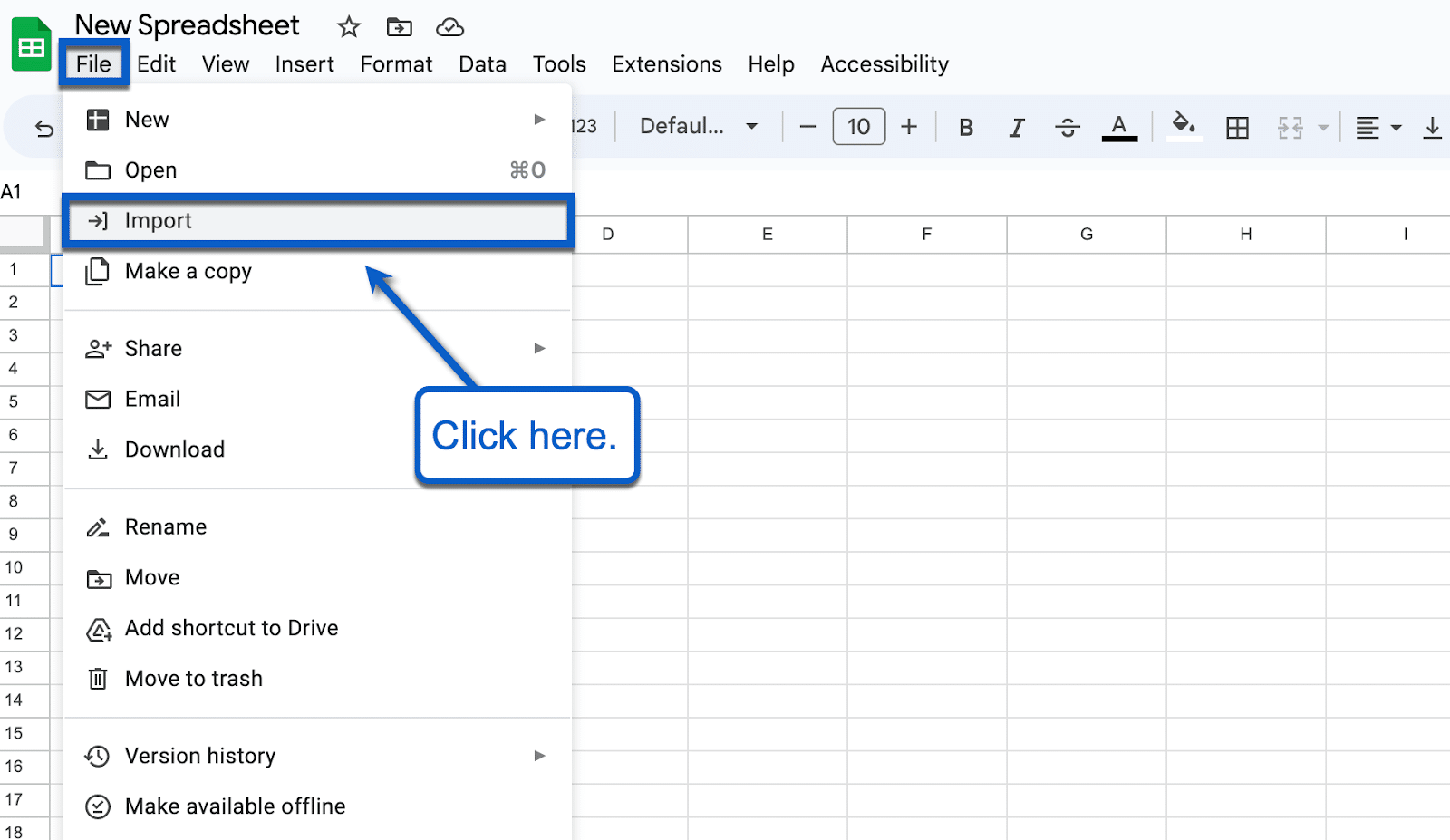
So go on. Click File → Import. Upload your messiest file. Watch the magic unfold. Your future self will thank you for not having carpal tunnel syndrome.
Because data is only boring if you let it sit there. Import it, shake it, and make it dance for you.


