How To Turn Location Off Google Chrome
So, I was browsing through my Google Chrome browser the other day, and I stumbled upon a weird recommendation for a restaurant near my location. I was like, "How did they know I was craving pizza?" And then it hit me - location services were turned on, and Google Chrome was tracking my every move. I know, I know, it's not exactly a shocking revelation, but it did make me wonder, how many of us actually know how to turn this feature off?
I started digging into the settings, and let me tell you, it's not as straightforward as you'd think. But don't worry, I'm here to guide you through it, and by the end of this article, you'll be a pro at disabling location services on Google Chrome. So, if you're ready to take control of your browser and your location, keep reading!
Why Turn Off Location Services?
Before we dive into the how-to, let's talk about why you'd want to turn off location services in the first place. For one, it's a major privacy concern. Do you really want Google tracking your every move? I didn't think so. Plus, it can be a major battery drain on your device, so if you're looking to conserve some juice, turning off location services is a good place to start.
Must Read
And let's be real, do you really need Google Chrome to know your location to browse the internet? I mean, it's not like you're using it to navigate or anything (although, if you are, there are definitely better options out there). So, if you're ready to break free from Google's watchful eye, keep reading.
Disabling Location Services on Desktop
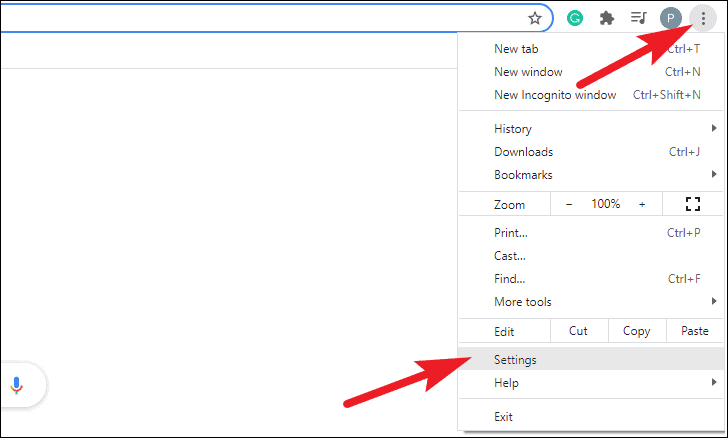
Okay, so if you're using Google Chrome on your desktop, disabling location services is relatively easy. First, you'll want to click on the three little dots in the top right corner of your browser, and then click on Settings. From there, scroll down to the Privacy and security section, and click on Site settings. It's like a treasure hunt, but instead of treasure, you'll find location settings!
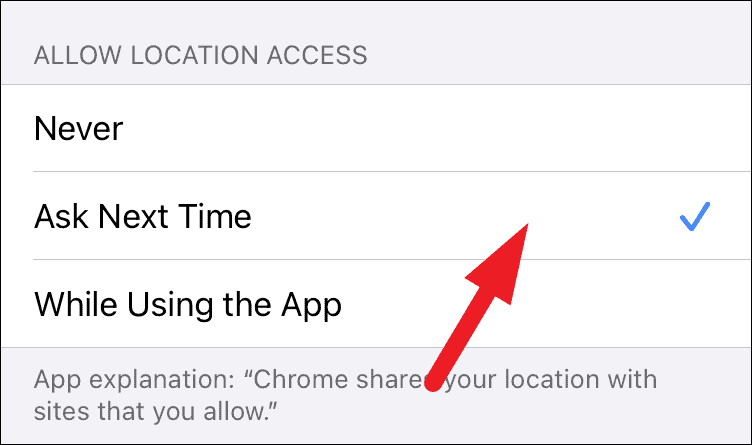
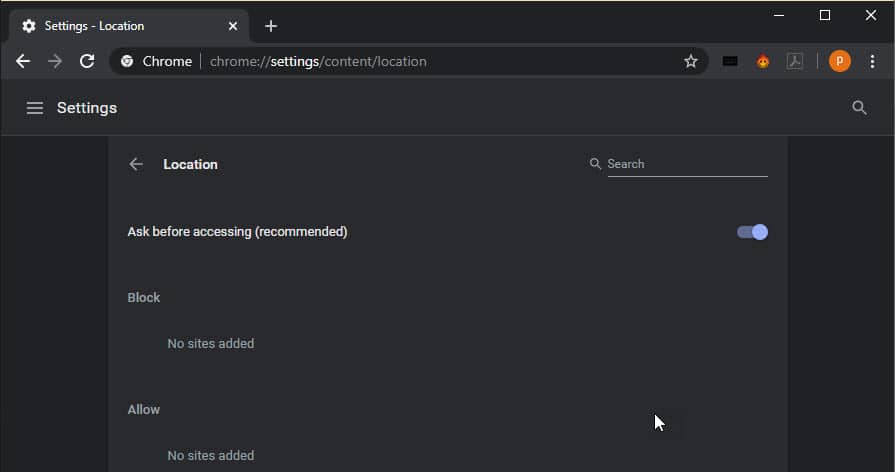
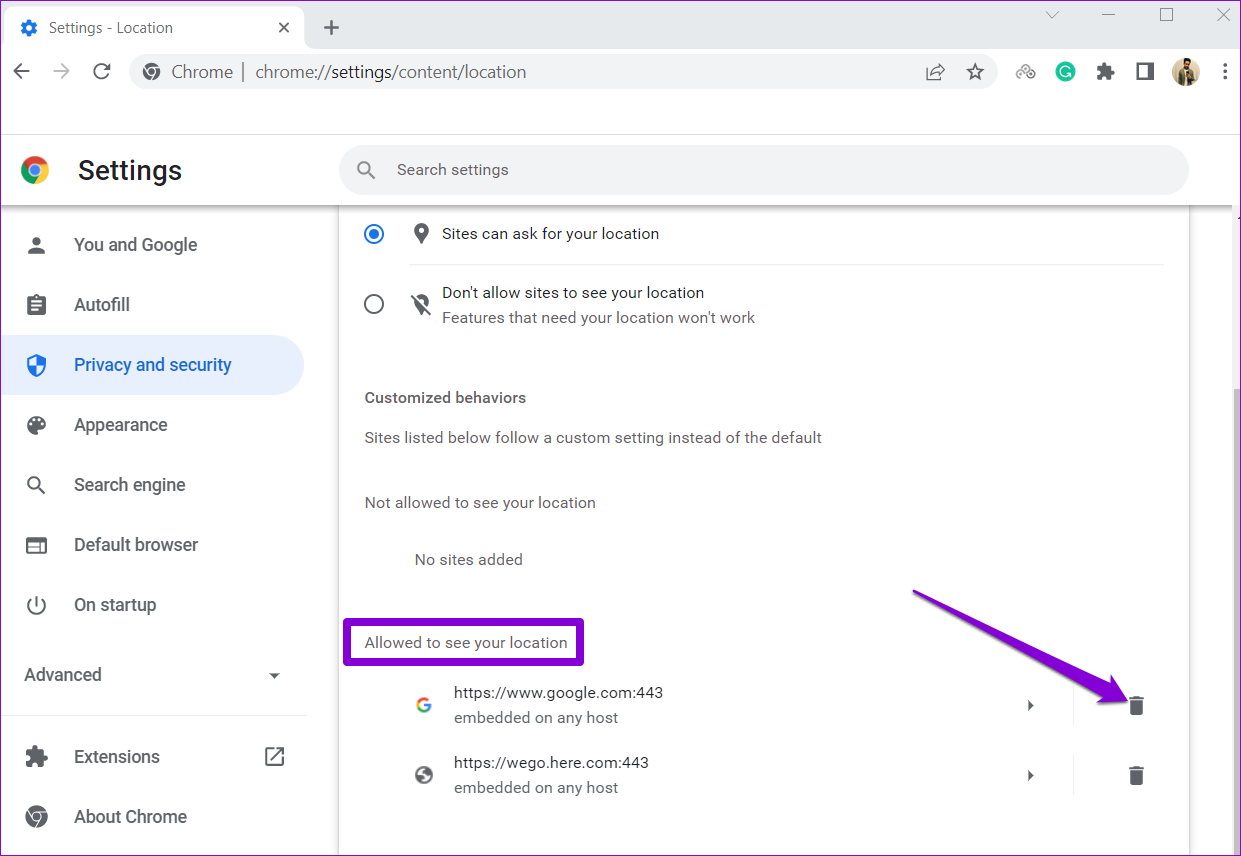
Once you're in the Site settings, click on Location, and then toggle off the Ask before accessing option. And just like that, you've disabled location services on your desktop. Easy peasy, right?
Disabling Location Services on Mobile
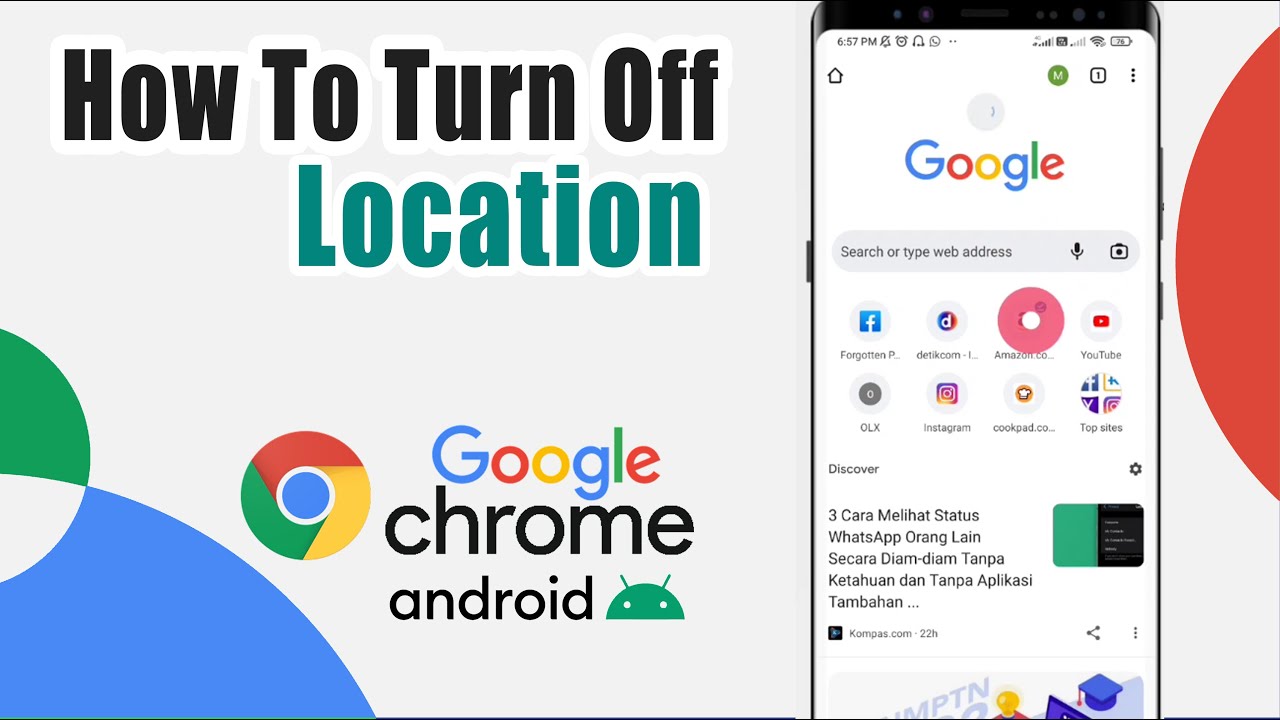
Now, if you're using Google Chrome on your mobile device, the process is a bit different. First, you'll want to open up the Google Chrome app, and then tap on the three little dots in the top right corner. From there, tap on Settings, and then scroll down to the Privacy section. It's like a Choose Your Own Adventure book, but instead of adventures, you'll find location settings!
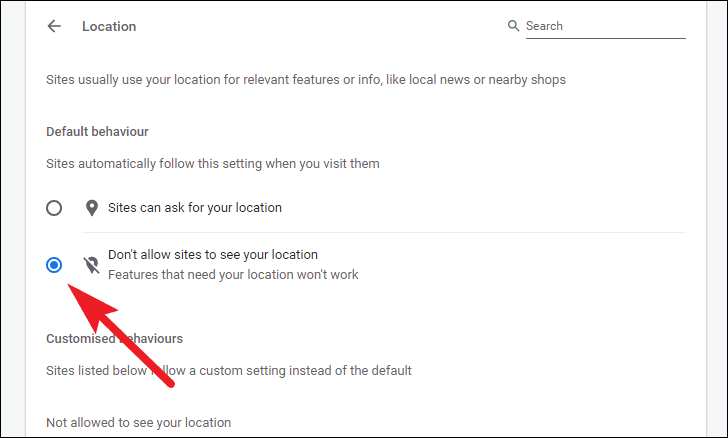
Once you're in the Privacy section, tap on Location, and then toggle off the Location option. And just like that, you've disabled location services on your mobile device. You're one step closer to taking control of your browser and your location!
The Verdict
how to turn off location services on Google Chrome. It's not exactly rocket science, but it's definitely not immediately obvious either. By disabling location services, you'll be taking a major step towards protecting your privacy and conserving your device's battery life.

And let's be real, it's just nice to have control over your browser and your location. I mean, who doesn't love a good sense of independence? So, go ahead, take the plunge, and disable those location services. Your privacy (and your battery) will thank you.
In conclusion, turning off location services on Google Chrome is a no-brainer. It's easy, it's private, and it's empowering. So, what are you waiting for? Go ahead, disable those location services, and take control of your browser and your location. You got this!