How To Transcribe Video Into Text
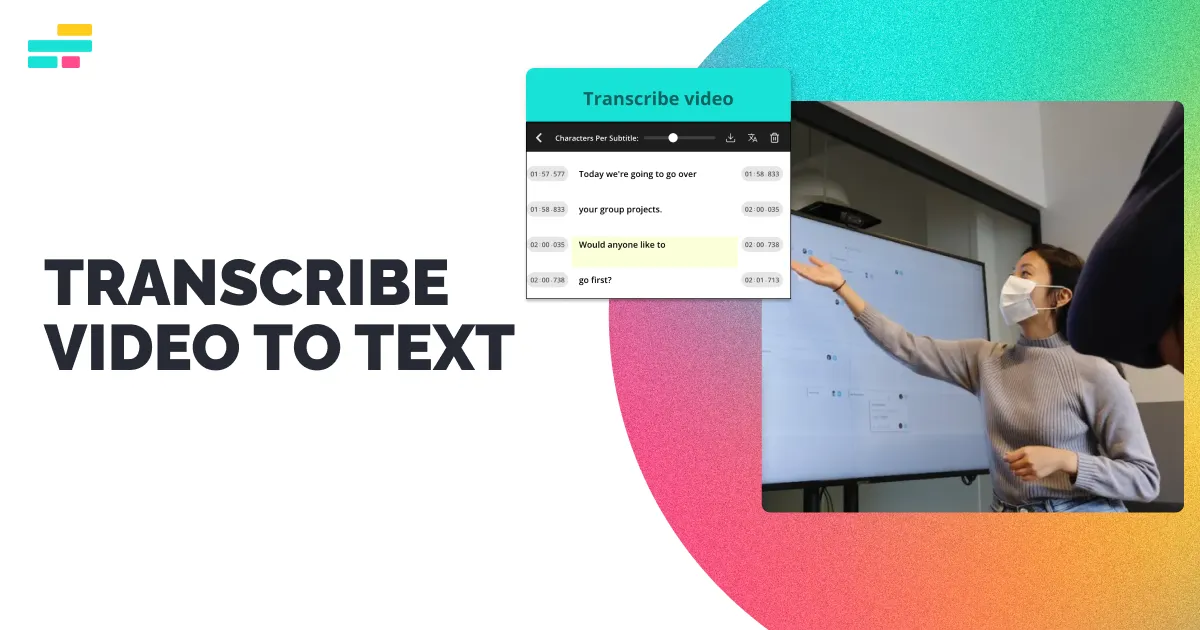
Ever wished you could magically turn that funny family video or that insightful online lecture into readable text? That’s exactly what video transcription does, and it’s easier than you might think. It’s like having a superpower that saves you time, helps you find information fast, and even makes your content more accessible to everyone.
For beginners, transcription is a fantastic way to take messy notes from a tutorial or a cooking show. Families can preserve precious memories by converting old home movies into written stories or captioned clips for relatives with hearing difficulties. Hobbyists, like podcasters or vloggers, use it to create show notes that attract more viewers and make their work searchable on Google.
The purpose goes beyond just convenience; it’s about unlocking the value hidden in your audio. You can easily quote a speaker, translate text into another language, or repurpose a video into a blog post. For students, it means you can review a complex lesson without rewinding every five seconds. It truly turns passive watching into active, useful knowledge.
Must Read
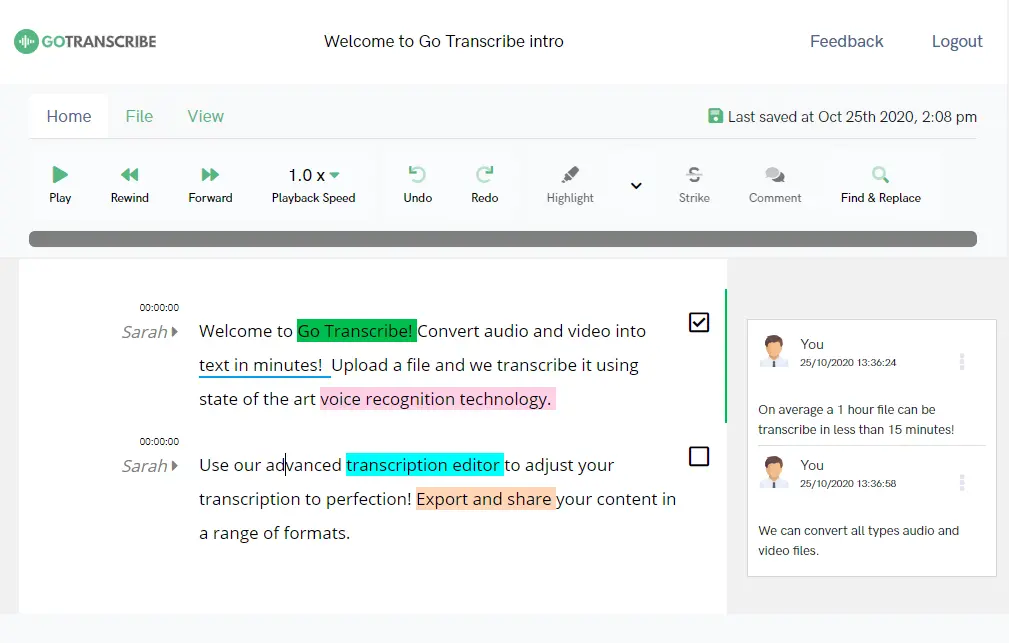
There are two main ways to do it: manually or with software. The manual way involves playing your video and typing out what you hear, which is great for short clips but can be a drag for longer ones. The smart alternative is using automatic transcription tools, which use artificial intelligence to listen and type in real-time. Most of these tools are free for basic use, and they’re remarkably accurate these days.
Let’s look at a simple example. Imagine you filmed a 20-minute interview with your grandmother about her childhood. Instead of just keeping the video, you transcribe it and create a beautiful family recipe book with her exact words. Or, you have a 5-minute workout video from a fitness app; transcribing it lets you print the steps and follow along without your phone. The variations are endless because any spoken content can become written content.

Ready to start? Here’s a simple, practical tip: pick a short, clear video first, like a 2-minute message from a friend. Use a free online tool like Otter.ai, YouTube’s own caption feature, or even Google Docs’ voice typing while you play the video. Always listen back while reading the text to catch any funny mistakes the software might have made.
Another useful trick is to break your video into smaller chunks. Transcribing a full hour-long webinar in one sitting is exhausting, so try doing 10 minutes at a time. Also, make sure your audio is clear and there’s minimal background noise; this vastly improves the accuracy of automatic tools. And don’t worry about perfect grammar at first—just get the raw text down, then edit later.
![The Ultimate Guide to Transcribe YouTube Video to Text [2026] | Vmake AI](https://kapkap-common.stariidata.com/material/ntx6q6eqiislvxqz.jpg)
The most enjoyable part is the freedom it gives you. Once you have the text, you can search for a single word to find the exact moment in a video where it was spoken. You can share the text with a friend who’s in a noisy place. You can even highlight the best quotes and post them on social media. It turns a fleeting video into a lasting, versatile document.
In the end, transcribing video to text is a simple skill that pays off hugely in clarity and creativity. Whether you’re preserving family lore, acing a class, or just trying to remember a recipe, it makes your life easier. So go ahead, try it on a favorite clip—you’ll be amazed at how quickly you wonder how you ever lived without it.