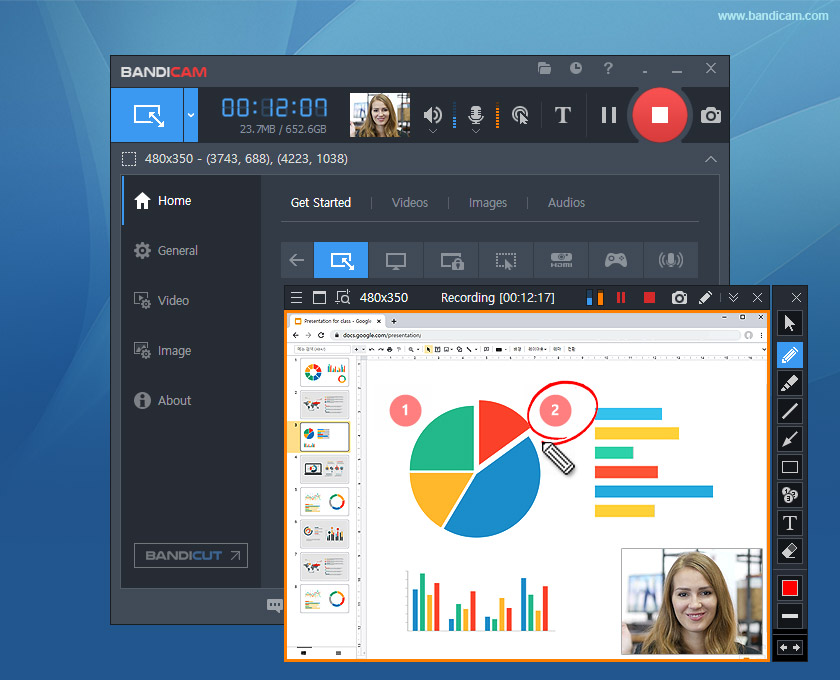
How To Talk Over Screen Recording

In the pre-streaming epoch, the phrase “talking over a recording” conjured images of a disgruntled film critic scribbling notes in a darkened theater, or perhaps a VHS tape with a garbled, hissing audio track from a camcorder. Today, it’s the lingua franca of the digital age—a strange, intimate hybrid of performance, pedagogy, and digital archaeology. We narrate our screens for Loom videos, we commentate our own gameplay for Twitch, and we break down complex spreadsheets for asynchronous Slack updates. But here’s the uncanny truth: we are all now radio hosts of a ghost channel, broadcasting to an audience that is rarely, if ever, present in the moment of recording.
This act feels natural, almost conversational, until you hit the red button. Then, a peculiar silence descends. The cursor becomes a nervous twitch. Your voice, disembodied and alien, echoes back at you in the playback. Why is this so hard? Because talking over a screen recording is a cognitive dissonance. You are simultaneously performing for a future audience while interacting with a present, unresponsive interface. It’s a monologue delivered to a mirror that doesn’t reflect you, only your desktop icons. Understanding this paradox is the first step to mastering it, moving from stilted, robotic narration to a fluid, almost cinematic voice-over that feels less like a file and more like a conversation across time.
The Uncanny Valley of the Cursor: Psychology and the Physics of the Void
Let’s talk about the elephant in the server room: the cursor. In real life, our communication is triangulated. We look at a person, we gesture, we gauge reaction. In a screen recording, your only physical avatar is that little white arrow. Psychologically, this forces a bizarre transference. The cursor becomes a stand-in for your hands, your eyes, your very presence. If you jitter the mouse, you’re perceived as anxious. If you move it in slow, sweeping arcs, you seem contemplative. The most common rookie mistake is the "death spiral"—rapidly circling a button while mumbling, "Uh, so, if you just, like, click here... wait, no, that's not it." This isn’t just a technical error; it’s a betrayal of your internal cognitive load, exposing your indecision to an audience that can’t help you solve it.
Must Read
There is also a deeply rooted cultural lineage here that predates the internet. Think of the scratchy voice of a film noir narrator, or the urgent whisper of a 1940s newsreel. We are hardwired to trust a voice that overlays a visual, a phenomenon known in media studies as "diagetic authority." When you narrate a screen, you are assuming the role of the omniscient observer, the one who knows the cheat codes to reality. Dark fun fact: early NASA mission control recordings are full of astronauts and technicians talking over telemetry screens, creating a bizarre, high-stakes version of a Let's Play. They weren't playing, though. One wrong click and things explode. This gravitas is something we carry into our daily recordings, even when the subject is a quarterly expense report.
But the most fascinating psychological hurdle is the "temporal displacement" factor. When you record, you are speaking to a ghost of your future self—the person who will edit, re-watch, and cringe. This self-consciousness triggers the "spotlight effect," making you feel as though every verbal stumble is a monumental failure. In reality, your audience usually watches at 1.5x speed while eating lunch. The key is to internalize that the recording is a draft, not a performance. You are not auditioning for a voice-over role; you are leaving a memo for a colleague who is probably just as confused as you are. This shift in perception—from performance to utility—lowers the stakes and allows your natural conversational rhythm to emerge.
From B-Roll to Boardroom: Scenarios, Case Studies, and Actionable Alchemy
Consider the case of a software developer, let’s call her Priya, who had to document a bug fix. In her first attempt, she performed a "silent walkthrough"—forty seconds of cursor movements and zero audio. It was useless. In her second attempt, she over-compensated, narrating every logical branch of her code as if teaching a freshman CS course. The video was 22 minutes long. Nobody watched it. Finally, she adopted the "tour guide" method: she imagined she was showing a colleague the fix over their shoulder. She started with, "Okay, so the bug is that the button doesn't save the form—annoying, right? I'm going to show you the hack." She recorded in one take, paused occasionally, and used her mouse to point, not to circle. The result was a crisp 3-minute video that her team actually thanked her for. The lesson? Context matters more than completeness.
Another scenario is the "Gaming Streamer" effect. Here, the rules invert. The gameplay is the primary visual, but the commentary is the product. A successful streamer doesn't describe what they're doing; they share a stream of consciousness—reactions to their own failures, predictions about the plot, and tangential rants about pizza toppings. For a screen recording, you can borrow this technique for creative or ambiguous tasks. If you’re designing a logo, say what you feel as you manipulate shapes. "I'm dragging this here because the blue feels too aggressive next to the orange, it's making me feel like I'm at a traffic light." This injects personality and turns a mundane process into a narrative. It is less about teaching and more about sharing your cognitive experience.
The most effective actionable takeaway is the "write it down, throw it away" method. Before you hit record, jot down three bullet points: the problem, the solution, and the "gotcha." Do not write a script. Scripts create the dreaded "frosty read"—that robotic, lifeless tone that sounds like a hostage video. Instead, use your bullet points as a safety net. If you get lost, glance at them and use the phrase, "Wait, I skipped a step, let me go back—" This is a powerful editing trick. Leaving the stumble in the recording (and visually scrubbing back) creates authenticity. It signals that you are human, and it gives the viewer context for why you are repeating an action.
Finally, master the "verbal pause." Silence is terrifying in real-time conversation, but it is your best friend in asynchronous video. When you need to think or move the mouse to another window, simply say, "...and now for the tricky part." Then, pause for one full second. That pause is golden. It gives the editor a clean cut point, and it gives the viewer a moment to process. It also prevents you from filling the void with the dreaded "um" and "uh," which are the audio equivalent of a buffering spinner. Record your first take, don't re-record unless it's an absolute catastrophe, and remember that b-roll footage is not a Hollywood blockbuster—it’s a memo.
Frequently Asked Questions: The Deep Dive
What is the best external microphone for talking over screen recording?
This is the billion-dollar question, and the answer is a paradox: the best microphone is the one you have, not the one you want. The airpods you wore on a Zoom call yesterday produce better audio than that $300 condenser mic you've been eyeing, simply because of proximity. The closer the mic is to your mouth, the less room echo you get, and the more "present" your voice sounds. A USB cardioid microphone (like a Blue Yeti or a Shure MV7) is excellent if you’re at a fixed desk. However, if you're recording a quick Loom while walking around a whiteboard, a lapel mic is vastly superior.
But the dark secret of audio is that post-processing is 70% of the sound. Even a cheap mic can sound pro if you use a simple noise gate in your editing software to cut out the keyboard clicks and the hum of your fridge. The goal is not to sound like a radio DJ, but to sound like a human being speaking clearly in a quiet room. Over-processing your voice with EQ can lead to the "tin can" effect, which instantly destroys trust. Aim for clarity and warmth, not studio perfection. In fact, the slight imperfection of a built-in laptop mic is often more charming and relatable for internal team videos—it feels less corporate, more approachable.
How do I avoid the "umm" and "uhh" filler words?
The short answer is: you don't, at least not entirely. Filler words are a natural part of human speech processing. When you try to eliminate them completely, you often end up with long, unnatural silences that feel more awkward than a "um." The brain uses "um" as a signal that you're thinking, and it actually helps the listener parse complex information. The issue is frequency and duration. If you say "um" 40 times in a 1-minute video, it becomes a metronome of anxiety.
Here is the practical trick: replace the filler with a pause. When you feel an "um" coming, just stop. Literally, close your mouth. The silence, even a brief 0.5 second one, feels like deep thought to a viewer, not a mistake. You can also practice "chunking"—speaking in 4-5 word bursts. Instead of saying, "So if we go into the settings and then we change the font to Arial," say, "Settings." Pause. "Change font." Pause. "Arial." This sounds authoritative. And remember, during editing, you can use a free tool like Descript to automatically remove filler words with a single click. It will leave a tiny jump cut in the audio, which is fine; it actually makes the video feel faster-paced.
Is it better to record the audio during the screen capture or separately?
This depends entirely on your tolerance for re-recording. Recording audio during the screen capture is the most natural method. It captures your real-time reactions, the sound of your keyboard (which can add a nice "authentic" texture, or be annoying), and it ensures your tone matches the visual timing. The downside is that if you cough or your dog barks in the middle of a perfect take, you have to start the entire recording over from scratch, or do a painful editing patch job.

Recording audio separately (using a DAW like Audacity or even Voice Memos, then syncing it in post) is the professional standard. It allows you to retake a verbal line without re-doing the screen capture. However, syncing can be a nightmare if you don't have a clapperboard. A good trick is to clap your hands once or physically tap the desk while recording both streams—this creates a visual and audio spike to align in your editor. For most business and casual use, I recommend recording audio and video simultaneously to lower your stress level. Accept that you might need to re-record the whole video. The pressure of a single take often leads to a more energetic, live-feeling performance. That raw energy is worth more than perfect lip-sync accuracy.
How do I deal with the awkwardness of hearing my own voice?
The voice you hear on playback is not your voice. Honestly. You hear your own voice through bone conduction—the vibrations traveling through your skull—which add low, bassy frequencies. The recorded voice is the actual audio pressure wave hitting the microphone, which is thinner and higher. This is why it sounds alien. Neuroscience suggests that this discomfort is tied to the "self-concept"—we have a mental model of our body that doesn't match the physical reality, and hearing it causes a dissonance akin to seeing a photo of yourself from a bad angle.
The solution is exposure therapy. Watch your first recordings. Cringe. Watch them again. Cringe less. By your tenth recording, your voice will simply become "the audio track." It loses its emotional charge. Also, remember that viewers are hearing your voice for the first time. They have no baseline for comparison, so they don't think it sounds weird at all. They just think it's "the voice of the person explaining this." You can also try adjusting the pitch slightly in your editor—raising it by 1-2 semitones can sound more energetic, lowering it can sound more authoritative. But the ultimate fix is to realize that your voice is a tool, not a reflection of your soul. It has a job to do: convey information.
What if I make a mistake during a recording? Should I start over?
Unless you have triggered a viral apocalypse or accidentally deleted a system file, do not start over. Mistakes are your best editing tool. If you say the wrong number, simply pause, say, "Correction: it's 45, not 54, sorry, my brain was in another timezone," and continue. This is called "self-correction" and it’s a powerful credibility builder. It shows the viewer that you are human and that you are paying attention to your own words. It also saves you massive amounts of time.

However, there is a difference between a verbal stumble and a catastrophic logical error. If you lose your train of thought completely and spend 15 seconds staring at the screen, not speaking, you have created a dead zone. In that case, you can just keep recording, but plan to cut that section out entirely in post-production. Leave a "marker"—say the word "CUT" loudly, clap your hands, or make a weird face at the camera so you have a visual spike to edit later. Then, simply reset your brain and begin that section again. This transforms a ruined take into a series of usable blocks. Editing is your safety net; a mistake is not a failure, it’s a cut point waiting to happen.
In the end, talking over a screen recording is less about technology and more about trust—trust in your own voice, trust in the process, and trust that the person on the other side will forgive your imperfections. We are all just trying to share a piece of our mental desktop with someone else, hoping they understand the messy folder structure of our thoughts. The act is inherently vulnerable; you are exposing your digital workspace, your cursor’s hesitations, and your verbal fumbles, all while simultaneously trying to be an expert. This vulnerability, paradoxically, is what connects us. We are not watching a polished tutorial; we are watching a human think in real-time.
This little ritual of play-and-record has become a modern form of letter writing. In the past, we wrote letters with careful penmanship and structured sentences. Now, we speak our drafts, leaving in the half-baked ideas and the excited tangents. It is a raw, unedited chronicle of our working brain. That is a beautiful thing. It is a testament to our collective desire to be understood, not just to be informative. The static of our keyboard clicks and the ambient hum of our office are the background noise of our shared human labor.
So, next time you press that record button and feel your throat tighten, remember that you are not performing. You are conversing across time. You are leaving a breadcrumb trail for a future colleague, a client, or even a future version of yourself. Speak as you would to a friend over coffee—messy, enthusiastic, and clear. The cursor is your pen, the screen is your paper, and your voice, with all its flaws, is the ink. That is a message worth hitting "send" on, every single time.