How To Sign A Document On A Samsung Phone
Hey there, friend! Let's talk about something that's actually pretty cool - signing documents on your Samsung phone! I mean, who needs paper and pen when you can just whip out your phone and get it done, right? It's like having a superpower in your pocket!
Getting Started
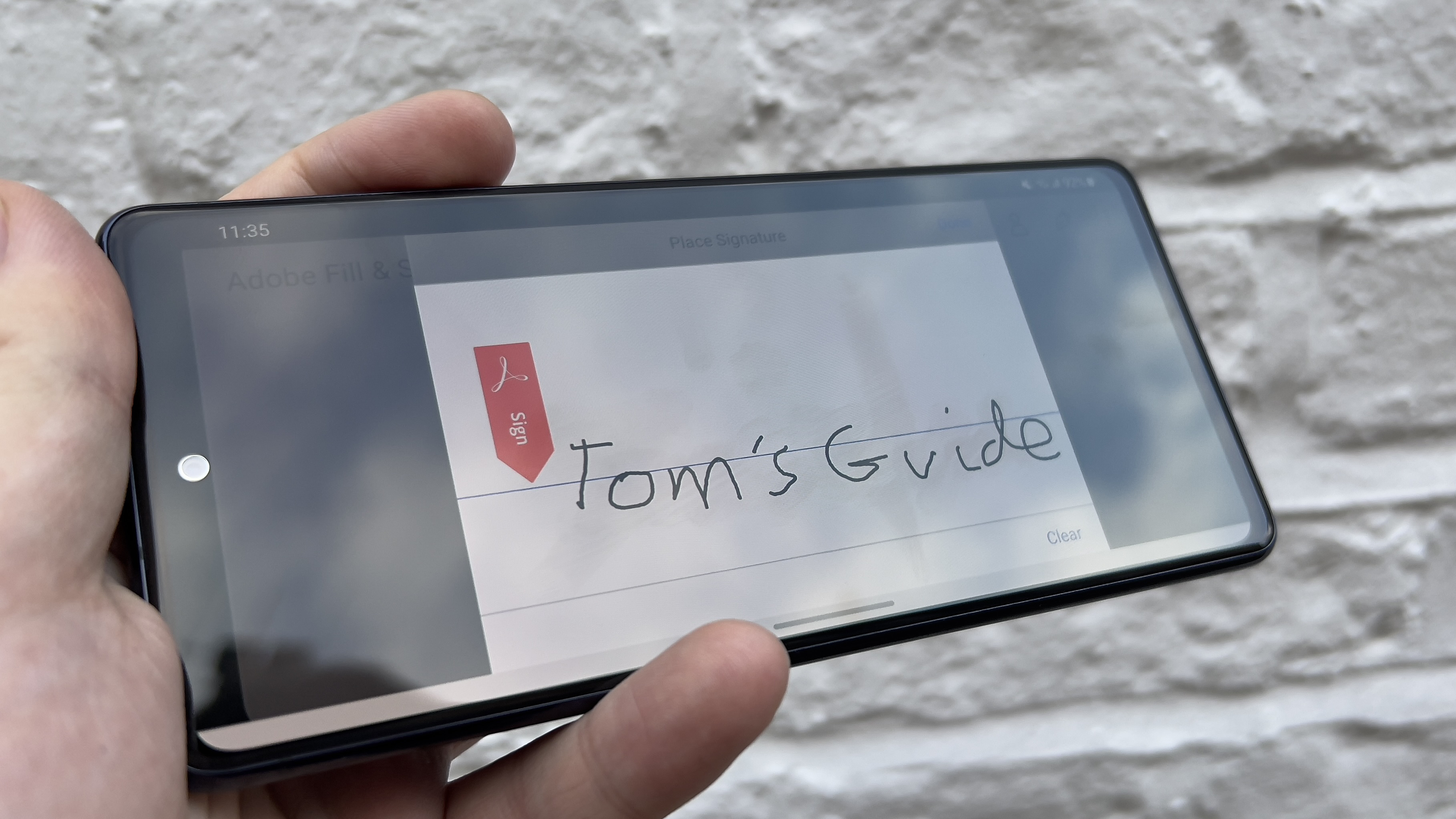
First things first, you're going to need to make sure you have the right tools for the job. You'll need to download a PDF viewer or editor app, like Adobe Fill & Sign or CamScanner, from the Google Play Store. Don't worry, it's easy peasy - just search for the app, click install, and you're good to go!
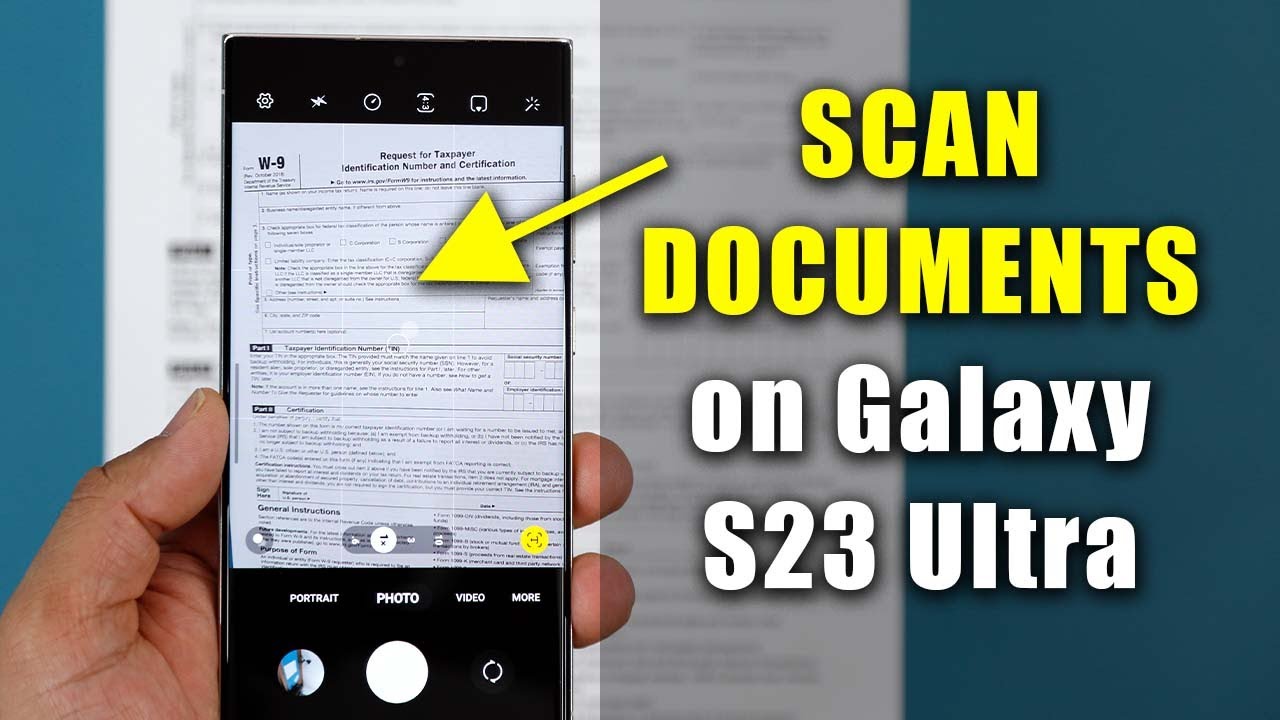
Once you've got your app, you can start by opening the document you want to sign. This might be a contract, a form, or even just a receipt you need to sign and return. Either way, the process is pretty much the same, so don't worry if you're not sure what you're doing - we've got this!
The Signing Process
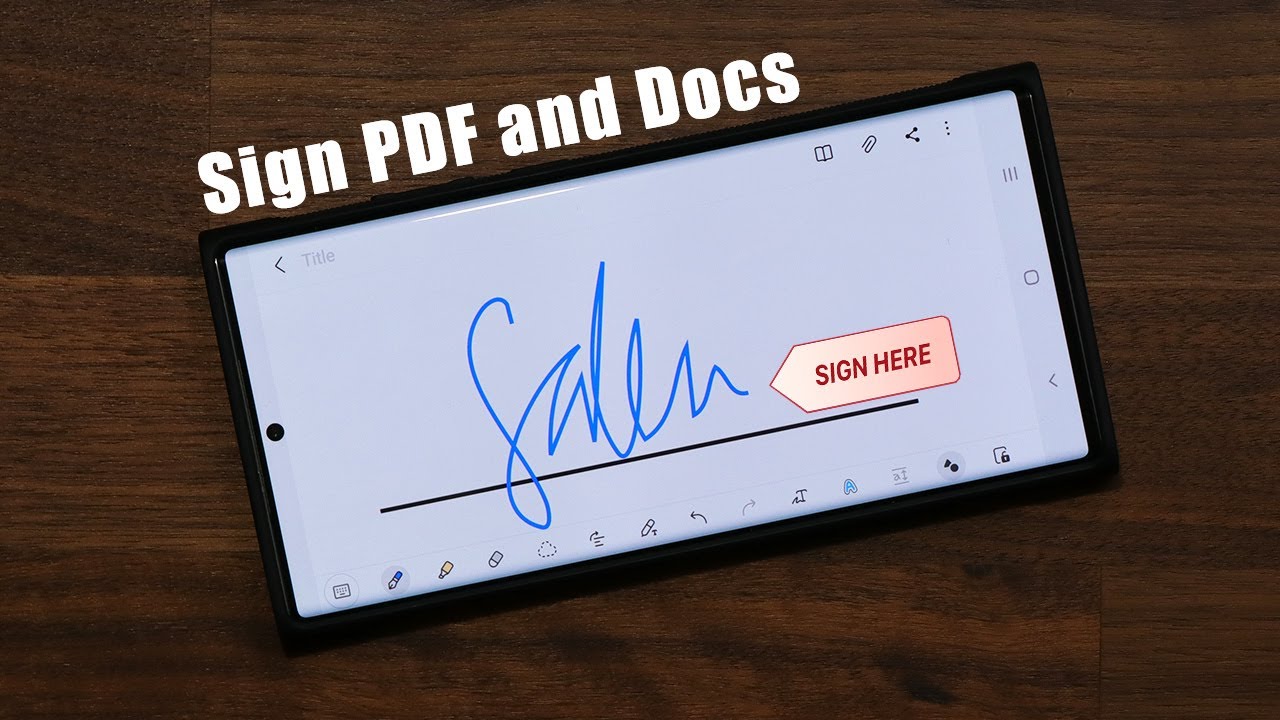
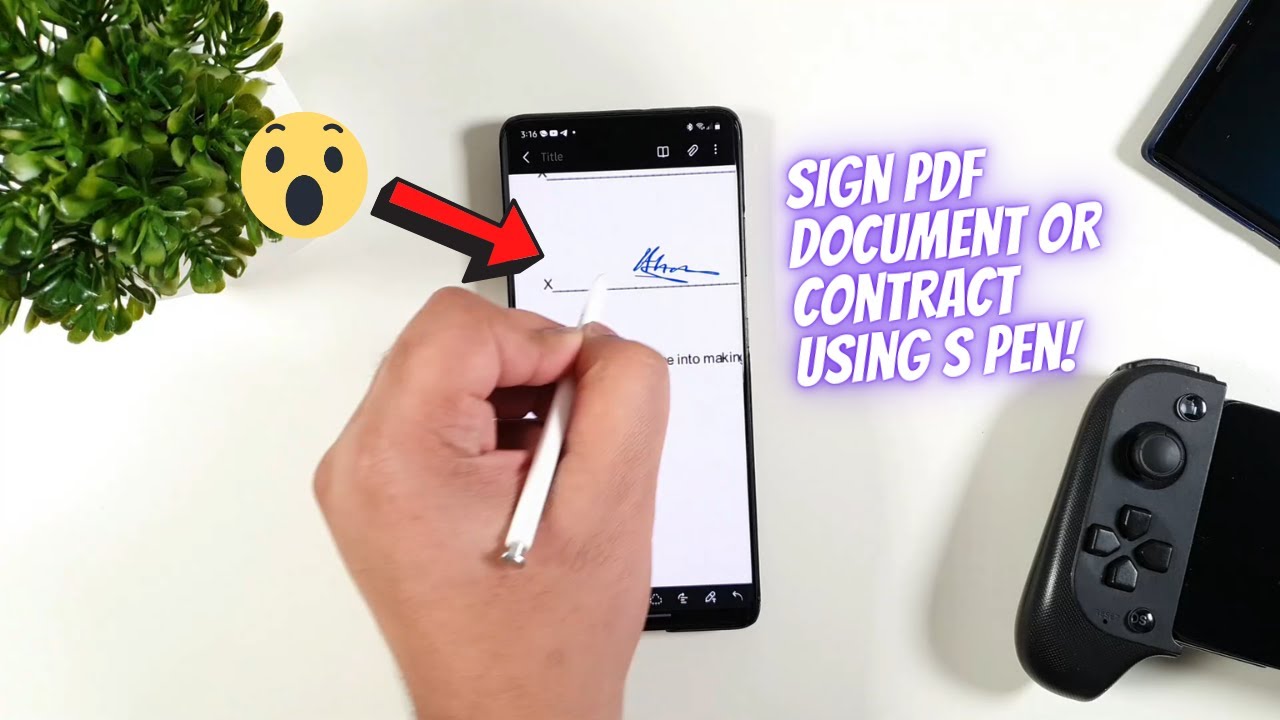
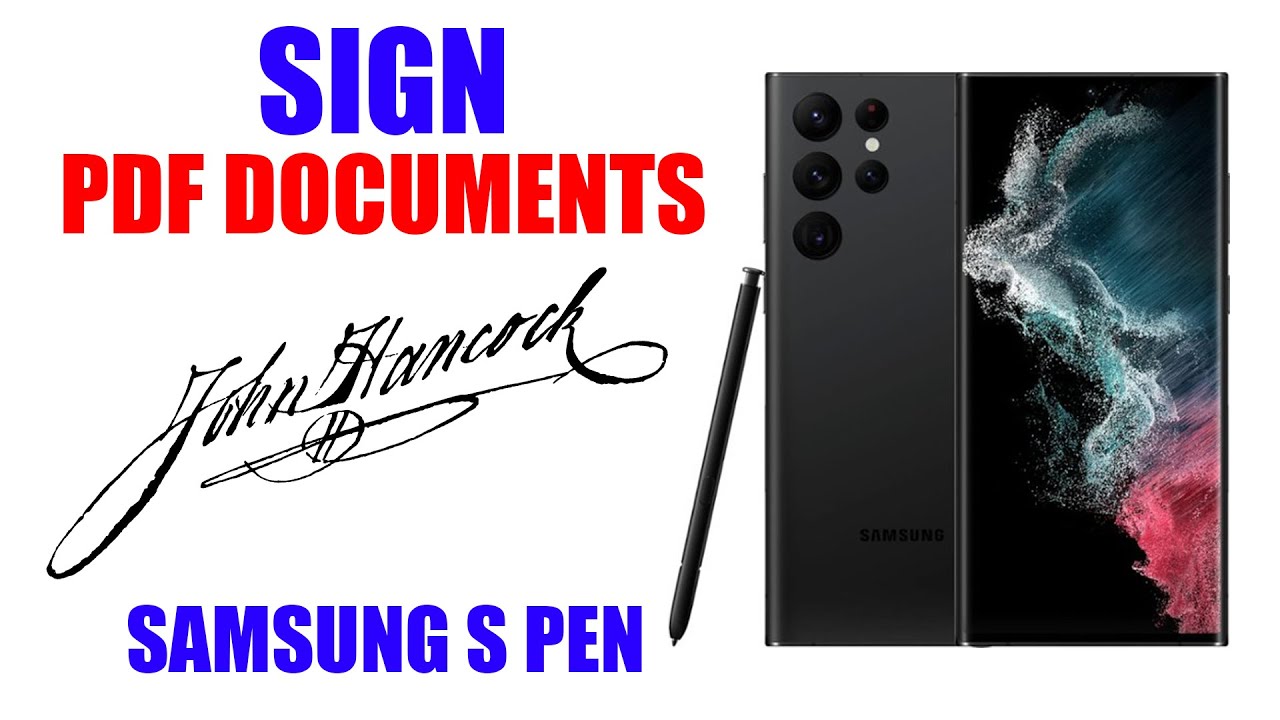
Now it's time to get signing! Most apps will give you the option to add a signature or draw one on the screen. If you're feeling fancy, you can even use a stylus to make it look extra fancy. Just remember, it's not about being a master artist - it's about getting that signature on the page!
As you're signing, you might notice that some apps will give you the option to add text or checkmarks too. This can be super helpful if you need to fill out a form or agree to terms. Just use your finger or stylus to tap in the right spots, and you're golden!
Tips and Tricks
One thing to keep in mind is that you might need to save your document after you've signed it. This will make sure that your signature is locked in and can't be changed. You can usually do this by tapping a save button or sharing the document via email or message.
Also, don't forget to check your settings to make sure your app is set up to store your signature. This will save you time in the long run, since you won't have to re-draw your signature every time you need to use it. It's all about being efficient, right?
Common Issues
Sometimes, though, things might not go exactly as planned. If you're having trouble getting your signature to work, try restarting your app or even your phone. It's like the old saying goes: have you tried turning it off and on again?!
If you're still having issues, you might want to check for updates or contact the app developer. They should be able to help you figure out what's going on and get you back on track in no time. After all, customer support is there to help, right?

Conclusion
And there you have it, friend! Signing documents on your Samsung phone is a breeze. With the right app and a little bit of practice, you'll be a pro in no time. So next time you need to sign something, don't stress - just whip out your phone and get it done!
Remember, it's all about being flexible and adaptable in our increasingly digital world. By learning how to sign documents on your phone, you'll be saving time, reducing paper waste, and feeling like a total rockstar. So go ahead, give it a try, and see just how easy it can be!
In the end, it's all about embracing the future and making the most of the tech we have available. So go ahead, sign those documents, and smile - you're living in the 21st century, and it's amazing! With that, I'll leave you to your digital signature adventures. Happy signing, and see you in the next tech tutorial!