How To Send Files Through Bluetooth
Let’s be honest: we’ve all been there. You snap a hilarious photo of your dog mid-yawn, but your friend is standing right next to you, and AirDrop is being picky about their device. Or maybe you’re on a hike, deep in the woods, where the Wi-Fi signal goes to die, and you need to share a PDF that’s too big for a text. Enter Bluetooth—the quiet, unassuming workhorse of wireless tech that has been around since the late '90s, patiently waiting for its moment to shine again.
The Art of the Handshake
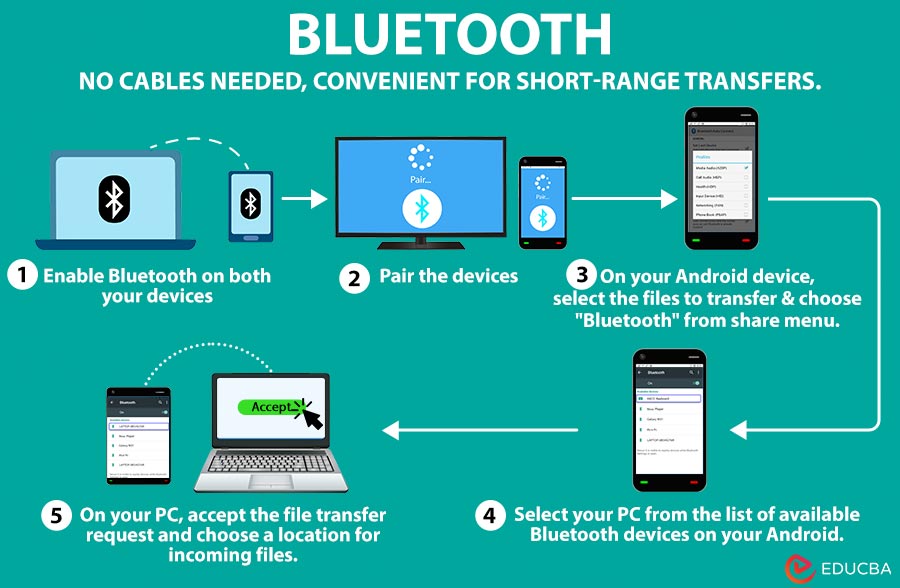
Think of Bluetooth pairing as a polite handshake before a conversation. It’s not about speed; it’s about connection. Before you do anything, make sure both devices have Bluetooth toggled on—usually found in your quick settings or system preferences.
On your phone, long-press the Bluetooth icon to open the full settings menu. On a laptop, look for the little Bluetooth symbol in the taskbar or menu bar. Pro tip: Keep both screens awake and unlocked during the entire process. A sleeping screen is like a person who nods off mid-conversation—it just kills the vibe.
Must Read
Step One: The Pairing Dance
For most modern phones, you don’t need to “pair” just to send a file; you can do a quick tap-to-connect. But for laptops or older devices, you’ll want to make the target device discoverable. On iPhones, go to Settings > Bluetooth and stay on that screen. On Android, it’s usually under Connections > Bluetooth, then tap “Pair new device.” On Windows, it’s Settings > Devices > Bluetooth & other devices, then “Add Bluetooth or other device.”
Your device will scan for nearby gadgets. When you see the target name—say, “Sarah’s MacBook” or “Dave’s Pixel”—tap it. You’ll usually see a six-digit code pop up on both screens. If the numbers match, confirm. If they don’t, someone else is crashing your party; decline and try again. It’s like a secret handshake that only you two know.

Sharing the Goods
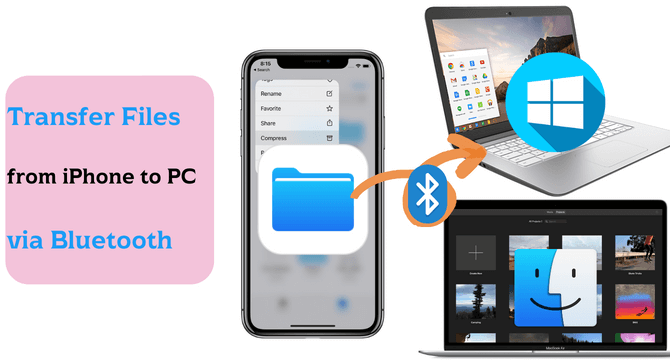
Now that you’re bonded, it’s time to send. On a phone, find the file in your gallery, file manager, or document app. Tap the “Share” icon (that little box with an upward arrow—you know the one). Scroll through the sharing sheet until you see “Bluetooth.” Tap it, and your phone will list nearby paired devices. Select your target, and the transfer begins.
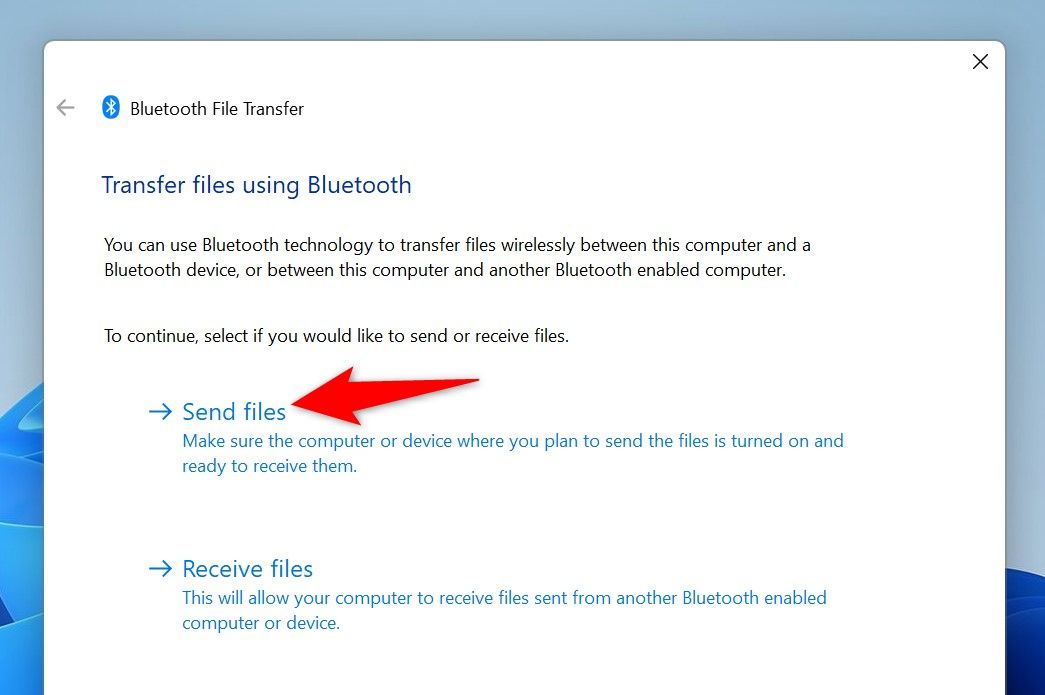
On a laptop, the process is similar. Right-click the file, select “Send to” > “Bluetooth device.” A window pops up asking you to choose a recipient. Click your device, and hit “Next.” Over on the receiving end, you’ll see a notification asking to accept the file. Do not click “Cancel” by accident—it’s heartbreaking to watch a transfer die at the finish line.
If It Gets Stuck
Bluetooth can be temperamental, like a cat that wants affection only on its terms. If the progress bar crawls or freezes, try moving the two devices closer—within three feet is ideal. Remove any thick walls or metal objects between them. Also, check that neither device is simultaneously connected to headphones or a smartwatch; Bluetooth can get jealous and split its attention.

Fun fact: The name “Bluetooth” comes from a 10th-century Danish king, Harald “Bluetooth” Gormsson, who united warring tribes. The tech was named after him because it unites different devices—and its logo is literally his initials in runes. Now you can impress your friends with that trivia while the file transfers.
Speed Limits and Reality Checks
Let’s set expectations: Bluetooth is not USB-C. It’s great for a 10MB photo, a short voice memo, or a contact card. But sending a 4K movie? You’ll be watching the grass grow. For larger files, you’re better off with a cloud link or a cable. However, Bluetooth wins when there’s zero internet, when you’re in airplane mode, or when you just want to avoid emailing yourself for the fifth time today.

Also, know that most phones compress files during Bluetooth transfer, which is perfect for casual sharing but not for raw photo editing. Keep that in mind before you send your entire portfolio to a client.
The Morning-After Reflection
In a world obsessed with instant cloud sync and gigabit Wi-Fi, Bluetooth feels wonderfully old-school. It’s a reminder that sometimes the most direct path is the one that doesn’t require a password or a signal tower. It’s the physical proximity that matters—you have to be close, aware, and intentional about what you’re sharing.
Next time you’re stuck without a signal, don’t roll your eyes. Embrace the Bluetooth handshake. Pause, look at the person in front of you, and send them that silly meme. It’s slow, a little clunky, but strangely intimate—like passing a handwritten note across a classroom. And honestly, in our hyper-connected world, a little bit of deliberate, close-range connection feels pretty good.