How To Send A Video From My Iphone
You just captured the perfect concert clip, a hilarious dog bloopers reel, or your kid’s first steps—and now your phone is groaning under the weight of a 4K masterpiece. Sending that video shouldn’t feel like wrestling a digital octopus, but we all know the dreaded “Uploading…” spinner that never ends. Whether you’re sharing with your grandma or your group chat of chaos, mastering this skill turns you into the hero of every conversation.
The beauty is that your iPhone has more than one trick up its sleeve. You can shoot a quick text with a compressed clip, or send a cinema-grade file that keeps every drop of quality. The purpose here is simple: get your video from your pocket to their screen without frustration, confusion, or a week-long wait. Let’s dive into the five easiest ways to make that happen, and you’ll never send a “blurry mess” again.
The Classic Text Message (For When Speed Matters)
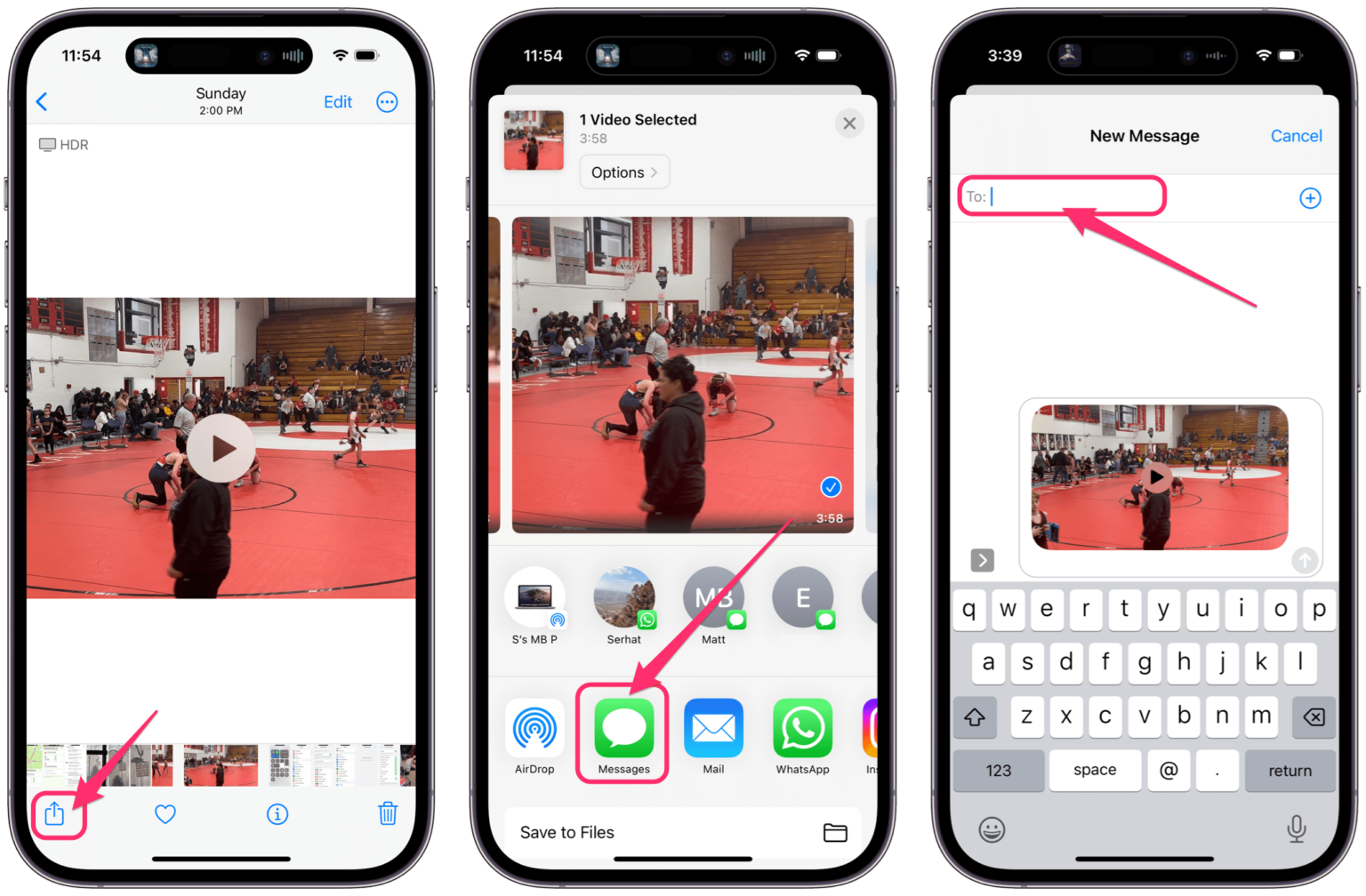
If you’re in a hurry and the video is under a few minutes, iMessage is your best friend. Open your conversation, tap the “+” button next to the text field, and select Photos. Choose your video, hit the blue arrow, and watch it fly—Apple automatically compresses it to a friendly size.
Must Read
This method is perfect for everyday sharing, but beware: the compression can make it look like a potato on a big screen. If you’re sending a clip that’s longer than 2–3 minutes, iMessage may automatically switch to Mail Drop or send a link instead. That’s fine, but it’s not the only game in town.
AirDrop (The Lightning Bolt of Sharing)
Forget the cloud—AirDrop is like teleporting your video directly to a nearby iPhone, iPad, or Mac. Swipe down from the top-right corner to open Control Center, tap the AirDrop icon, and set it to “Everyone” for a few seconds. Then, open your video in the Photos app, tap the share button (the box with an arrow), and select the person’s device that pops up.
This method is blazing fast and preserves full quality because it uses Wi-Fi and Bluetooth directly. The catch? You both need to be within 30 feet, and the recipient must have AirDrop enabled. It’s perfect for family dinners or handing a file to your coworker in the next cubicle.
Pro tip: If the AirDrop name doesn’t appear, ask the other person to turn their screen on and keep it unlocked. It works like magic afterward.
Email & Mail Drop (For The Professional Perfectionist)
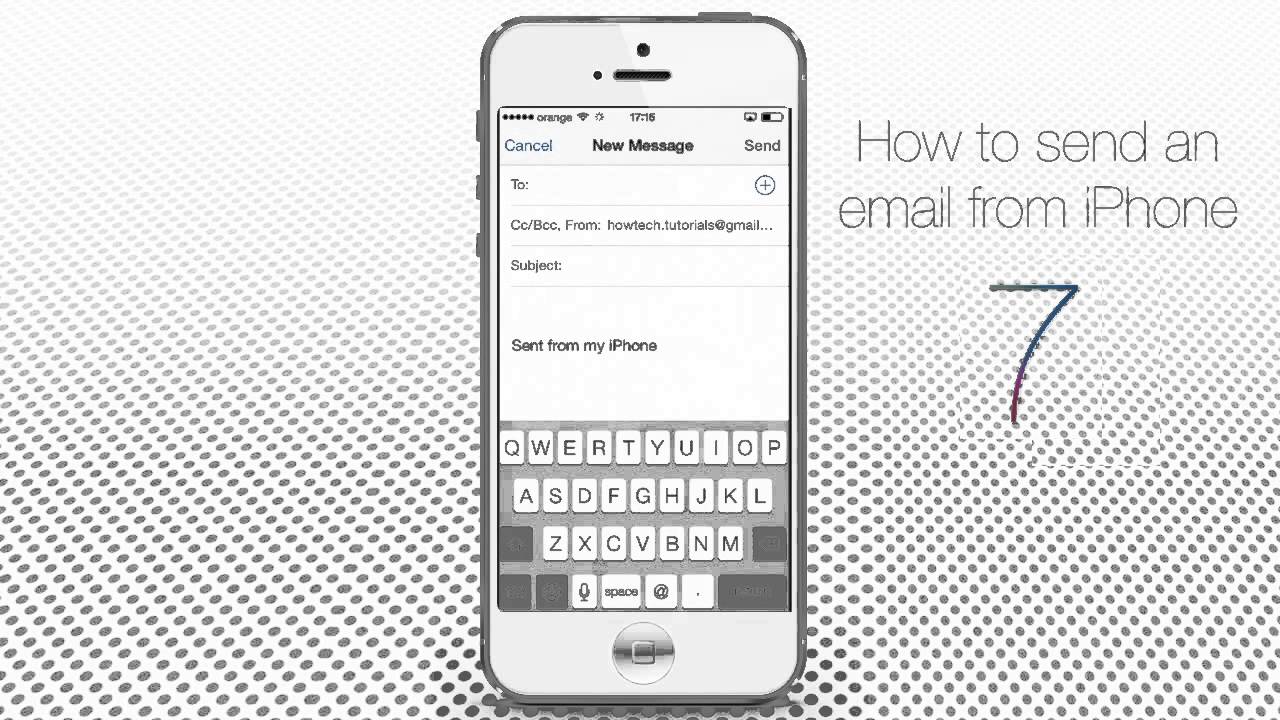
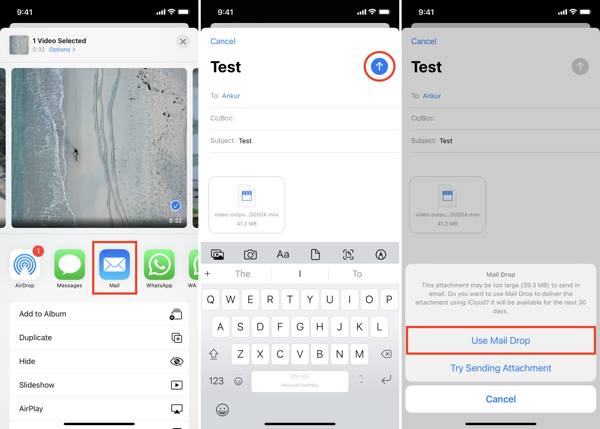
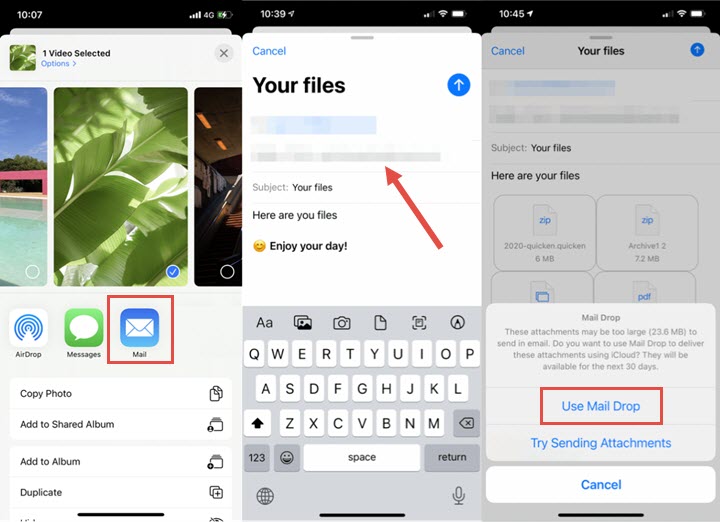
When you need to send a video to a client, a teacher, or yourself, email is still a champ. Open the Photos app, select your video, tap the share button, and choose Mail. For videos under 20MB, it attaches directly—easy peasy.
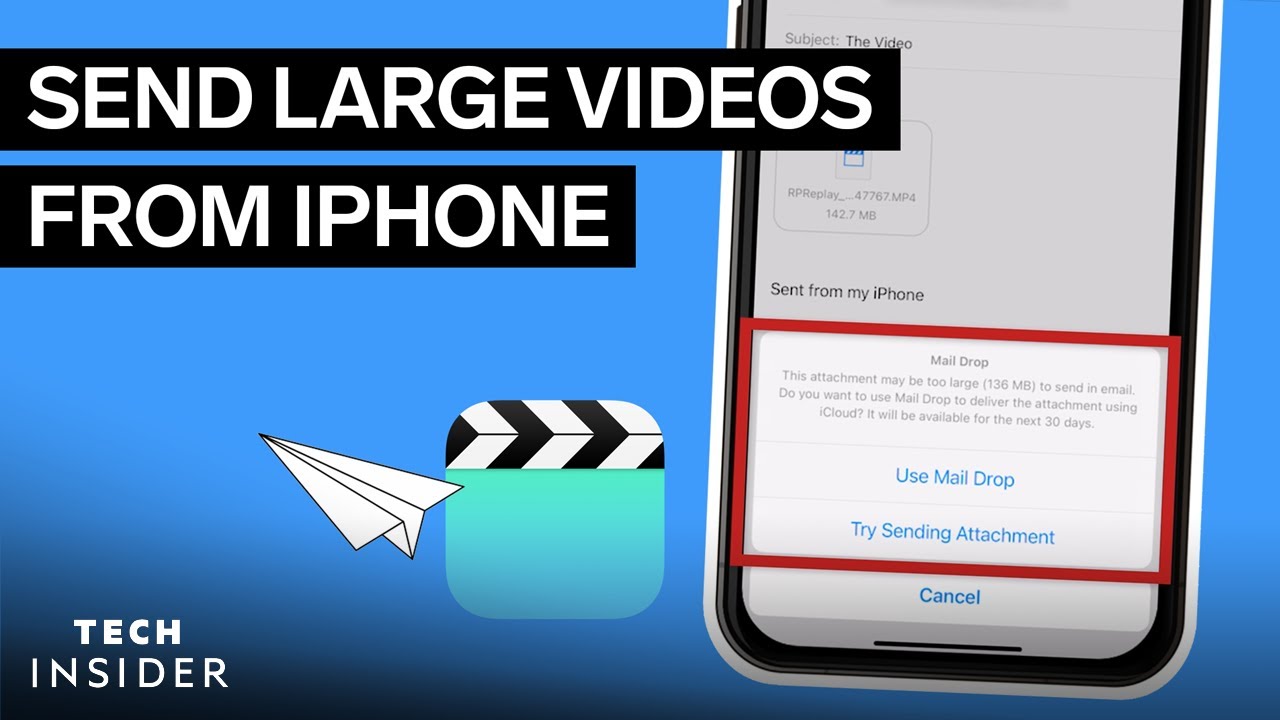
For bigger files (up to 5GB), your iPhone automatically uses Mail Drop, which creates an expiring link instead of a giant attachment. The recipient gets a clean email with a download link that works for 30 days. No clogged inboxes, no “undeliverable” errors.
:max_bytes(150000):strip_icc()/005_how-to-send-large-video-iphone-4580225-55205fdc032c47399a44aa32c23c24ae.jpg)
Just remember: the file expires, so tell your friend to download it sooner rather than later. And don’t panic if you see “Preparing” for a few seconds—that’s just your phone packing its bags.
Google Photos or iCloud Link (The Cloud Genius)
For that epic 10-minute wedding speech or a vlog-length video, skip the apps and go straight to the cloud. If you use Google Photos, upload your video there (it’s free for high quality), then tap the share icon and generate a link. Send that link via text, WhatsApp, or email, and anyone can watch it in their browser.
![[For All Needs] How to Transfer Videos from iPhone to iPhone](https://www.apeaksoft.com/images/transfer-data/transfer-videos-iphone-to-iphone/send-iphone-videos.jpg)
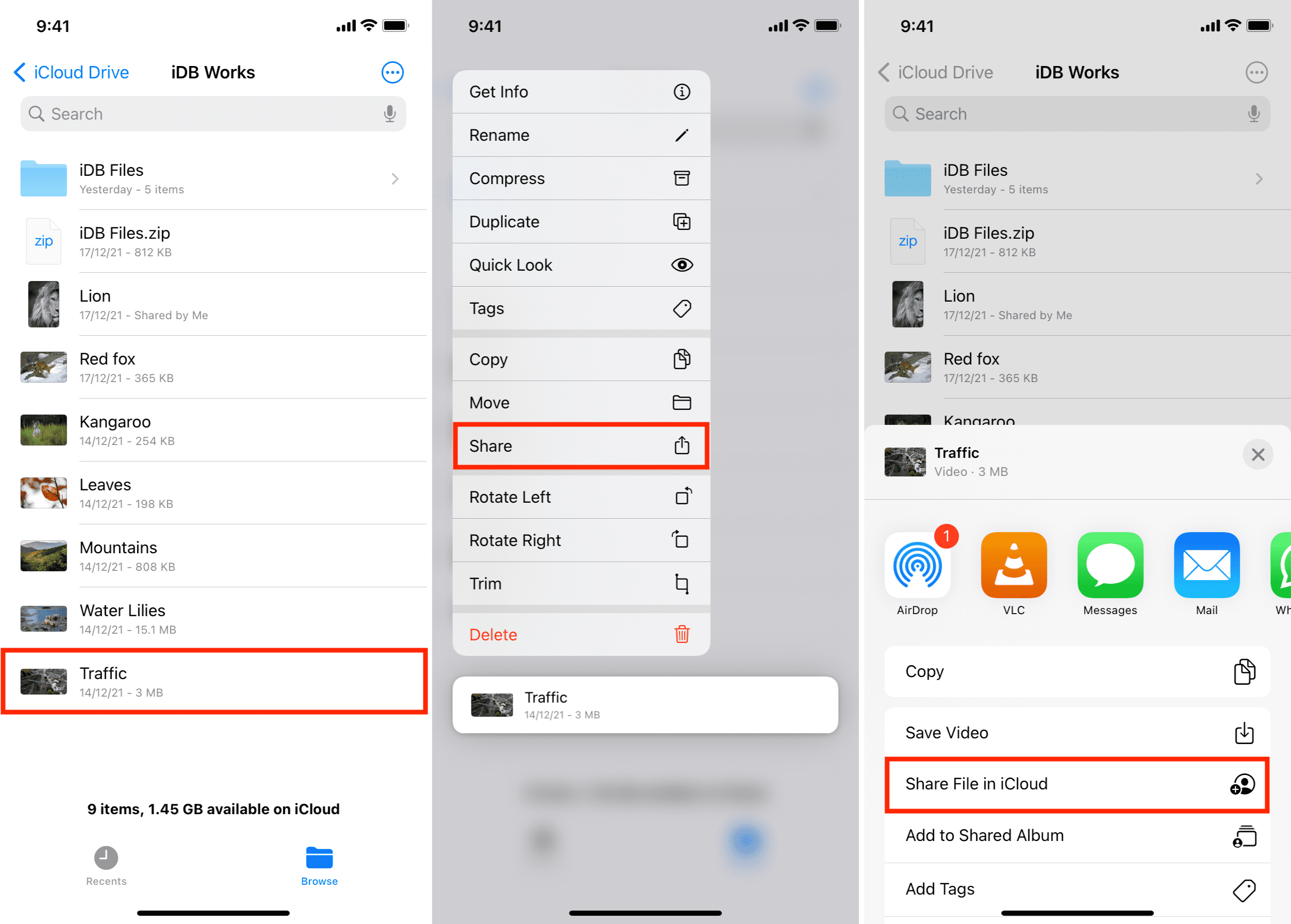
Apple users can do the same with iCloud Link: share a video from Photos, tap “Copy Link,” and send it. This method never compresses the file, and you control access—you can even stop sharing later. It’s the “set it and forget it” solution for heavy hitters.
Don’t want the whole internet to see it? Both Google and iCloud let you set “View Only” permissions, so your video stays private.
What About WhatsApp, Facebook, or Instagram?
Third-party apps are a mixed bag. They’re super convenient for quick sharing, but they often compress video harder than a suitcase at rush hour. For WhatsApp, tap the “+” icon, pick your video, and it’ll send a “document” version if you long-press the file—this keeps better quality than the default photo/video picker.
For Instagram or Facebook stories, you’re basically stuck with their compression, so keep clips short and punchy. If you need the best quality, use one of the methods above, then download from the cloud on the other end.
The Golden Rule: Check The File Size First
Before you hit send anywhere, tap your video in Photos, then swipe up to see the duration and file size. If it’s over 100MB, don’t even try a text—you’ll waste precious time. Instead, jump straight to AirDrop, Mail Drop, or a cloud link.
And if your video is gigantic (like 2GB), your best bet is to trim it down first. Open the video, tap “Edit,” drag the yellow sliders to keep only the good parts. A shorter, focused clip is always more fun to watch anyway.
Now go, grab that epic footage, and send it like a pro. Your friends will thank you, your phone will thank you, and you’ll never hear “hey, can you resend that?” again.