How To Search For A Gmail Account
Okay, let’s be honest—we’ve all been there. You’re staring at the login screen, fingers hovering over the keyboard, and your brain has officially gone on vacation. You know you have a Gmail account, but the email address? Gone. Vanished. Probably off somewhere sipping a piña colada with your car keys.
Don’t panic. Searching for a lost Gmail account isn’t like finding a needle in a haystack; it’s more like finding a needle in a stack of other needles, but with a really strong magnet. Google has built some genuinely handy tools for this exact moment of digital amnesia. Let’s walk through it together, step by step, with a cup of coffee and a sense of humor.
Step 1: The "Forgot Email?" Lifeline
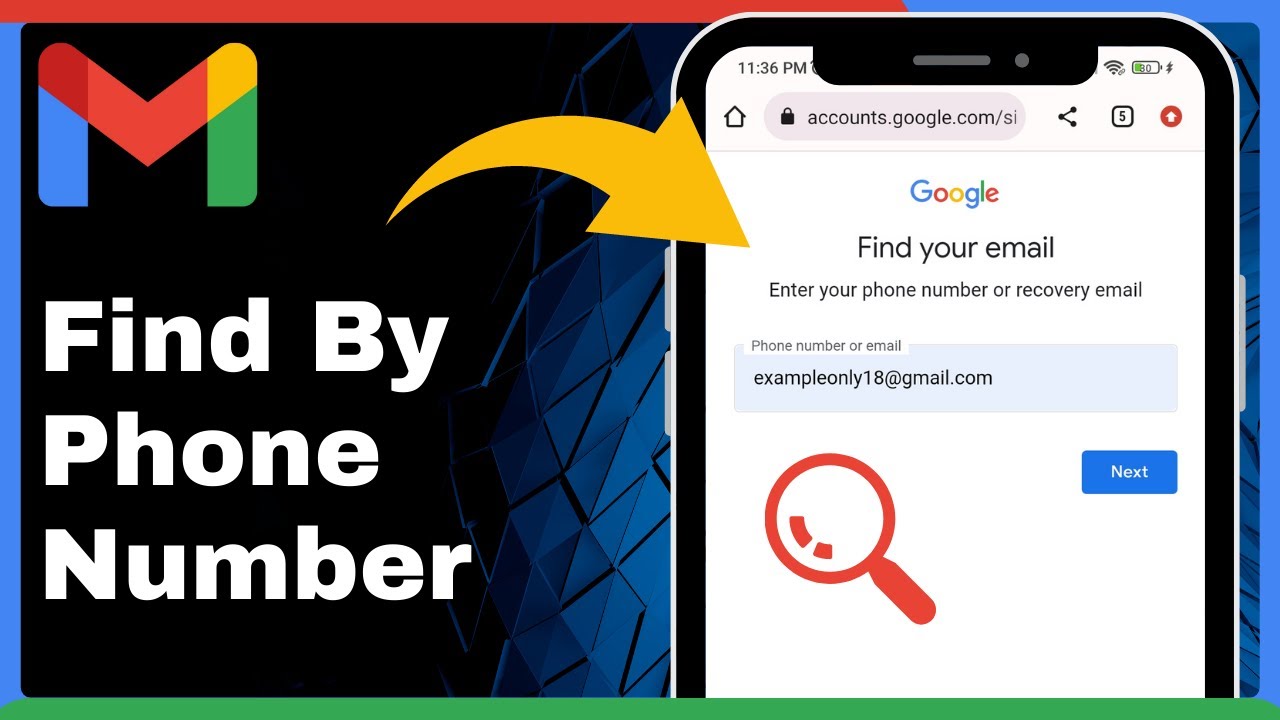
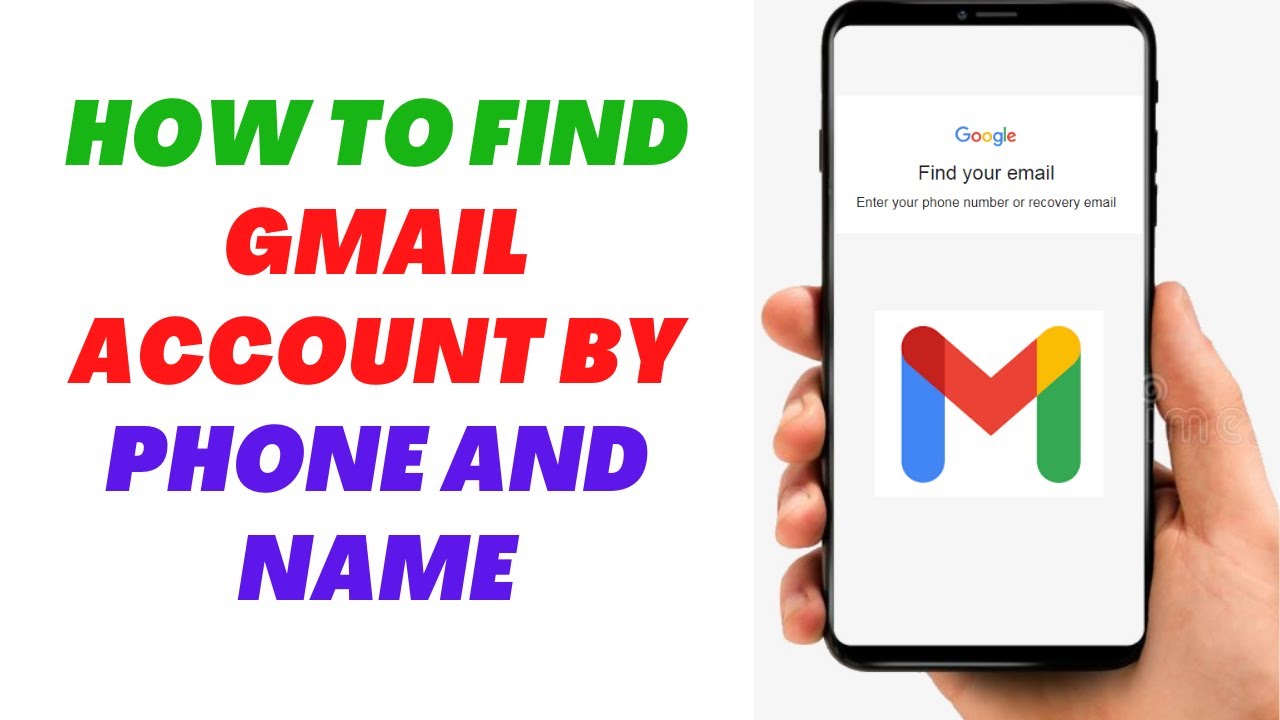
First things first, go to the Gmail login page and click that beautiful, underrated link: Forgot email? It’s usually hiding right below the password box, and it’s basically your golden ticket. This isn’t the “I forgot my password” button—this is the “I forgot who I am” button, which is much more serious.
Must Read
Google will ask you to enter a phone number or a recovery email address. Any email address you’ve used before, even one from a rival service like Yahoo, might work. Type it in, and Google will do its magic, showing you a masked version of your account name, like “jn.s[email protected].” It’s like a game show reveal, but instead of a car, you win your inbox back.
Pro tip: If you have more than one Gmail account (because who doesn’t have a “junk” account for signing up for free trials?), try each recovery method you can think of. Your future self will thank your past self for being so overly cautious.
Step 2: The Phone Number Trick
Did you ever link your phone number to your Gmail account? If yes, congratulations—you’re already halfway home. When you click “Forgot email?” and enter your phone number, Google can send a verification code via text. That’s right, your phone is basically the secret key to your digital kingdom.

But what if you don’t have access to that old number? Don’t sweat it. You can still try the “Try another way” link that pops up. It might ask you for the entire first and last name you used, or even a backup email. Just keep clicking through; it’s like a choose-your-own-adventure book, but with less dragons and more verification screens.
If you’re still stuck, skip ahead to the next step, because we have more tricks up our sleeve. And trust me, you are not the first person to lose an account this way. There are millions of us out there, wandering the internet with temporary passwords stuck in our notes app.
Step 3: The “Account Recovery” Page (The Big Gun)
When the simple prompts fail, it’s time to bring in the heavy artillery. Go directly to Google Account Recovery (just search for it, or type accounts.google.com/signin/recovery). This page is like the backstage pass to your own life. It will ask a series of questions: “When did you create this account?” “What was the first subject line of that email you sent in 2015?” Honestly, sometimes the questions are absurd, but answer them as best you can.
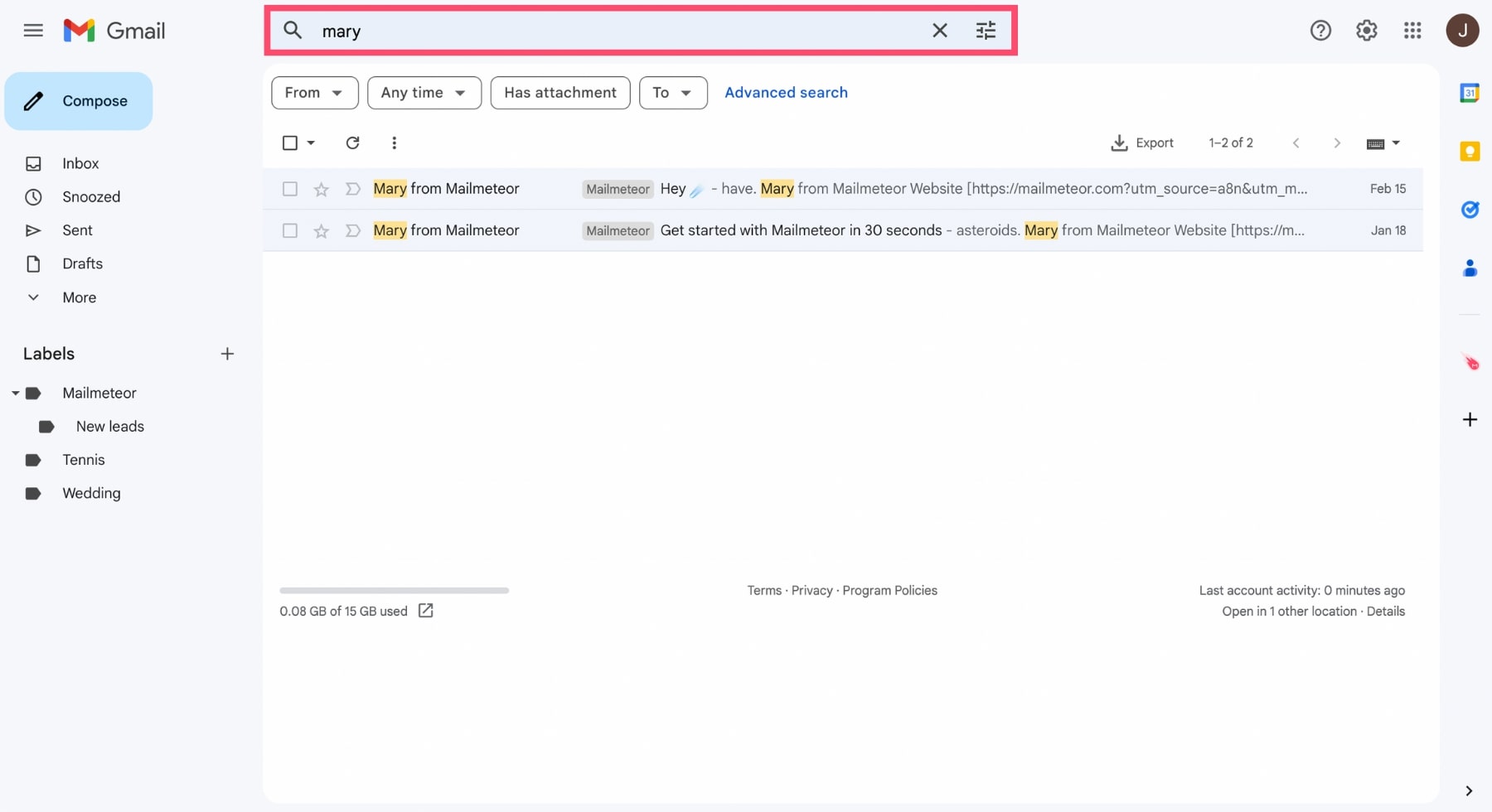
Here’s the trick: You don’t need to be 100% correct. Google looks for patterns and matches. Even if you get the date wrong by a few months, they might still grant you access if your other answers are solid. Think of it as a pop quiz where partial credit exists.
And if you remember any password you ever used for that account—even one from five years ago that you thought was clever (“ilovepizza123”)—put it in. It’s like giving Google a tiny piece of a puzzle, and they’ll do the heavy lifting from there.
Step 4: The “Check Your Other Inbox” Move
Wait, here’s a wild idea: maybe you never lost your Gmail account at all. Maybe you just forgot which email you used to sign up for Twitter, and now you’re spiraling. In that case, go to any service you use (Facebook, Instagram, Amazon) and try to reset your password on those platforms. They’ll often show you which email address is linked to your profile.

For example, if you click “Forgot password” on Facebook, it might say “We’ll send a link to j*[email protected].” Boom. That’s your Gmail. Your memory’s not gone; it’s just been hiding behind a bunch of other logins. It’s like finding your missing sock in the laundry basket—it was there all along, just tangled up in a towel.
Another option: search your computer’s browser for saved passwords. If you use Chrome or Safari, go to Settings > Passwords and look for “gmail.com.” You might find the email address right there, sitting pretty, waiting to be rediscovered. It’s like archaeology, but for your own digital life.
Step 5: The “When All Else Fails” Hack
Okay, you’ve tried everything, and Google is being stubborn. Your last resort is to answer the security questions you set up back in 2011, like “What street did you grow up on?” or “What was your first pet’s name?” If you can’t remember those, you might have to accept that this specific account is gone for good. It hurts, but it’s a bit like losing a favorite pair of jeans—eventually, you move on.
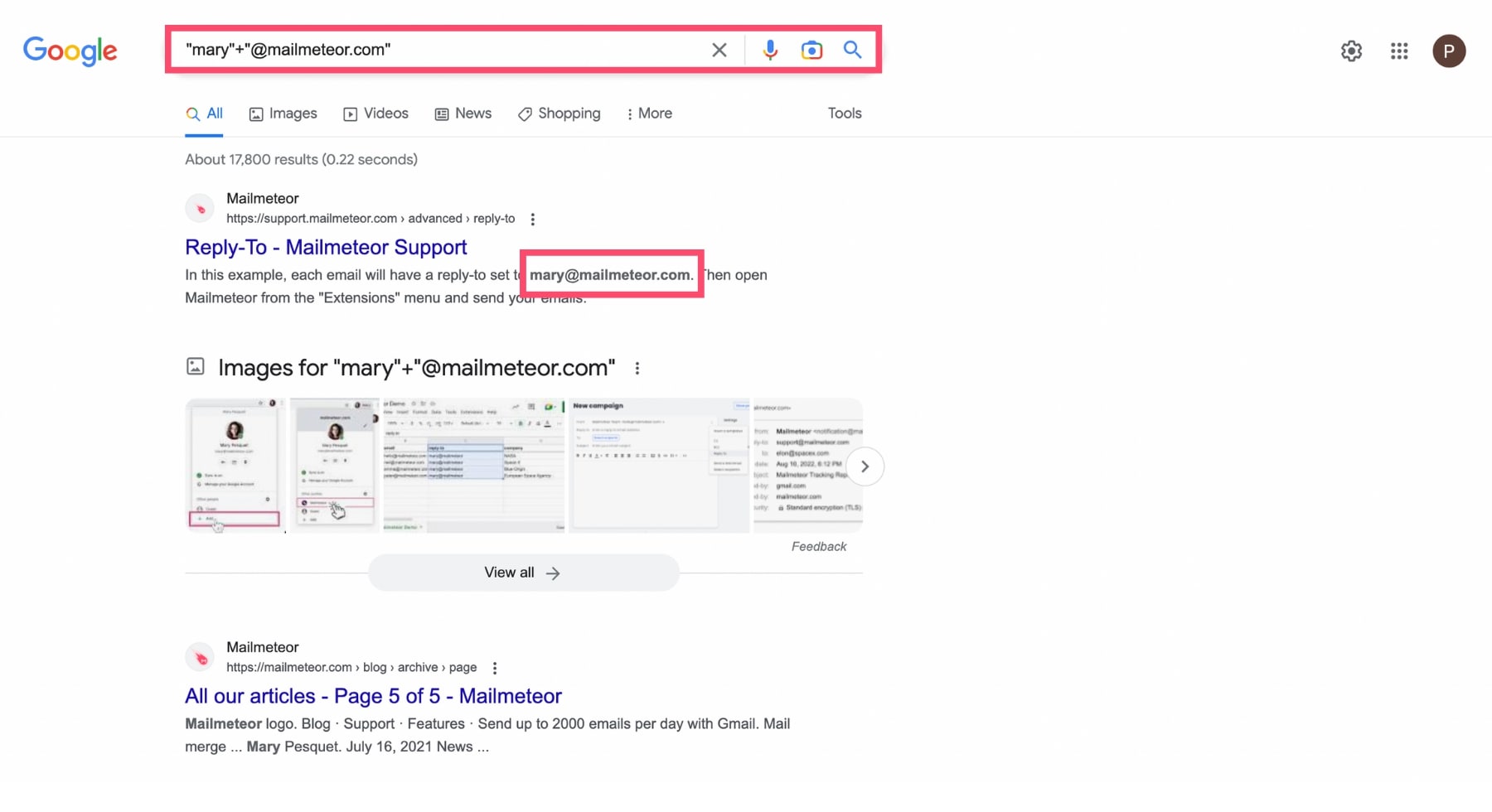
But before you do, consider this: even if you can’t get into the account, you can still create a new one in five minutes. And guess what? You can add that old, lost email as a recovery option on the new one. It’s not a full resurrection, but it’s a respectful memorial.
However, I’m an optimist. I believe 90% of you will find your account by Step 2. And for the other 10%? You’ll learn that sometimes losing an old inbox is like decluttering your brain. It’s a chance to start fresh, with fewer spam emails from 2016 and more room for cat videos.
You’ve Got This (And That’s a Promise)
Searching for a Gmail account is annoying, but it’s not the end of the world. It’s a temporary hiccup in your digital life, not a life sentence. Take a deep breath, grab a snack, and follow these steps slowly. You’re not a tech dummy; you’re just a human with too many passwords and not enough brain cells dedicated to remembering them.
And if you still can’t find it? Fire up a new account, tell your friends you “rebranded,” and move on with your life. You’ll have a shiny, empty inbox, free from old group emails and questionable purchase confirmations. Honestly? That sounds like a fresh start worth celebrating. Go find that account, or don’t—either way, you’re doing great, and your future emails will be just as wonderful as your past ones. Promise.