
How To Restore A Backup From Google

There was a time, not so long ago, when the phrase “computer backup” conjured images of whirring tape drives, stacks of floppy disks meticulously labeled with a Sharpie, and the quiet dread of a looming hard drive failure. In the nascent days of personal computing, our digital lives were fragile, tethered to physical media that could be lost, scratched, or demagnetized by a careless magnet on the fridge. The necessity was primal: we needed to preserve our work, our memories, and our increasingly digital identities against the chaos of entropy. The act of restoring a backup was a ritual reserved for the technically elite, a high-stakes procedure involving command prompts and proprietary software that felt less like a recovery and more like digital archaeology. We saved our files to ZIP disks, then to CD-Rs, each a temporary fortress against data loss, knowing deep down that the fortress was only as strong as the plastic it was printed on.
Then came the cloud, a nebulous term that promised to lift our digital burdens into the ether. Google, ever the pioneer, began weaving this promise into our daily lives, starting with Gmail’s seemingly infinite storage and slowly expanding into a comprehensive ecosystem. The initial iteration of Google's backup was less a conscious service and more a byproduct—your emails, contacts, and calendar were safe, but your local files remained your responsibility. The turning point arrived with the launch of Google Drive and, crucially, the background sync that made backing up an invisible, automatic process. The art of restoration, once a manual and fraught procedure, started its slow migration from the user’s hands into the silent, algorithmic grace of server farms. It was a paradigm shift: we stopped doing backups and began expecting them, placing an immense, sometimes blind, trust in the benevolence of a search engine that knew more about us than we did ourselves.
This evolution is easy to take for granted. We now live in an era where a shattered phone is less a catastrophe and more an inconvenience, where a new device can rise from the ashes of an old one in minutes, fully dressed in our apps, our photos, and our settings. This magic, however, is underpinned by a complex choreography of encryption keys, server redundancies, and metadata. For the average user, the process of restoring a backup has become startlingly simple—a few taps, a login, and a prayer to the Wi-Fi gods. But behind that simplicity lies a rich, forgotten history of technical workarounds, bizarre limitations, and the constant human desire to cling to our digital footprints. To truly master the restore is to understand the ghost in the machine, and to appreciate how far we have come from the days of manually copying files into a folder named “Backup_1999_FINAL (DO NOT DELETE).”
Must Read
The Digital Necromancy of Yesteryear: From Tape Drives to the First Click of Drive
Let us travel back to the late 1990s and early 2000s, a landscape dominated by the physical. For the average home user, backing up meant burning a CD-RW, a process so slow it required a certain monastic patience. The restoration process was equally laborious: inserting the disc, hoping the burner hadn’t introduced a buffer underrun error, and then manually dragging files back, often losing the folder structure in the process. For businesses and power users, the hardware was more cumbersome—the Iomega Zip drive, with its iconic "click of death," was a notorious gamble. A 100MB cartridge was considered immense storage, and a yearly rotation of tapes for system backups was standard protocol. The restoration of those tapes was a delicate dance with proprietary software, where one misstep in the tape order could render an entire week of work inaccessible. The stress was palpable; restoration was a last resort, not a routine operation, because it was performed by an IT professional who knew that their job security depended on not making a mistake.
But the true pioneer of the modern restore was the synchronization tool. Before Google Drive’s consumer launch in 2012, there was Google Desktop Search and the early incarnation of Google Sync, which focused primarily on calendar and contact data for enterprise users. However, the release of Drive was the watershed moment. It brought with it a strange new concept: a folder that was both local and remote. The restoration process at this point was still primitive by today’s standards. You couldn’t restore a full system image; you could only access individual files. If your hard drive crashed, you’d reinstall the OS, install Drive, and watch as your files slowly trickled down from the ether—a process that could take hours or even days depending on your connection. There was no "version history" as we know it now; if you overwrote a file and synced the bad version, the good one was often gone forever unless you had enabled specific, hidden settings. It was a time of digital purgatory, where the cloud held your data hostage to your bandwidth.
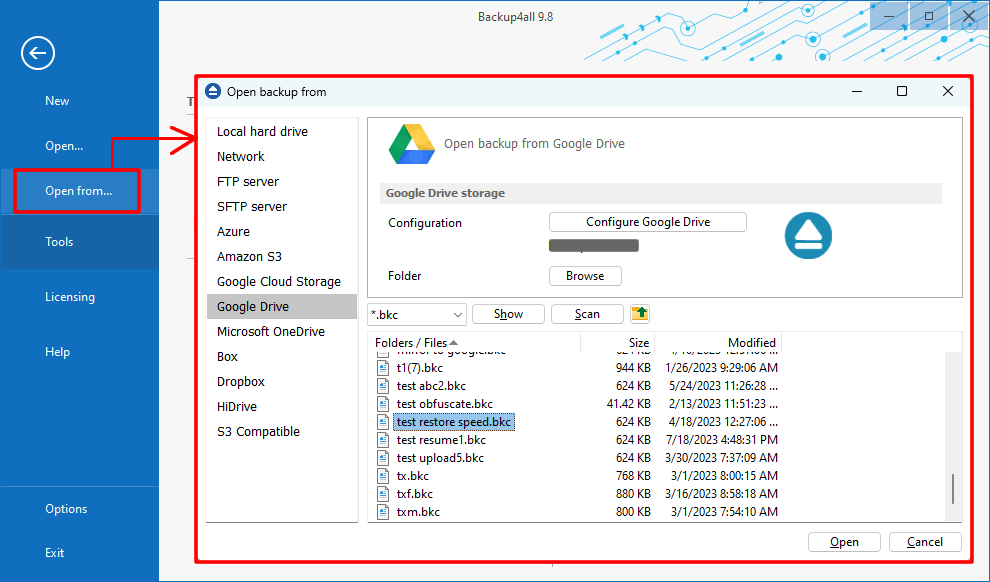
Perhaps the most bizarre relic of this era was the concept of the "selective sync" workaround. In the early days, Google Drive had a storage limit that was generous for documents but miserly for photos. Users would cleverly create multiple accounts, storing one type of data in one account and another in a second, effectively creating a Frankenstein’s monster of a backup system. Restoring then required logging into multiple web interfaces, downloading .zip files of entire folders (which often failed midway due to size limits), and hoping the integrity of the data wasn’t corrupted in transit. For photos, the introduction of Google+ Photos provided a separate, and initially, an unlimited storage space for compressed images. This created a bifurcated backup reality: full-resolution files were for the local drive, while compressed shadows lived in the cloud. The restoration process for a photographer was therefore a two-step, soul-crushing decision: do you want the convenient copy or the high-quality original?
Another forgotten fact is the evolution of the "Trash" bin. In the pre-cloud era, deleting a file was a permanent act, save for the Undo button. With Google Drive, the Trash became a safety net, but it was a flawed one. Initially, files in the trash would be automatically purged after 30 days, with no way to extend that grace period. Users who discovered a critical missing file after a month of it sitting in the trash were met with a stark, empty folder. This instilled a generation of digital hoarders, people who refused to delete anything, creating sprawling folders of meaningless data just to avoid the finality of deletion. The restoration of a file from the trash was seen as a minor miracle, but the lack of control over the purge timer forced users to develop bizarre habits, such as manually "undeleting" files and re-deleting them just to reset the clock. It was a strange, neurotic dance with the algorithmic grim reaper.
Modern Alchemy: How Classic Restore Principles Are Being Reforged for the Instant Age
Today, the principle of restoration has shifted from "doing" to "orchestrating." The classic, hands-on backup is now considered archaic. We live in the era of the "zero-click" restore, where Google’s services have become so integrated that a restore is essentially a system re-hydration. The modern hacking of the old principle involves using the cloud not as a backup, but as a source of truth. When you set up a new Pixel phone, the device pulls your apps, your wallpaper, and even your Wi-Fi passwords—not from a single backup file, but from a fragmented, dynamic database that updates in real-time. The modern user doesn’t restore a "backup"; they simply authenticate their identity and the device rebuilds itself from the collective memory of their Google Account. This is a monumental departure from the restores of old, which were point-in-time snapshots. Now, the restore is a live, continuous process that never truly pauses.
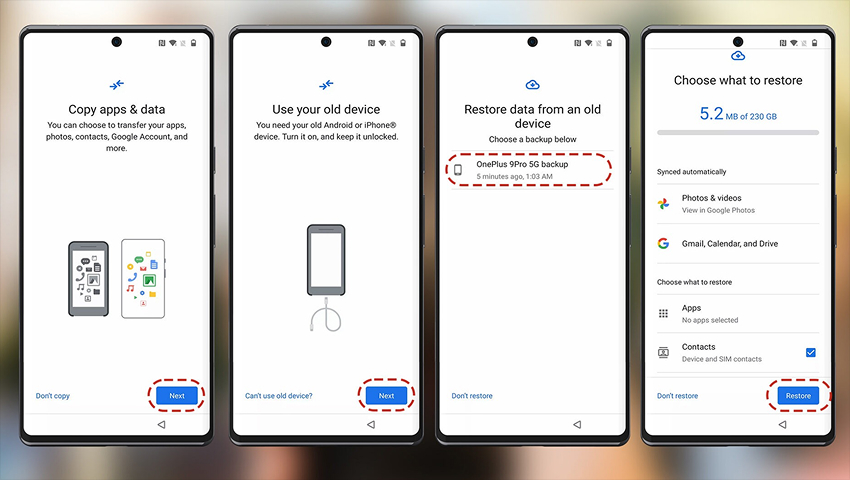
The modern "hack" lies in using Google One’s advanced features, such as automatic phone backup and the ability to restore to a different device model. This was unthinkable a decade ago, where a restore was often tied to the exact hardware. Now, the AI-driven restoration can remap your data to a completely different device, accounting for different screen resolutions and hardware capabilities. Furthermore, the principle of "version history" has been completely modernized. Once a manual, inconsistent feature, it is now ubiquitous in Google Docs, Sheets, and Slides, allowing for granular "time travel" through a document’s life. This is the ultimate hack: the ability to not just restore a file, but to restore a moment in that file’s creation, effectively undoing mistakes that would have been catastrophic in the pre-cloud era. The classic principle of "saving" has been replaced by "versioning," and the restore is no longer a recovery act, but a creative tool for revisionist history.
Unearthing the Digital Past: Your Most Urgent Questions Answered
Can I restore my entire computer (a full system image) from a standard Google Drive backup?
This is the great misconception of the modern age. In the era of floppy disks, a backup meant a complete mirror of the disk. With Google Drive, however, you are not backing up your operating system, your installed applications, or your drivers. The consumer-level Google Drive backup is a file-level backup, not a block-level image. 2012 Google Drive did not, and still does not, offer a full system image restore for Windows or macOS. If your computer’s hard drive dies, you must reinstall the operating system from a USB drive or recovery partition, then sign into Drive and retrieve your files. The restoration is of your data, not your environment.
However, the myth persists because of how seamless the process can feel when you get a new phone. On Android, Google’s backup service does capture a device state, including settings, installed apps, and call history, because the hardware is tightly controlled. This creates a false sense of parity for desktop users. To truly restore a desktop PC, you must use dedicated imaging software (like Acronis or Macrium Reflect) that uploads a compressed image to Google Drive via a third-party tool, or you must manually recreate your environment. The historical lesson here is that the cloud is a beautiful cabinet of memories, but it is not a resurrection device for the hardware itself. The OS is the skeleton, data is the flesh, and Google only provides the flesh.
Why is my Google Photos backup restored in "storage saver" quality, and where is my original file?
Ah, the old bait and switch. This harkens back to the 2015 launch of Google Photos, which offered "free unlimited storage" for high-quality (compressed) photos. This was a brilliant marketing move that locked millions into the ecosystem, but it created a restoration nightmare. When you restore from a Google Photos backup, you are often restoring the compressed version, not the original RAW or high-resolution file. The original, untouched file may have been deleted from your local drive to save space, meaning the restoration process actually gives you a lesser copy of your memory. The bitrates are lower, the color depth is reduced, and the metadata might be stripped or altered.
To avoid this, you must navigate to the specific settings and ensure your backup is set to "Original quality," which now counts against your Google One storage quota. The historical confusion stems from a time when Google gave away storage as a loss leader. The "storage saver" option was a trade-off: convenience and free space in exchange for fidelity. When restoring, the system assumes you want the convenience version, not the archival one. During a restore, you must actively select "Original quality" to download the high-res file, but if the original was never backed up and the compressed version was, you are out of luck. The lesson is that the cloud, like a memory, is prone to forgetting the details unless you explicitly pay for the luxury of remembering them fully. Always check the "Original quality" toggle before your drive dies.
How do I restore files from the trash after 30 days have passed?
A decade ago, the answer was a bleak “you can’t.” The 30-day purge policy was sacrosanct, designed to manage server costs and enforce a semblance of digital hygiene. However, the modern reality has evolved, though not for the average consumer. Google now retains deleted data for enterprise accounts under "vault holds," but for personal accounts, the window is still fundamentally strict. However, a forgotten nuance is the difference between the Drive trash and the Photos trash. Photos have a 60-day trash window, while Drive files have a 30-day window. This discrepancy was a frequent source of heartbreak for users who deleted a file in Drive, expected it in Photos, and found it gone.
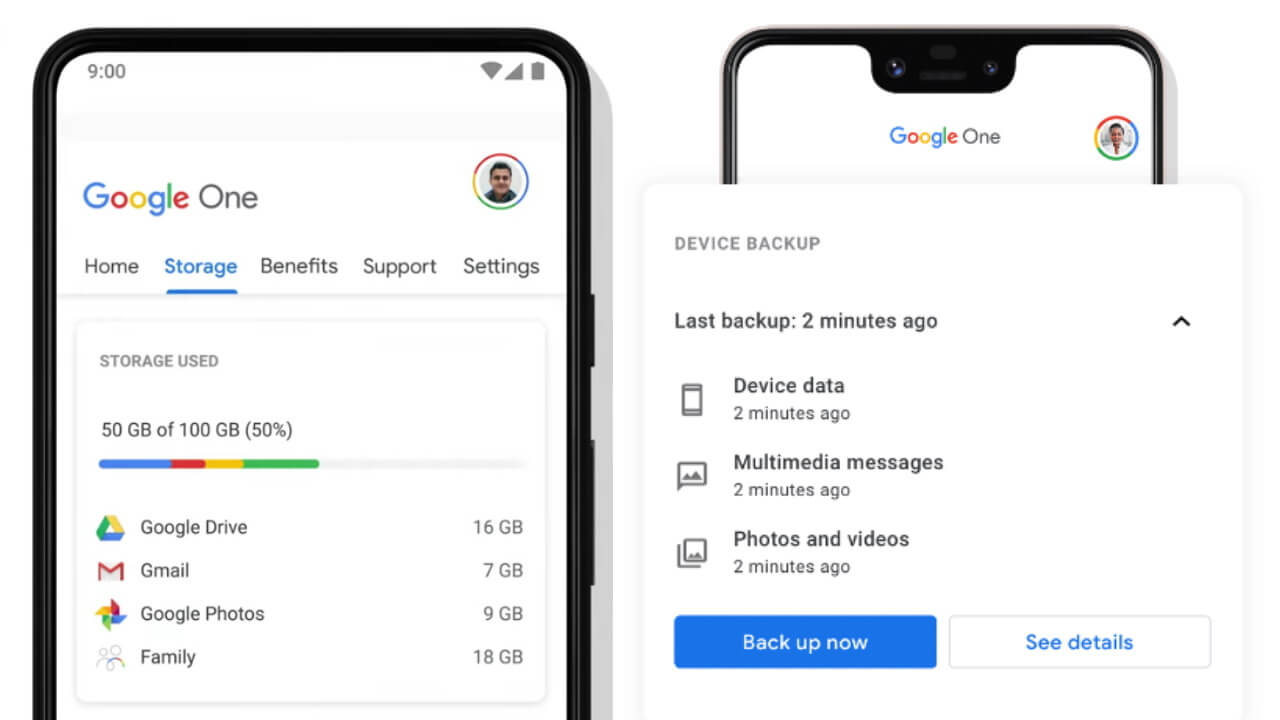
For personal accounts, the only modern workaround is the "My Activity" log or the robust version history in Docs and Sheets. If you had a document open, you can sometimes retrieve older versions even if the file was "deleted" by checking the version history of a linked file—a feature that was virtually nonexistent in the early 2010s. If the file was purely a stream of binary data like an image or a video, and it’s been 31 days, it is gone, permanently, encrypted and purged. The bridge between historical myth and modern fact is that Google has never really offered a consumer-grade "undelete" service for the trash. The myth persists because of the company’s vast storage capabilities; users assume that a giant server can keep everything. It can, but Google chooses not to for liability and privacy reasons. Your only true defense is to treat the Trash bin as a temporary hotel, not a permanent home, and rely on the version history of your primary documents, not the bin itself, for disaster recovery.
Looking forward two decades, the concept of a "backup" will feel as antiquated as a floppy disk does today. The next revolution will likely be a shift from explicit restoration to replication. We will not restore a backup; we will simply "resume" our digital existence on any surface—a wall, a pair of glasses, a holographic display—because our data will be streamed, not stored. The cloud will become a true extension of our consciousness, with Google acting as a biological memory index. The idea of losing a file will be replaced by the idea of "losing time," where your entire digital history is continuously indexed and searchable, not just in terms of files, but in terms of mood, location, and context. Restoration will be instantaneous and predictive; the system will know you dropped your phone and will pre-load your important files onto your new device before you even open the box.
Yet, this utopian fluidity must be met with analytical caution. As we hand over more of our digital restoration to AI, we lose the tangible understanding of our data’s architecture. The nostalgic ritual of manually selecting files to back up, of feeling the weight of a hard drive, will be a forgotten art. In 20 years, the question won’t be "how do I restore my data?" but "how do I ensure my data was ever mine?" The human necessity behind the backup—the desire for permanence against the ephemeral—will remain, but our method will be a silent prayer to an omniscient algorithm. The greatest risk is not data loss, but data oblivion—where we are so seamlessly synced that we forget we are machines in a series of tubes, and the restore is just a minor adjustment in the flow of our digital bloodstream.
![How to Backup GBWhatsApp Chats to Google Drive [2025]](https://imobie-resource.com/en/support/img/restore-google-drive-backup.png)
![[3 Effective Ways] How to Restore Backup from Google Drive](https://images.anyrecover.com/anyrecoveren/assets/article/android_recovery/restore-files-from-google-drive.png)