How To Reset The Samsung Galaxy Tab A
So, your trusty Samsung Galaxy Tab A is acting up. Maybe it’s frozen on a single, unblinking app, or it’s slower than a snail on a coffee break. Before you panic or start shopping for a new tablet, let’s take a deep breath.
Resetting your Tab A is like giving it a brand-new brain, and honestly, it’s way easier than you think. It’s the digital equivalent of opening all the windows in a stuffy room. Let’s figure out which kind of reset works for your particular kind of chaos.
The “Gentle Nudge”: A Soft Reset
Think of this as a power nap for your tablet, not a full surgery. This is for when the screen is unresponsive or the whole thing is just feeling a bit groggy. You’re not wiping anything, just giving the hardware a quick kick.
Must Read
All you have to do is press and hold the Power button and the Volume Down button at the same time. Hold them for about ten to fifteen seconds, and just watch. The screen will go black, and then the Samsung logo will pop back up like a cheerful “hello again.”
That’s it! You’ve just done a soft reset, and your data, photos, and apps are all safe. It’s the perfect fix for a weird glitch that won't go away. If your Tab A was a person, this is just them blinking really hard and shaking their head.

The “Clean Slate”: A Factory Reset
This is the big one. We’re talking about wiping the hard drive and returning the tablet to its out-of-the-box glory. Use this when you’re selling it, giving it away, or if the soft reset didn’t cure a deeper, more philosophical software crisis. It’s like moving out of a house and leaving it completely empty for the next tenant.
Just a heads-up: this will erase everything. Your photos, messages, app logins—all gone, faster than a slice of pizza at a party. So before you dive in, make sure you’ve backed up your precious data to the cloud or a computer. Seriously, double-check that.
Find The Magic in Settings
The easiest route is through the tablet’s own menu. Open the Settings app (the little gear icon). Scroll down and tap on General Management. Then, look for the option that says Reset and tap on it.
You’ll see a few choices, but you want the one that says “Factory data reset.” Tap that, scroll down to the bottom, and hit the red button. It will ask if you’re really, really sure—just like when you try to cancel a streaming service. Confirm it, and then grab a snack while the tablet does its thing.
Feeling Stuck? Use The Buttons
What if your Tab A is so frozen that you can’t even open the Settings? No worries, we’ve got a backup plan. This is for the real emergencies, the software equivalent of a zombie apocalypse.

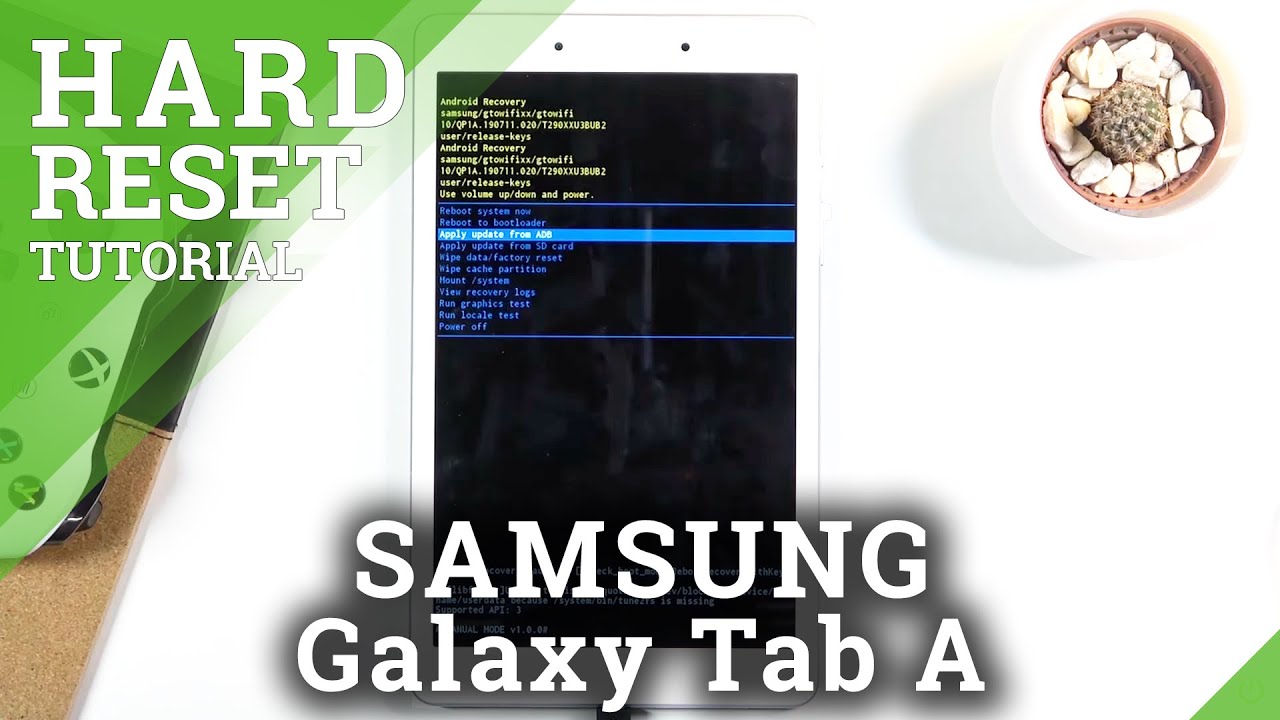
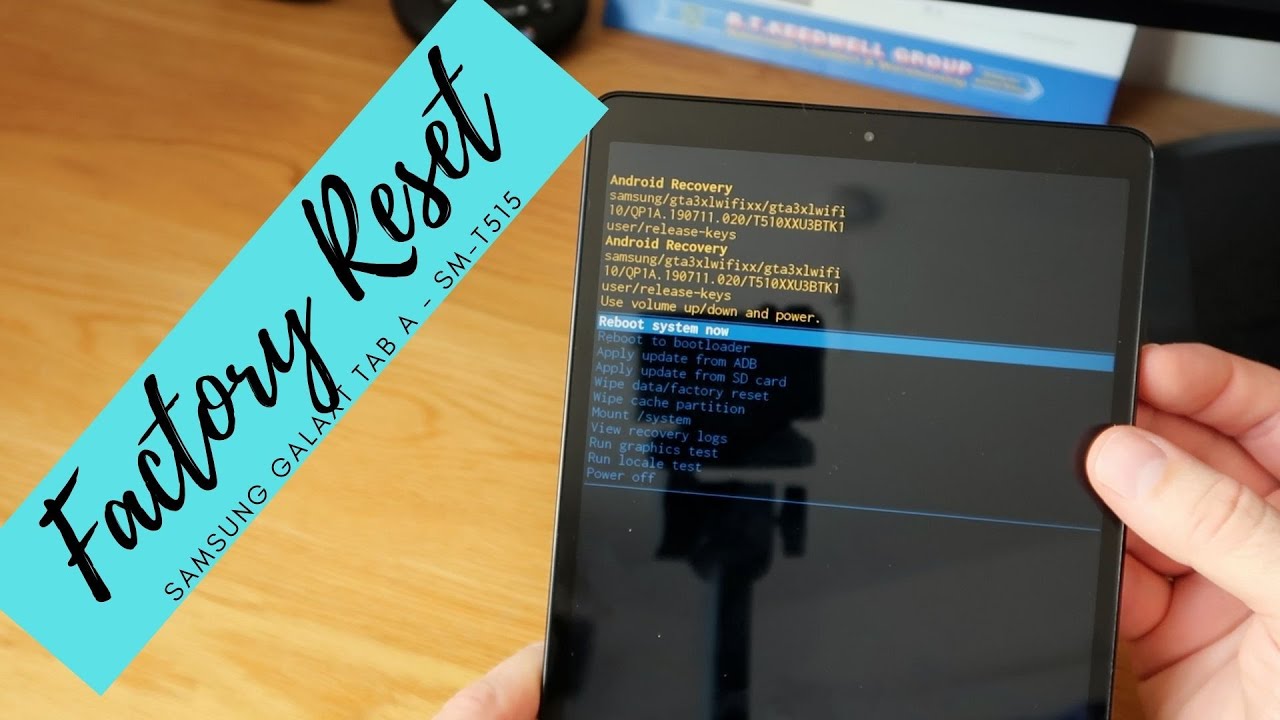
First, turn the tablet off completely. Then, press and hold the Volume Up button and the Power button together. Keep holding until you see the Samsung logo, then let go of the Power but keep holding Volume Up until you land in a blue-screen menu called “Recovery Mode.”
Here, you use the Volume buttons to navigate and the Power button to select. Scroll down to “Wipe data/factory reset” and select it. Then choose “Yes” and let the magic happen. Once it’s done, pick “Reboot system now,” and you’ve got a shiny, fresh tablet.
Think of it this way: a soft reset is tripping your breaker, a factory reset is rewiring the house. Both are cool, but now you know exactly which tool to pull from your belt. So, which problem are you fixing today?