How To Reprint Shipping Label On Ebay App
I'll never forget the time I accidentally threw away the shipping label for a package I was supposed to send to a buyer on eBay. I was in a rush, and in my haste, I tossed the label in the trash along with some unwanted paperwork.
So, if you're like me and have ever found yourself in a similar situation, don't worry, I've got you covered. In this article, we'll go over the simple steps to reprint a shipping label on the eBay app. It's easier than you think, and I'll walk you through it step by step!
Why Reprint a Shipping Label?
Sometimes, life gets in the way, and mistakes happen - like my little mishap with the trash. But other times, you might need to reprint a label because the original got damaged or lost. Whatever the reason, eBay's got a user-friendly system that allows you to reprint labels with ease.
The great thing about eBay is that it's designed to be seller-friendly, so even if you're new to selling online, you'll find the process of reprinting a label to be intuitive. Plus, the eBay app is available on both iOS and Android devices, making it easy to manage your sales and shipping on-the-go.
Step 1: Open the eBay App
To start the process of reprinting a shipping label, first, you need to open the eBay app on your smartphone or tablet. If you're not already signed in, go ahead and log in with your username and password. Once you're in, navigate to the Selling section of the app.

In this section, you'll see a list of your active listings, as well as any ended listings that are waiting to be shipped. Find the listing that corresponds to the package you need to reprint the label for and tap on it to open the listing details.
Step 2: Find the Shipping Label
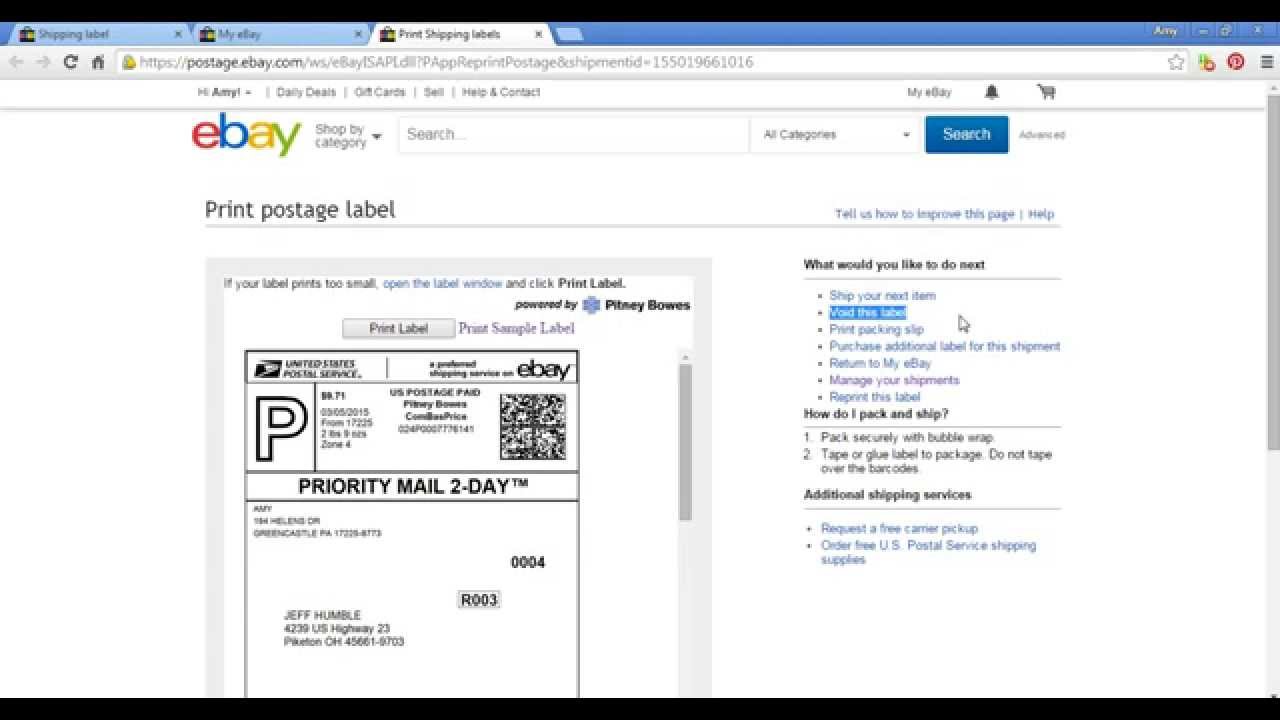
Once you're in the listing details, scroll down to the Shipping section. Here, you should see an option to View shipping label or Reprint shipping label. Tap on this option to access the label.
If you don't see the option to reprint the label, don't worry! You can also find it in the My eBay section of the app, under Sold items. Just find the item you need to reprint the label for and tap on More actions, then select Reprint shipping label.

Tips and Tricks
One thing to keep in mind when reprinting a shipping label is that you can only reprint labels for sold items. If the item hasn't sold yet, you won't be able to access the label. Also, make sure you have the latest version of the eBay app installed on your device to avoid any technical issues.
If you're having trouble finding the option to reprint the label, try logging out of the app and logging back in. Sometimes, this can refresh the app and help you access the feature you need. And if all else fails, you can always contact eBay customer support for assistance.

Step 3: Reprint the Label
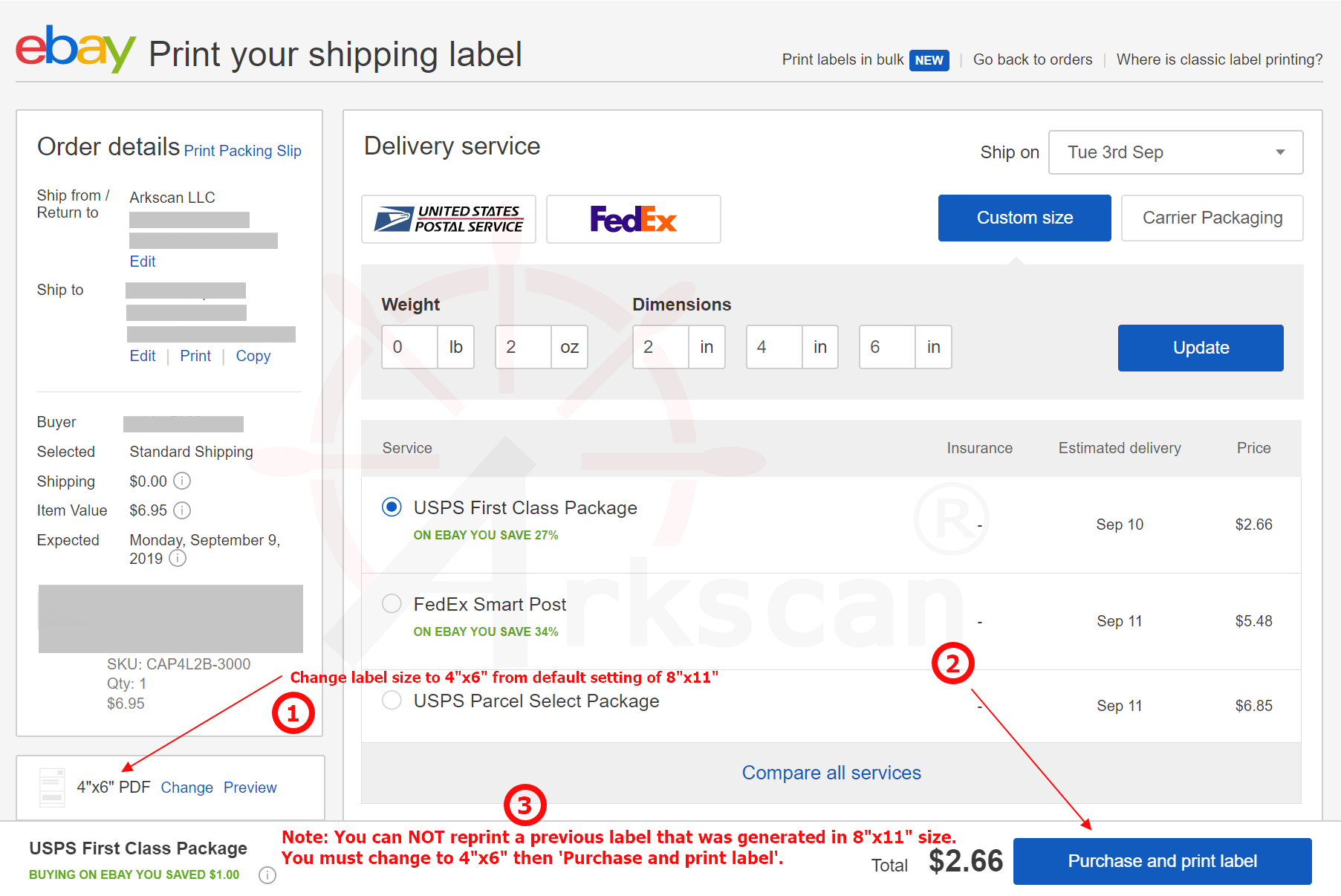
Once you've accessed the shipping label, you can go ahead and reprint it. Make sure you have a working printer connected to your device, and that you have enough ink and paper to print the label. Then, simply tap the Reprint label button and follow the on-screen instructions to print the label.
And that's it! Reprinting a shipping label on the eBay app is a breeze. Just remember to double-check the label for any errors or issues before you ship the package to the buyer.
In conclusion, I hope this little tutorial has been helpful in guiding you through the process of reprinting a shipping label on the eBay app. Remember, it's always better to be safe than sorry, so take your time and make sure everything is in order before you ship that package.