How To Remove Background In Coreldraw
Okay, let’s be real. You’ve got a stunning photo, but the background is a total eyesore. Maybe it’s your messy living room or a random stranger photobombing you. We’ve all been there, right?
Good news: CorelDRAW has your back. And no, you don’t need to be a pixel-perfect wizard to pull this off. Grab your coffee, and let’s chat about ditching that background like yesterday’s news.
Why CorelDRAW Isn’t Just for Vector Geeks
Most people think CorelDRAW is only for logos and fancy shapes. False! It’s a total beast at cleaning up photos, too. You don’t need Photoshop’s monthly subscription drama.
Must Read
In fact, CorelDRAW’s background removal tools are stupidly simple. I’m talking “click a few times and magically done” simple. Let’s dive into the two best ways to do it—no headaches included.
Method 1: The “PowerTRACE” Trick (For Simple Backgrounds)
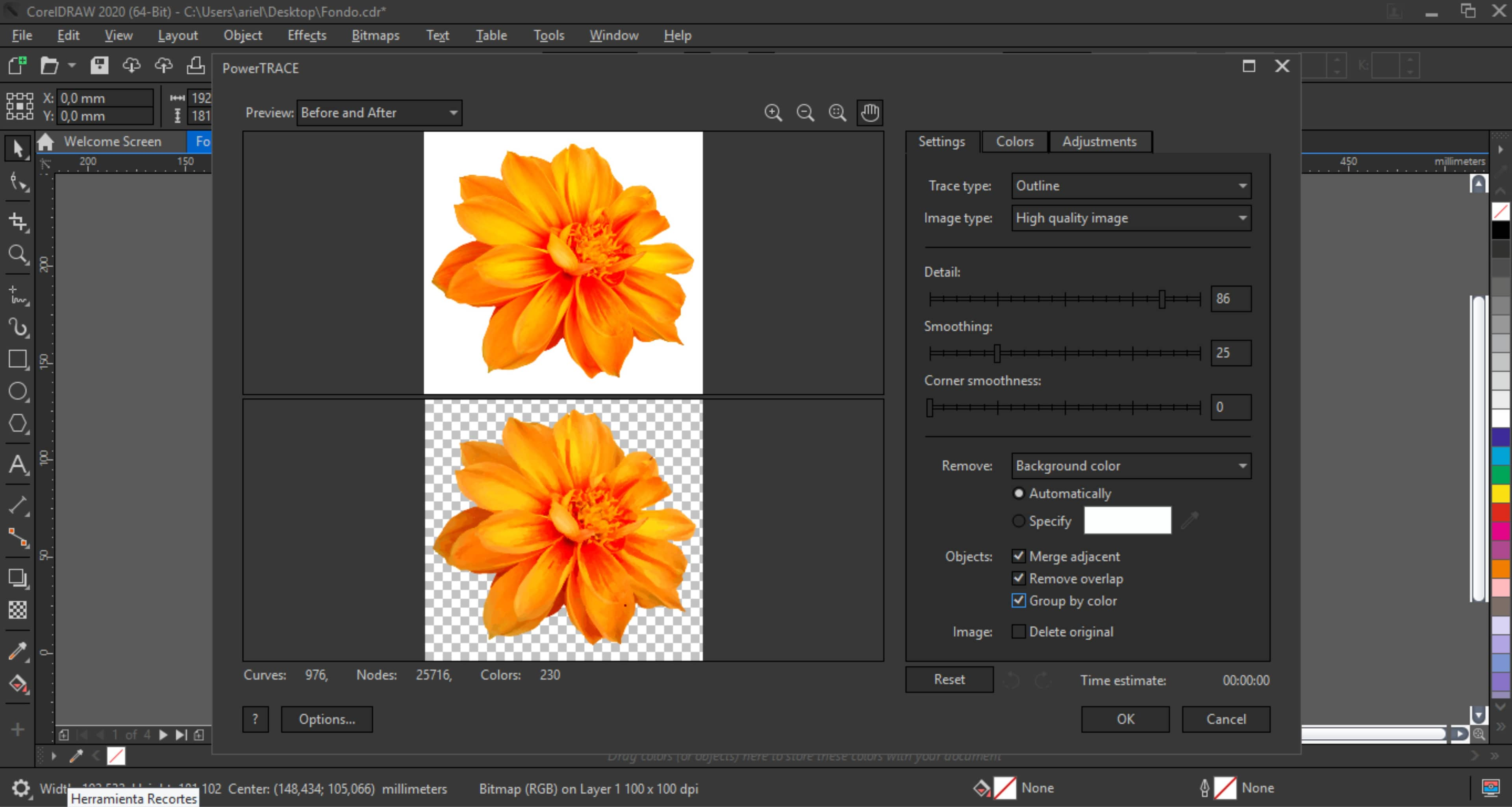
This one is perfect if your background is a solid color, like a white studio wall. It feels like cheating, but it’s totally legal. First, open your image and select it with the Pick Tool.
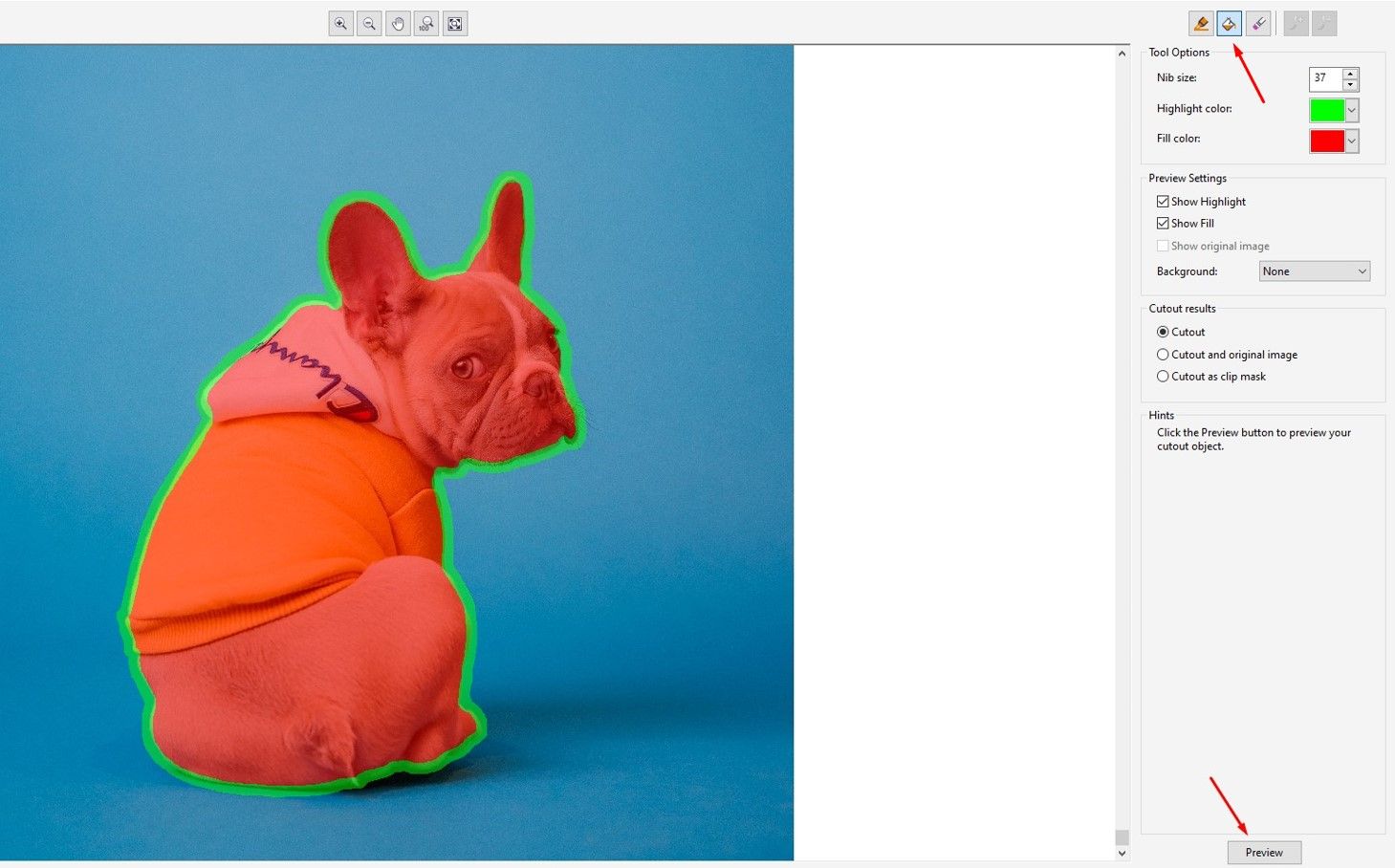
Now, go to Bitmap > Outline Trace > Cutout Lab. Wait, don’t run away—this is easier than it sounds. A new window pops up, and you’ll see a little highlighter tool. Scribble over the background you want gone.

Here’s the trick: use the green highlighter for the background and the red eraser for the parts you want to keep. It’s like coloring, but for grown-ups. Hit “OK,” and CorelDRAW instantly creates a vector shape from your cutout.
Method 2: The “Quick Mask” Hack (For Wavy Hair & Furry Friends)
You know what’s a nightmare? Removing a background behind fluffy hair. If you try the first method, you’ll get jagged, ugly edges. Let’s fix that with the Quick Mask mode.
Click on your image, then go to Bitmap > Edit Bitmap. That launches Corel PHOTO-PAINT, which is like CorelDRAW’s secret sidekick. Now, press the Q key to toggle Quick Mask.

Grab the brush tool and paint over your main subject. You’re painting a protective shield! Then press Q again, and you’ll see a marching ants selection around your subject. Hit delete, and the background vanishes into thin air.
For those stubborn flyaway hairs, just zoom in. Use a small brush and slowly paint over the edges. It’s tedious, but hey, perfection takes time—and maybe another sip of coffee.
Refining Those Edges So It Looks Professional
So you’ve removed the background, but it looks like a toddler did it. No worries. In CorelDRAW, with your cutout selected, go to Effects > Contour or just feather the edges manually.
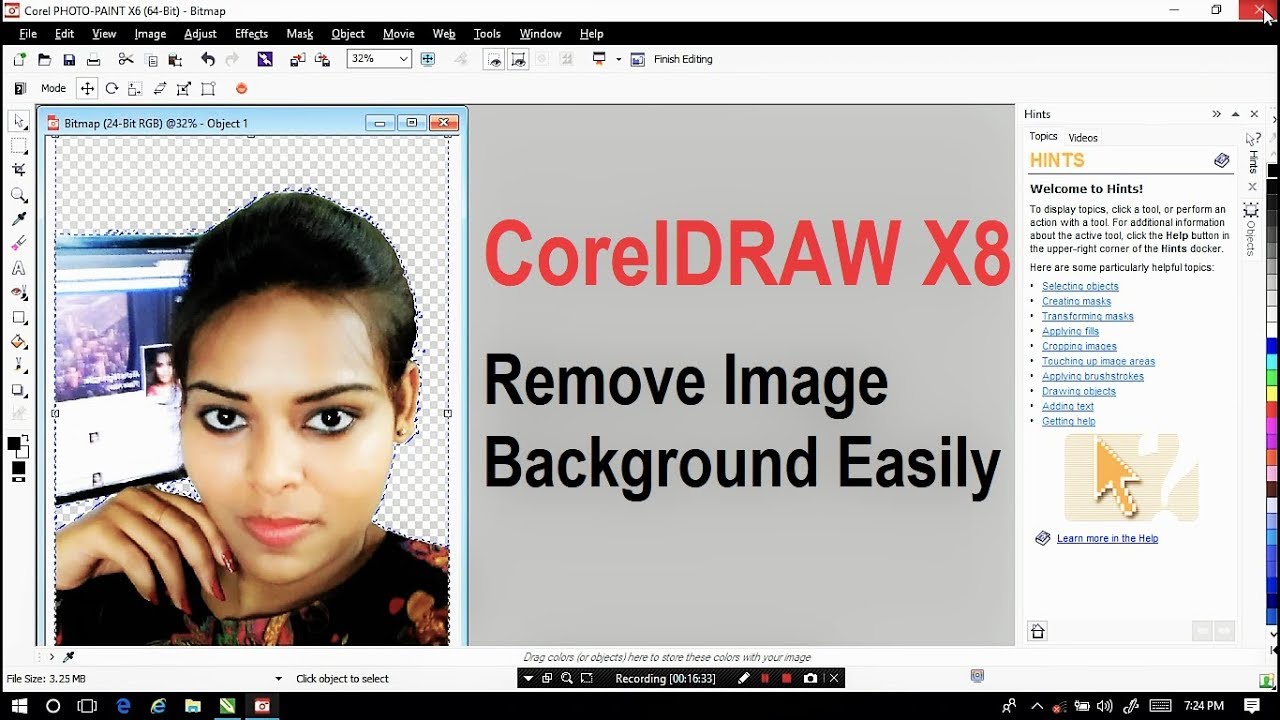
I love using the “Remove Halo” feature. It’s under Bitmap > Cutout Lab, or in PHOTO-PAINT under Image > Trim. This kills that ugly white or black fringe around your subject.
Don’t be shy with the “Soften” slider either. A little blur goes a long way. But don’t overdo it, or your subject will look like they live in a foggy dream.
My Favorite “Mistake” That’s Actually a Win
Sometimes, you get a messy cutout—like a jagged edge that’s just offensive. Instead of starting over, just convert the cutout to a PowerClip frame. Put your image inside an oval or a unique shape.
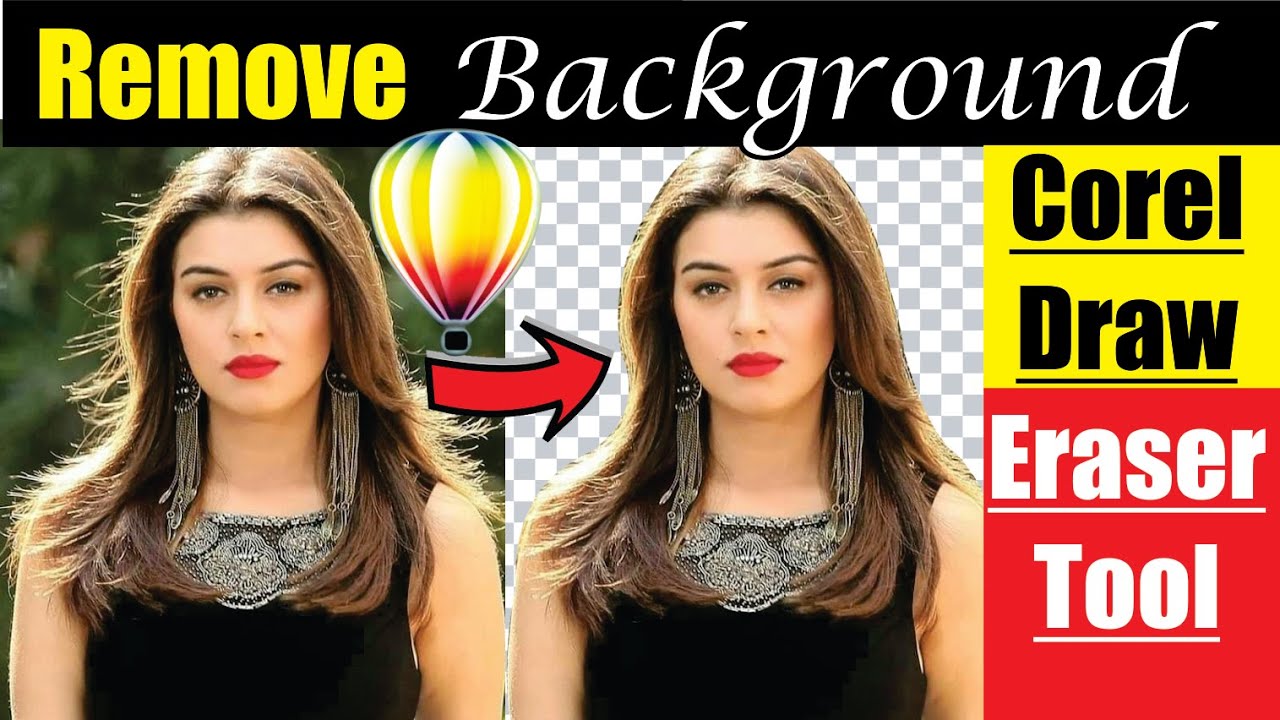
Suddenly, your “mistake” becomes a fancy artistic choice. Boom. You’re not just a designer now; you’re a magician. And no one has to know you didn’t mean it.
The Final Sip of Wisdom
Look, removing backgrounds in CorelDRAW is like riding a bike—except no falling, and you get a cool transparent PNG. Just remember to save your file as PNG if you want to keep the transparency. Do not save as JPG, or you’ll get a big white box again. Rookie move, my friend.
And seriously, don’t stress over perfection on your first try. Even I spend ten minutes fighting with a curly-haired dog. The secret is patience and Ctrl+Z (undo) is your bestie.
So go ahead, open that horrible photo and give it a try. You’ve got this. And if it doesn’t work? Just blame the software, shrug, and tell everyone it’s an “artistic interpretation.” That’s what I always do.